USB Root Hub problems make normal USB gear look dead. Your mouse, keyboard, flash drive, dock, or USB-C accessory stops responding, and Windows points you to a warning in Device Manager, a USB-C notification, or a port that no longer responds. Start with the quick connection checks, then move through Device Manager, power settings, updates, and recovery in that order.
1. Start With a Clean USB Reset
Unplug the USB device or hub, wait a few seconds, and plug it back in. That gives Windows a fresh connection without changing drivers or settings.
Move the device to a different USB port.
If it is connected through an external USB hub, plug it directly into the PC.
When the hub has its own power adapter, connect that adapter before testing again.
For USB-C gear, plug the PC into power.
Connect externally powered accessories to their own adapters.
Unplug USB devices you are not using.
Inspect the cable for damage.
2. Read the USB-C Notification
Windows 11 gives USB-C connection notices that point to the right fix.
Select Search, type usb, open USB settings, and turn Connection notifications on.
Reconnect the USB-C device.
If Windows shows Use different USB port, move the accessory to another port.
If it shows USB device might need more power, plug the PC into power, connect the accessory to its own power adapter, and disconnect USB devices you are not using.
3. Check Device Manager for the Exact Error
- 1.Right-click Start and choose Device Manager.
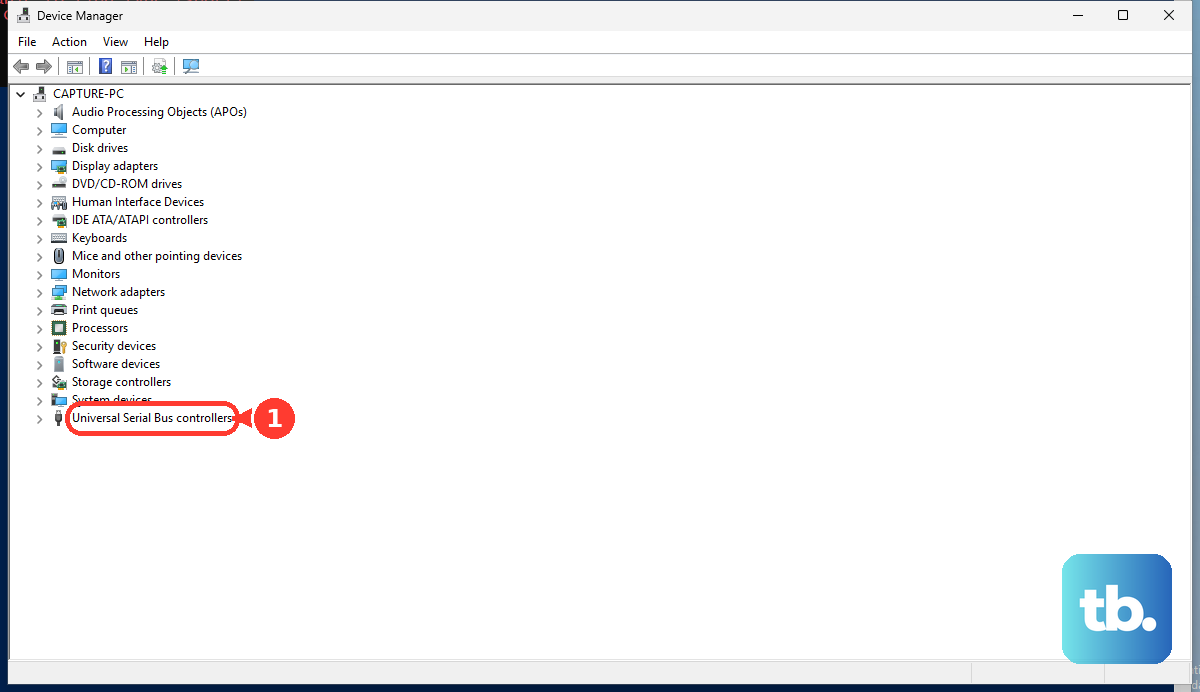
- 2.Expand Universal Serial Bus controllers.
- 3.Right-click the problem entry, such as USB Root Hub, Generic USB Hub, or USB xHCI Compliant Host Controller, and choose Properties.
- 4.Read the message under Device status.
A yellow warning icon or Device Manager error code gives you the target.
When Device status shows Code 22 and says the device is disabled, select the disabled USB entry, choose Action, select Enable Device, and finish the wizard.
4. Refresh the USB Hub Driver
When the hub or controller driver is broken, several ports fail together.
Start with the standard driver update path.
Right-click Start and open Device Manager.
Expand Universal Serial Bus controllers.
Right-click the USB hub or controller and select Update driver.
Choose Search automatically for updated driver software.
Select Search for updated drivers on Windows update when Windows offers it.
If the driver update does not fix it, save your work and close open apps.
In Device Manager, right-click the affected USB Root Hub, Generic USB Hub, or controller, choose Uninstall device, and select Uninstall.
Then restart from Start, Power, Restart.
After the reboot, open Device Manager and use Action, Scan for hardware changes when the USB entry has not returned.
5. Stop Windows From Powering Down USB
Power management is the fix when USB devices disconnect, disappear, or fail after idle time.
Change the hub setting first.
Right-click Start and open Device Manager.
Expand Universal Serial Bus controllers.
Right-click USB Root Hub or Generic USB Hub and choose Properties.
Open the Power Management tab.
Clear Allow the computer to turn off this device to save power.
Select OK and repeat for the other root hubs listed there.
Next, use the power plan setting.
Select Search, type edit power plan, open Edit power plan, choose Change advanced power settings, expand USB settings, expand USB selective suspend setting, set Plugged in to Disabled, then select Apply and OK.
On a laptop, set On battery to Disabled when that option appears.
When the Power Management tab or USB selective suspend setting is missing, your driver, OEM power plan, or modern standby design controls that option.
6. Install Windows and PC Maker Updates
Use Windows Update before manual driver packages.
Go to Start, Settings, Windows Update, and select Check for updates.
Then check optional drivers: Windows Update, Advanced options, Optional updates, Driver updates, select the relevant USB, chipset, dock, or firmware update, and choose Download & install.
If driver or chipset updates fail to install, run the Windows Update troubleshooter from Start, Settings, System, Troubleshoot, Other troubleshooters, then choose Run next to Windows Update.
Restart when it finishes and select Check for updates again.
Surface Open Surface, expand Help & support, check update status, and select Check for updates.
For Surface Thunderbolt 4 Dock and Surface Dock 2, update the connected dock in the Surface app.
For the original Surface Dock, install the Surface Dock Firmware Update MSI from Surface Tools for IT instead, using Microsoft's official Surface Dock update page.
Dell Open SupportAssist, choose the Home tab, select Update software, then Start.
Dell Drivers & Downloads is the official web route for a Service Tag, Product ID, or model.
Lenovo Open Lenovo Vantage, select System Update, then Check for Updates.
Lenovo Support is the official fallback for model-specific drivers.
HP Open HP Support Assistant, go to My Dashboard, choose your computer, then select Updates or Check for updates.
HP's official drivers page is the manual route.
For manual downloads, use official sources only: Windows Update Catalog for exact update, hardware ID, or driver searches; Microsoft Download Center for Microsoft hardware drivers; and the PC maker's driver page for model-specific firmware.
Skip third-party driver portals.
7. Undo the Change That Broke USB
Use this section when USB broke right after a driver, app, or Windows update.
The fastest fix is to reverse the exact change.
Roll back a USB driver from Device Manager, expand Universal Serial Bus controllers, right-click the USB device, choose Properties, open the Driver tab, select Roll Back Driver when it is available, choose a reason, select Yes, and restart when Windows asks.
Remove USB utility software from Start, Settings, Apps, Installed apps, then More, Uninstall.
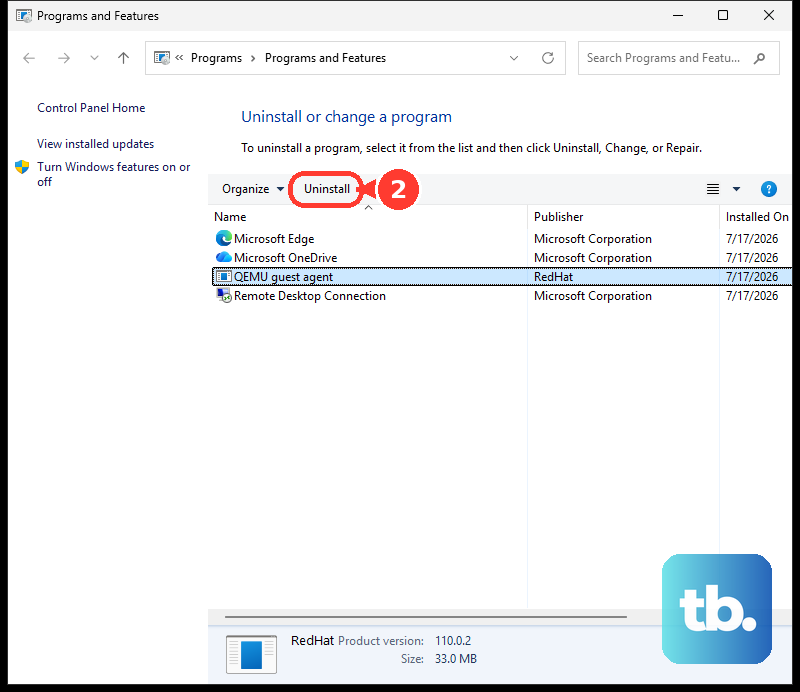
If the program is not listed there, open Control Panel, Programs, Programs and Features, then choose Uninstall or Uninstall/Change.
Uninstall a recent Windows update only when USB failed immediately after that update.
Go to Start, Settings, Windows Update, Update history, Uninstall updates, select the update, and choose Uninstall.
Windows does not allow every update to be removed.
8. Repair Windows System Files
When Device Manager repairs, power settings, and updates do not clear the USB Root Hub problem, isolate third-party startup software before repairing Windows files.
Run a clean boot by signing in as an administrator, selecting Search, typing msconfig, and opening System Configuration.
On the Services tab, select Hide all Microsoft services, choose Disable all, then Apply.
Open the Startup tab, choose Open Task Manager, select each enabled item on Startup apps, choose Disable, close Task Manager, select OK, and restart.
After testing USB, reopen System Configuration and restore normal startup using Microsoft's clean boot reset steps.
Repair Windows files after installing the latest Windows updates and restarting.
Open Command Prompt or Windows Terminal as administrator, run DISM.exe /Online /Cleanup-image /Restorehealth, then run sfc /scannow.
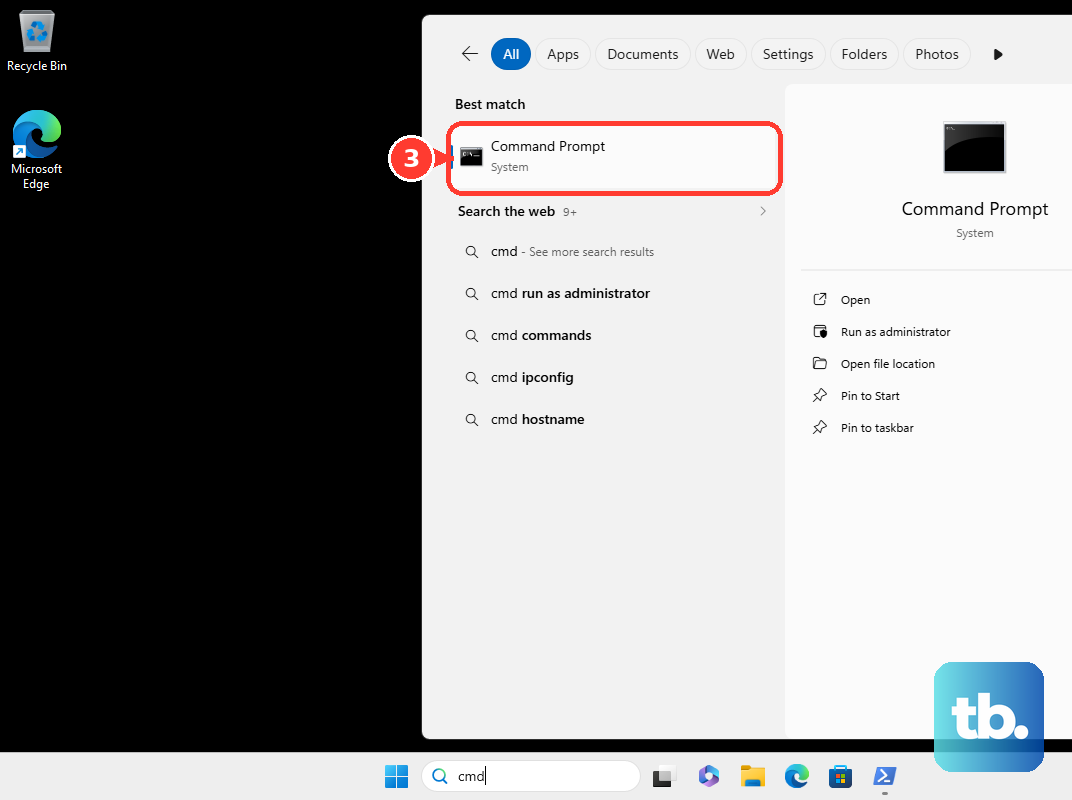
Follow the result message and restart when repairs are made.
9. Use Recovery or IT Policy Paths
If USB keyboard or mouse input blocks normal troubleshooting, open Windows Recovery Environment from Start, Settings, System, Recovery, then choose Restart now next to Advanced startup.
Another supported route is to hold Shift while selecting Power, Restart.
If Windows cannot be controlled, turn the PC on, wait for the Windows or manufacturer logo, press and hold the power button until shutdown, repeat that interruption twice, then choose Advanced options on the third start.
For the exact message A driver can't load on this device, install a compatible driver through Windows Update or the device maker first.
If the driver remains blocked and you accept the security tradeoff, go to Start, Settings, Privacy & security, Windows Security, Device Security, Core isolation details, turn Memory Integrity off, and restart.
On a work or school PC, USB installation rules are controlled by IT.
Ask the admin to check Device Installation Restrictions in Group Policy or the Intune Settings catalog for blocked device IDs, setup classes, or removable-device policies.
Skip msdt.exe -id DeviceDiagnostic.
Microsoft is retiring and redirecting MSDT and legacy inbox troubleshooters, so current Windows 11 USB Root Hub troubleshooting belongs in Settings, Device Manager, Windows Update, Windows Security, recovery tools, and official vendor apps.
Frequently Asked Questions
What does Code 22 mean for USB Root Hub?
Code 22 means Windows has the USB hub or controller disabled. In Device Manager, select the disabled USB entry, choose Action, then Enable Device.
Should I download a USB Root Hub driver from a driver website?
No. Use Windows Update, Optional updates, your PC maker's official support tool, Microsoft Download Center, or Windows Update Catalog for exact packages.
Why do several USB devices fail at the same time?
Several devices fail together when they share the same USB Root Hub, Generic USB Hub, or USB controller path. Fix the shared driver, power setting, or controller warning first.
Why is Memory Integrity blocking my USB device driver?
Windows blocks incompatible drivers when Memory Integrity is on. Install an updated compatible driver first, and turn Memory Integrity off only when you accept the security tradeoff.











