

To restore Apple CarPlay voice directions, turn on full spoken guidance in your navigation app and raise its guidance volume. In Apple Maps on CarPlay, tap Volume during navigation and select All Guidance or Speaker. For Google Maps or Waze, start with the app’s sound controls before checking the CarPlay connection.
The short version
- Apple Maps: Select All Guidance or Speaker to hear turns instead of alerts alone.
- Google Maps: Select Sound, then adjust the car’s volume while a direction is speaking.
- Waze: Choose Sound on on the CarPlay display.
- Persistent silence: Reopen an unresponsive app, check the CarPlay connection, and install available updates.
| What you notice | First fix |
|---|---|
| Apple Maps is silent on CarPlay | Select All Guidance or Speaker |
| Apple Maps is muted on the iPhone | Select Audio Control > Unmuted |
| Apple Maps speaks too quietly | Choose Louder |
| Podcasts or audiobooks mask Apple Maps instructions | Enable Directions Pause Spoken Audio |
| You want Apple Maps directions over the radio | Enable Directions on Radio in a supported car |
| Google Maps gives alerts without turns | Select Sound |
| Google Maps guidance volume is low | Choose Louder in the app |
| Google Maps remains quiet through CarPlay | Raise the vehicle volume during a spoken direction |
| Google Maps plays chimes instead of speech | Leave it open with internet access to download voice files |
| Waze is muted on CarPlay | Select Sound on |
| Waze needs its phone sound setting changed | Disconnect CarPlay and select On beside Sounds |
| Waze guidance is too quiet | Disconnect CarPlay and raise Guidance volume |
| Waze loses guidance during calls | Check Mute Waze during calls |
| Waze voices remain missing | Clear the voice cache and select a voice again |
| Apple Maps shows a route preview | Choose My Location, then tap Go |
| An Apple Maps route is stuck | Select End Route and start it again |
| Apple Maps cannot locate you | Restore access through Location Services |
| Maps reports that precise location is disabled | Follow the message to enable Precise Location |
| Apple Maps routing or location fails | Check internet access and automatic date and time |
| The navigation app is unresponsive | Close and reopen it |
| CarPlay problems continue after app checks | Restart the iPhone and vehicle |
| Wired CarPlay disconnects | Try another cable, compatible port, or direct USB connection |
| Wireless CarPlay disconnects | Enable Bluetooth, Wi-Fi, and Auto-Join |
| CarPlay does not launch automatically | Select the CarPlay logo |
| CarPlay pairing needs to be recreated | Use Forget This Car, then set up CarPlay again |
| Restrictions prevent CarPlay from appearing | Enable CarPlay under Allowed Apps |
| Siri is disabled and CarPlay cannot operate | Enable Siri through its settings |
| A navigation app has an available update | Install it through App Updates |
| The iPhone has an available update | Back up, then open Software Update |
| The CarPlay stereo needs updated firmware | Follow the manufacturer’s manual or support instructions |
| One app still fails after troubleshooting | Reinstall it after considering local data loss |
| Management prevents app deletion | Contact the device administrator |
| A third-party app still fails after recovery | Contact its developer through the App Store support information |
Restore spoken directions in Apple Maps
During an active route, open Maps on the CarPlay display and tap Volume. Select All Guidance, also identified by Apple as Speaker, for spoken turns. The Alerts Only and No Guidance choices do not provide full spoken guidance.
You can also restore speech from the connected iPhone. Open Maps, start directions with Go, tap Audio Control, and select Unmuted. If directions are audible but too quiet, tap Audio Control and choose Louder.
For the same volume adjustment in Settings, open Settings > Apps > Maps > Spoken Directions, then choose Louder under Voice Volume. When podcasts or audiobooks mask instructions, turn on Directions Pause Spoken Audio on that screen.
For directions over the vehicle’s radio in supported cars, turn on Directions on Radio under Spoken Directions. This setting applies only to supported cars. If full guidance remains silent, check that you have started live navigation, then work through the app and connection fixes below.
Turn on Google Maps guidance and adjust its volume
On your iPhone, open Google Maps and start navigation. Tap the sound control and select Sound. Choosing Alerts omits spoken turns, while Mute silences guidance.
Tap your profile picture or initial and open Settings > Navigation > Guidance volume. Select Louder, then adjust the vehicle’s volume controls while Google Maps is speaking a direction through CarPlay. Google specifies making the car volume adjustment during spoken guidance.
If you hear chimes instead of spoken directions, connect the iPhone to the internet and obtain directions. Leave Google Maps open while using it so the voice files can download automatically. If speech remains missing afterward, continue with the app and connection checks.
Unmute Waze and restore missing voices
During navigation in Waze on CarPlay, tap the sound icon and select Sound on. If the instructions remain too quiet, adjust Waze’s guidance volume on the iPhone.
Disconnect CarPlay, open Waze’s menu, and go to Settings > Voice and sound. Beside Sounds, select On, then raise Guidance volume. Reconnect CarPlay after making those changes; Waze says these settings carry over to CarPlay.
When directions disappear specifically during phone calls, open Waze’s menu and return to Settings > Voice and sound. Check Mute Waze during calls and turn it off if you want guidance during calls.
The following step clears Waze’s voice cache. If sounds or voices remain missing, open Waze on your iPhone and enter this code in its search bar.
##@ccttsTap return to run the code. Open Waze’s menu, select Settings > Voice and sound > Current voice, and select a voice. If guidance remains silent, continue with app recovery and connection checks.
Start a live Apple Maps route and restore location access
On the iPhone, choose My Location as the route’s starting point, then tap Go. A route starting somewhere else displays Steps and does not speak directions.
To start directly from CarPlay, open Maps > Search, choose a destination and route, then select Go. If an existing route is stuck, select the ETA display and choose End Route. Start the route again and check for spoken guidance.
When missing speech accompanies a missing or incorrect position, open Settings > Privacy & Security > Location Services on the iPhone. Enable Location Services, open Maps, and select While Using the App or Widgets. If Maps alerts you that Precise Location is off, follow the onscreen instructions to turn it on, or turn on Precise Location on that same Maps screen in Location Services.
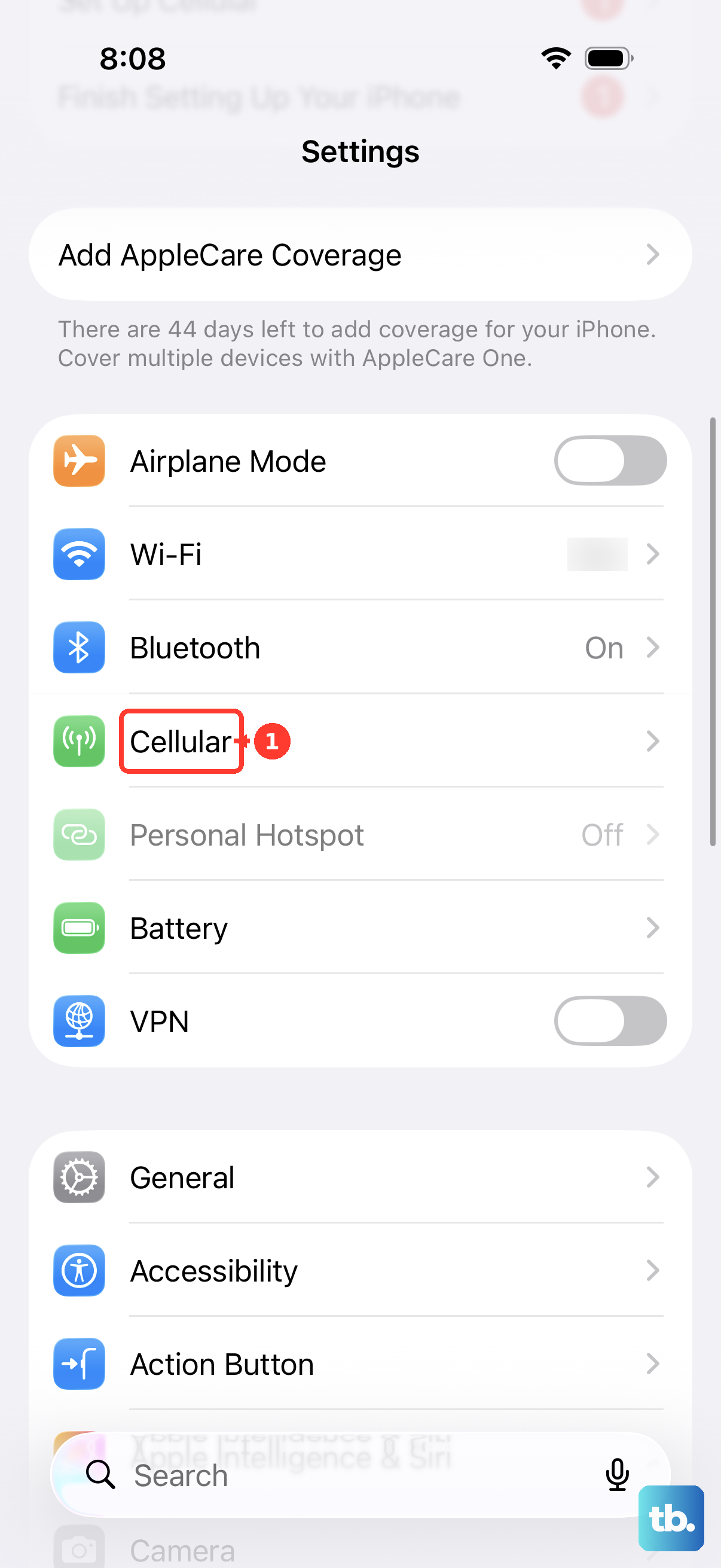
For online routing failures, open Settings > Cellular or Wi-Fi and activate a working connection. For location problems, also open Settings > General > Date & Time and turn on Set Automatically when available. These steps address routing and location failures; if your route tracks correctly, continue with the app and audio checks.
Reopen a frozen app and restart your devices
If the navigation app is unresponsive, close and reopen it. On an iPhone with Face ID, swipe up from the bottom and pause; on a Home-button model, double-click Home. Find the navigation app, swipe its preview upward, then reopen it.
Restart the iPhone and the car if the problem continues. On a Face ID iPhone, hold either Volume button and the Side button until the power-off slider appears. Drag the slider, wait 30 seconds, then hold the Side button until the Apple logo appears.
On an iPhone SE with a side button, hold the Side button alone to display the power-off slider, then follow the same shutdown and startup sequence. Restart the vehicle using its model-specific procedure, reconnect CarPlay, and start navigation again.
Repair the CarPlay connection
For wired CarPlay, reconnect using another USB cable and another compatible USB port. If an adapter is part of the connection, try a direct USB connection. Apple identifies some USB-C-to-Lightning adapter combinations as a possible source of connection trouble.
For wireless CarPlay, open Settings > Bluetooth and turn on Bluetooth. Then open Settings > Wi-Fi and turn on Wi-Fi. Open the CarPlay network’s settings and enable Auto-Join.
If CarPlay does not launch automatically, select the CarPlay logo on the vehicle display. Start a route again once the interface opens. These checks apply when CarPlay disconnects or fails to launch.
Forgetting the car removes its existing CarPlay pairing. Open Settings > General > CarPlay, select your car, and tap Forget This Car. Set up CarPlay again through the vehicle’s USB connection or its wireless pairing procedure.
Enable CarPlay when restrictions or Siri block it
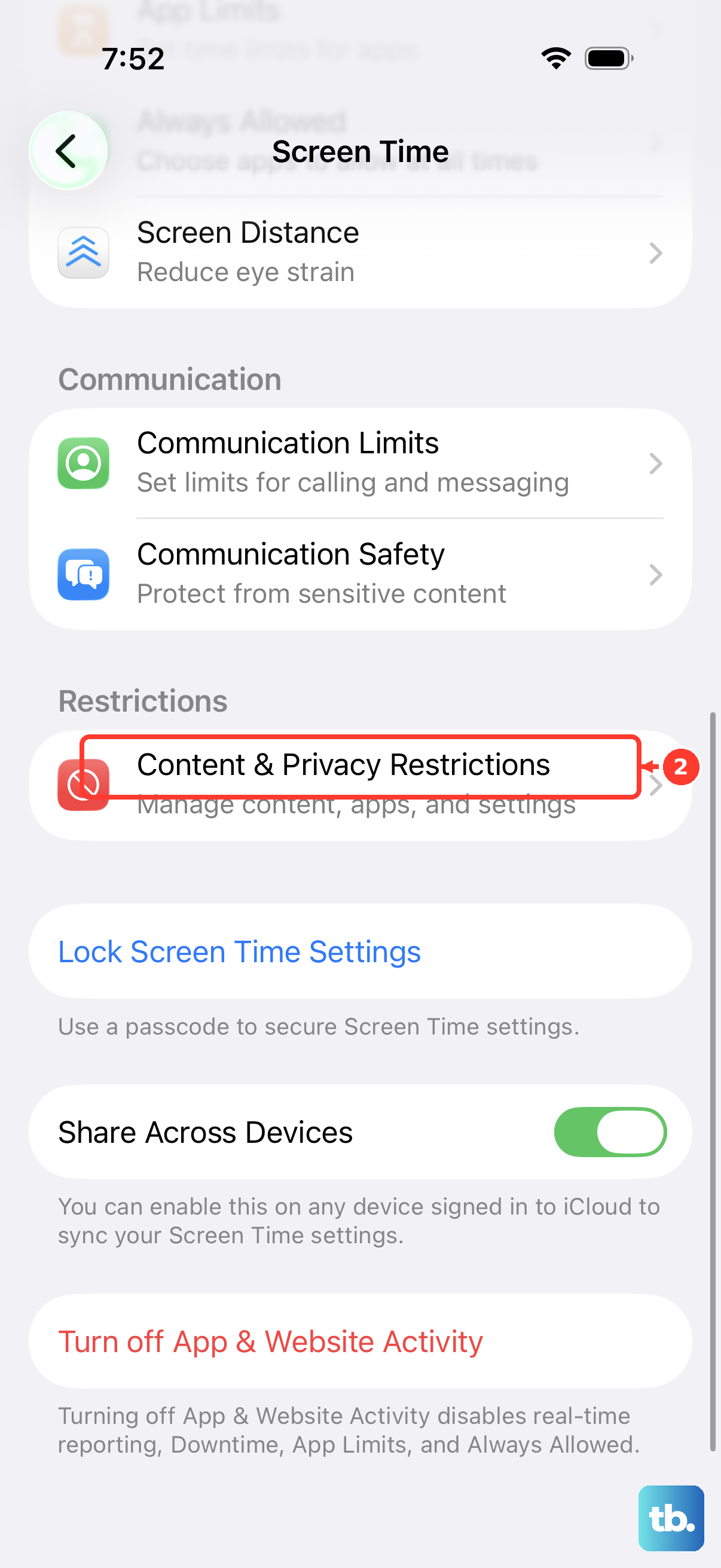
If restrictions make CarPlay unavailable or prevent detection, open Settings > Screen Time > Content & Privacy Restrictions > Allowed Apps and enable CarPlay. This checks access to CarPlay itself, so use the app’s sound settings first when CarPlay already opens and displays your route.
Apple also requires Siri to be enabled for CarPlay. Open Settings > Siri > Requests to configure voice activation. Depending on your software, the control may be named Talk & Type to Siri, Talk to Siri, or Listen for Siri, and the settings section may be Apple Intelligence & Siri.
Update the phone app and vehicle software
Install an available update for the affected navigation app. Open the App Store, tap your profile icon, select App Updates, and install the update for Google Maps or Waze.
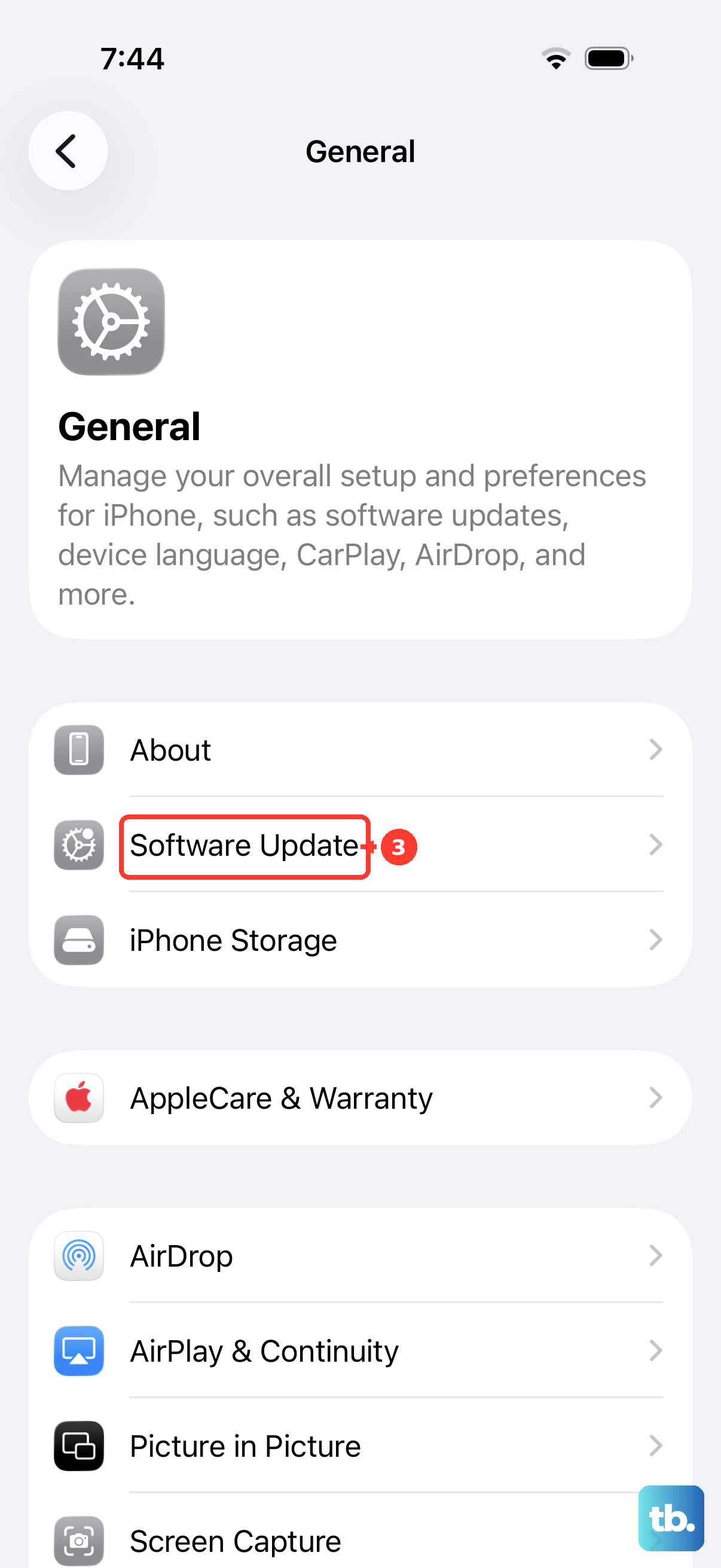
For an iOS update, back up the iPhone and connect it to power and Wi-Fi. Open Settings > General > Software Update, then tap Download and Install if an update is offered. Install the latest update offered for your iPhone model.
Use the vehicle manufacturer’s manual or support service to obtain the latest firmware for the CarPlay stereo. The update procedure depends on the vehicle or aftermarket unit. If one navigation app still fails after updates, move to app recovery.
Reinstall an app that still will not speak
Deleting the navigation app may remove its local app data. If the affected app still fails after the earlier checks, touch and hold it, select Remove App > Delete App, then tap Delete. Reinstallation is a general app troubleshooting step, not a guaranteed CarPlay audio repair.
If your organization manages the iPhone and prevents app deletion, contact its device administrator to permit the reinstall. Otherwise, restore the app from its official listing for Apple Maps, Google Maps, or Waze.
Start navigation and enable full spoken guidance again. If one third-party navigation app still fails, contact its developer through the support information in its App Store listing.
Frequently Asked Questions
How do you raise Siri’s volume in CarPlay?
While Siri speaks, or while holding the button that activates Siri, raise the volume using the car’s steering-wheel or display controls. This adjusts Siri’s CarPlay volume; it is not a guaranteed volume adjustment for every navigation app.
Can you change the voice Apple Maps uses?
Open Settings > Siri and select Voice or Language to choose an available option. Some supported software versions name the section Apple Intelligence & Siri. Apple Maps uses those Siri settings, although choosing another voice is not a guaranteed repair for silent guidance.
Can Google Maps play directions through the iPhone speaker instead?
Yes, as a fallback outside CarPlay. Leave CarPlay, turn off iPhone Bluetooth, then open Google Maps, tap your profile picture or initial, and select Settings > Navigation > Guidance volume. Turn off Play voice over Bluetooth, start navigation, and raise the iPhone’s media volume. This fallback does not preserve wireless CarPlay.
Can you operate CarPlay Maps controls with your voice?
On CarPlay with Voice Control in a supported language, open Settings > Accessibility and turn on Voice Control. Say Open Maps, then use the Tap [item] command with the displayed button name, such as All Guidance or Speaker. Voice Control operates the controls rather than repairing audio output.
Can Google Maps use ordinary Bluetooth audio instead of CarPlay?
Yes, you can use conventional Bluetooth audio outside CarPlay. Pair the iPhone with the car and select Bluetooth as the stereo source. In Google Maps, tap your profile picture or initial, open Settings > Navigation, turn on Play voice over Bluetooth, then start navigation.
Can Waze send directions through Bluetooth call audio?
With a compatible Bluetooth audio device, Waze offers call-style audio as a fallback outside CarPlay. Disconnect CarPlay, pair the phone with the Bluetooth device, then open Waze’s menu and select Settings > Voice and sound > Play sound via > Play as Bluetooth phone call. Treat this as a Bluetooth fallback rather than a universal CarPlay audio repair.
How can you ask Siri to start directions in CarPlay?
Press and hold the steering-wheel voice-command button, or touch and hold the CarPlay Home or Dashboard button, then request directions. In compatible vehicles, you can say Hey Siri and then request directions.
What iOS versions do Google Maps and Waze require?
Google Maps requires iOS 16.0 or later, while Waze requires iOS 18.0 or later in their App Store listings. You also need a compatible vehicle to use either app through CarPlay.