Word shows “this image cannot currently be displayed” when it cannot render the picture in the current view, cannot reach a linked source, has a field result stuck, or has display objects hidden. Start with the quick view and display checks, then move through links, blocked content, add-ins, updates, and repair.
If Word for the web shows a placeholder
This fixes web-only placeholders for linked pictures, embedded files, OLE objects, fields, content controls, charts, SmartArt, WordArt, and other objects.
In Word for the web, select Open in Desktop.
Review the spot where the picture failed to appear after the desktop app opens.
When the viewing or printing screen shows Open in Word, select Open in Word.
Check the picture again in the desktop app.
Turn drawings and text boxes back on
Use this when floating pictures, drawings, text boxes, shapes, or similar objects are hidden in Word for Windows.
- 1.Open Word desktop and select File.
- 2.Select Options, then select Advanced.
- 3.Scroll to Show document content.
- 4.Select Show drawings and text boxes on screen.
- 5.Select OK.
Switch field codes back to pictures
Press Alt+F9 in Word for Windows to switch all field codes back to their results.
On Mac, press Option+F9 to switch field codes back to their results.
Right-click one stubborn field code and select Toggle Field Codes.
Select the whole document with Ctrl+A.
Press F9 to update the selected fields.
Select each table separately and press F9 when the document has tables with fields or formulas.
For printed documents, go to File > Options > Display > Printing options and select Update fields before printing.
Fields such as IncludePicture need result view and a field update before the actual image appears.
Replace or repair a broken linked picture
A broken source is likely when the original image file or link was moved, deleted, blocked, or unreliable. A fresh embedded copy keeps the picture inside the document instead of depending on a separate file path.
In Word for Windows, place the cursor where the image belongs and select Insert > Pictures > This Device.
Pick the picture file and select Insert.
In Word for the web, choose Insert > Picture > This device.
Choose the picture and click Open.
Use Insert instead of Link to File unless you want the document to depend on the external image path.
To repair a link instead, go to File > Info > Related Documents > Edit Links to Files when Word shows that command.
Select the broken link and choose Change Source.
Browse to the file, select Open, then choose Update now.
Choose Break Link when you no longer want the external dependency.
Allow trusted external images
This fixes linked web images and other external content that Office blocks for security.
Read the business bar or security warning that says images or external content have been disabled.
Confirm that you trust the file and its source before enabling anything.
Click Turn on images when Word offers that choice.
Select Enable Content when the warning uses that wording instead.
Leave the content blocked when you do not trust the document.
Restore online picture features
When Insert > Pictures > Stock Images, Online Pictures, or Search on Web fails in Microsoft 365 Apps, connected experiences may be off.
For a personal Microsoft account on Windows, open Word > File > Account > Account Privacy > Manage Settings > Connected experiences, then enable the relevant connected experiences.
On Mac, use Word > Preferences > Privacy. For a work or school account, ask an admin to allow connected experiences that download online content, including Insert online pictures, when your organization permits it.
Test add-ins with Safe Mode
Safe Mode helps when pictures fail only in a normal Word session or after add-ins and templates load.
- 1.Right-click Start, select Run, type winword /safe, and select OK.
- 2.Open the document in Safe Mode and check whether the images display.
- 3.Go to File > Options > Add-Ins > Manage > Disabled Items > Go to review disabled items.
- 4.If images work in Safe Mode, remove the suspect add-in from File > Get Add-ins or Home > Add-ins > More Add-ins > My Add-ins, then right-click it and select Remove.
- 5.Exit Word and reopen it normally.
Update Word and the graphics driver
This fixes image display failures tied to outdated Office builds or graphics-driver rendering problems.
Open Word and create a new document.
Go to File > Account.
Under Product Information, select Update Options > Update Now.
If Update Now is missing, select Enable Updates first.
On Mac, select Help > Check for Updates.
In Microsoft AutoUpdate, select Update or Update All.
Restart the Office app after the Mac update finishes.
On a Windows PC with graphics-driver rendering problems, open Control Panel > Hardware and Sound > Device Manager > Display adapters > Intel adapter > Properties > Driver.
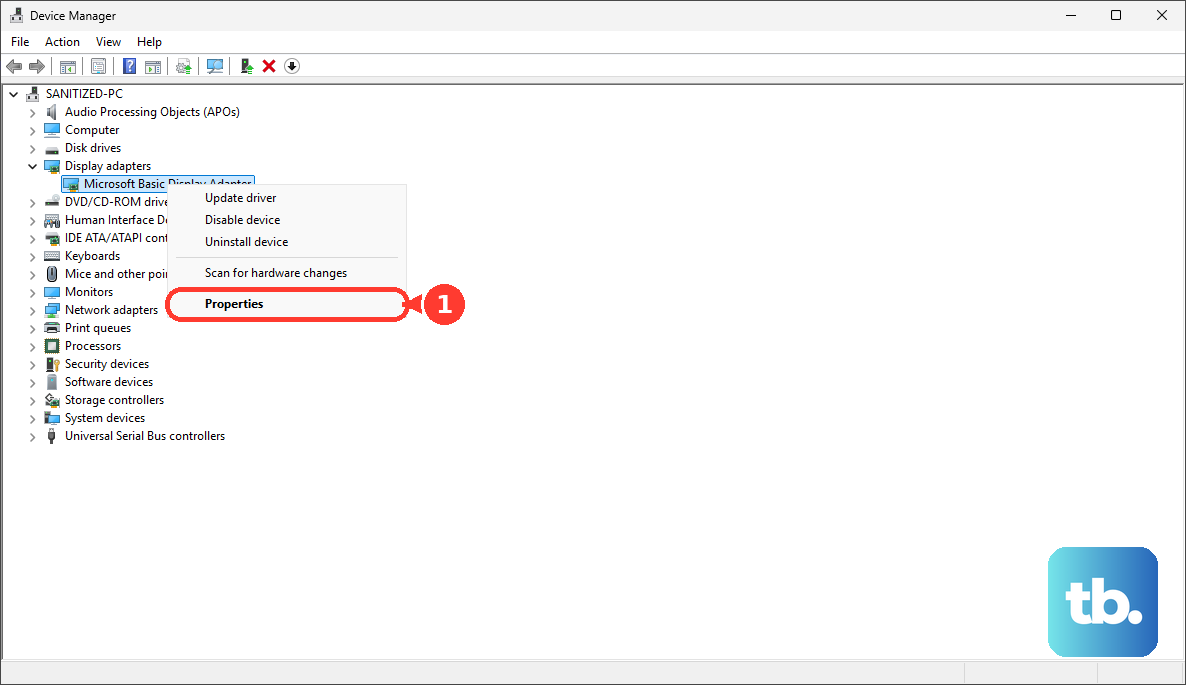
Choose Update Driver.
If you cannot update the driver or Office and Word still shows the setting, open File > Options > Advanced.
Select Disable hardware graphics acceleration.
Click OK.
Restart Word.
Repair Office as the final app fix
Repair belongs near the end, after the display, link, field, add-in, update, and graphics steps still leave Word unable to show images. On Windows 11, right-click Start, open Installed apps, select your Microsoft 365 or Office product, choose the ellipses, and select Modify.
For Click-to-run Office, choose Quick Repair first or Online Repair > Repair. For MSI-based Office, choose Repair > Continue. Repair affects the whole Office suite unless Word is installed standalone.
Do not use older instructions that send you to Show picture placeholders under File > Options > Advanced > Show document content in current Microsoft 365 Current Channel. Microsoft removed Show Picture Placeholders from Microsoft 365 Current Channel in Version 2402, Build 17328.20142.
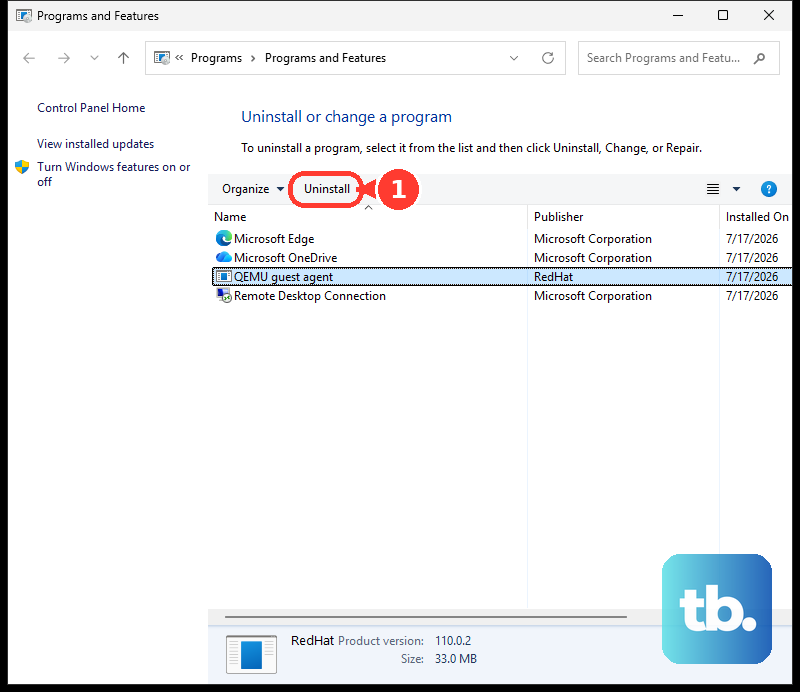
If repair fails, uninstall Microsoft 365 or Office from Control Panel > Programs > Programs and features, then reinstall it from Microsoft’s official Microsoft 365 install page or product download page.
Frequently Asked Questions
Why does Word say this image cannot currently be displayed?
Word usually shows that message when it is displaying a web-app placeholder, hiding drawing-layer objects, showing field codes, failing to refresh fields, losing a linked image source, blocking external content, loading a bad add-in, or hitting an Office or graphics-driver rendering problem.
Should I clear Show picture placeholders in Word?
No for current Microsoft 365 Current Channel. Microsoft removed Show Picture Placeholders from Advanced Options in Version 2402, Build 17328.20142, so use the current display, field, link, update, and repair steps.
Why do pictures show in desktop Word but not Word for the web?
Word for the web preserves linked pictures, embedded files, OLE objects, fields, content controls, charts, SmartArt, WordArt, and other objects, but it can show placeholders for them. Open the file in desktop Word to view those items.
Is it safe to click Enable Content in Word?
Only click Enable Content or Turn on images when you trust the document and its source. Office blocks external content because linked web images and media can load from outside the document.