

To fix the Xbox app stuck on launching, end its running process, reopen it, then install updates and repair the app if it still hangs. If those steps fail, run the standalone Gaming Services Repair Tool, which works without opening Xbox. Reopen Xbox after each fix to check whether you need to continue.
The short version
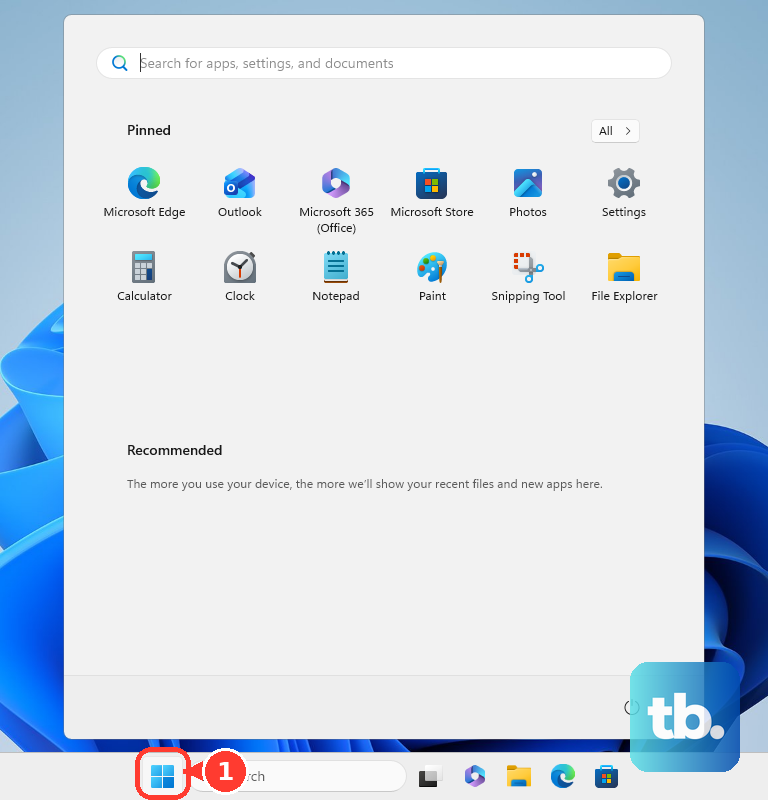
- Start small: Close Xbox completely and restart Windows before moving to repairs.
- Update together: Install available Windows, Xbox, Gaming Services, and Microsoft Store updates.
- Repair before resetting: Try Repair first because Reset clears local app data and settings.
- Use the standalone tool: Run the downloadable Gaming Services Repair Tool when Xbox cannot open.
| Fix | When to use it |
|---|---|
| Close and reopen Xbox | First attempt at a launch hang |
| End Xbox and associated launcher processes | Xbox stays running or stops responding |
| Restart Windows | Xbox still hangs after reopening |
| Check Xbox service status | Check for an online service outage |
| Update Windows | Before app repairs |
| Update Xbox, Gaming Services, and Microsoft Store | App updates are available |
| Repair Xbox | Updates do not resolve the hang |
| Reset Xbox | Repair fails |
| Run standalone Gaming Services repair | Xbox cannot open |
| Run Gaming Services repair inside Xbox | You can reach Support |
| Clear the Store cache | Store also fails to open or update |
| Correct date and time | Store trouble accompanies incorrect clock settings |
| Reinstall Xbox | App repairs have not worked |
| Check launcher extensions | Xbox opens enough to reach its settings |
| Install Media Feature Pack | The pack is missing on Windows N |
| Run DISM and SFC | Windows component corruption is suspected |
| Contact Microsoft support or submit feedback | The launch hang persists |
Close Xbox completely and restart Windows
Select Close (X) in the Xbox window, then reopen Xbox from Start. If the app remains running or does not respond, press Ctrl + Alt + Del and select Task Manager. Select Xbox, then select End Task.
Repeat this for any running game and associated EA, Riot, or Ubisoft launcher, then reopen Xbox. If the launching screen remains stuck, save your work and select Start > Power > Restart. Launch Xbox again after Windows restarts.
Check the Xbox status page in a browser for service alerts as well. If an affected service has an outage, retry after it recovers. This checks the online services Xbox uses; it does not repair the local app.
Update Windows and the Xbox components
On Windows 11, open Start > Settings > Windows Update and select Check for updates. Select Install now if offered, then restart. On Windows 10, open Start > Settings > Update & Security > Windows Update and select Check for Updates; available updates depend on your Windows servicing entitlement.
Next, open Microsoft Store > Downloads and select Check for updates. Some Store versions use Library > Get updates instead. Install available updates for Xbox, Gaming Services, and Microsoft Store itself, then try opening Xbox again.
Repair the Xbox app before resetting it
On Windows 11, open Start > Settings > Apps > Installed apps, find Xbox, and select More (…) > Advanced options. Select Repair, then reopen Xbox.
On Windows 10, open Start > Settings > Apps > Apps & features > Xbox > Advanced options, then select Repair. Reopen Xbox afterward. If Xbox does not expose Advanced options, move to the standalone Gaming Services repair below.
Resetting Xbox clears its local app data and settings, so be prepared to sign in again. If repair does not help, return to the same Advanced options page and select Reset, then select Reset again if prompted. Reopen Xbox afterward; if the reset control is missing or the hang continues, proceed to Gaming Services repair.
Run the Gaming Services Repair Tool
Open the official Gaming Services Repair Tool download page and expand Downloadable version. Select Download the Gaming Services Repair Tool for PC, then save and open the downloaded file. Its command window checks Gaming Services and automatically installs needed updates.
Try opening Xbox after the tool finishes its checks. In the tool window, press Y for success or N for failure, then press Enter. The failure option provides a feedback route if the repair has not resolved the problem.
Microsoft warns that Windows 22H2 or older can require the Local Administrator account to run the tool. If the tool cannot run on that Windows version, update Windows before trying again. If Xbox opens far enough to reach its menus, you can instead select your profile picture > Support > Gaming Services Repair Tool > Start Troubleshooting.
Fix Microsoft Store trouble that blocks updates
If Microsoft Store also fails to open or update, try clearing its cache before attempting another Xbox update. The following command clears the Microsoft Store cache. Press Windows + R and enter this command:
wsreset.exeSelect OK and wait for the blank command window to close and Microsoft Store to open. Retry the Store updates, then reopen Xbox.
Check your date, time, and time zone if Store trouble accompanies the launch problem. On Windows 11, open Start > Settings > Time & language > Date & time. On Windows 10, open Start > Settings > Time & language > Date & time.
Turn on Set time automatically and turn on Set time zone automatically. Alternatively, turn off Set time zone automatically and choose the correct Time zone manually. Retry Microsoft Store and Xbox after correcting the settings.
Reinstall the Xbox app
Uninstalling removes the Xbox app from your PC. On Windows 11, open Start > Settings > Apps > Installed apps > Xbox > More (…), then select Uninstall. Select Uninstall again if prompted.
On Windows 10, uninstalling also removes the Xbox app from your PC. Open Settings > Apps > Apps & features, select Xbox, and select Uninstall. Alternatively, on either version, find Xbox in Start, right-click it, and select Uninstall. Confirm with Uninstall if prompted.
To reinstall, open Microsoft Store > Library > Xbox and select Install. Alternatively, visit the official Xbox PC app download page, select DOWNLOAD THE APP, and run the downloaded installer. Open Xbox again once installation finishes.
Check extensions when Xbox opens partially
If Xbox opens far enough to reach its settings, check an affected EA, Riot, Ubisoft, or Battle.net extension. In Xbox, select your profile picture > Settings > Extensions. The area may instead be labeled Library & Extensions.
Disabling an extension prevents the partner app from starting with Xbox and does not unlink your accounts. Disable the affected extension and retry Xbox, then re-enable it when appropriate. If the app is completely stuck on its launching screen, continue with the applicable Windows checks below because this method requires access to the Xbox interface.
Check Windows dependencies and system files
On Windows N editions, Microsoft says some Xbox app functionality, including signing in to Xbox Live, doesn't work without the Media Feature Pack, so install it if it is missing. On Windows 11 N, open Settings and go to Optional features. Select View features beside Add an optional feature, select Media Feature Pack, and complete installation.
On Windows 10 N, open Settings > Apps > Apps & features > Optional features > Add a feature, then select Media Feature Pack and install it. On either Windows N version, restart after installation even if Windows does not request it. This dependency repair applies only when the pack is missing on Windows N.
If Windows component corruption is suspected, use DISM and System File Checker after installing Windows updates and restarting. Search for Command Prompt, right-click it, select Run as administrator, and select Yes. Enter the following command:
DISM.exe /Online /Cleanup-image /RestorehealthWait for DISM to finish successfully before continuing. Then run System File Checker with this command:
sfc /scannowAllow verification to finish, then try Xbox again. These tools repair Windows components and system files, so use them when you suspect Windows damage.
Get help if Xbox still will not launch
Open Contact Microsoft Support, describe the launch hang, and select Get Help. If the problem remains unresolved, select Contact Support. Explain that Xbox is stuck at its own launching screen and which repairs have already failed.
If the Gaming Services Repair Tool failed, you can also follow its feedback route by pressing N, then Enter. Use that route or Microsoft support when the app still cannot launch after the applicable repairs.
Frequently Asked Questions
How do you open Task Manager on a Windows handheld?
Swipe up from the bottom, long-press empty space on the taskbar, and select Task Manager. Select Xbox and then select End Task, repeat for any running game and associated EA, Riot, or Ubisoft launcher, and reopen Xbox.
What Windows version does the current Xbox PC app require?
The current Xbox PC app product page specifies Windows 10 or Windows 11, version 22H2 or higher. Individual features can require newer Windows versions.
Why might Xbox app updates have stopped installing automatically?
Microsoft Store app updates may be paused. Open Microsoft Store, select your profile picture, and open Store Settings > App updates to check when updates resume. You can install updates manually from Downloads or Library while they are paused. The current Store uses pauses of up to five weeks in place of the old permanent Off option, and organizational policies can control availability.
Should you delete Gaming Services registry entries to fix the launching screen?
Use the current Gaming Services Repair Tool for a general Xbox launch hang. The older registry-deletion workaround addressed a specific Windows 10 incident involving errors 0x80073D26 or 0x8007139F, which was resolved by a 2021 Windows update.
Why is the Windows Store Apps troubleshooter missing?
Microsoft removed Windows Store Apps from newer Windows 11 releases as part of retiring legacy troubleshooters. If your Windows version no longer includes it, use the app repair and Store troubleshooting steps above.