When the Windows key stops responding in Windows 10, shortcuts like Windows + E, Windows + R, and the Start menu suddenly feel broken. The cause is a keyboard connection problem, an accessibility setting, a driver issue, a gaming lock, or a remap. Start with the fastest checks, then move into Windows repair only when the quick fixes do not bring the key back.
1. Check Whether Start Still Opens
This confirms whether Start works and points the rest of the fix toward the keyboard.
Press Ctrl + Esc.
Select Start on the taskbar with your mouse or touchpad.
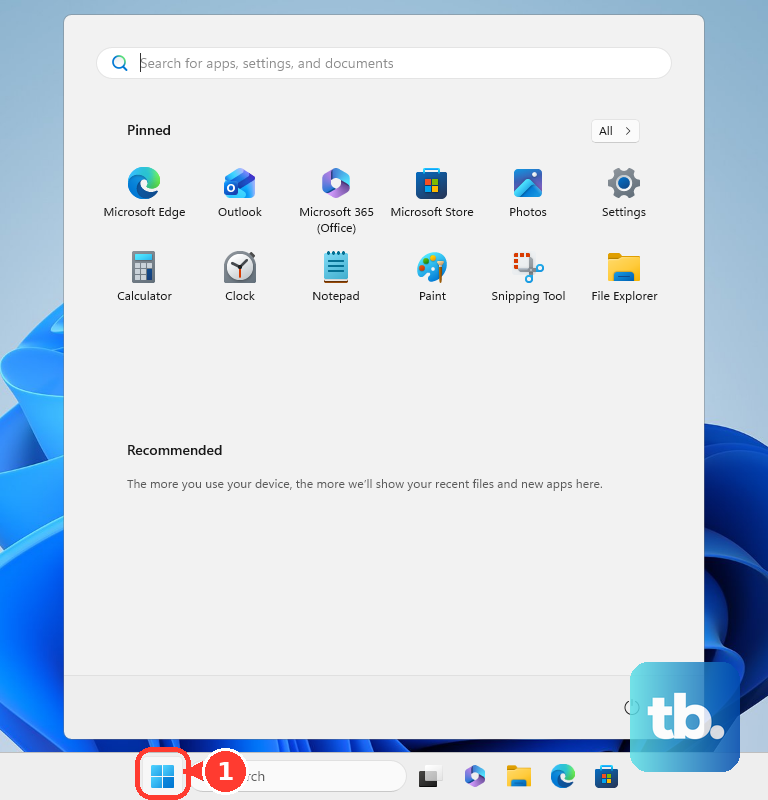
If Start opens, continue with keyboard-specific fixes.
If Start does not open, go to the system file repair steps near the end.
2. Rule Out a Keyboard Problem
Unplug a wired keyboard, then plug it directly back into the PC.
Move the keyboard to another USB port.
For a wireless keyboard, charge it or replace the batteries.
Reconnect or resync the keyboard.
Clean around the Windows key with compressed air or a soft brush.
Test the keyboard on another PC.
3. Turn Off Filter Keys
This fixes missed short presses and shortcut behavior caused by accessibility keyboard settings.
Open Start.
Go to Settings > Ease of Access > Keyboard.
Turn off Use Filter Keys.
Check Sticky Keys and Toggle Keys on the same page if Windows key shortcuts still behave strangely.
4. Use the On-Screen Keyboard Temporarily
Open Start.
Go to Settings > Ease of Access > Keyboard.
Turn on the toggle under Use the On-Screen Keyboard.
On the sign-in screen, select Ease of Access > On-Screen Keyboard.
5. Reconnect a Bluetooth Keyboard
Go to Start > Settings > Devices > Bluetooth & other devices.
Remove the keyboard if it is already listed.
Put the keyboard into pairing mode. How you make a keyboard discoverable depends on the model, so check the keyboard's documentation or the manufacturer's website for the exact button and hold time.
Select Add Bluetooth or other device > Bluetooth.
Choose your keyboard, then select Done.
After pairing, test the Windows key and Windows + E.
6. Update Windows First
Open Start > Settings > Update & Security > Windows Update > Check for Windows updates.
Then select Download & install and restart when prompted.
Windows Update delivers keyboard and mouse driver updates through the same screen.
Microsoft says Windows 10 normal free support ended on October 14, 2025, except for supported servicing programs and editions, so update availability depends on your PC's servicing status.
7. Refresh the Keyboard Driver
Right-click Start and select Device Manager.
Expand Keyboards or the relevant device category.
Right-click the keyboard device and select Update driver > Search automatically for updated driver software.
If the key still fails, save your work, return to the keyboard device, select Uninstall device > Uninstall, then restart the PC.
If the Windows key stopped working right after a driver or Windows update, open the keyboard device Properties, select Driver > Roll Back Driver, choose a reason, select Yes, and restart when prompted.
Roll Back Driver appears only when Windows still has a previous driver available.
8. Disable Gaming Locks and Profiles
This fixes keyboards where Game Mode, Win Lock, macros, or profiles block the Windows key.
For Logitech G keyboards, press the Game Mode key on the upper-right side of supported models.
In Logitech Gaming Software, select the keyboard, open Game Mode Settings, and re-enable disabled keys where allowed.
For Logi Options+ or Logitech G HUB, select the keyboard and review custom assignments, macros, profiles, firmware, and software updates.
Logitech no longer maintains the older Logitech Options app, so move supported devices to Logi Options+ instead.
For Razer keyboards, press fn + F10 on full-size and tenkeyless models, fn + U on Huntsman Mini models, or fn + O on Huntsman V3 Pro Mini.
In Synapse 4, select your keyboard under DEVICES and change the GAMING MODE dropdown.
To test Razer Synapse, right-click the Razer icon in the Windows system tray, select Exit Synapse, restart the PC, and test again.
For Corsair keyboards, open iCUE, select or hover your keyboard, choose Performance, and change the Win Lock behavior.
On Corsair compact keyboards that support it, press FN + WIN to toggle Win Lock off.
9. Repair Windows and Remove Bad Remaps
Type cmd in the taskbar search box.
Right-click Command Prompt and select Run as administrator.
Run DISM.exe /Online /Cleanup-image /Restorehealth.
Run sfc /scannow and wait until verification reaches 100 percent.
If you previously remapped keys with PowerToys, open PowerToys > Keyboard Manager > Remap a key and delete any mapping involving Win.
If the Windows key is physically broken, use PowerToys > Keyboard Manager > Remap a key to map an unused key to Win. Keep PowerToys running in the background for the remap to apply.
Advanced users who intentionally used a registry key remap can open Registry Editor, check HKEY_CURRENT_USER\Keyboard Layout and HKEY_LOCAL_MACHINE\SYSTEM\CurrentControlSet\Control\Keyboard Layout for Scancode Map, then delete only the Scancode Map value they created for key remapping.
Microsoft's current mouse and keyboard troubleshooting guide no longer sends you to a Keyboard troubleshooter, so the fix path is hardware checks, keyboard settings, driver repair, system file repair, and remap cleanup.
If your PC still lists one under Settings > Update & Security > Troubleshoot > Additional troubleshooters, running it does no harm: Microsoft's retirement of the legacy inbox troubleshooters targets a future Windows 11 release, and Microsoft says devices on Windows 10 and Windows 11 22H2 or older will not be affected and will continue to run the legacy inbox troubleshooters.
On a work or school PC, ask IT to review User Configuration > Administrative Templates > Windows Components > File Explorer > Turn off Windows Key hotkeys; that policy affects combinations such as Windows + R and Windows + E.
Frequently Asked Questions
Why does Ctrl + Esc open Start when my Windows key does not?
Ctrl + Esc is a Windows shortcut for opening Start. When it works, the Start menu is responding and the problem is the physical Windows key, a keyboard setting, a driver, a lock mode, or a remap.
Can Game Mode disable the Windows key?
Yes. Logitech G, Razer, and Corsair keyboards use Game Mode or Win Lock features that block the Windows key or Windows key shortcuts. Turn off that mode or review the keyboard profile in the brand's software.
What should I do if only Windows key shortcuts stopped working?
Check gaming keyboard lock modes and custom keyboard profiles first. On managed work or school PCs, an administrator policy can disable Windows key hotkeys such as Windows + R and Windows + E.
Is the old Keyboard troubleshooter still the right fix?
It is not the fix that usually works. Microsoft's current mouse and keyboard troubleshooting page does not send you to a Keyboard troubleshooter at all. The legacy inbox troubleshooter retirement Microsoft announced targets a future Windows 11 release, and Windows 10 is explicitly not affected, so you can still run the troubleshooter if your PC lists it. Hardware checks, keyboard settings, driver repair, system file repair, and remap cleanup are what actually bring the Windows key back.