


To show the taskbar on your second monitor in Windows 11, right-click the working taskbar, select Taskbar settings, expand Taskbar behaviors, and check Show my taskbar on all displays. If that is already checked, check automatic hiding and the display layout next. Use connection troubleshooting when the entire second screen is missing.
The Settings steps below use Windows 11 menus. The projection shortcut, Windows Explorer restart, and graphics reset also apply to Windows 10.
The short version
- Enable both taskbars: Under Taskbar behaviors, check Show my taskbar on all displays.
- Check visibility: Move the pointer to the bottom of the second screen and turn off Automatically hide the taskbar to keep it visible.
- Extend the desktop: Press Windows + P and select Extend.
- Match the symptom: Check connections for a missing display and overscan controls for cropped desktop edges.
| Fix or option | When to use it |
|---|---|
| Enable taskbars on all displays | The second desktop works but its taskbar is absent |
| Disable automatic hiding | The taskbar appears when you reach the bottom edge |
| Show application buttons on all taskbars | The bar appears but application buttons are missing |
| Exit full-screen Microsoft Edge | The browser covers the taskbar |
| Choose Extend | You want an extended desktop across both screens |
| Detect the monitor | The monitor is missing from display settings |
| Reconnect the wireless display | A compatible wireless screen is disconnected |
| Check cables and ports | A wired display disconnects or stays blank |
| Reset monitor power and check its input | The monitor is not showing the connected PC |
| Restart Windows Explorer | The desktop works but the taskbar remains missing |
| Reset the graphics driver | An existing external-display setup stops working |
| Restart or power-cycle the PC | External-display trouble continues |
| Correct resolution and scaling | The desktop is incorrectly sized |
| Adjust display overscan | The screen crops the desktop edges |
| Resize through NVIDIA Control Panel | Display controls do not fix cropping and resizing is available |
| Install Windows updates | External-display problems persist |
| Install an optional graphics driver | A compatible driver update is offered |
| Roll back the graphics driver | Trouble began after an update and a previous driver is available |
| Reinstall the display driver | Simpler external-display checks fail |
| Check taskbar policy | An administrator restricts secondary taskbars |
| Remove an interfering customization app | You have identified the app as the cause |
| Perform a clean boot | You suspect background-software interference |
| Repair Windows system files | You suspect Windows corruption |
| Reinstall the current Windows version | You need a last-resort repair and the recovery option appears |
| Change the main display | You want the primary taskbar on the external monitor |
| Expand the tablet taskbar | A supported convertible collapses it in tablet use |
| Check Surface updates | You use a Surface with its companion app installed |
| Enable DisplayFusion taskbars | You use DisplayFusion Pro or its trial |
| Adjust DisplayFusion visibility | DisplayFusion controls the affected taskbar |
Enable the taskbar and application buttons
On Windows 11, right-click the taskbar on the working monitor, select Taskbar settings, then expand Taskbar behaviors. Check Show my taskbar on all displays, then look at the second monitor. This setting enables the Windows taskbar across your connected displays.
You can also reach these controls without the taskbar. On Windows 11, press Windows + I to open Settings, then select Personalization > Taskbar > Taskbar behaviors. If the setting is already checked, continue with the visibility checks.
If the bar appears but application buttons are missing, adjust where those buttons appear. On Windows 11, open Settings > Personalization > Taskbar > Taskbar behaviors. Under When using multiple displays, show my taskbar apps on, choose All taskbars. This applies when taskbars are already enabled on all displays.
Check whether the taskbar is hidden or covered
On Windows 11, move the pointer to the bottom edge of the affected screen to reveal an automatically hidden taskbar. To keep it visible, right-click the working taskbar, select Taskbar settings > Taskbar behaviors, and uncheck Automatically hide the taskbar.
A full-screen Microsoft Edge window can cover the desktop taskbar. With that Edge window active on the affected monitor, press F11 to leave full-screen mode. If the taskbar remains absent, continue with the display or taskbar checks that match what you see.
Activate and detect the second display
Press Windows + P and select Extend to use the monitors as an extended desktop. This shortcut works on Windows 11 and Windows 10. The alternatives serve different layouts: Duplicate mirrors the desktop, while Second screen only moves it entirely to the external screen.
If Windows 11 is not recognizing the monitor, open Start > Settings > System > Display, expand Multiple displays, and select Detect. Select Identify to establish which numbered display is the affected monitor. Use detection when the monitor itself is missing.
For a compatible wireless display on Windows 11, press Windows + K to open Cast, then select the wireless display adapter. Alternatively, on Windows 11, open Settings > System > Display > Multiple displays and select Connect. After connecting, press Windows + P and select Extend.
With a wired display that disconnects or stays blank, reseat the display cable and disconnect unnecessary docks or adapters. If the connection still fails, test another cable, video-output port, or computer.
You can also unplug the monitor from power and reconnect it. Use its buttons or remote to select the input matching the connected port, such as HDMI, DisplayPort, or USB-C. The exact input-menu path depends on your monitor.
Restart Windows Explorer and refresh the display
If the display works and the taskbar settings are correct, try restarting Windows Explorer. Press Ctrl + Shift + Esc to open Task Manager, find Windows Explorer, right-click it, and select Restart. Microsoft recommends this for blank desktop problems on Windows 11 and Windows 10; trying it for an isolated secondary-taskbar glitch is a troubleshooting inference.
For an external-display setup that previously worked and has stopped working, press Windows + Ctrl + Shift + B to reset the graphics driver. This shortcut applies to Windows 11 and Windows 10.
Save your work before restarting the computer. Select Start > Power > Restart, then check the second monitor again. If that does not help, select Start > Power > Shut Down, then power the PC back on.
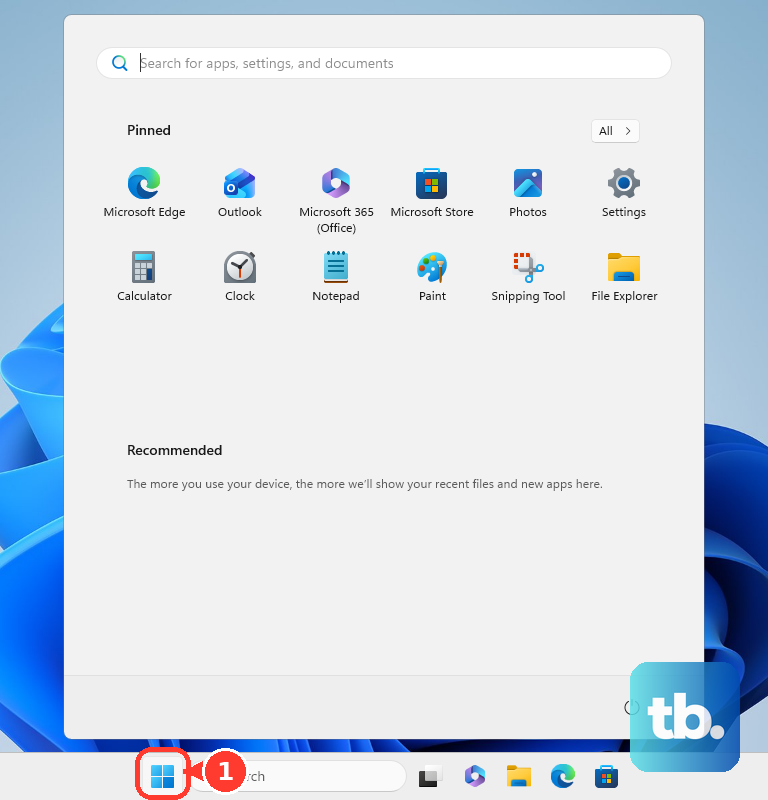
Correct a cropped or incorrectly sized desktop
When the desktop looks incorrectly sized, check the affected display's resolution and scaling. On Windows 11, open Settings > System > Display and select that monitor. Under Scale & layout, choose the recommended values for Scale and Display resolution.
A TV or monitor that crops the desktop edges can push the taskbar off-screen. Using its remote or on-screen menu, look for Picture, P. Mode, Aspect, or Format. Consult the display manual for the exact path and select the available fit option, which may be named 1:1, Just Scan, Full Pixel, Unscaled, or Screen Fit.
NVIDIA recommends trying the display's own overscan controls first. If cropping remains and your GPU and display connection expose resizing controls, open NVIDIA Control Panel > Display > Adjust Desktop Size and Position > Size. Check Enable desktop resizing, select Resize, adjust the sliders until the desktop edges fit, then select OK. NVIDIA adds the resized resolution, marked with an asterisk (*), to the Change Resolutions page; if the desktop does not resize, select both that resolution and its refresh rate there. If those controls are absent, use the display manual for its fit settings.
Update Windows and the graphics driver
Microsoft recommends updating Windows before troubleshooting external displays. On Windows 11, open Start > Settings > Windows Update and select Check for updates. Install available updates, save your work, and restart when requested.
Next, check for a compatible optional graphics-driver update. On Windows 11, open Settings > Windows Update > Advanced options > Optional updates. If an applicable display-driver update is offered, select it, choose Download and install, and restart afterward. The driver name depends on your hardware.
You can also follow the steps to find and update your graphics driver. If the problem began after a driver update, consider rollback instead, provided a previous driver remains available.
Roll back or reinstall a troublesome driver
Rolling back replaces the updated graphics driver with the previous version. On Windows 11 or Windows 10, open Device Manager > Display adapters, right-click the adapter, and select Properties > Driver > Roll Back Driver. Use this when the problem began after a driver update. If a previous driver is unavailable, continue with the remaining checks.
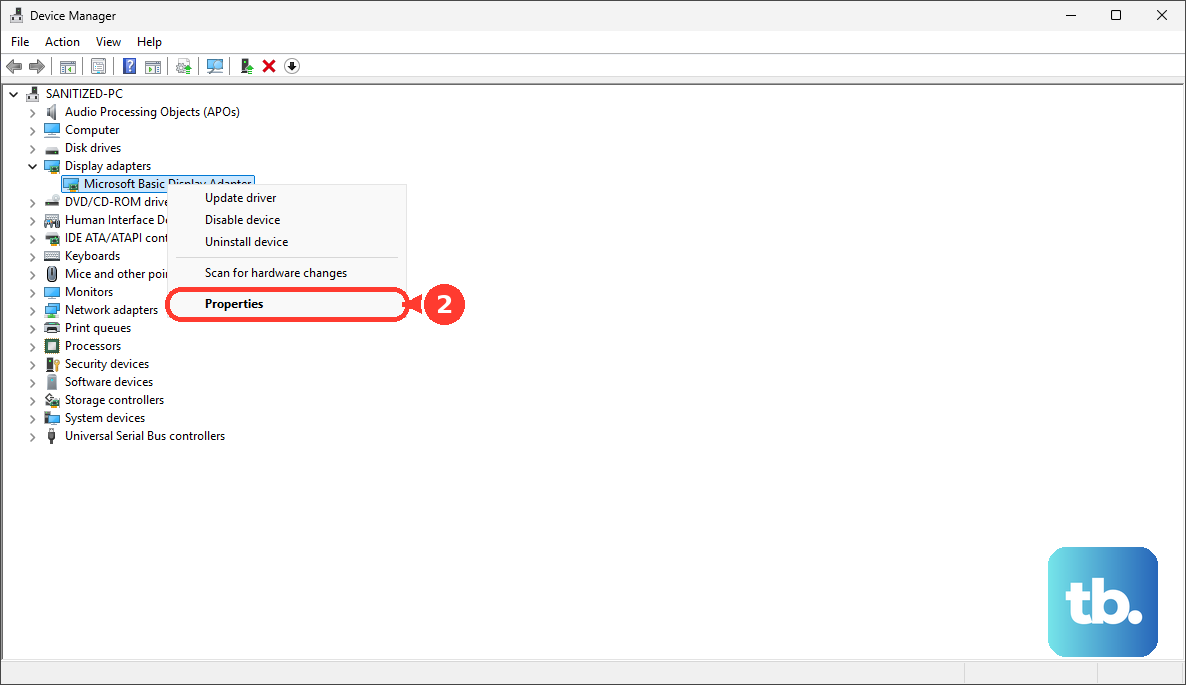
On Windows 11, driver reinstallation is an advanced option when simpler external-display checks fail. Uninstalling removes the display driver. Open Device Manager > Display adapters, right-click the adapter, and select Uninstall device. Check Attempt to remove the driver for this device, then select Uninstall.
Restart if requested. Then return to Device Manager > Display adapters, select the adapter, and choose Update driver.
Check restrictions and software interference
On a Windows 11 device subject to Group Policy, an administrator can restrict taskbars to one display. Have the administrator open User Configuration > Administrative Templates > Start Menu and Taskbar > Do not allow taskbars on more than one display and select Disabled or Not Configured. Then check Show my taskbar on all displays in the normal taskbar controls. Local policy editing normally requires Pro, Enterprise, or Education.
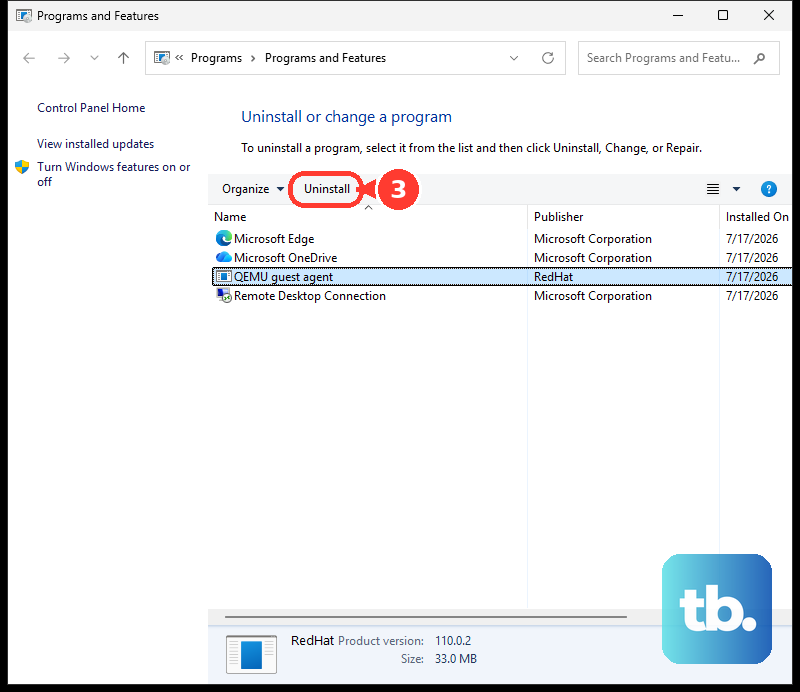
If you have identified a taskbar customization app as the cause, you can remove it. Uninstalling removes the selected customization app. On Windows 11, open Start > Settings > Apps > Installed apps, find the app, select More, then select Uninstall.
If the program is unavailable there, use its Control Panel entry instead. Open Control Panel > Programs > Programs and Features, right-click the program, and select Uninstall or Uninstall/Change.
For suspected background-software interference on Windows 11, a clean boot can help identify the cause. As an administrator, search for msconfig, open System Configuration, and select Services. Check Hide all Microsoft services, then select Disable all and Apply.
Open Startup > Open Task Manager > Startup apps, record the enabled items, and disable them. Close Task Manager, select OK, and restart. If the problem disappears, re-enable items in groups to identify the cause. Restore the original startup configuration afterward.
Repair Windows when simpler checks fail
Use system-file repair when you suspect Windows corruption. On Windows 11 or Windows 10, search for Command Prompt, right-click it, select Run as administrator, then select Yes. Run the following command and wait for successful completion.
DISM.exe /Online /Cleanup-image /RestorehealthAfter that command completes successfully, run the System File Checker command below. Wait for verification to finish before checking the taskbar again.
sfc /scannowAs a last resort on an eligible Windows 11 installation, you can reinstall the current Windows version while preserving apps, files, and settings. On Windows 11, open Start > Settings > System > Recovery. Under Fix problems using Windows Update, select Reinstall now, then OK. Keep power and internet connected, and restart after installation if the PC does not restart automatically.
This recovery option may be unavailable on managed PCs, so use it only when it appears. The Windows Update repair does not require a separate installer.
Frequently Asked Questions
Can I make the external monitor my main display instead?
Yes, you can move the primary desktop and taskbar role to the external monitor. On Windows 11, open Settings > System > Display, select the external monitor, expand Multiple displays, and check Make this my main display.
Why does the taskbar collapse when I fold back or disconnect the keyboard?
On supported Windows 11 2-in-1 devices, the tablet-optimized taskbar can collapse when you use the device as a tablet. Swipe up from the bottom edge to expand it. To disable that behavior on Windows 11, open Taskbar settings > Taskbar behaviors, then turn off the setting that reads "Optimize taskbar for touch interactions when this device is used as a tablet".
What should I check if DisplayFusion controls the second taskbar?
In DisplayFusion Pro or its trial on a supported Windows 11 system, right-click the DisplayFusion tray icon, select Settings > Taskbar, check Enable Multi-Monitor Taskbars, and select Apply or OK. For an existing DisplayFusion taskbar, right-click an empty area, open Multi-Monitor Taskbar, and review Auto-Hide and the element visibility controls. These controls apply to DisplayFusion taskbars, and multi-monitor taskbars are not included in DisplayFusion Free.
Is there an additional update check for a Microsoft Surface?
Yes, if the Surface app is installed, open it and select Help & support. Review the update status for Surface drivers and firmware, then select Check for updates if updates are available.