

To fix “There is a problem parsing the package” on Android, download a fresh, unmodified copy from the app developer or install the app through its official store listing. If installation still fails, check that the package supports your Android version and includes all required components.
Android distinguishes damaged packages from compatibility problems, permission blocks, and conflicts with installed apps. Follow the fix that matches the installation message, because changing an installation permission cannot repair a malformed APK.
The short version
- Fresh download: Get an unmodified copy from the developer or the app’s official store listing.
- Complete package: Install through Google Play when an isolated APK is missing required components.
- Compatibility: Ask the developer for a release that supports your Android version and processor.
- Permission blocks: Allow the specific installation source only when Android identifies that permission as the problem.
| Fix | When it helps |
|---|---|
| Download a fresh official APK | The package is damaged, incomplete, modified, or incorrectly signed |
| Install through Google Play | An isolated base APK lacks required components |
| Install through Galaxy Store | A compatible app is available for your supported Galaxy device |
| Request a compatible build | The app requires a different Android version, processor, or hardware |
| Update Android | The app needs a newer system and your device has an update available |
| Retry with a working connection | The download was interrupted |
| Free storage space | Your device has insufficient space for installation |
| Allow the source on Pixel | The browser or file manager lacks installation permission |
| Allow the source on Galaxy | The app opening the package lacks installation permission |
| Request an administrator’s help | Management policy blocks installation or disables its settings |
| Review Google Play Protect | A harmful-app detection blocks installation |
| Review Samsung Auto Blocker | Auto Blocker identifies itself as the installation blocker |
| Use a permitted store with Advanced Protection | Account protection restricts installation outside approved stores |
| Ask the developer to complete verification | The installation message identifies an unverified developer |
| Remove a conflicting app | The installer identifies an installed-package conflict |
| Close and reopen Google Play | The download or installation fails inside the store |
| Correct automatic date and time | Google Play has problems and the device’s time is incorrect |
| Clear Google Play Store cache | A store failure persists after basic troubleshooting |
| Clear Google Play Store storage | Clearing its cache did not resolve the store failure |
Download a fresh official copy
Start with the file itself when the error appears after you open a manually downloaded APK. Android can reject a package that is corrupt, incomplete, modified, or incorrectly signed. Download a fresh, unmodified copy from the app developer’s official website or use its official store listing, then open the new download.
If the fresh copy produces the same error, request a corrected package from the developer. Replacing the download can address an invalid package, but it will not resolve an app that requires a different Android version or processor.
Install the complete app from a store
An isolated base APK may be only one part of an app. Apps distributed as split APKs need their required components, and partial installations fail on Google-certified devices and devices running Android 10 or later. Google Play supplies those components when you install the app through its listing.
Open Play Store, find the app, and open its official listing. Tap Install for a free app, or select its price for a paid app. If the developer distributes the app independently, ask for its complete supported installation package instead of opening the isolated base APK again.
On supported Samsung Galaxy phones and tablets, you can also open Galaxy Store from the Apps screen or the Samsung folder. Find the app, open its listing, and tap Install. Galaxy Store requires a Samsung account and offers compatible apps.
Check your Android version and app compatibility
Open the app’s listing in Play Store and check whether it is available for your device. If it is unavailable, ask the developer for compatibility guidance before trying alternative APK versions. An unavailable listing does not establish that an older downloaded release will work.
For an independently distributed app, ask the developer for a build that supports your Android version and processor architecture. Android can reject a package when its native code does not match your processor, it requires missing hardware features, or it needs a newer system. There is no universal consumer setting that makes an incompatible APK compatible.
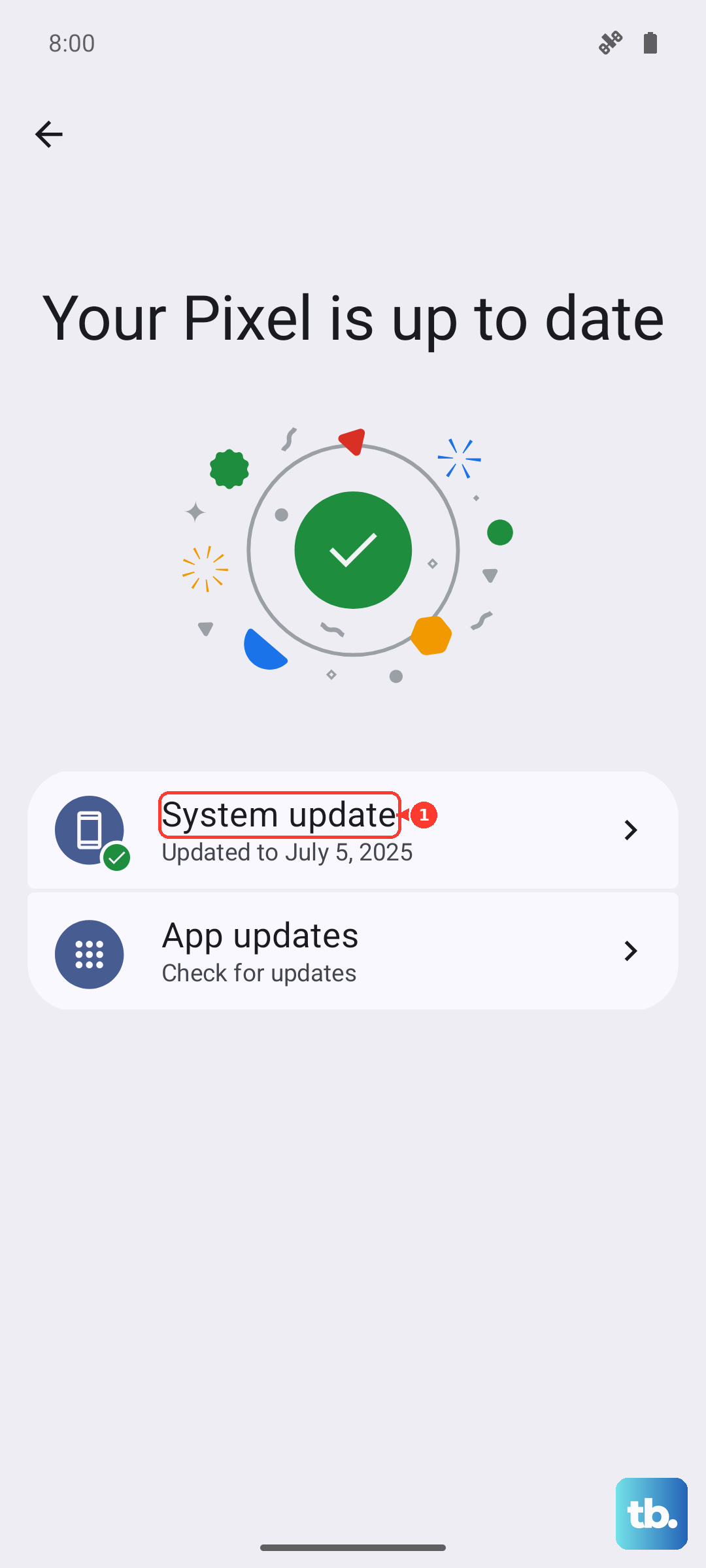
When the app requires a newer Android version, check for a system update on devices still eligible for updates. On devices using Google’s documented menus, open Settings > System > Software update > System update, then follow the offered update’s installation instructions. An update cannot supply unsupported hardware, so ask the developer for a compatible release if that remains the obstacle.
Check the download connection and available space
An interrupted download or insufficient storage can cause installation trouble separate from an inherently invalid package. Retry the download over a working Wi-Fi or mobile-data connection. Open Settings > Storage and check available space; Google flags less than 1 GB as a possible problem.
Removing content deletes the items you choose. If storage is low, remove unneeded content using your device’s storage controls, then retry the download and installation. If a fresh download still fails with adequate space, check the package’s compatibility or address the specific block named on screen.
Allow the browser or file manager to install apps
Use this fix when Android says the app opening the APK lacks installation permission. On Android 8.0 and later, permission applies to the individual source, such as the browser or file manager. It allows that source to install apps but does not fix a damaged package.
On Pixel, open Settings > Apps > Special app access > Install unknown apps. Select the app opening the APK and turn on Allow from this source. Alternatively, open the download, tap Settings on the installation-block message, and turn on Allow from this source.
On Samsung Galaxy devices using One UI 7, open Settings and search for Install unknown apps. Select Install unknown apps, tap Install unknown apps again, and enable the switch beside the source opening the package, such as Chrome. Labels can vary on other Galaxy versions.
If installation settings are disabled or an organization’s policy blocks unknown sources on a managed device or work profile, contact its administrator for an approved deployment or policy review. If permission is already enabled and the parsing error remains, return to the fresh-download and compatibility checks.
Follow the security message that names the blocker
If Google Play Protect identifies the app as harmful and you believe the detection is incorrect, ask the developer to appeal. Google recommends keeping scanning enabled. Disabling it does not repair a malformed package.
To review Play Protect, open Play Store, tap your profile icon, and select Play Protect > Settings. The scanning control is Scan apps with Play Protect, while Improve harmful app detection is a separate setting. Advanced Protection can prevent you from disabling scanning.
On a Galaxy device with Auto Blocker, use this step only when the installation message identifies it as the blocker. For a trusted app, open Settings > Security and privacy > Auto Blocker, turn off the switch at the top, then retry installation. This addresses that installation block but cannot correct package corruption.
If your Google Account is enrolled in Advanced Protection, use Google Play or a preinstalled app store. Those stores remain permitted under account-level protection, so you can install an available app through its listing.
If the installation message identifies an unverified developer, contact the app developer and ask them to complete Android developer verification, then retry after registration. In the rollout that began September 30, 2026, this applies to certified Android devices in Brazil, Indonesia, Singapore, and Thailand, initially involving participating app stores. Treat that message as a verification block rather than evidence that the APK is malformed.
Resolve a conflict with an installed app
Remove an existing app only when the installer identifies an installed-package conflict. Android documents conflicts that include incompatible signing certificates, and uninstalling the conflicting app can resolve them. Use this remedy for the identified conflict rather than every parsing error.
Uninstalling can erase the app’s local data, so preserve any needed app data before removing it. For an app managed through Google Play, open Play Store, tap your profile icon, and select Manage apps & device > Manage. Select the conflicting app and tap Uninstall.
Use the app’s official distribution channel for the replacement. In Google Play, tap Install or Enable to restore the app. If the replacement package is still rejected, ask the developer for a corrected or compatible release.
Troubleshoot Google Play when store installations fail
Move to Play Store troubleshooting when the download or installation fails inside Google Play. On devices using gesture navigation, swipe up from the bottom, hold, and release, then swipe Play Store upward to close it. Reopen the store and retry the installation.
If your device’s time is incorrect, open Settings > System > Date & time on devices using these labels. Turn on Set time automatically, then turn on Set automatically in the Time zone section. These steps address store download and installation problems.
For a persistent Play Store failure, touch and hold Play Store, then select App Info > Storage & cache > Clear Cache. Retry the installation before moving to the storage reset.
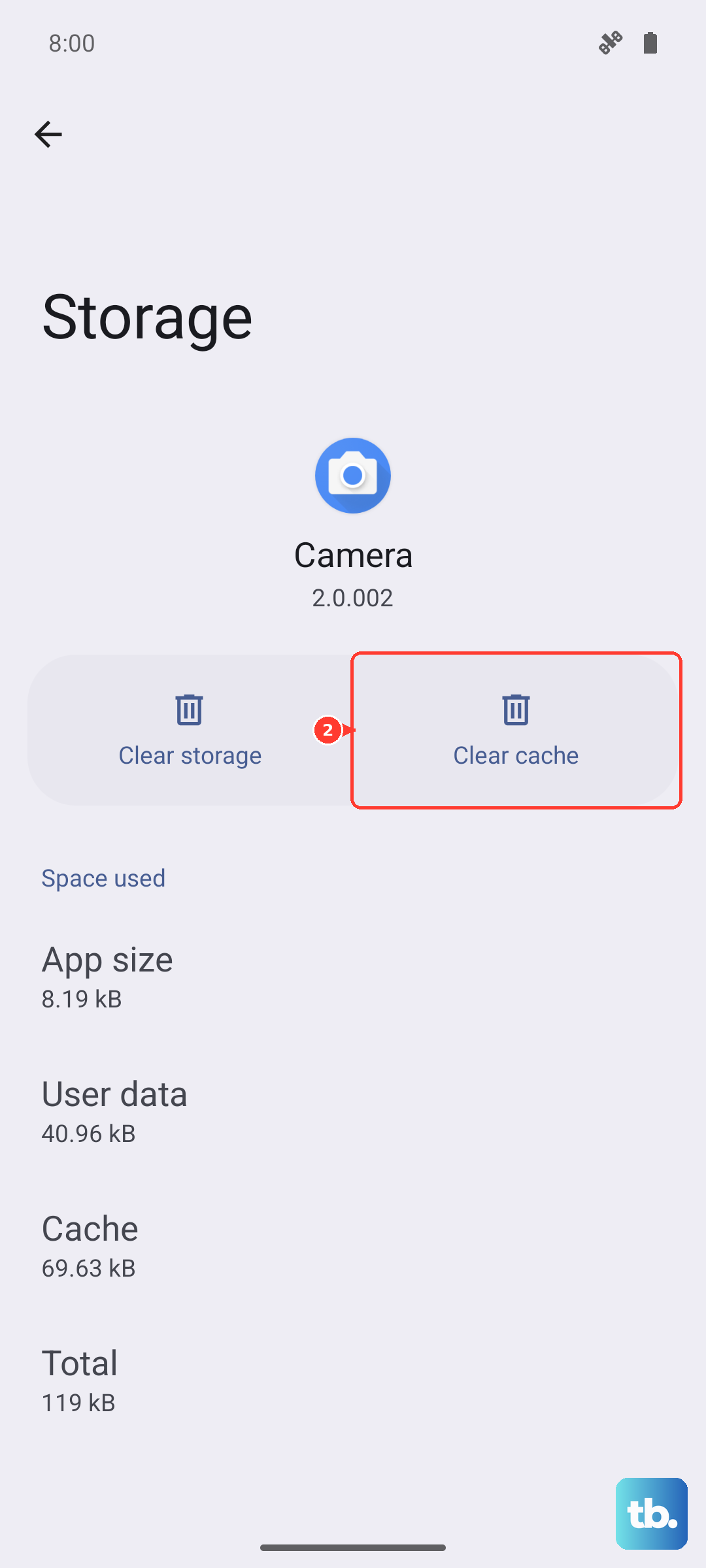
Clearing Play Store storage can reset its preferences, including parental controls and password protection. If clearing the cache did not help, tap Clear storage, then tap Delete. Restore parental controls and password protection afterward; this reset addresses Play Store failures, not a malformed sideloaded APK.
Frequently Asked Questions
Can restarting a Pixel help with an installation error?
A restart can clear a temporary problem, but it cannot repair an incompatible or damaged APK. On Pixel 6 and later, including Fold, hold Power and Volume up for a few seconds, then tap Restart. If the phone is unresponsive, hold Power for up to 60 seconds and release it when the G logo appears.
Why might an old APK fail to install on Android 15?
Android 15 rejects new installations of apps targeting API levels below 24. Obtain a maintained release from the developer. Google documents an ADB bypass for developer testing, not as a general consumer parsing repair.
Can you install the app through Google Play from a computer?
Yes, open play.google.com on a computer, find the app, and open its listing. Select Install for a free app or select its price for a paid app. App availability and device compatibility still apply.
Should you factory reset a Galaxy to fix a parsing error?
A factory reset cannot correct a defective downloaded APK. Samsung reserves it as a last resort for persistent, broader installation failures after other troubleshooting. It erases device data, so back up personal data before considering it.