

To fix Roblox’s NoSound Driver error, select your speakers or headphones in Roblox and your computer’s sound settings, then restart Roblox. If Roblox lists only NoSound Driver, check whether your operating system detects your audio device before updating or reinstalling its driver. The label alone does not prove that your computer is missing an audio driver.
The short version
- Check Roblox: Raise Volume and, if the menu shows Output Device, select your speakers or headphones there.
- Check your computer: Make sure your audio output is detected, selected, and unmuted.
- Repair Windows audio: Run audio diagnostics, enable disabled devices, and install applicable driver updates.
- Reinstall last: Reinstall Roblox if restarting and repairing your computer’s audio do not help.
| Fix | When to use it |
|---|---|
| Raise Roblox volume | An experience is silent |
| Select Roblox output | Output Device lists your speakers or headphones |
| Select and unmute Windows output | Your computer uses the wrong output or is muted |
| Check the Windows app mixer | System sounds work but Roblox stays silent |
| Use the Windows audio shortcut | You want quick output and mixer access |
| Restart Roblox and your computer | Output changes do not restore sound |
| Reset Bluetooth | A connected wireless accessory stays silent |
| Pair the accessory again | Resetting Bluetooth does not help |
| Correct Sonar routing | You already use SteelSeries Sonar |
| Correct AMD audio routing | You already use AMD Noise Suppression |
| Run Windows audio diagnostics | Your output is missing or remains silent |
| Enable the playback device | Your playback device is disabled |
| Enable or rediscover audio hardware | Hardware is disabled or missing in Windows |
| Disable audio enhancements | A detected output still has audio problems |
| Change the audio format | Playback is distorted or crackles |
| Install Windows updates | Applicable system or driver updates are available |
| Install optional driver updates | Windows offers an optional audio driver |
| Update through Device Manager | Your audio driver needs an update |
| Install the manufacturer’s driver | Automatic updates do not resolve the problem |
| Roll back the driver | Sound failed after a driver change |
| Reinstall the audio device | Driver updates or rollback do not help |
| Restart Windows audio services | Windows audio remains broken |
| Select and unmute Mac output | Your Mac uses the wrong output or is muted |
| Check Mac accessories | External speakers or a USB device do not work |
| Update macOS | An applicable system update is available |
| Reinstall Windows desktop Roblox | Computer audio works but Roblox still fails |
| Replace the former Store app | You still use the older Roblox Store installation |
| Reinstall Roblox on Mac | Mac audio works but Roblox still fails |
| Contact the experience creator | Only one experience has audio trouble |
| Contact Roblox Support | The client problem survives local fixes |
Check Roblox volume and output
While an experience is running, open the Roblox menu, select Settings, and raise Volume. If the menu shows Output Device, choose the speakers or headphones you want to use.
If the only choice is NoSound Driver, continue to your computer’s audio settings. Check whether your operating system detects the output before attempting a driver repair.
Select your Windows audio output
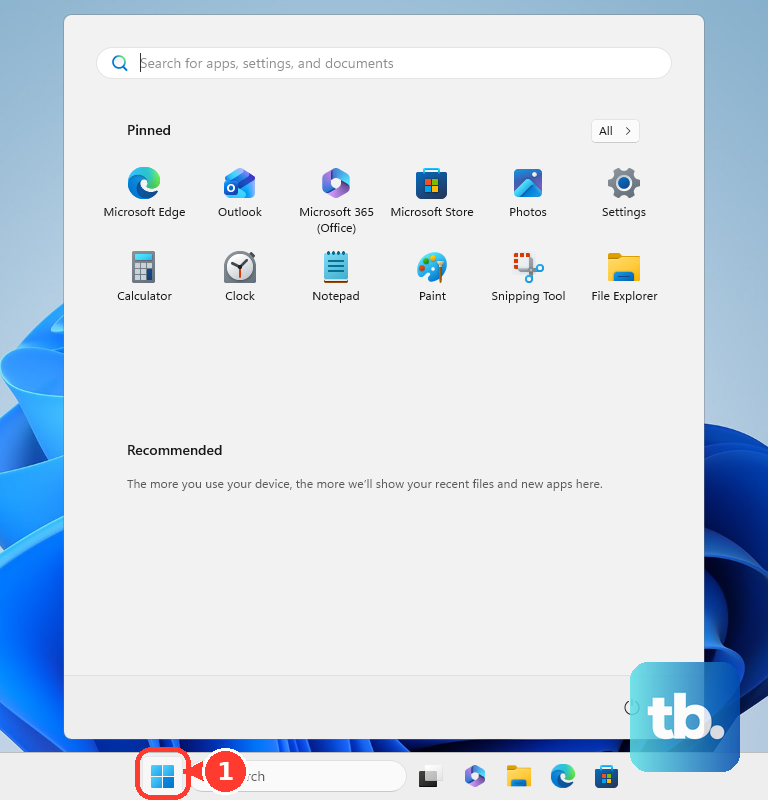
On Windows 11, open Start > Settings > System > Sound. Under Output, select your speakers or headphones, unmute the output, and raise its volume.
Keep Roblox running and open Start > Settings > System > Sound > Volume mixer. If Roblox appears under Apps, unmute it, raise its slider, and check its output device. Use this check when system sounds work but Roblox stays silent.
You can also press Windows + Ctrl + V to open sound-output Quick Settings on Windows 11 releases that support the shortcut. Select your output and adjust the volume mixer there. If your speakers or headphones are missing entirely, continue to the device-detection checks.
Restart Roblox and your computer
Close Roblox completely, then reopen it and check Output Device again. If the error remains, select Start > Power > Restart on Windows before attempting a reinstall.
On a Mac, press Command + Option + Esc, select Roblox, and choose Force Quit. Reopen Roblox, then restart the computer if necessary. If sound remains broken, continue with the connection checks or the Mac fixes below.
Check Bluetooth and virtual audio routing
For Bluetooth headphones or speakers on Windows 11, open Settings > Bluetooth & devices. Turn Bluetooth off, wait 10 seconds, turn it back on, and reconnect the accessory. Recheck the output in Windows and Roblox afterward.
If reconnecting fails, select the accessory’s More options menu and choose Remove device. Put the accessory into pairing mode, select Add device, and pair it again. Select it as your Windows output before reopening Roblox.
If you already use SteelSeries Sonar, open SteelSeries GG > Sonar > Mixer. Set the Gaming channel’s output to your actual headset or speakers. Set Roblox’s output to the corresponding Sonar Gaming device so the virtual output reaches your physical accessory.
For an existing AMD Noise Suppression setup, open AMD Software > Settings > Audio & Video, enable suppression, and configure the intended input and output. Applications using suppression must select AMD Streaming Audio Device. This requires supported Adrenalin software and compatible Ryzen 6000-series integrated graphics or newer, or Radeon RX 6000-series desktop graphics or newer. To bypass the virtual routing, choose your physical output in Windows’ volume mixer.
Restore missing Windows audio devices
Open Settings > System > Troubleshoot > Other troubleshooters > Audio and select Run, then follow the diagnostic prompts. Microsoft has replaced the older standalone MSDT Playing Audio troubleshooter with the current Audio and Get Help route.
To enable a disabled playback device, open Settings > System > Sound > More sound settings, then select Playback. Select your device, open Properties, and set Device usage to Use this device (enable).
For hardware missing from the sound settings, open Device Manager and expand Sound, video and game controllers. Right-click your device and select Enable device if offered. If the device is missing, select View > Show hidden devices, then Action > Scan for hardware changes. Continue with driver updates if Windows still cannot detect it.
When Windows detects your device but sound remains broken, select it under Settings > System > Sound > Output and set Audio enhancements to Off, if available. If playback is distorted or crackles, open Advanced > Default format and try another supported format on devices exposing that control. Check audio after each change before moving on.
Update or repair your Windows audio driver
Open Settings > Windows Update > Check for updates, install applicable updates, and restart. Then check Advanced options > Optional updates for an audio-driver update. If one is offered for your hardware, select it, choose Download and install, and restart again.
You can also open Device Manager > Sound, video and game controllers, right-click your audio device, and select Update driver > Search automatically for drivers. Complete any available update and restart. If that does not resolve the problem, obtain the driver from your PC or audio-device manufacturer’s official support site. Match your exact model, Windows version, and architecture, follow the installation instructions, and restart.
If sound stopped working after a driver change, open the device’s Properties in Device Manager and select Driver > Roll Back Driver, then follow the prompts. This option requires Windows to have retained a previous driver. If it is unavailable, continue with the manufacturer’s driver or a driver reinstall.
To reinstall the audio device, right-click it under Sound, video and game controllers and select Uninstall device. Confirm the removal and restart your computer; Microsoft says Windows attempts to reinstall the driver. You may still need the manufacturer’s driver afterward.
If Windows audio remains broken, restart its two audio services. Open Start, search for the following command, and press Enter.
services.mscRight-click Windows Audio and select Restart, then repeat for Windows Audio Endpoint Builder. You may need administrative rights. Reopen Roblox and check its output after restarting both services.
Restore sound on a Mac
Open the Apple menu > System Settings > Sound > Output. Select your speakers, headphones, or USB audio device, raise Output volume, and clear Mute. Check Roblox’s volume and output selection again afterward.
Disconnect headphones to check the Mac’s built-in speakers, and check external speakers’ power and volume controls. For an undetected USB device, hold Option, open the Apple menu, and select System Information > Hardware > USB. Reconnect the accessory and check whether it appears.
Install applicable macOS updates through System Settings > General > Software Update > Update Now. If your Mac’s output works but Roblox still does not, continue with reinstalling Roblox.
Reinstall the current Roblox client
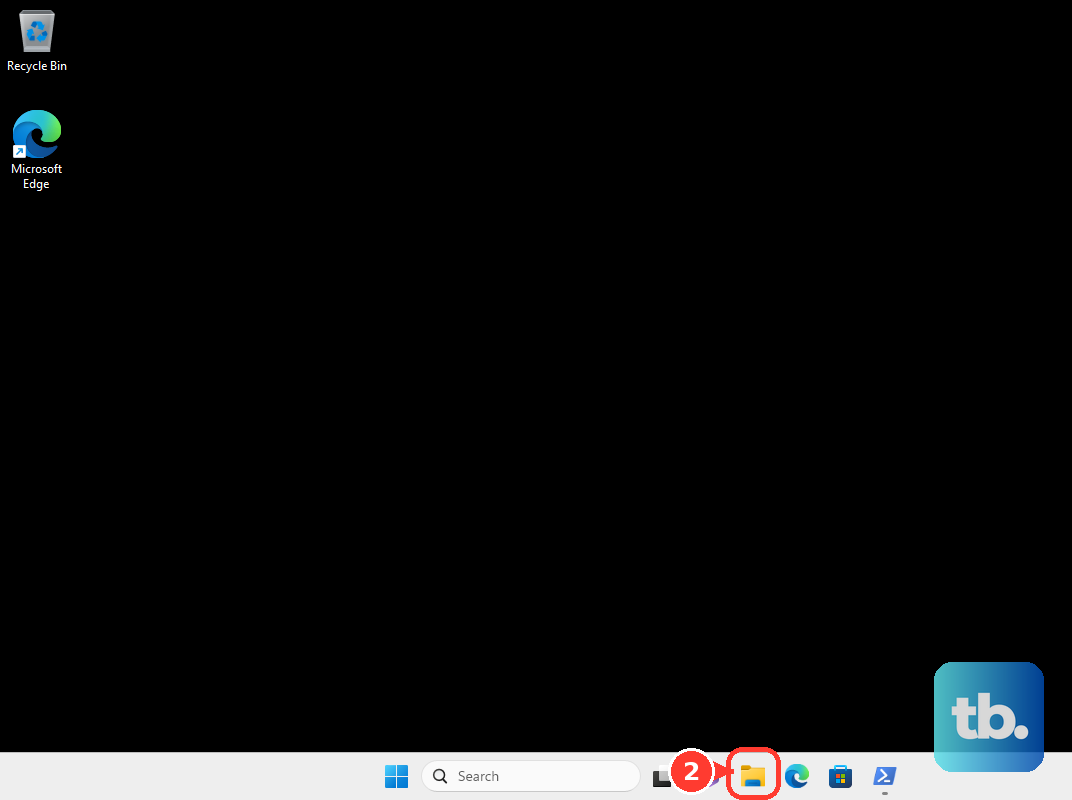
On Windows 11, open Settings > Apps > Installed apps, find Roblox, open More, and select Uninstall. For a desktop installation, make sure Roblox is closed and open File Explorer at C:\Users\your-user-name\AppData\Local, replacing your-user-name with your Windows user folder name. Preserve anything you manually saved inside the Roblox folder, then delete that folder before reinstalling. This cleanup path does not apply to every Store package.
To reinstall the desktop player, sign in on Roblox’s website, open an experience, and select Play. Follow the installation prompts, or use the official Roblox download page. If your browser asks which application to use, select Roblox and confirm.
If you use the former Microsoft Store app, Roblox directs you to replace it with Roblox - Windows. Install the current Roblox - Windows app, launch it, and complete the requested sign-in or account linking. Confirm it works before uninstalling the older installation.
On a Mac, close Roblox, open Finder > Applications, and move Roblox to Trash. Reinstall through Roblox’s website by opening an experience and selecting Play. Check sound and output selection after the new installation opens.
Get help when the error persists
If other experiences play sound, contact the affected experience’s creator through their profile, group, or published Social Links. Your available contact options depend on the creator and your account restrictions.
For a persistent client problem, use Roblox’s support form and include your username, exact error text, device model, operating-system version, and steps that reproduce it. Describe recent audio-device or software changes and the fixes you have completed. You can take a screenshot on your device to capture the exact error or the Output Device choices.
Frequently Asked Questions
Should you enable microphone access to fix missing Roblox game audio?
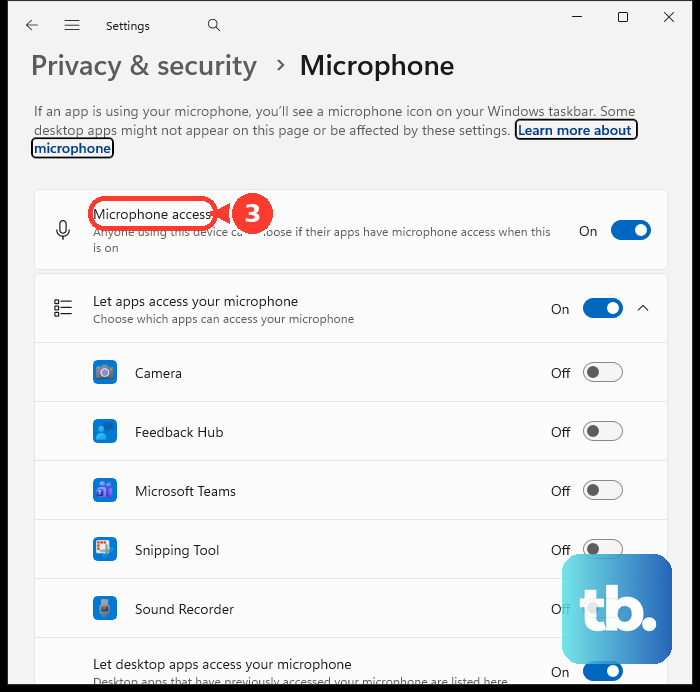
Start with the output used for game sound instead: check Roblox’s Volume and the speakers or headphones your device has selected. Troubleshoot microphone or voice-chat problems separately from the output used for game sound.
What can you try if Roblox is silent on Android?
Press a Volume button, open the Menu beside the slider, and raise Media volume. If that does not help, open Roblox in your device’s application manager under Settings, select Force Stop, and reopen it. You can also open Roblox’s storage settings and try Clear cache. Using Clear Data and confirming with OK resets local app state and requires signing in again; some devices call this Clear storage.
What should you check when Roblox has no sound on an iPhone?
While game audio is playing, press Volume Up or raise the volume slider in Control Center. On models with a Ring/Silent switch, move it toward the display so orange is hidden; on supported Action-button models, turn off Silent mode in Control Center. Check the speaker openings and remove an obstructing case. To close and reopen Roblox, swipe up from the bottom and pause, or double-click Home on models with that button, then find Roblox, swipe its preview up, and reopen it.
How do you select the Roblox audio output on a Chromebook?
Select the time, raise the volume slider, and open Audio settings > Output to select your intended device. Disconnect headphones and external speakers to check the Chromebook’s own speakers. If sound remains broken throughout the system, contact the Chromebook manufacturer.
Can Bluetooth microphone use affect audio playback?
On compatible Windows 11 Bluetooth LE Audio setups, you can select a separate playback format for when the microphone is active. If stereo playback fails in that situation, select your LE Audio device under Settings > System > Sound > Output, then open Output settings > Format > Format when microphone is active and choose Mono (1 channel). You need Windows 11 24H2 or newer, build 26100.4484 or newer, compatible factory-integrated LE Audio hardware, manufacturer drivers, and a compatible accessory.