


To fix the “no NVIDIA GPU is detected on your system” error, enable a disabled NVIDIA adapter in Device Manager, leave Eco or integrated-only mode on supported laptops, and install the matching graphics driver. Check your computer’s specifications first to confirm that it contains an NVIDIA GPU. Installing NVIDIA app cannot add an NVIDIA GPU to an Intel-only or AMD-only computer.
The Device Manager steps apply to Windows 11 and Windows 10. Follow the laptop controls only for the models described, and use the desktop hardware checks only for a serviceable PC with an add-in graphics card.
The short version
- Check Windows detection: Rescan in Device Manager and enable the NVIDIA adapter if it reports Code 22.
- Check laptop graphics mode: Eco or integrated-only modes can turn off or hide the discrete GPU on supported laptops.
- Match the driver: Download a driver for your actual GPU and operating system, even when NVIDIA app will not open.
- Escalate persistent failures: Check desktop card power and seating before arranging manufacturer diagnosis.
| Fix | When to use it | Main requirement |
|---|---|---|
| Rescan for hardware | The NVIDIA adapter is missing | Device Manager access |
| Enable the adapter | The adapter reports Code 22 | An existing NVIDIA device entry |
| Change laptop GPU mode | Eco or integrated-only mode is active | A supported model with graphics controls |
| Download a matching driver | You need a compatible driver package | The exact GPU or computer model |
| Update through Device Manager | Windows lists the NVIDIA adapter | An automatic search or extracted driver |
| Install an optional driver update | Windows offers a matching package | Windows 11 |
| Update through NVIDIA app | The app opens and recognizes the GPU | A supported NVIDIA app system |
| Roll back the driver | The error began after a driver update | Administrator access and a previous driver |
| Reinstall the device | Updating the driver did not help | An accessible NVIDIA device entry |
| Reinstall the ASUS graphics package | The ASUS driver needs replacing | A matching driver downloaded first |
| Check desktop card connections | An add-in card stays undetected | A user-serviceable desktop |
| Check monitor connections | You also have a black screen or no display | The correct cable connections and input |
| Reconnect a Razer enclosure | Your external GPU stays undetected | A supported Razer Core enclosure |
| Use System Restore | The problem began after software changes | A suitable existing restore point |
| Reset Windows | Other software troubleshooting has failed | Windows 11, a backup, and the BitLocker recovery key if encryption is enabled |
| Arrange hardware service | The applicable checks fail | Computer or graphics-card manufacturer support |
Check whether Windows detects the NVIDIA adapter
Right-click Start, select Device Manager, and expand Display adapters. Look for the NVIDIA adapter, then open Action > Scan for hardware changes to have Windows rescan for hardware. These steps apply to both Windows 11 and Windows 10.
An NVIDIA adapter reporting Code 22 has been disabled through Device Manager. Select that adapter, then select Enable Device. Driver updates through Device Manager require Windows to list the adapter, so continue with the laptop graphics-mode checks if the NVIDIA entry is missing.
Turn off laptop modes that disable the GPU
On supported ASUS gaming laptops, Eco Mode intentionally hides the discrete GPU from Device Manager. Open Armoury Crate > Device > GPU Power Saving > GPU Mode, then select Standard. Rescan in Device Manager after changing the mode.
On ASUS consumer laptops that offer these controls, open MyASUS > Device Settings > Power & Performance > GPU Mode, then select Standard. If Windows shows Microsoft Basic Display Adapter afterward, reinstall the ASUS graphics driver using the steps below. On supported ASUS ProArt laptops, open ProArt Creator Hub > Dashboard > GPU Mode and select Standard.
For MSI notebooks with the switch in General Settings, open MSI Center > Features > General Settings > GPU Switch. Select MSHybrid Graphics Mode and restart. MSI recommends this mode when checking whether both graphics adapters are recognized.
Some supported MSI laptops place the switch under MSI Center > Features > User Scenario instead. Choose the hybrid or discrete graphics mode offered by your model, then click OK. The laptop restarts to apply that selection.
On the Lenovo Legion 7 generation with these controls, open Lenovo Vantage and find its GPU mode controls. Select Hybrid Mode or dGPU Mode instead of Hybrid-iGPU Only Mode. Restart when switching to dGPU Mode.
On select HP OMEN products, open OMEN Gaming Hub > Graphics Switcher. Choose Hybrid or Discrete instead of Integrated graphics only, which turns off the discrete GPU. Controls vary by model, so restart the computer when OMEN Gaming Hub prompts you.
Install the driver that matches your graphics card
Open NVIDIA’s driver download page and select Manual Driver Search to choose your actual GPU and operating system. Check the package’s compatibility before downloading, because the newest driver does not necessarily support every older GPU. The standalone download works without NVIDIA app, so use it when the detection error prevents the app from opening.
For an ASUS computer, find your exact model in the ASUS Download Center and obtain its applicable graphics driver. Use that driver when Microsoft Basic Display Adapter appears after leaving Eco Mode.
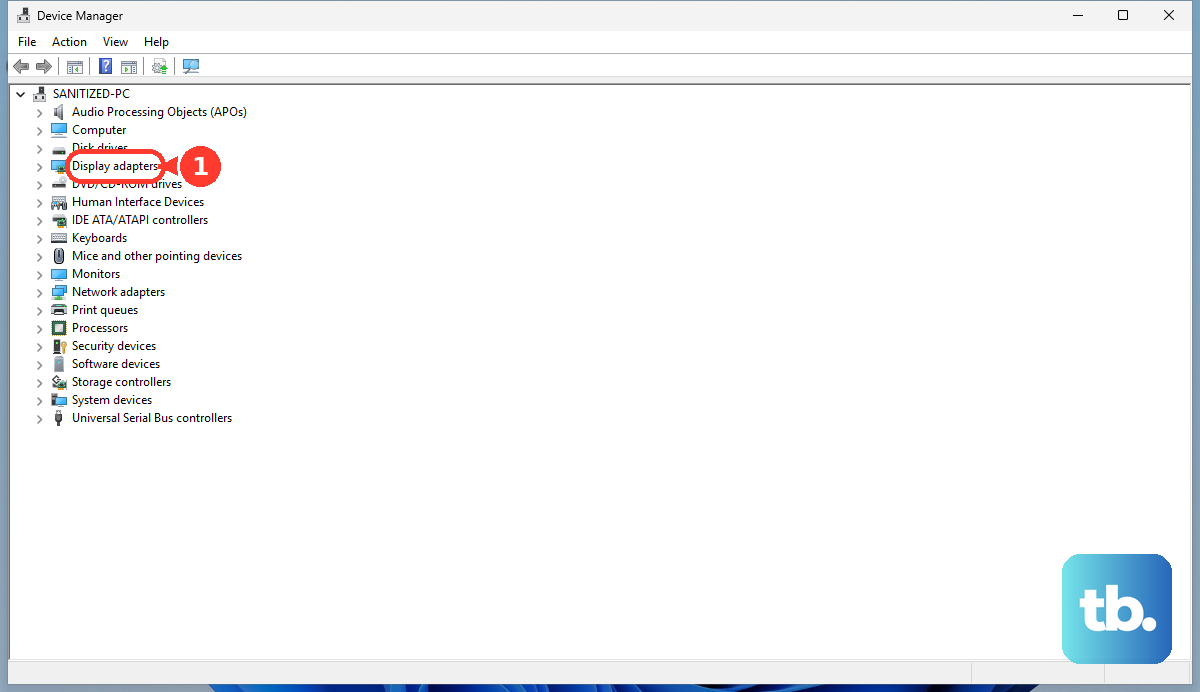
When Windows lists the NVIDIA adapter, you can find and update your graphics driver through Device Manager. Expand Display adapters, right-click the NVIDIA adapter, and select Update driver > Search automatically for drivers. This route applies to Windows 11 and Windows 10.
To install an extracted manufacturer driver through the same dialog, select Browse my computer for drivers, then select Browse.... Choose the folder containing the extracted driver, select OK, and select Next. Use this route only when Windows already lists the adapter.
On Windows 11, open Settings > Windows Update > Advanced options > Optional updates. When a matching NVIDIA or computer-manufacturer driver is offered, select its entry, choose Download and install, and restart. If no matching entry is offered, use the matching vendor download instead.
Once NVIDIA app opens and recognizes your GPU, you can update through Drivers > Download > Install. If the detection error prevents the app from opening, use the standalone installer.
Roll back a driver that started the problem
Rolling back replaces the current driver with the retained previous version. If the error began immediately after a driver update, open Device Manager > Display adapters, then open the NVIDIA adapter’s Properties > Driver. This procedure applies to Windows 11 and Windows 10 and requires administrator privileges.
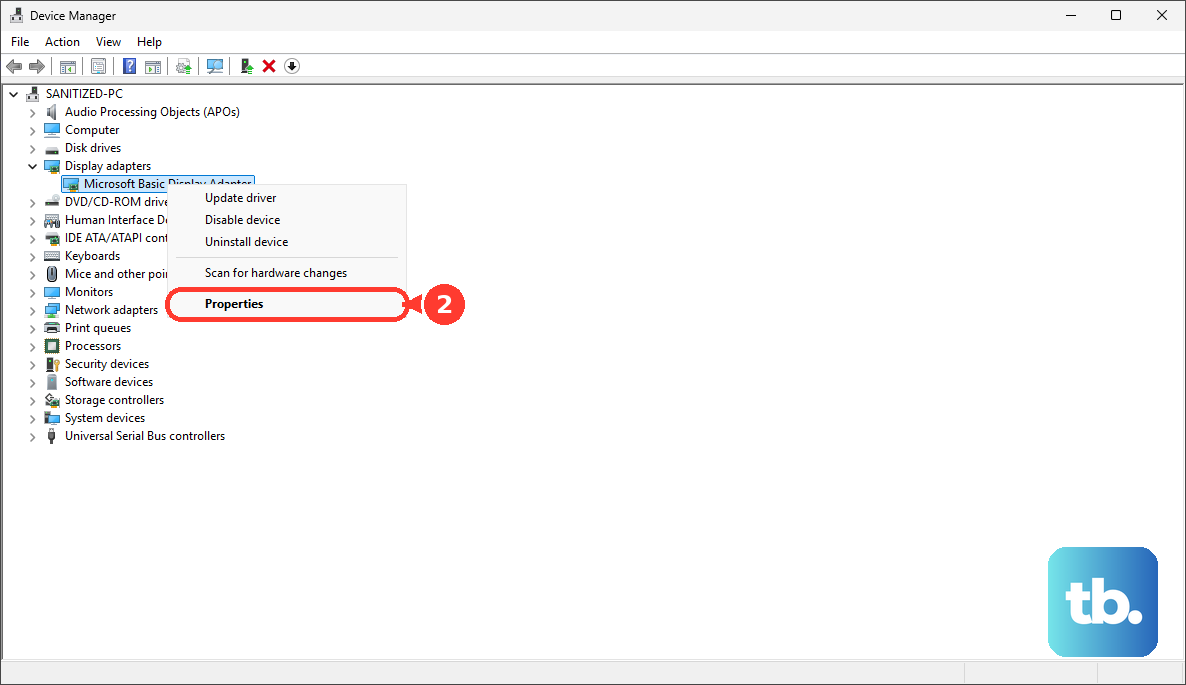
Select Roll Back Driver, choose the applicable reason, and select Yes. Restart if requested. If rollback is unavailable, obtain a compatible previous driver from the vendor instead.
Reinstall the NVIDIA device or graphics package
Uninstalling the NVIDIA device removes its device installation, and Windows attempts to reinstall the driver after a restart. On Windows 11 or Windows 10, open Device Manager > Display adapters, right-click the NVIDIA adapter, and select Uninstall device. Select Uninstall, then restart the computer.
This procedure requires an accessible NVIDIA device entry. If the adapter remains missing, continue with the applicable hardware checks.
On ASUS Windows PCs, removing the installed graphics package uninstalls that graphics driver; download the matching ASUS driver before starting. Open Control Panel > Programs > Uninstall a program, select the graphics driver, and choose Uninstall/Change. Complete removal, restart, and install the downloaded driver.
Check desktop card and external GPU connections
For a user-serviceable desktop with an add-in NVIDIA card, shut down and unplug the PC before checking inside. Follow the card and motherboard manuals to reseat the graphics card completely, inspect the PCIe slot for debris, and reconnect the card’s required power leads. Compare the power supply’s capacity with the exact card’s requirements.
If your motherboard supports another PCIe slot for the card, follow its manual to test that slot. A driver installation cannot repair an electrically disconnected GPU, so complete these connection checks if the card stays undetected.
If the desktop also has a black screen or no display, check the monitor cable at both the graphics card and the monitor, then select the correct monitor input. A working motherboard display output does not establish that the NVIDIA GPU works.
For a Razer Core V2, Core X, Core X Chroma, or Core X V2, verify enclosure power and turn on its power switch; on a Core X V2, that is the installed power supply’s switch. Disconnect the enclosure and shut down the computer, then reconnect the enclosure while the computer is off and power on. On supported Windows 11 USB4 hosts, open Settings > Bluetooth & devices > USB > USB4 hubs and devices to check the enclosure and topology ID.
Restore Windows after other software fixes fail
System Restore can remove applications, drivers, and updates installed after the selected restore point. Use it on Windows 11 or Windows 10 only when a suitable existing restore point precedes the problem. Search for Create a restore point, open it, and select System Restore > Next.
Choose a restore point from before the error began, then select Scan for affected programs and review the changes. Select Close > Next > Finish, then select Yes. If you do not have a suitable restore point, skip this method.
For ASUS Windows 11 PCs, a Windows reset is a final software-recovery option after other troubleshooting fails, but it cannot repair failed hardware. Resetting Windows removes applications even when you select Keep my files; back up your files and retain the BitLocker recovery key before starting.
On Windows 11, search for Reset this PC, select Open, and select Reset PC. Choose Keep my files, then select Local reinstall or Cloud download. Open Change settings, review the OEM-app restoration setting, and select Confirm.
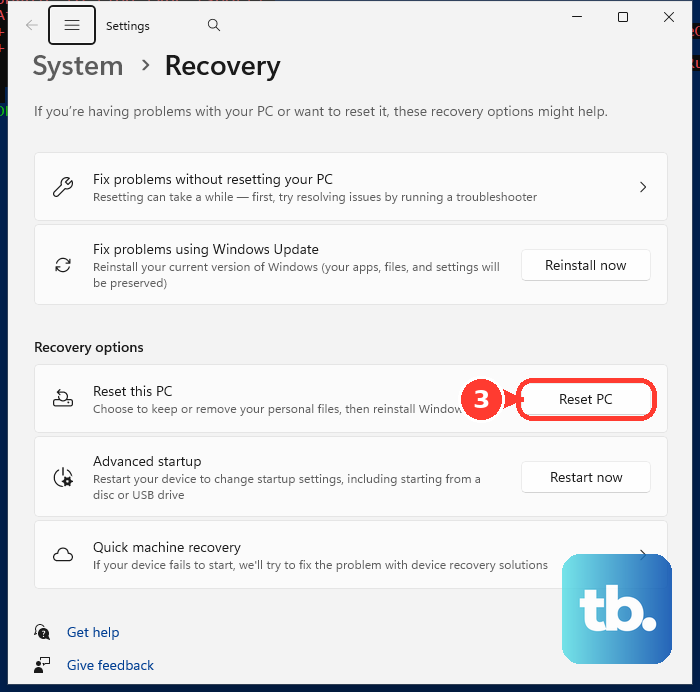
Select Next, then review View apps that will be removed. Select Back, then select Reset. If you are using Windows Recovery Environment instead, open Troubleshoot > Reset this PC.
Get help when the GPU stays undetected
Contact the computer or graphics-card manufacturer for diagnosis and repair when the applicable checks fail. This is particularly relevant for a soldered laptop GPU or a desktop card that remains undetected after driver and power checks.
Frequently Asked Questions
What does NVIDIA app require before it can recognize a supported GPU?
NVIDIA lists Windows 10 or Windows 11 and driver version 551.52 or later for NVIDIA app. Your GPU must also be one of the supported GeForce RTX, GTX, or MX models on its compatibility list.
Should you reinstall GeForce Experience to fix this error?
NVIDIA’s FAQ says GeForce Experience will no longer be supported, and NVIDIA urges GeForce Experience users to upgrade to NVIDIA app. Use NVIDIA app on a compatible system, or use the standalone driver installer when the detection error prevents the app from opening.
What can you try if the display flickers as well?
For display-driver glitches such as flickering on Windows 11 or Windows 10, press Windows + Ctrl + Shift + B. Microsoft recommends restarting Windows if the display problem remains.
How can you change a game’s GPU preference after Windows detects the NVIDIA adapter?
On Windows 11, open Settings > System > Display > Graphics. Under Custom options for apps, select the game and choose Options. In Graphics preference, select High performance, select Save, and restart the game.
Is Display Driver Uninstaller required for this error?
DDU is not a universal NVIDIA requirement. MSI includes it in clean-install instructions for covered notebooks, so follow the applicable MSI procedure if you use it for that hardware.