


To fix the No IP Allocation Wi-Fi error on your Vivo phone, turn Wi-Fi off and on, forget the affected network, and reconnect with its current password. If the error continues, restart your phone and router, then try another network to decide which device needs further troubleshooting.
The error points to a problem obtaining a local network address, but it does not prove that your router has reached its connection limit. Vivo uses several settings layouts, so follow the menu branch that matches your phone.
The short version
- Reconnect first: Toggle Wi-Fi, then forget the network and enter its current password again.
- Restart both devices: Restart your Vivo and unplug your router for 30 seconds before reconnecting its power.
- Find the failing side: Try your phone on another network and another device on the affected network.
- Reset selectively: Reset network settings when the phone keeps failing, or check router DHCP settings when the problem follows one network.
| Fix or check | When to use it | Main consideration |
|---|---|---|
| Toggle Wi-Fi | First connection retry | Select the network again afterward |
| Forget and reconnect | A saved connection keeps failing | Enter the current password |
| Check the password | The password may have changed | Select Show password to inspect it |
| Move closer | The signal is weak | Retry near the router |
| Cycle Airplane mode | Reconnecting has not helped | Wait 10 seconds before disabling it |
| Restart the phone | The connection still fails | Button arrangements vary by model |
| Restart the router | You control the affected home network | Disconnect power for 30 seconds |
| Cross-test connections | The cause remains unclear | Try another network and another device |
| Reset network settings | Phone connection trouble persists | Saved network and Bluetooth settings reset |
| Check router restrictions | Only one network fails | Requires owner or administrator access |
| Check DHCP and its address pool | The router is not assigning an address | Use an appropriate available range |
| Detect competing DHCP servers | The network has additional routers or access points | Available on compatible TP-Link models |
| Reserve an address | The phone needs a reserved address | Requires working DHCP and a stable MAC address |
| Unblock the phone in Tether | The phone appears in the blocked list | Requires a compatible TP-Link device |
| Try a separate 2.4 GHz network | The phone may not support the other band | Give the bands different network names |
| Check wireless compatibility | Security or interference may be involved | Router options vary by model |
| Update the phone | Phone troubleshooting has not helped | Requires a working internet connection |
| Update router firmware | The problem stays with one router | Install an available update |
| Restore all phone settings | Earlier phone fixes have failed | Back up important data first |
| Reset the router | A misconfigured router needs a last resort | Record its configuration before resetting |
| Get administrator or Vivo assistance | The error persists after troubleshooting | Use the cross-test results to choose whom to contact |
Reconnect to your WiFi network
Open Settings > Wi-Fi, turn Wi-Fi off, then turn it back on and select your network. On Vivo builds with the alternative layout, open Settings > Network & internet, switch Wi-Fi off and on, then open Wi-Fi and select the network. You can also swipe down to open Control center, tap the Wi-Fi icon twice, and select the network again.
If the same error returns, remove the saved connection before trying again. Long-press the Wi-Fi icon in Control center, tap the affected network, and select Forget network or Forget password, matching the label on your phone. Select the network again and enter its current password.
Check the password carefully, especially if someone recently changed it on the router. Select Show password when you need to inspect what you entered. If reconnecting still fails, continue with the signal and restart checks.
Retry near the router
Move near the router, check whether the Wi-Fi signal improves, and try connecting again. If the connection works nearby, follow the steps to fix a weak Wi-Fi signal before changing more phone settings.
You can also cycle Airplane mode to retry the connection. Open Control center, enable Airplane mode, wait 10 seconds, then disable it. Check that Wi-Fi is enabled and select your network again.
Restart your phone and router
On Vivo models using this button arrangement, hold Power + Volume up together, then tap the Restart icon. Follow your model’s manual if its button arrangement differs. Once the phone starts again, retry the affected network.
For a home router you control, unplug its power and check that its lights go out. Wait 30 seconds, reconnect the power, and allow startup to finish before retrying Wi-Fi on the phone. If the error remains, try another connection before making broader changes.
Find out which connection is failing
Connect your Vivo to another Wi-Fi network, then try another device on the network that shows the error. If the phone works elsewhere, focus on the affected router’s restrictions and address allocation settings. If your Vivo fails across known-working networks, continue with phone troubleshooting.
When another device also fails on the affected network, investigate the router. On a school, workplace, or public network, ask its administrator to check connection restrictions and router operation. Make router changes yourself only when you have owner or administrator access.
Reset the phone’s network settings
Open Settings > System management > Backup & reset > Reset network settings. Another Vivo layout uses Settings > System > Reset options > Reset network settings. On builds with the alternative reset label, select Reset Wi-Fi, mobile & Bluetooth under Reset options.
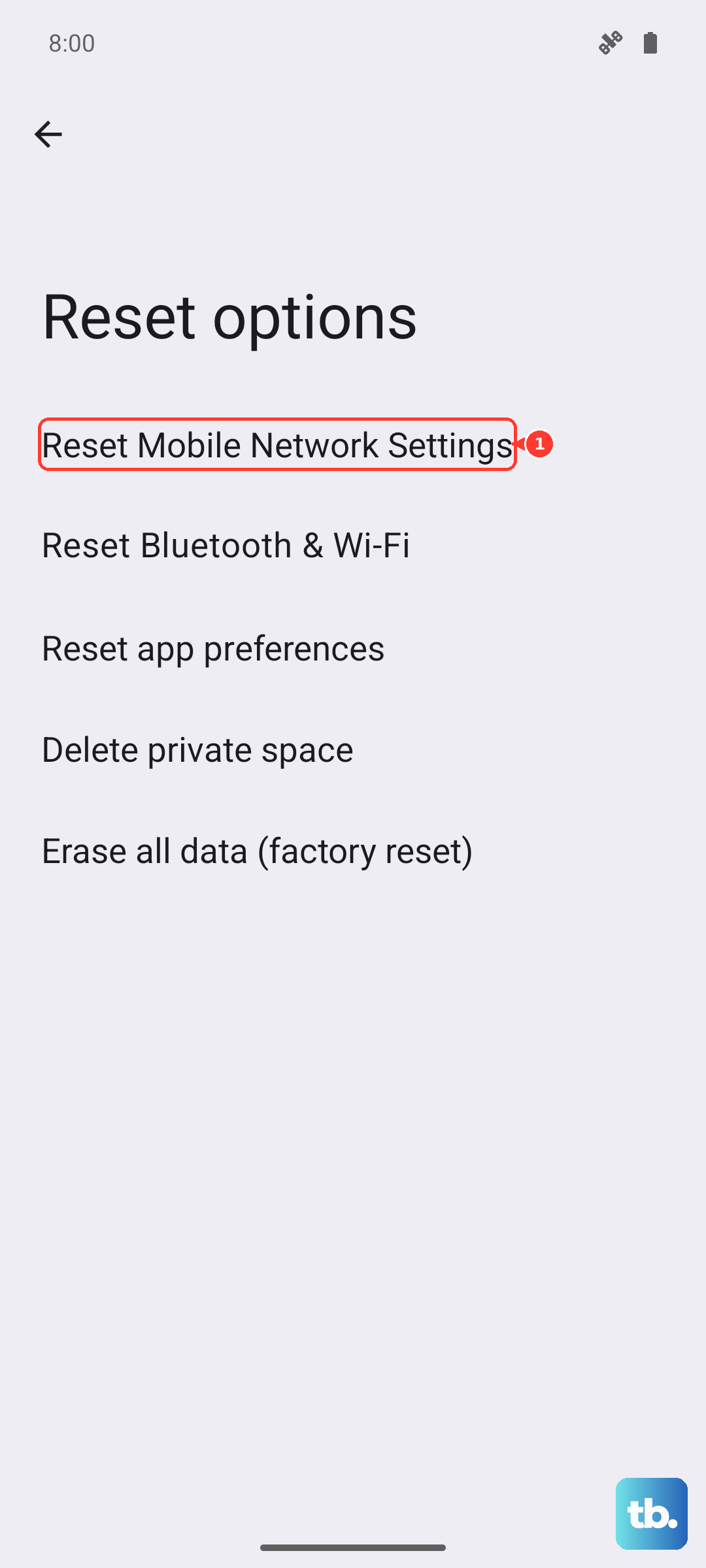
Saved network and Bluetooth connection settings are reset, so have the Wi-Fi password ready. Complete the reset using the prompts on your phone, then reconnect to Wi-Fi. If your phone connects elsewhere afterward but still fails on one network, move to that router’s settings.
Check router restrictions and address allocation
Use another connected device or an Ethernet connection to open your router’s management interface when the Vivo cannot obtain an address. Check connection limits, MAC address bindings, and internet-access schedules. Router menu labels vary, so the TP-Link paths below apply only to compatible models using those interfaces.
On TP-Link routers with this web interface, sign in at tplinkwifi.net and open Advanced > Network > DHCP Server. Check Enable, review IP Address Pool, and set an appropriate available address range before clicking SAVE. Retry the Vivo connection after correcting the settings.
For a network with additional routers or access points, compatible TP-Link models also offer DETECT DHCP SERVER on the same page. Click it to check for competing DHCP servers, then have the network owner correct unintended competing servers.
If DHCP is working but the phone needs a reserved address, open Address Reservation > Add from the same DHCP Server page. Enter the phone’s network MAC address and an appropriate unused IP address, then click SAVE. A reservation requires working DHCP and a stable MAC address, so correct a disabled or misconfigured DHCP server first.
If you already manage a compatible TP-Link router through Tether, check whether the phone is blocked. Select the router under Local Device, open More > Block List, tap the icon beside the phone, and select Unblock. On the alternative interface, open Blocked Clients and swipe left on the phone. Retry the connection after unblocking it.
Check compatibility and install updates
For a compatible dual-band TP-Link router, try a separate 2.4 GHz network, particularly when your Vivo does not support the other band. In Tether, open your router, select More > Wi-Fi Settings, disable Smart Connect, and assign different network names to the bands. Tap Save, then connect the phone to the 2.4 GHz network.
Router security and interference checks can address compatibility problems, but they do not establish that the DHCP pool is full. On TP-Link routers using this interface, sign in at tplinkwifi.net, open Advanced > Wireless > Wireless Settings, and review Security, Channel, and Channel Width. TP-Link recommends WPA2-PSK [AES] or WPA2-PSK [AES] / WPA3-Personal; adjust channels when interference is implicated, then click Save. Available options vary by router.
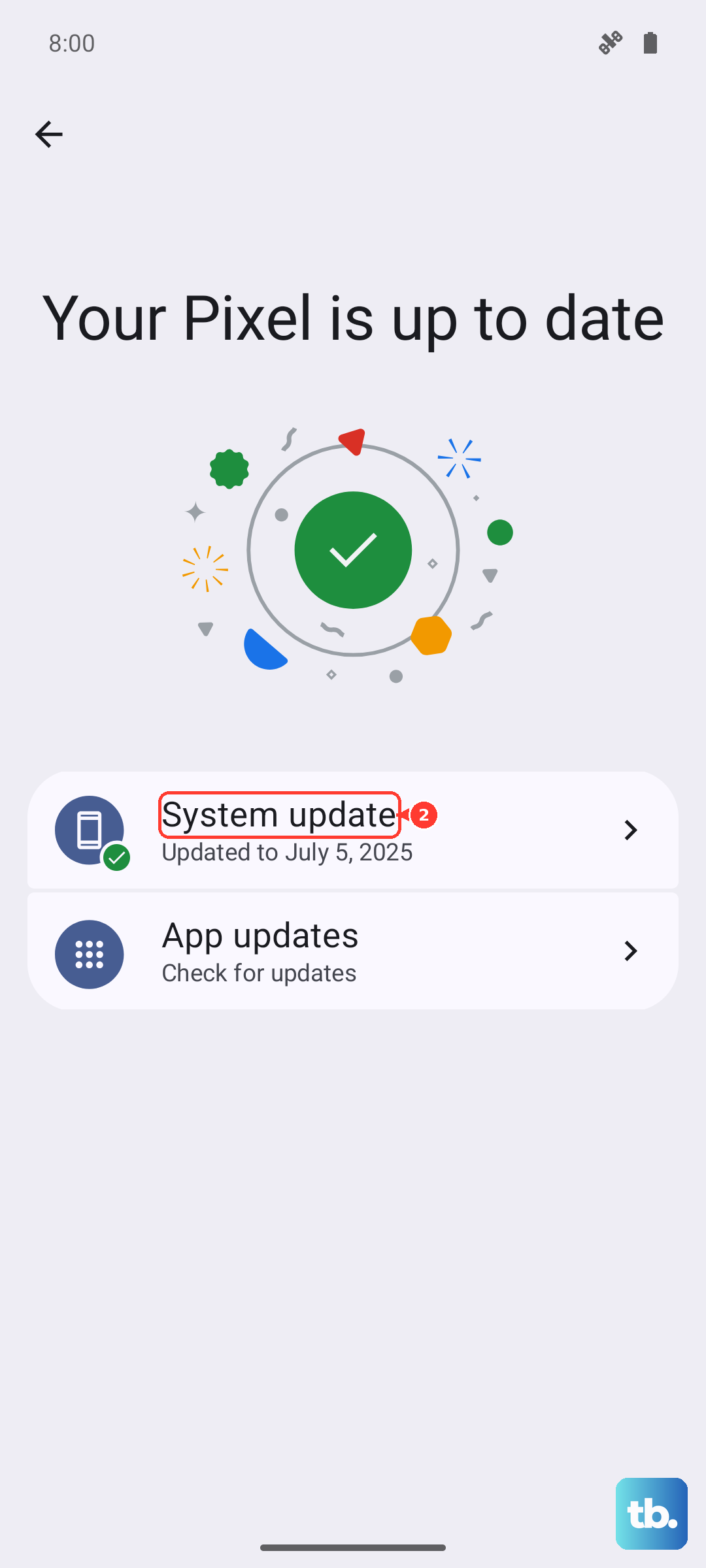
Using a working internet connection, open Settings > System update on Vivo builds with that interface and install an available update. Update availability depends on your model and region. Reconnect to the affected Wi-Fi network once the update is complete.
Compatible TP-Link routers provide firmware updates through Advanced > System > Firmware Update > CHECK FOR UPDATES. Under Online Update, click UPDATE when an update is offered. Router firmware can address compatibility faults, making this relevant when the problem stays with one router.
Use broader resets or get help
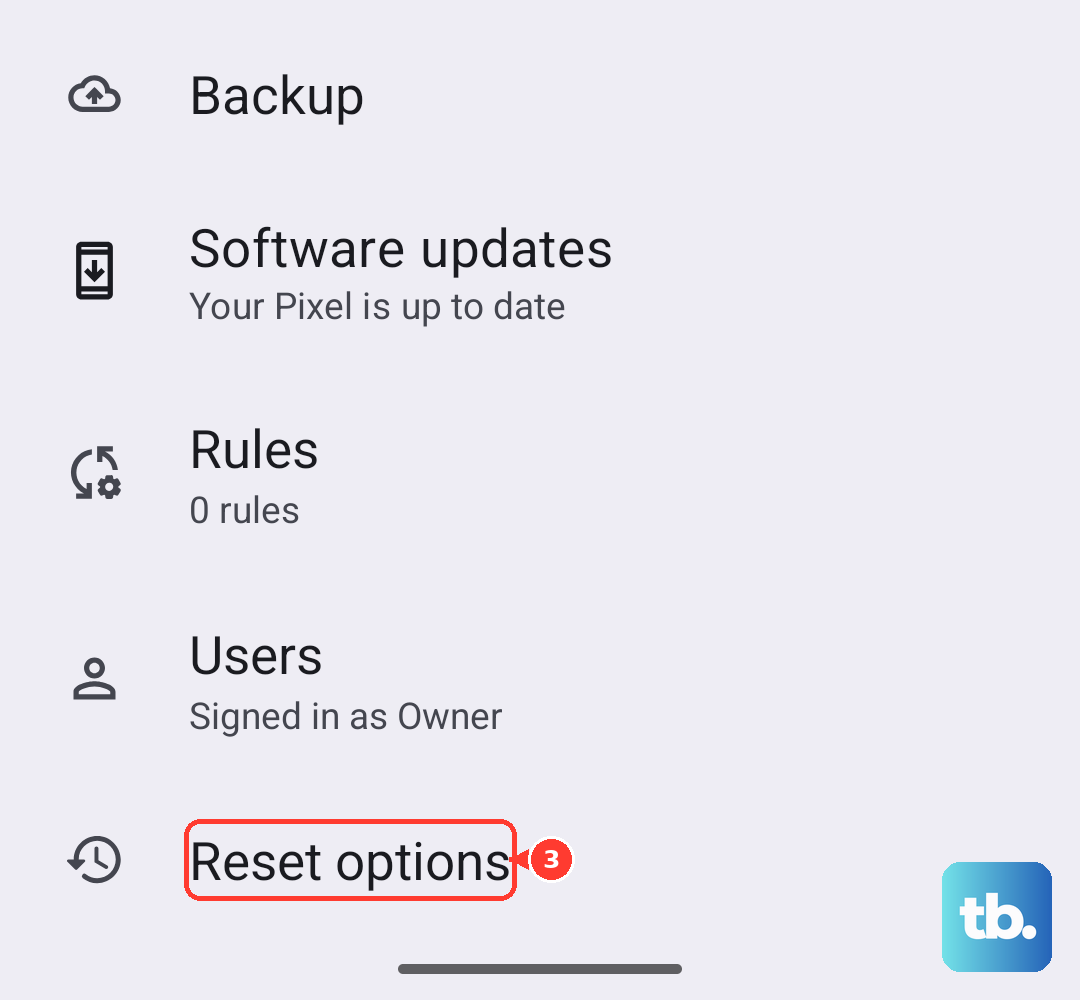
If phone troubleshooting has failed, you can try a broader settings reset on Vivo models exposing that command. Back up important data, then open Settings > System management > Backup & Reset > Reset All Settings. Other Vivo layouts use More settings or System, followed by Backup & Reset or Reset options; follow the labels on your model.
A router reset is a last resort for a misconfigured home network. On TP-Link models using this reset procedure, record the required configuration first, then hold Reset until the Power LED blinks and reconfigure the router. Resetting removes the network configuration, so take this step only when you can set it up again.
When only one network keeps failing, ask its owner to check connection restrictions and router operation. If your Vivo fails across known-working networks despite the phone fixes, back it up and take it with proof of purchase to a Vivo service center.
Frequently Asked Questions
What if Wi-Fi will not turn on while my Vivo hotspot is enabled?
Some Vivo models cannot run Wi-Fi and their own hotspot simultaneously. On those models, open Settings, then Network and Internet or Other Networks and Connections, followed by Personal Hotspot or Hotspot and tethering. Open Personal Hotspot or Wi-Fi hotspot, turn the hotspot off, then enable Wi-Fi.
Why does one app remain offline after Wi-Fi connects?
Once address allocation succeeds, check that app’s Wi-Fi permission on Vivo builds with Network management. Open Settings > More connections > Network management > Wi-Fi and allow the affected app’s network access. This permission controls app access; it does not allocate an IP address.
What should I do if public Wi-Fi connects but still needs a login?
After the phone obtains an address, open a browser and complete the public network’s authentication page if one appears. The account fields and agreement wording depend on the venue. Browser authentication lets you proceed with internet access after local address allocation succeeds.
Can a downloaded app interfere with Wi-Fi?
Yes, Safe mode can help you identify a downloaded-app conflict. On Vivo models using this startup procedure, release Power when the vivo, NEX, or iQOO logo appears, wait approximately five seconds, then hold Volume down until the lock screen appears; some models use different procedures. In Safe mode, turn off Airplane mode if it is on, enable Wi-Fi, and connect to the affected network to check it, then restart normally to leave Safe mode. If Wi-Fi worked there, uninstall recently downloaded apps one at a time, checking Wi-Fi after each removal.
How can I restart a Vivo that has stopped responding?
On Vivo models using this force-restart arrangement, hold Power and Volume down together for at least 10 seconds. Use this procedure when the phone is unresponsive, and consult your model’s manual if its button arrangement differs.