

To fix the MSI Afterburner overlay not showing, run Afterburner and RivaTuner Statistics Server together, enable Show in On-Screen Display for your monitoring readings, and turn on RTSS’s overlay switches. Then check your overlay hotkey and the affected game’s RTSS profile. Start with these settings before updating or reinstalling either application.
The short version
- Run both apps: Keep Afterburner and RivaTuner Statistics Server running while you play.
- Select your readings: Activate each sensor and check Show in On-Screen Display in Afterburner.
- Check RTSS: Enable its overlay switches and set the affected game’s Application detection level to Low.
- Match the symptom: Follow the relevant checks for missing statistics, startup problems, or conflicts with another overlay.
| Check or fix | When to use it |
|---|---|
| Run both applications | The entire overlay is missing |
| Open the RTSS controls | RTSS’s window is hidden |
| Enable monitoring items | Some or all readings are absent |
| Assign an overlay hotkey | The overlay may be hidden |
| Enable RTSS overlay switches | Overlay display or support is off |
| Check application detection | A game profile has detection disabled |
| Adjust position and appearance | The overlay is off screen or unreadable |
| Start benchmark recording | Average FPS or 1% lows are missing |
| Select the intended GPU | Your system has multiple graphics processors |
| Enable automatic startup | The overlay disappears after restarting Windows |
| Update Afterburner | You need the stable installer |
| Install or update RTSS | RTSS is missing or an older installation fails |
| Stop automatic startup temporarily | A running Afterburner blocks installation |
| Adjust Overwolf compatibility settings | You run Overwolf alongside RTSS |
| Check without the Steam overlay | You suspect an overlay conflict in a Steam game |
| Allow third-party software in CS2 | You accept Valve’s Trusted mode tradeoff |
| Use a separate monitoring window | A game does not accept the overlay |
| Clean reinstall both applications | The overlay stopped working after an update |
| Use Windows uninstall controls | You are carrying out a clean reinstall |
Keep Afterburner and RTSS running
Launch MSI Afterburner and RivaTuner Statistics Server, then leave both running in the background while you play. Afterburner’s hardware monitoring overlay uses the RTSS companion application, so you need both programs running.
To bring up RTSS’s controls, open Afterburner’s Settings > On-Screen Display, then select More. Alternatively, right-click RTSS’s notification-area icon and select Show. If RTSS is missing, install it using the download steps below before continuing with its settings.
Enable your readings and overlay hotkey
In Afterburner, open Settings > Monitoring. Activate a sensor using its adjacent checkmark, select that sensor, then check Show in On-Screen Display. Repeat this for every reading you want and select Apply.
If only one reading is missing, return to that sensor and check both its activation checkmark and Show in On-Screen Display. Each reading needs its own overlay selection, so repeat those checks for any other missing sensors.
Next, open Settings > On-Screen Display and assign Scroll Lock to Toggle On-Screen Display. Select Apply, then OK, and press Scroll Lock in the game. Keep the settings window closed when using the hotkey, because hotkeys require it to be closed.
Check the RTSS switches and game profile
In RTSS, set Show On-Screen Display to ON. Select Global or the affected application profile, then set On-Screen Display support to ON. Inspect the application-specific settings as well as Global, particularly when the overlay fails in just one game.
Select the affected game’s executable profile under Application profile properties and set Application detection level to Low. A value of None prevents RTSS from attaching its overlay to that process. Correct a disabled profile before moving on to the compatibility checks.
Make the overlay visible and restore missing statistics
If your overlay is off screen or difficult to read, use RTSS’s preview and corner controls to reposition it. Adjust On-Screen Display zoom to make the text readable. Adjust the palette and enable the background fill if poor contrast makes the readings hard to see.
If the rest of the overlay works but average FPS or 1% lows are missing, open Afterburner’s Benchmark settings. Assign F9 to Begin recording and Shift + F9 to End recording, then save and close settings. Press F9 during gameplay to start or reset measurement, and press Shift + F9 when you want to end recording.
On a system with multiple GPUs, press Ctrl + I in Afterburner to identify GPU1 and GPU2. Return to Settings > Monitoring and enable readings for the GPU actually running the game. This check also applies to computers with both integrated and discrete graphics.
Restore the overlay after signing in
If the overlay works after you launch both programs manually but disappears after restarting Windows, enable startup for both applications. In Afterburner, open Settings > General, check Start with Windows, and select OK. In RTSS, set Start with Windows to ON.
Install or update Afterburner and RTSS
For an older installation that still cannot display the overlay, get Afterburner from the official MSI download page. Choose 4.6.6 (Final), the stable version MSI lists as of October 2026. Install the bundled RTSS component for overlay functionality.
You can also install or update the companion application from the official RTSS download page by selecting Download Version 7.3.7 Final. Install RTSS alongside Afterburner, then launch both applications and check the overlay again.
If installation or an update is blocked because Afterburner is already running, open Afterburner’s Settings and uncheck Start with Windows. Select OK, restart Windows, then run the installer again. After installation, you can enable startup again using the settings above.
Check conflicts with Overwolf and Steam
If you run Overwolf alongside RTSS 7.2.3 or later, apply Overwolf’s compatibility settings in RTSS. Set Application detection level to Low, Stealth mode to OFF, and Custom Direct3D support to OFF. Set On-Screen Display coordinate space to Framebuffer. These settings address that specific combination of applications.
For a Steam game with a suspected overlay conflict, temporarily disable Steam’s overlay and check RTSS again. This is a diagnostic check, so it may help identify a conflict without resolving the underlying problem.
Open Steam > Settings > In-game and turn off Enable the Steam Overlay while in-game. Alternatively, open the game’s Library entry, select Properties... > General, and uncheck Enable the Steam Overlay while in-game. Relaunch the game and check whether RTSS displays your readings.
Handle Counter Strike 2 and restricted games
For Counter-Strike 2, Valve supports a launch option that allows third-party software outside Trusted mode. Valve warns that running outside Trusted mode can negatively affect your Trust Factor. Valve also notes that some injections may be blocked outside Trusted mode, and this launch option is its documented way to play with software that is normally blocked. If you accept that tradeoff, add the following command to Counter-Strike 2’s Steam launch options, then relaunch the game.
-allow_third_party_softwareThis exception applies specifically to Counter-Strike 2. Use it only for that game, rather than applying it to other games with overlay restrictions.
When a game does not accept the in-process overlay, press Ctrl + M in Afterburner to open its hardware-monitoring window. Place that window on a second monitor while playing. You can then view your monitoring data separately, although this does not restore the overlay inside the game.
Clean reinstall after an update breaks the overlay
If the overlay stopped working after an update and the earlier checks did not restore it, RTSS’s publisher recommends a clean reinstall of both applications. A clean reinstall removes Afterburner, RTSS, and their custom profiles.
On Windows 11, open Start > Settings > Apps > Installed apps. Open Afterburner’s More menu and select Uninstall, then repeat for RTSS. Remove retained profiles as part of the clean uninstall.
On Windows 10, or as an alternative on Windows 11, open Control Panel > Programs > Programs and Features. Right-click each application and select Uninstall or Uninstall/Change. Complete the removal of both programs and their retained profiles before reinstalling.
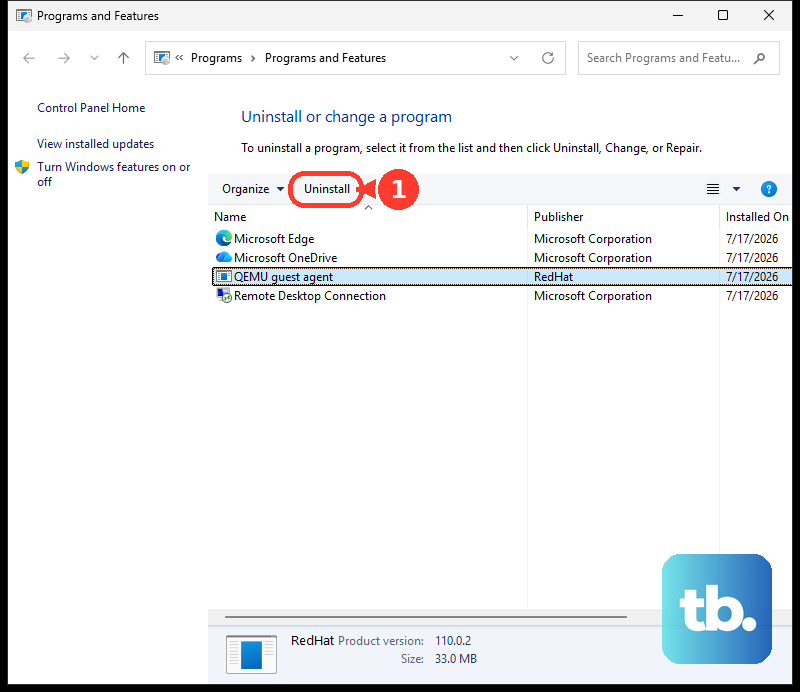
Reinstall Afterburner and RTSS from their official download pages linked above. Launch both programs, select your monitoring readings again, and enable their on-screen display settings. Assign your overlay hotkey and close the settings window before checking it in the game.
Frequently Asked Questions
Can you use MSI Afterburner with a graphics card from another brand?
Yes, MSI Afterburner supports both MSI and non-MSI graphics cards on Windows. You can follow the same Afterburner and RTSS overlay setup with either.
Which beta version does MSI offer alongside the stable download?
As of October 2026, MSI also lists 4.6.7 (Beta) on its product page. Choose 4.6.6 (Final) if you want the listed stable release.
Which compatibility problems does RTSS 7.3.7 address?
RTSS 7.3.7 Final includes compatibility fixes for Vulkan, EA App games, and NVIDIA Smooth Motion. Updating is particularly relevant if you use one of those and an older RTSS installation cannot display the overlay.
Is Scroll Lock the default Afterburner overlay shortcut?
Treat Scroll Lock as an example assignment, not a guaranteed default. Check Settings > On-Screen Display in Afterburner to see or assign the key for Toggle On-Screen Display.