


Disable the startup entry that launches LogiLDA.dll, then restart your PC to stop Windows from trying to load it. Start with Logitech Download Assistant in Windows startup settings. If the entry is missing or the message returns, use Microsoft Autoruns to locate the remaining launch reference.
The short version
- Start here: Turn off the confirmed Logitech entry in Windows startup settings.
- Alternative route: Press Ctrl + Shift + Esc to manage the entry in Task Manager.
- Missing entry: Use Microsoft Autoruns to find a startup command that references LogiLDA.dll.
- Cleanup order: Disable or remove the startup reference before deleting a leftover DLL.
| Option | When to use it | What it does |
|---|---|---|
| Startup settings | The Logitech entry is visible | Turns off its automatic launch |
| Task Manager | You prefer another startup interface | Disables the same registered entry |
| Keyboard or System Configuration route | You need another way to open startup management | Opens Task Manager directly or through msconfig |
| Startup folders | A shortcut launches the DLL | Removes the matching shortcut |
| Broken entry information | Windows flags a missing app | Reveals its file or registry location |
| Autoruns inspection | A launch reference remains | Finds and disables the confirmed entry |
| Autoruns download | You need the utility | Provides Microsoft's startup tool |
| Registry command | The exact Run value is confirmed | Deletes that specific registration |
| Registry backup | You plan manual removal | Exports the affected key first |
| App uninstall | You no longer want the Logitech app | Removes the installed application |
| Options cleanup | You are completing an Options or Options+ cleanup | Removes specified DLL remnants |
| Options+ installation | You need supported companion software | Installs Options+ for compatible devices |
| Options+ download | You need compatibility details and an installer | Provides Logitech's current download |
| Clean boot | Targeted changes have not worked | Helps isolate another startup source |
Turn off the Logitech startup entry
On Windows 11, open Start > Settings > Apps > Startup. Locate Logitech Download Assistant, or the entry identified as launching LogiLDA.dll, and set its toggle to Off. Restart your PC and check whether the startup error disappears.
On Windows 10, open Start > Settings > Apps > Startup, then turn off the matching entry and restart. This is the same control you use to stop apps from opening on startup. If the entry is missing or the error returns, check for a remaining launch reference below.
Use Task Manager as an alternative
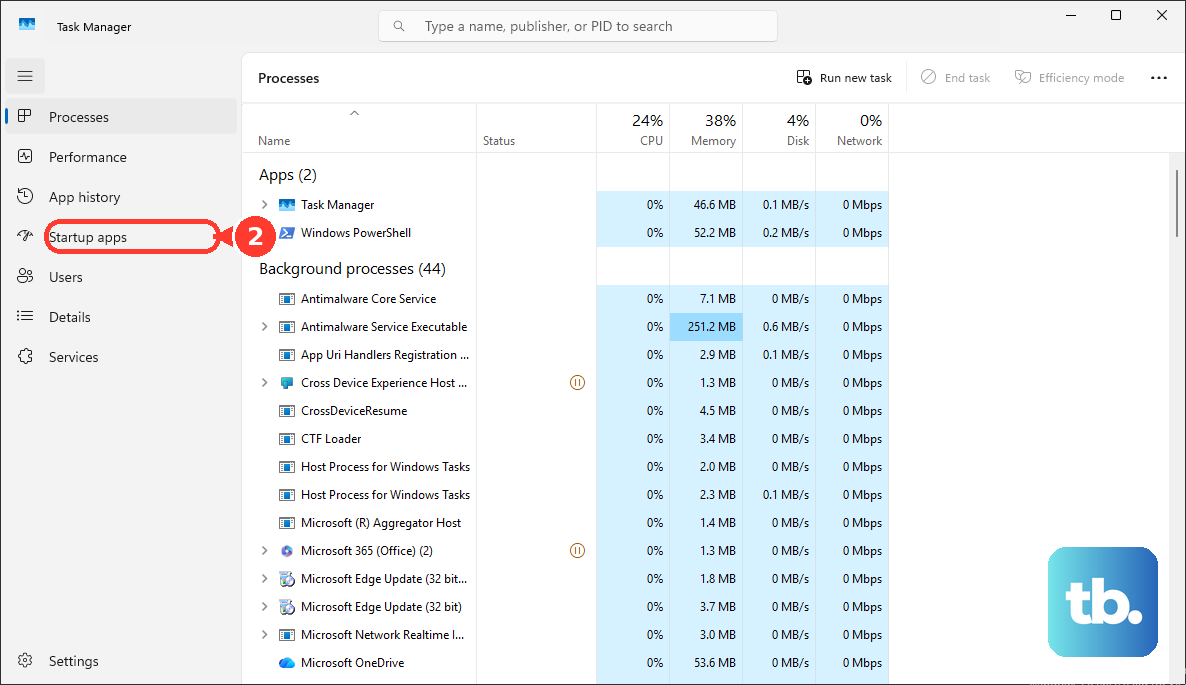
Press Ctrl + Shift + Esc to open Task Manager, or right-click Start and select Task Manager. On Windows 11, open Startup apps, select the entry that launches LogiLDA.dll, and select Disable. Restart to check the result.
On Windows 10, use the Startup tab in Task Manager instead. Microsoft says Settings and Task Manager expose the same registered startup applications, so this is another way to disable the same entry.
You can also open System Configuration by running msconfig. Select its Startup tab, then select Open Task Manager to reach the startup controls. On current Windows, this tab redirects you to Task Manager rather than letting you untick individual startup programs.
Identify a broken entry or startup shortcut
A broken startup registration may appear under a missing-app label instead of the Logitech name. On Windows 11, open Settings > Apps > Startup, find We couldn’t find this app, and select the information icon beside it. Windows displays the broken file path or registry location, which you can use to identify the offending entry.
On Windows 10, open Settings > Apps > Startup and inspect the same information icon when Windows exposes the broken registration there. Confirm that the location relates to LogiLDA.dll before removing anything. If Windows does not expose the entry this way, use Autoruns.
On Windows 11 and Windows 10, a startup-folder shortcut can also launch the DLL. Right-click Start, select Run, and enter this command to open your startup folder:
shell:startupDeleting a shortcut removes that shortcut from the startup folder. Delete only a shortcut you have confirmed launches LogiLDA.dll. If no matching shortcut exists, skip removal.
Repeat the check for shortcuts that apply to all users. Open Run again and enter this command:
shell:common startupDeleting a shortcut here removes it from the all-user startup folder. Delete only a shortcut confirmed to launch LogiLDA.dll. Skip this method when neither folder contains a matching shortcut.
Find the remaining reference with Autoruns
Microsoft Autoruns can help when a startup registration remains but Settings does not expose it. Open the official Autoruns download page and select Download Autoruns and Autorunsc. Run the graphical Autoruns utility.
Locate the entry whose command references LogiLDA.dll, then select Jump to Entry to inspect its registration. Uncheck the checkbox beside that confirmed entry to disable it. The checkbox uses the entry's name on your PC, so identify it by its command rather than expecting a universal label.
Administrative access may be needed for an entry that applies across the PC. Deleting an Autoruns entry removes its startup registration. If you choose removal instead of disabling, select Delete only for the confirmed LogiLDA.dll entry.
Remove a confirmed registry value only when necessary
Manual registry removal is an advanced alternative to Autoruns on Windows 11 and Windows 10. Use it only after identifying the exact location and value name on your PC. The example below applies only when the confirmed value is Logitech Download Assistant in HKLM\Software\Microsoft\Windows\CurrentVersion\Run.
Deleting this value removes its startup registration, so export the affected key before making the change. Search for regedit.exe and open it, select the affected key, then choose File > Export. Choose a location, enter a File name, and select Save.
The /f option suppresses confirmation, so check the target before running the command. Never omit /v or delete the entire Run key. With that exact location and value confirmed and backed up, run the following command as an administrator to delete the startup registration:
reg delete "HKLM\Software\Microsoft\Windows\CurrentVersion\Run" /v "Logitech Download Assistant" /fSubstitute another location or value name only when you have confirmed it on your PC. If the example does not match your entry, use Autoruns to inspect the actual registration before making a change.
Uninstall unwanted Logitech software and clean up remnants
If you no longer want an installed Logitech application, such as SetPoint or Options, you can remove it through Windows. Uninstalling removes the selected application. On Windows 11, open Start > Settings > Apps > Installed apps, open the application's More menu, and select Uninstall.
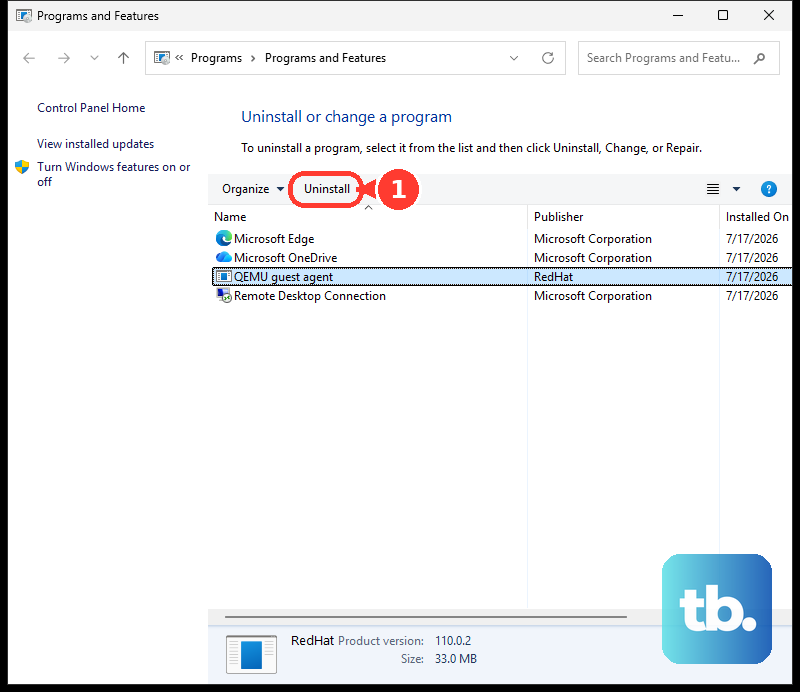
Another Windows 11 route is Control Panel > Programs > Programs and Features. This also removes the selected application. Right-click it and select Uninstall or Uninstall/Change, then follow its prompts. A leftover DLL startup entry may remain afterward, so return to the startup checks if the message continues.
Use Logitech's DLL cleanup steps only when completing a full Options or Options+ cleanup after uninstalling that software. Disable or remove the startup reference first, because deleting the DLL alone leaves Windows trying to load a missing file. The next step removes the LogiLDA.DLL file. Open C:\Windows\System32\ and delete LogiLDA.DLL.
For the same complete cleanup, Logitech also names a package-specific DriverStore directory. That exact directory is not universal, so skip this part if it does not match and do not substitute another driver directory or force permissions. The following deletion removes the two named DLL files from that package directory. Open C:\Windows\System32\DriverStore\FileRepository\unifhid.inf_amd64_3994342584154151\x64 and delete LdaCx2.dll and LogiLDA.DLL.
Do not reinstall SetPoint as a repair. Logitech says SetPoint is no longer supported or maintained and directs owners of compatible devices to Options+.
Install Options+ if your device supports it
If you need Logitech companion software after cleanup, open the official Logi Options+ download page and select VIEW ALL SUPPORTED DEVICES. For a listed device on a supported Windows configuration, select DOWNLOAD FOR WINDOWS 10 OR LATER. Use that installer rather than a standalone DLL download, and proceed only if your device is supported.
Double-click logioptionsplus_installer.exe to start installation. If User Account Control asks Do you want to allow this app to make changes to your device?, select Yes, then complete the installer; administrator rights are required. Installation restores supported companion software, but Logitech does not promise that it repairs an orphaned LogiLDA startup registration.
Use a clean boot if the error continues
A clean boot helps isolate another startup source when targeted changes have not resolved the problem. Organizational policy can restrict this procedure on a managed PC. If policy prevents it, stay with the permitted startup controls described above.
Sign in as an administrator, search for msconfig, and open System Configuration. Select Services, check Hide all Microsoft services, then select Disable all followed by Apply.
Open Startup > Open Task Manager, then open Startup apps on Windows 11. On Windows 10, use Task Manager's Startup tab instead. Record which items are enabled, then select each enabled item and select Disable.
Close Task Manager, select OK in System Configuration, and restart. To isolate the source of the error, re-enable the disabled services and the recorded startup items in groups, restarting after each change. When you finish, open System Configuration, select Normal Startup on the General tab, then on Services clear Hide all Microsoft services and select Enable all. Open Startup > Open Task Manager, enable the recorded startup items again while leaving the confirmed offending startup item disabled, then restart.
Frequently Asked Questions
How can you restore the registry backup after a manual change?
Importing the backup restores the registry information you exported. Open Registry Editor and select File > Import. Select the backup, then select Open.
Should you use Autoruns or Autorunsc?
Use the graphical Autoruns utility to disable or delete a startup entry. Autorunsc is primarily an inspection and reporting tool.
Can Autoruns inspect startup entries for another account?
Yes, Autoruns can inspect another account's startup entries. Open the User menu to inspect that account when necessary.
Can you uninstall an unwanted Logitech app from the Start menu?
Yes, but uninstalling removes the selected application. On Windows 11, open Start > All apps, right-click the application, and select Uninstall. The subsequent prompts depend on the application.