The Facebook back button can stop returning you to your feed, previous post, comments, or a link you just opened. Start with the fast app and browser fixes, then move into Android navigation, cache, extensions, and reinstall steps that match where the problem happens.
1. Restart Facebook and retest Back
Use this first when Back fails once, loops on one screen, or gets stuck inside a post. A fresh app or tab session clears a temporary Facebook screen problem without changing your account.
On iPhone, open the app switcher, find Facebook, swipe up on it, then open Facebook again from the Home Screen or App Library.
On Android, swipe up from the bottom, hold, let go, then swipe up on Facebook.
To close all apps, swipe up from the bottom, hold, let go, swipe from left to right, then tap Clear all.
On facebook.com, click Refresh. If Back still fails, close the Facebook tab and open facebook.com again.
On Android, force a clean app start through Settings > Apps > Facebook > Force stop, then reopen Facebook.
2. Update Facebook before deeper fixes
Android: Open Google Play Store, search for Facebook, tap Facebook, then tap Update if the button appears.
iPhone or iPad: Open the App Store, tap your account button or photo, tap App Updates, then tap Update next to Facebook if it appears.
Navigation problems can come from an old Facebook app running against a newer Facebook service.
After updating, check that your phone or tablet still meets Facebook's supported operating system versions: Android 8.0, iOS 15.1, and iPadOS 15.1.
If your device is below that, install the available system update or use facebook.com in a current browser.
3. Switch Android navigation mode
If the system Back control is the part failing in Facebook, fix Android navigation before changing Facebook settings.
On Pixel, open Settings > System > Navigation mode.
On many other Android phones, open Settings > System > Gestures > Navigation mode.
Choose Gesture navigation or 3-button navigation, then open Facebook and test Back again.
With gestures enabled, tap the gear next to Gesture navigation, then adjust Left edge and Right edge sensitivity.
On Samsung Galaxy, use Settings > Display > Navigation bar, then choose Buttons or Swipe gestures.
If you use buttons, choose the button order shown on your phone.
4. Use browser Back on facebook.com
When Facebook's on-page Back control fails in a desktop browser, use the browser history command instead.
Chrome: Click the browser Back arrow, or press Alt + Left Arrow on Windows, Linux, or ChromeOS.
Firefox: Click the browser Back arrow.
On Windows or Linux, press Alt + Left Arrow. On macOS, press Command + Left Arrow or Command + [.
Microsoft Edge: Click the browser Back arrow, or press Alt + Left Arrow.
Safari on Mac: Click the Safari Back button, use a supported trackpad or mouse gesture, or use Safari's keyboard shortcuts.
Skip the old Backspace shortcut advice. Current browser guidance gives you the Back arrow and the shortcuts above.
5. Clear Facebook cache and site data
Android app: Open Settings > Apps > Facebook > Storage or Storage & cache > Clear cache.
On Samsung Galaxy, use Settings > Apps > Facebook > Storage > Clear cache.
Chrome: Open More > Delete browsing data, choose a Time range, select Cookies and other site data and Cached images and files, then choose Delete data.
Firefox: Open the menu, go to Settings > Privacy & Security, then use Cookies and Site Data or Browsing data to clear cached files.
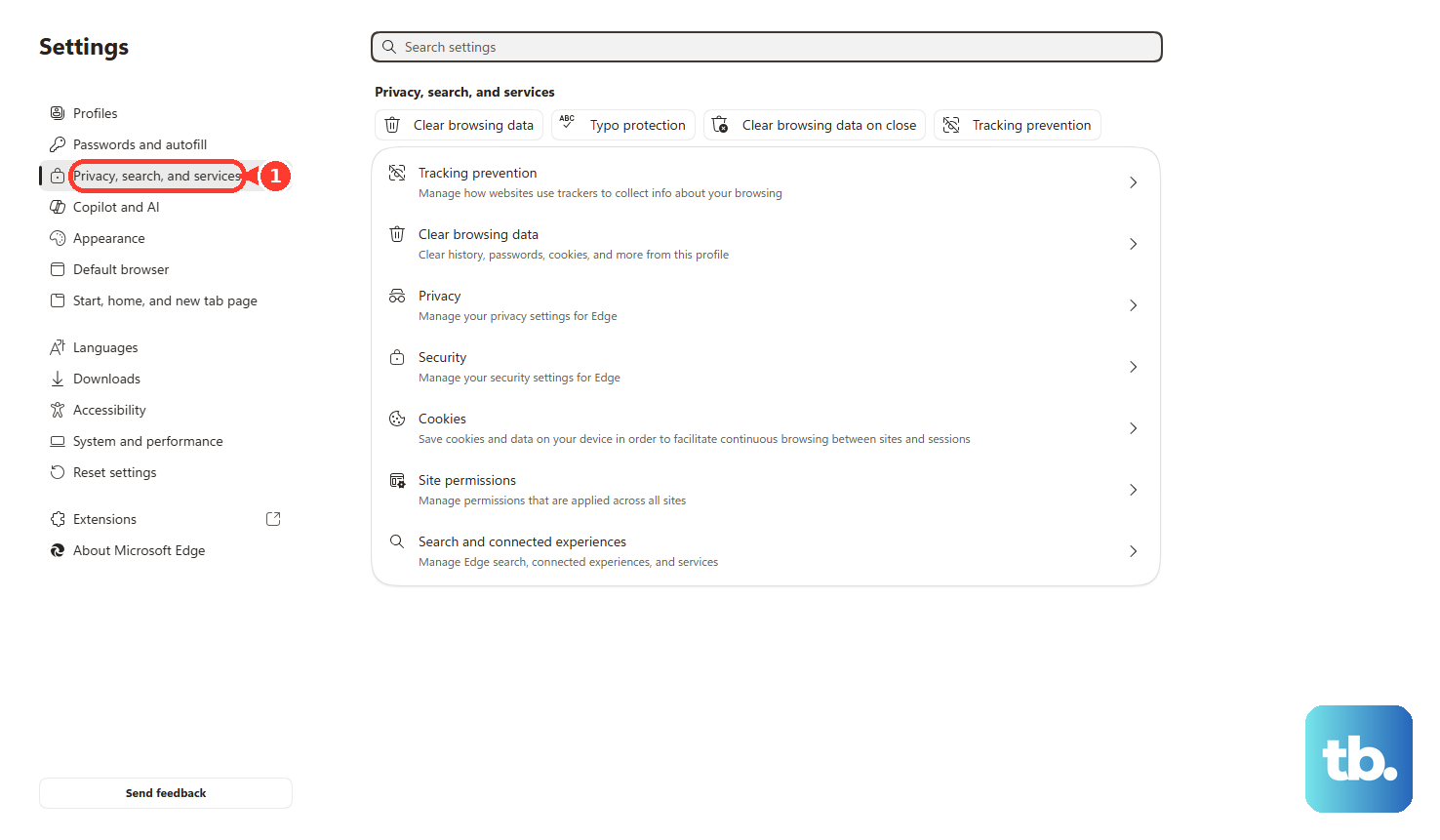
Microsoft Edge: Open Settings and more > Settings > Privacy, search, and services > Clear browsing data > Choose what to clear, select the data, then click Clear now.
Safari on iPhone or iPad: Open Settings > Apps > Safari > Clear History and Website Data.
On Mac, open Safari > History > Clear History, then choose how far back to clear.
Use cache and site data clearing when Back fails repeatedly, facebook.com behaves differently across browsers, or the app keeps reopening the same view.
6. Disable extensions that change navigation
Browser extensions can intercept page history, links, and Back behavior. Turn them off, test Facebook, then bring them back one at a time.
Chrome: Open More > Extensions > Manage extensions, then turn off the extension toggle.
To remove one, choose Remove.
Firefox: Open the menu, choose Help > Troubleshoot Mode > Restart.
If Facebook Back works there, remove the conflicting add-on from Add-ons and themes.
Microsoft Edge: Open Extensions > Manage extensions, turn off the extension.
To remove it, choose More actions > Remove from Microsoft Edge > Remove.
Safari on Mac: Open Safari > Settings > Extensions, then deselect the extension checkbox.
Safari on iPhone or iPad: Open Settings > Apps > Safari > Extensions, tap the extension, then turn off Allow Extension.
7. Reinstall Facebook when the app still fails
Android: Open Settings > Apps > Facebook > Uninstall.
Restart the device, then reinstall Facebook from Google Play Store.
Some preloaded Android apps show Disable or allow only uninstalling updates.
iPhone or iPad: Touch and hold Facebook, tap Remove App > Delete App > Delete.
Then reinstall Facebook from the App Store.
Use a reinstall after restart, update, navigation, and cache fixes fail in the Facebook app.
On Android, use Facebook Lite from Google Play Store or the Facebook Lite website while the main app is broken.
Facebook Lite is Android-only and its features differ from the full Facebook app.
8. Update the system and report the bug
If Back fails outside Facebook too, restart the device and update the operating system.
Android: Restart from the power menu, then open Settings > System > Software updates and follow the on-screen instructions.
iPhone or iPad: Hold the applicable power or side buttons until the power-off slider appears, drag the slider, wait 30 seconds, then power on.
To update, open Settings > General > Software Update > Download and Install if an update appears.
Safari: Update Safari through system updates.
On Mac, use Apple menu > System Settings > General > Software Update.
On iPhone or iPad, use Settings > General > Software Update.
For a work or school phone, tablet, or browser, follow your organization's update instructions. Managed devices can receive app updates, browser updates, and extension controls through admin tools.
Report the Facebook Back button bug after you narrow it to Facebook itself.
In the app, shake your phone when the problem appears and follow the on-screen instructions.
You can also use Menu > Help & support > Report a problem > Continue to report, include the issue in the report, describe the Back button problem, and submit it.
Frequently Asked Questions
Why does Back fail only after I open a link in Facebook?
Facebook is opening that link inside its in-app browser. On Android, open Menu > Settings & privacy > Settings > Media, then turn on Open links in external browser if the option appears. If it is absent, open the link menu and choose Open in external browser, Open in Safari, or Open in Chrome when offered.
Does clearing Facebook cache delete my account?
No. Clear cache removes temporary app data. Clear storage or Clear data performs a fuller reset and can sign you out, so use it only when you are ready to sign back in.
What should I do when Android Back fails in every app?
Treat it as an Android navigation issue. Use Settings > System > Navigation mode or Settings > System > Gestures > Navigation mode, switch between Gesture navigation and 3-button navigation, adjust gesture sensitivity, restart the phone, and update Android.
Should I use the long-press Back trick for Facebook?
No. The long-press Back trick comes from older user reports and is not a current supported Meta, Google, Pixel, or Samsung fix. Use app updates, Android navigation settings, cache clearing, reinstalling, or Meta's report flow instead.