The EA app can refuse to open, stay offline, fail to update, stop downloads, or freeze before a game starts. Start with the official EA app checks before reinstalling anything or changing security settings. The fixes below follow EA’s current PC and Mac guidance, with Microsoft and Apple steps used only where a fix needs operating-system settings.
1. Start with the official EA app download
Use the current EA app, not old Origin repair steps or third-party installers. EA’s official download page provides the Windows and macOS installers, and the EA app requires a Windows 10 or Windows 11 64-bit PC, or a Mac running macOS Catalina 10.15.8 or later.
- 1.Open EA.com/ea-app.
- 2.Choose the official Windows or macOS download.
- 3.Install only that file, then sign in to the EA app.
When the computer is below EA’s requirements, update the operating system before deeper troubleshooting. On Windows 11, go to Start > Settings > Windows Update > Check for updates.
On Windows 10, use Start > Settings > Update & Security > Windows Update > Check for updates.
On Mac running macOS Ventura or later, open Apple menu > System Settings > General > Software Update; on macOS Monterey or earlier, open Apple menu > System Preferences > Software Update.
2. Refresh the app and check EA services
EA says the app updates automatically when you log in. When an update is waiting, closing and reopening the app starts that update.
Exit the EA app completely. Next, reopen the EA app and sign in again.
Then open EA Help Server Status. Check Services, EA app, and the affected game or platform service. When the EA app service or the game service is down, stop local troubleshooting and retry after the service returns.
3. Clear the EA app cache
Use cache recovery when the EA app is stuck offline, missing games, not updating, or stuck during downloads and updates.
On Windows, open the EA app and select the three dashes in the far-left corner. Choose Help > App recovery > Clear cache.
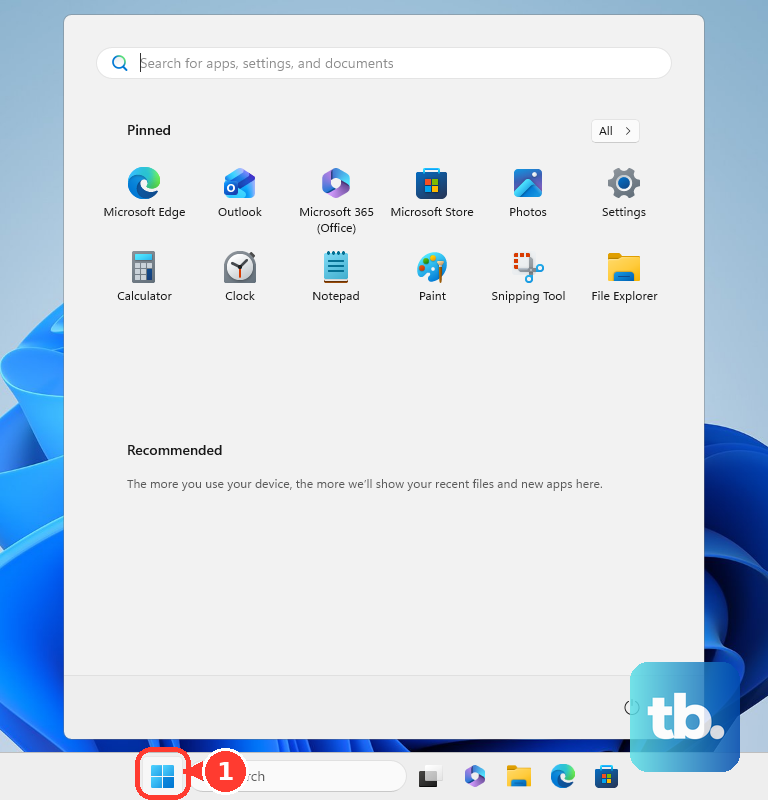
On macOS, choose Help > App Recovery > Clear cache. When the EA app will not open on Windows, clear the cache outside the app instead: open Start > All Apps > EA, expand the folder with the downward arrow, then choose App Recovery > Clear Cache.
4. Remove network and background blockers
Connection fixes come before reinstalling because EA lists router, VPN, proxy, security, download manager, overlay, and file-sharing tools as common blockers.
Confirm the computer is connected through Ethernet or Wi-Fi. After that, switch the router off, unplug it for 15 seconds, plug it back in, power it up, and reconnect.
Close security apps, P2P or file-sharing apps, FTP tools, download managers, VPNs, proxy tools, IP filtering or masking tools, and apps with visual overlays. If allow-listing fails, temporarily disable or uninstall third-party antivirus, antispyware, or firewall software long enough to test EA app access, then restore protection.
For EC:10701 communication errors, restart the computer first. On Windows, open Start > Control Panel > Network & Internet > Show available networks, disable virtual adapters such as Hyper-V, TAP-Windows, VMware, and VPN, then restart the EA app.
On Mac, restart the Mac, fully close Origin when it remains installed, open System Settings > Network (or System Preferences > Network on macOS Monterey or earlier), disable virtual adapters and VPN, then restart the EA app.
5. Allow EA files through security settings
Add the EA app executables to your firewall or antivirus allow list: EADesktop.exe, EALauncher.exe, and EABackgroundService.exe. On Windows, EA lists the default folder as C:\Program Files\Electronic Arts\EA Desktop\EA Desktop.
On Windows, open Windows Security > Firewall & network protection > Allow an app through firewall. Select Change settings > Allow another app. Add the paths for EADesktop.exe, EALauncher.exe, and EABackgroundService.exe. Select OK.
On macOS Ventura or later, open Apple menu > System Settings > Network > Firewall > Options > Add, select the EA app or service, then set it to Allow incoming connections. On macOS Monterey or earlier, open Apple menu > System Preferences > Security & Privacy > Firewall > Firewall Options, then add the EA app and set it to allow incoming connections.
6. Reinstall the EA app cleanly
Use a clean reinstall when the EA app still will not install, launch, update, connect, download, or start games after the faster fixes.
Restart your PC or Mac. Then confirm a stable internet connection.
On Windows, open Control Panel > Programs > Uninstall a program, right-click EA app, then choose Uninstall > Uninstall. On Mac, open Applications, right-click EA app, then choose Move to Trash.
Download a fresh EA app installer from EA.com and run it. For a failed partial install, delete the partial EA app folder before reinstalling. On Windows, delete C:\Program Files\Electronic Arts\EA Desktop\EA Desktop.
On Mac, open Finder, press Command+Shift+G, go to /Library > Application Support > Electronic Arts > EA app, delete the EA app folder, then run the new installer.
7. Fix installer error codes
For INST-18-4103 Incorrect hash value, delete the installer file, download the EA app again from EA.com, and run the new installer.
For INST-14-1603, INST-14-1460, or INST-14-1612, install the Microsoft Visual C++ Redistributables from Microsoft’s official page. EA references Visual Studio 2015, 2017, 2019, and 2022 packages; Microsoft recommends the latest supported v14 redistributable for Visual Studio 2017-2026.
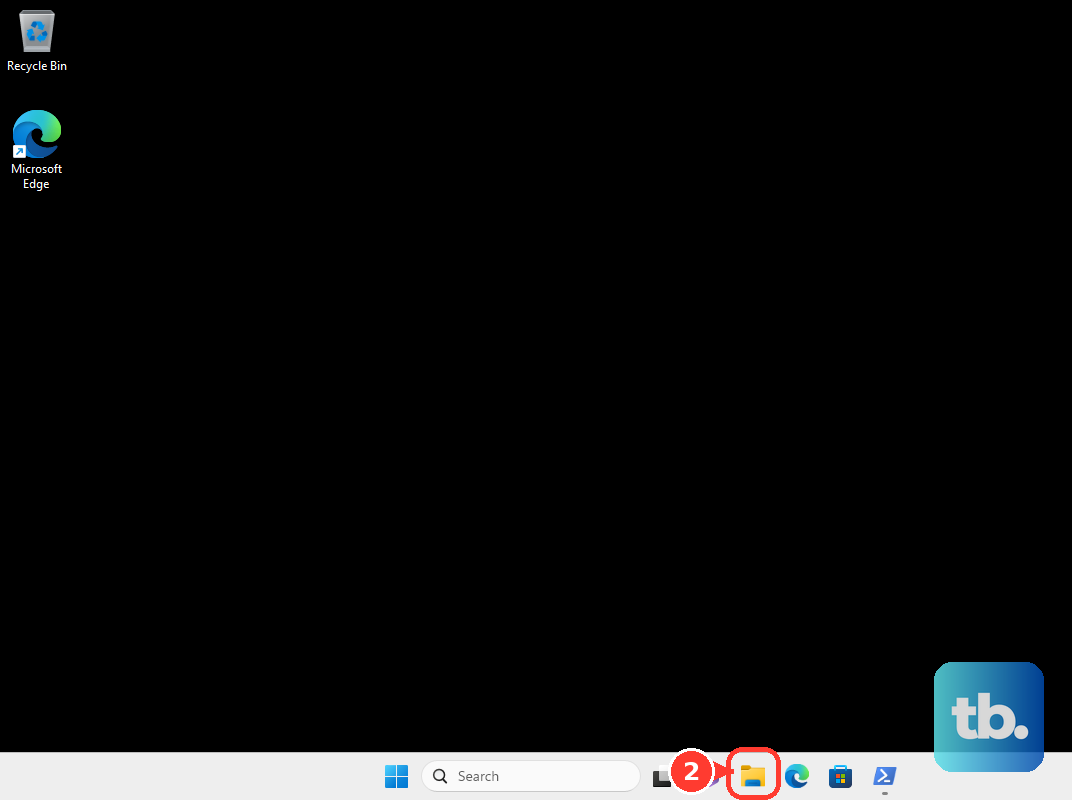
For INST 14-5 Access denied, open File Explorer, type C:\ProgramData\Package Cache in the address bar, press Enter, then open Properties > Security > Advanced.
Confirm the owner is Administrators. When it is not, select Change, type Administrators, then select OK.
For INST-14-1618 Installation error, open Task Manager, select Windows Installer, choose End Task, then right-click the most recent EAappinstaller.exe and choose Run as Administrator.
On Mac, when macOS blocks the installer, open System Settings > Privacy & Security, go to the Security section, select Open Anyway, then run the EA app installer again.
For Windows permission-related installs, close the EA app, right-click the EA app icon on your desktop or in the EA app directory, choose Run As Administrator, then retry.
8. Repair games that fail from the EA app
When the EA app opens but a game will not load, repair the game from the library first.
Open EA app > Library. Find the game. Open the three-dot menu on the game tile.
Choose Repair. Launch the game again after the repair finishes.
For crashes or launch failures tied to the overlay, select your profile thumbnail, open Settings > Application, and turn In-game overlay off. Turn it back on after troubleshooting because EA uses it for invites and messages.
When the EA app gets stuck on Preparing game, clear the EA app cache, close background apps that limit performance, check Windows and GPU updates, check drivers, clean boot your device, and try again.
On Windows, open Search, type msconfig, open System Configuration, use Services > Hide all Microsoft services > Disable all > Apply, then use Startup > Open Task Manager > Startup apps to disable enabled startup items before restarting.
Return Windows to Normal Startup after troubleshooting.
9. Reset account and linking problems
Login and entitlement issues can look like launcher failures. Use the account path when the app opens but sign-in, library access, Steam, Epic, Xbox, or PlayStation linking is the actual blocker.
On the EA login screen, select Forgot your password, or need to create a new one?. Enter your email or EA ID. Open the reset email and follow the password reset instructions.
Open EA Account settings and check the Connections page for the correct Steam, Epic, Xbox, or PlayStation account. For invalid or ineligible account errors, reset the EA Account password. When EA says the account is already in use, log out on your other devices, then log back in.
When the EA app still fails after these steps, send diagnostics to EA. In the EA app, select the menu icon with three horizontal lines in the top-left, choose Help > EA Error Reporter, choose Type of problem, fill Description of problem, add a Support Ticket Number when you have one, check the diagnostic sharing box, select Submit report, and keep the Report ID.
On Windows when the app will not open, use Start, type EA Error Reporter, open it, submit the report, and keep the Report ID.
Frequently Asked Questions
Why does the EA app keep going offline?
EA lists cache problems, service outages, router issues, VPNs, proxy tools, security apps, and firewall blocks as causes to check. Start with EA server status, clear the EA app cache, restart the router, then allow-list the EA app files.
What files should I allow through my firewall for the EA app?
Allow EADesktop.exe, EALauncher.exe, and EABackgroundService.exe. On Windows, EA lists the default location as C:\Program Files\Electronic Arts\EA Desktop\EA Desktop.
How do I fix EA app error EC:10701?
Restart the computer, then disable VPNs and virtual network adapters such as Hyper-V, TAP-Windows, VMware, and VPN adapters. On Mac, fully close Origin if it is still installed before retrying the EA app.
What should I do when the EA app still fails after troubleshooting?
Submit an EA Error Reporter report, include the problem type and description, share diagnostics, then keep the Report ID for EA support or forum follow-up.











