

To fix the Apple TV app when it won’t load, close and reopen it, check your internet connection and Apple’s service status, then install available updates. If it still fails, try your device’s repair or cache controls before resetting the app. Follow the instructions for the device running Apple TV, since an Apple TV streaming box has different controls from a smart TV.
The short version
- Start small: Reopen Apple TV and check your internet connection and Apple’s service status.
- Update next: Install available app and device software updates.
- Match your device: Try the repair, force-stop or cache controls available on your platform.
- Reset last: App resets can erase local data, accounts or configuration.
| Fix | When to try it | Where to start |
|---|---|---|
| Check the connection and service | Pages or content keep loading | Your network and Apple System Status |
| Close and restart | Apple TV freezes or stops responding | Your device’s app and restart controls |
| Install updates | The failure continues after reopening | Your app store and device settings |
| Clear cache or repair | The app or a Store page fails | The controls supported by your device |
| Reinstall or reset | Less disruptive fixes fail | App management or reset settings |
| Check playback and account access | Apple TV opens but content will not play | Streaming, authorization and sign-in controls |
Check the connection and Apple’s service status
Open a website on the affected device, then try another device on the same network. If neither connects, turn your router off and back on. Test another network; if that works, contact your internet provider or network administrator about the original connection.
Check the affected Apple TV service on Apple System Status at https://www.apple.com/support/systemstatus/. If an interruption is reported, retry after service is restored. Continue with device troubleshooting when the service is working.
On iPhone or a cellular-capable iPad, open Settings > Cellular and turn on Cellular Data. Ensure cellular access is also enabled for Apple TV.
If your Apple device or connection is managed by work or school, consult the administrator before changing required VPN, filtering or configuration settings. Otherwise, if you use a VPN or security app on iPhone, iPad, Mac, Apple TV or Vision Pro, temporarily turn off its filtering features and retry. Restart the device after making those changes.
Close Apple TV and restart the device
On iPhone or iPad, swipe up from the bottom to open the app switcher, or double-click the Home button on a device that has one. Find Apple TV, swipe its preview upward, then reopen it. Use this when the app is unresponsive rather than routinely clearing background apps.
To restart a Face ID iPhone, hold either Volume button and the Side button until the power-off slider appears. Drag it, wait 30 seconds, then hold the Side button until the Apple logo appears. On iPhone SE models from the second or third generation, hold only the Side button to display the slider.
On Mac, choose Apple menu > Force Quit, select TV, then click Force Quit and reopen the app. If a crash dialog offers Reopen, you can select that instead. If the failure continues, choose Apple menu > Restart.
On Windows 11, close Apple TV with the window’s X button. Reopen the app, then continue to the update and repair steps if it still fails.
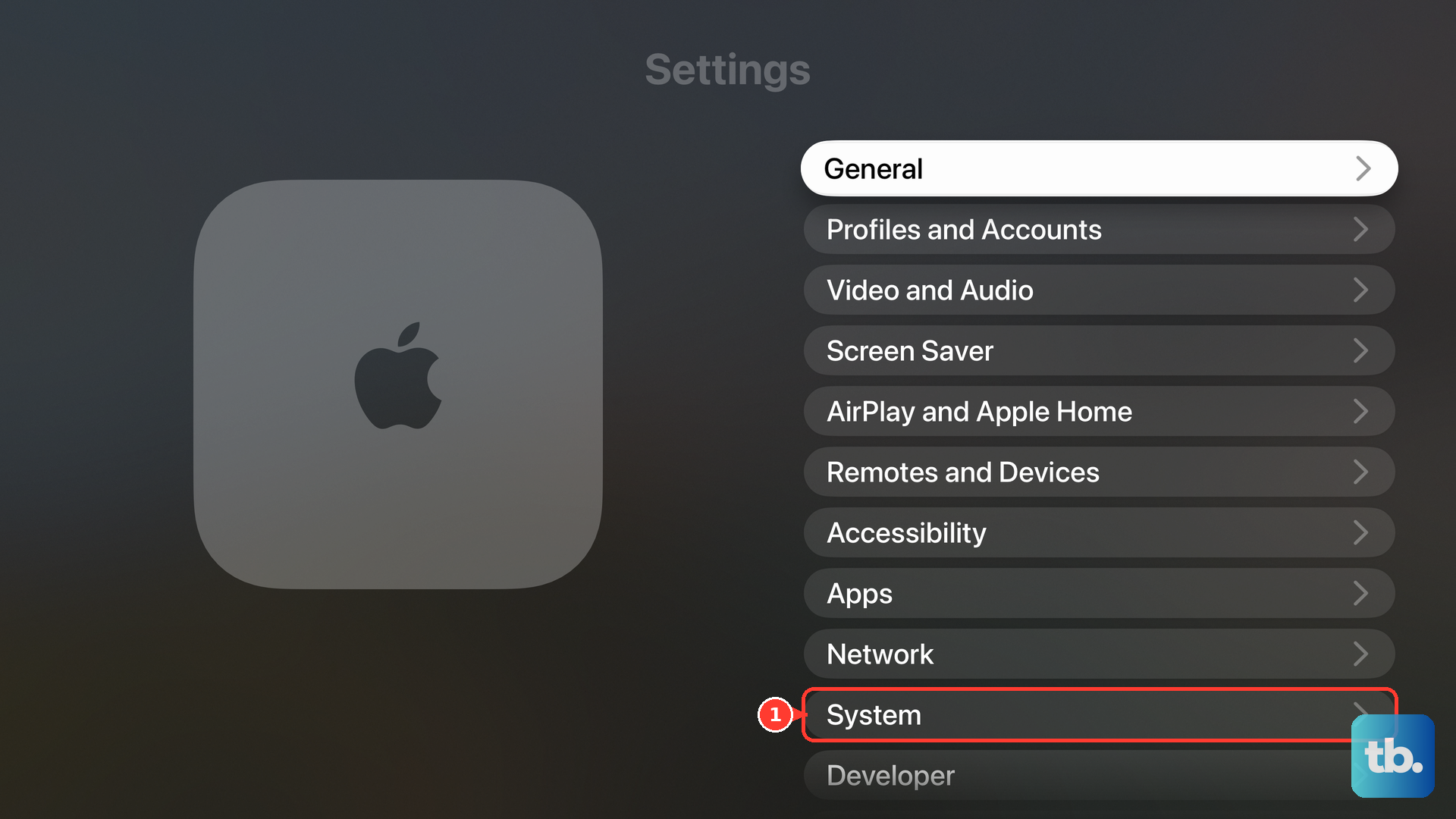
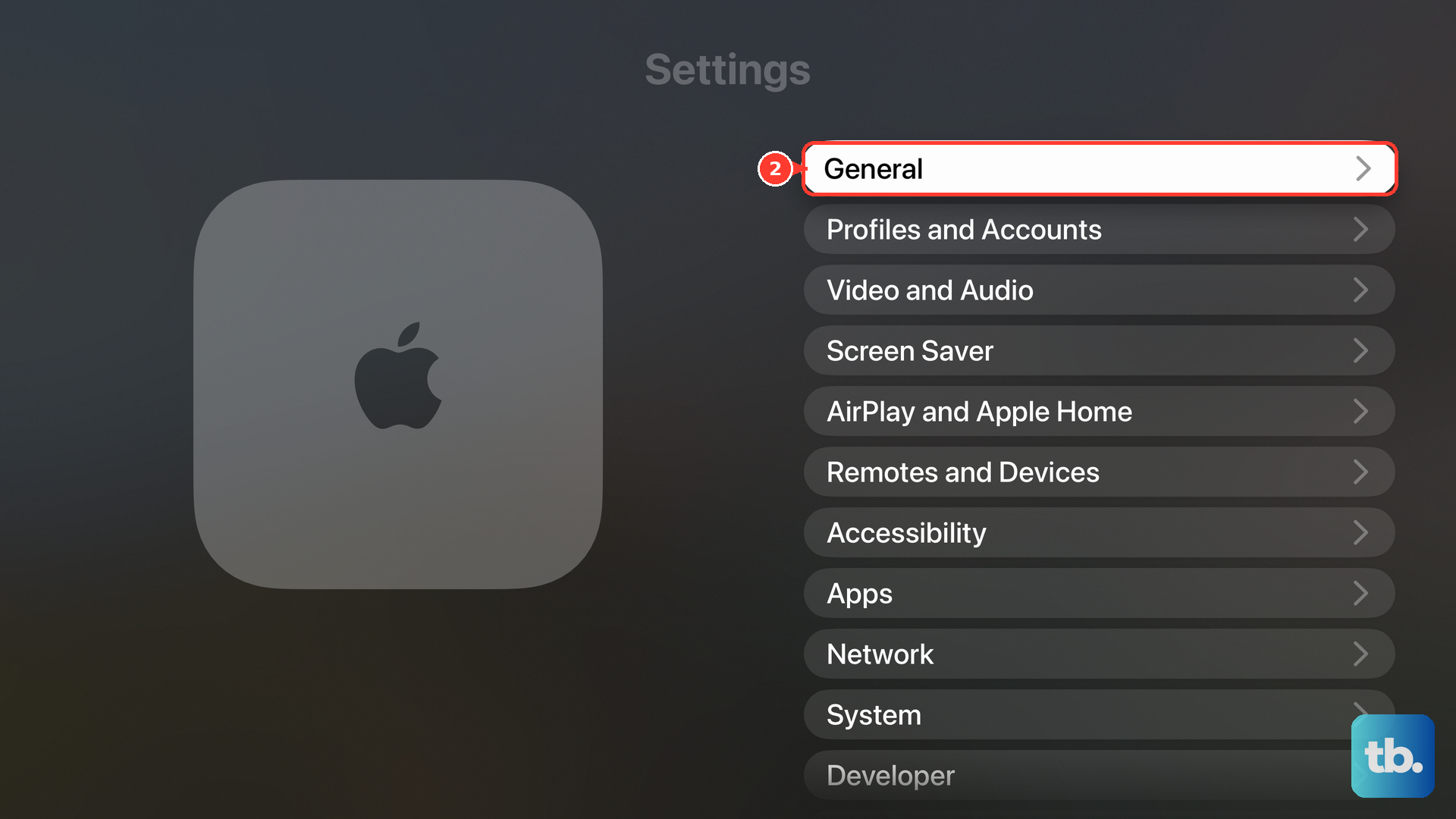
For Apple TV 4K, press the remote’s TV button twice quickly, move to Apple TV in the app switcher and swipe upward on the clickpad or touch surface. Reopen the app from the Home Screen. If that fails, open Settings > System > Restart, or disconnect the box from power for five seconds and reconnect it.
Restart a television or streaming device
On Roku, press Home and select Settings > System > Power > System restart. Skip Power when that submenu is absent. Reopen Apple TV and sign in.
For Fire TV, unplug its power adapter for one minute, then reconnect it. On Google TV, open Settings > System > Restart. Retry Apple TV after the device restarts.
On a supported Samsung TV or projector, hold the remote’s Power button for more than five seconds to cold-boot it. Without the remote, unplug the television for 30 seconds, reconnect it, then turn it on. Check Apple TV again before changing app settings.
On PS5, press PS, then select Power > Restart PS5. On PS4, press Up to open the function screen, then select Power > Power Options > Restart PS4. Reopen Apple TV after the console restarts.
Update Apple TV and the device software
On iPhone or iPad, open App Store, tap your profile icon, then tap App Updates and install available updates. If no app update is available, update iOS or iPadOS. Install the latest supported operating-system update on your other Apple devices too.
On Windows 11, open Start > Settings > Windows Update > Check for updates. In Microsoft Store, open Library > Get updates. Update device drivers as well, including checking whether you need to update your graphics card driver.
On Android phones and tablets, update Android and update Apple TV through Google Play. For Google TV, search for and open Google Play Store, select the profile picture or initial, then choose Manage apps and games > Updates > Update all. Check Google TV system software through Settings > System > About > System update.
On Apple TV 4K, open Settings > System > Software Updates > Update Software. If an update is offered, select Download and Install and keep Apple TV connected during installation. You can also turn on Automatically Update under Software Updates.
On Roku, press Home, highlight Apple TV, press Star and select Check for Updates. On PS5 or PS4, highlight Apple TV, press Options and select Check for Update. Compatible televisions, streaming devices and consoles normally update Apple TV automatically.
Clear the cache or repair the app
On Android mobile, open Settings and locate Apple TV’s app information. Use the device’s force-stop control, reopen Apple TV and, if necessary, return to its app information to clear the cache. Google says the exact menu paths vary by manufacturer.
On Google TV, open Settings > Apps > Apple TV, select Force stop, then select OK and reopen the app. If it still fails, return to that app page, select Clear cache, then select Ok. Use See all apps when Apple TV is not in the initial app list.
For Fire TV, open Settings > Applications > Manage Installed Applications > Apple TV and select Clear Cache. If you use Fire TV on a supported Echo Show, open Echo Show Settings first, then open Fire TV Settings to reach those controls.
On Mac, when Apple TV responds but a Store page will not open properly, choose TV > Settings > Advanced and select Reset TV Store cache. Apple identifies this control as a possible fix for a Store page that does not open properly.
On Windows 11, open Start > Settings > Apps > Installed apps. Select More beside Apple TV, open Advanced options and select Repair when offered. If Advanced options is missing, continue to the reinstall option below.
Check television settings when the problem persists
On Samsung models with the current menu layout, open All Settings > Connection > Network > Network Status. Run the test and address any reported connection problem.
On LG webOS 26, check All Settings > System > Network > Wi-Fi Connection. Then open All Settings > System > Location > LG Services Country and select your actual country.
On LG webOS 6.0 through 25, check the connection under All Settings > General > Network. For the country setting, open All Settings > General > System > Location > LG Services Country and select your actual country.
For memory errors on LG webOS 24 or 25, open All Settings > General > System > Additional Settings and turn off Quick Start+. Unplug the television for ten minutes, then reconnect it. On webOS 22 or 23, reach that control through All Settings > General > Devices > TV Management > Quick Start+.
Reinstall or reset after simpler fixes fail
Deleting Apple TV on iPhone or iPad removes related local data and configuration. Touch and hold Apple TV, tap Remove App, tap Delete App, then tap Delete. Open App Store, search for Apple TV and tap the redownload button.
If parental controls block deletion, check those controls and make sure Deleting Apps is allowed. If device management prevents deletion, contact the device administrator.
When broader slowdowns or insufficient installation space are also a problem, open Settings > General > iPhone Storage or iPad Storage and review the recommendations. Apple recommends keeping at least 1 GB free.
Resetting the Windows app can remove local app data. On Windows 11, return to Start > Settings > Apps > Installed apps, then open Apple TV’s More > Advanced options. If repair failed or was unavailable, select Reset when offered.
Reinstalling Apple TV on Windows may require local app data to be recreated. To reinstall on Windows 11, remove Apple TV through Windows app management, then open Microsoft Store > Library, locate Apple TV and select Install.
Clearing Android app data removes local app state. If force-stopping and clearing the cache failed, return to Apple TV’s app information in Settings and clear its app data.
Fire TV’s data control resets local app state. On Fire TV, return to Settings > Applications > Manage Installed Applications > Apple TV and select Clear Data.
Resetting Apple TV on a supported smart TV, streaming device or console erases app accounts and configuration; on a smart TV also signed into Apple Music, it resets Apple Music too. If Apple TV opens far enough to reach its settings, open the sidebar, select Settings, go to Reset and select Reset. Sign in again afterward.
Reserve an Apple TV 4K factory reset for failures that persist after restarting and less disruptive fixes. A factory reset erases accounts, settings and other device data. Open Settings > System > Reset, then select Reset, or select Reset and Update to also install the latest supported tvOS.
Fix playback when the app opens
If Apple TV opens but a video stalls, switch a weak cellular connection to Wi-Fi and ask other household members to pause heavy internet activity. On devices and titles that support downloads, select the download button and try the downloaded copy. If other people are watching through the same subscription or channel, check its simultaneous-stream allowance and stop another stream before retrying.
On current iPhone and iPad devices with cellular streaming controls, open Settings > Apps > TV and turn on Use Cellular Data when needed. For a weaker connection, choose Cellular > Automatic or Wi-Fi > Data Saver. On Android phones and tablets, open Apple TV, tap the account icon at the top right and find those controls under Streaming Options.
When Windows purchases or rentals will not play, select your name at the bottom of Apple TV’s sidebar and choose Authorize Machine. Sign in to your Apple Account and select Continue. Authorization applies to purchased or rented content and will not repair an app that cannot launch.
Resolve sign in trouble or get further help
Sign in only through Apple’s own app or website, and never share a code, password, or remote access with someone who contacts you. During setup on a compatible smart TV or streaming device, select Sign In On Mobile Device and scan the displayed QR code. You can also open Apple’s device sign-in page and enter the displayed code. If that sign-in option fails and the alternative is available, select Sign in with Remote and enter your Apple Account credentials.
If you forgot your Apple Account password, select Forgot password? during sign-in or use Apple’s password recovery page. Follow the identity-verification process. Recovery can involve a waiting period.
For subscription viewing while you troubleshoot, open Apple TV in a browser and sign in with the account holding the subscription. Apple says web viewing may require credit-card verification. Browser viewing does not replace every native-app purchase or channel feature. If browser autoplay fails, temporarily disable the installed ad blocker and retry.
For a persistent Apple TV-specific failure on a smart TV or streaming device, contact Apple. Contact the device manufacturer when installation, internet access or multiple apps fail. Record the model, software version, error message and whether other apps work.
Frequently Asked Questions
Can an incorrect date or time stop Apple TV from connecting?
Incorrect date and time settings can affect connections to Apple services. On iPhone, iPad or Vision Pro, open Settings > General > Date & Time; on Mac, open Apple menu > System Settings > General > Date & Time. On Apple TV, open Settings > General > Date and Time. Correct inaccurate settings or enable automatic time.
What should you check if Apple TV is hidden or content is restricted on an iPhone?
If you are the parent or device owner on iOS 26, open Settings > Screen Time > Content & Privacy Restrictions; for a child managed through Family Sharing, tap the child’s name before Content & Privacy Restrictions. Inspect Allowed Apps & Features and App Store, Media, Web, & Games, then restore permitted app or content access as appropriate. On iOS 27, open Settings > Screen Time > Content & Privacy Restrictions and check the settings under Content Restrictions, such as Movies and TV Shows. With the new parental controls in iOS 27, a parent reviews a child’s allowed and blocked apps by tapping Family in Settings, selecting the child’s name and tapping Apps & Websites.
How do you close an unresponsive Apple TV app on Vision Pro?
Hold the Digital Crown and Top button until Force Quit Applications appears, then release them. Select Apple TV, select Force Quit, select Force Quit again and reopen the app. If the app cannot close or the force-quit menu cannot open, take off Vision Pro, disconnect its battery, wait a few seconds and reconnect it.
Can you restart Apple TV 4K without its physical remote?
Yes, you can use a configured companion remote on an iPhone, iPad or Apple Watch. On iPhone or iPad, open Control Center > Apple TV Remote and use the touch area to navigate to Settings > System > Restart on Apple TV. On Apple Watch, open Remote and select the Apple TV before navigating.