

Turn off and disconnect the keyboard, clear loose debris with canned air, wipe the keys the way the maker allows, and turn off Sticky Keys if a modifier key acts as if it's held down.
Start with loose debris and surface grime
Crumbs, dust, or sticky buildup around the key edges can interfere with key movement.
Use cleaning products and methods only when your keyboard manufacturer permits them for your model. Before cleaning a laptop keyboard, shut down the laptop and unplug its power adapter. Turn off an external keyboard and disconnect all cables before cleaning it.
Unplug a wired keyboard, or switch off a wireless keyboard and remove the batteries when the design allows it.
Turn a removable desktop keyboard over and gently shake out loose debris.
Use short upright blasts from a compressed-air can to clear dust around the affected keys.
Wipe the key surfaces with a dry microfiber cloth or a lint-free cloth lightly moistened with water.
Keep moisture out of openings, and avoid aerosol sprays, solvents, abrasives, bleach, acetone, hydrogen peroxide cleaners, and strong solvents.
Do not use an air compressor on a jammed desktop keyboard.
Clean a MacBook keyboard with compressed air
Use Apple's MacBook keyboard cleaning procedure for an unresponsive key, or a key that feels different from the others, on MacBook (2015 and later) and MacBook Pro (2016 and later).
Hold the Mac notebook at a 75-degree angle. Fit the can's supplied straw, keep its tip about half an inch from the keyboard, and keep the can upright while spraying.
Spray the keyboard, or only the affected keys, from left to right with compressed air.
Rotate the Mac notebook to its right side.
Spray the keyboard again from left to right.
Rotate the Mac notebook to its left side.
Repeat the same left-to-right spray pattern.
If the keys stay unresponsive, visit an Apple Retail Store or Apple Authorized Service Provider for service.
Disconnect an external keyboard before cleaning
Disconnect Apple, Logitech, Dell, and other external keyboards before cleaning. Follow the cleaning instructions for your model: Apple and Logitech permit a cloth lightly dampened with water, but cleaner restrictions differ between manufacturers.
Power the keyboard off.
Unplug it if it is wired.
Remove the batteries when they are removable.
If the wireless keyboard has a rechargeable battery, check its charge during troubleshooting. Keep it switched off and disconnected from its charging cable while cleaning.
Flip the keyboard and gently shake out debris.
Wipe the outside or keycaps with a lightly damp lint-free cloth.
For Logitech sticky buildup, test the cleaning method in an inconspicuous area first.
Use a fragrance-free disinfecting wipe, antibacterial wet wipe, alcohol swab under 25 percent alcohol, or a melamine sponge with slight pressure on supported Logitech keyboards.
Clear sticky residue around one key
Dell describes the alcohol-swab method below for sticky residue. Use it only if your keyboard manufacturer's instructions permit it; Logitech specifies swabs containing less than 25 percent alcohol.
Shut down the laptop and unplug its power adapter, or turn off and disconnect an external keyboard, before cleaning.
Hold the device at a slight angle and use compressed air around the key.
Wipe the key surface with a dry microfiber cloth.
Lightly moisten a cotton swab with isopropyl alcohol.
Clean around the affected key edges with the cotton swab.
Let the alcohol evaporate fully before turning the device back on.
If this method fails, treat the keyboard as a service or replacement issue instead of forcing the keycap off, especially on laptop and low-profile keyboards.
Remove keycaps only when the keyboard is built for it
Use this only when the manufacturer confirms that your keyboard model has removable keycaps. This includes suitable mechanical desktop keyboards and supported Logitech models. Keep the keyboard disconnected while cleaning.
On a mechanical desktop keyboard, use a keycap puller to lift each keycap straight up; on supported Logitech keycaps, grasp both sides with your fingers and pull straight up.
Clean the exposed base with compressed air or cool air from a hair dryer, then use a soft brush or dry cotton swab.
For mechanical desktop keycaps whose manufacturer permits it, use a cloth lightly dampened with isopropyl alcohol or briefly soak the removed keycaps in warm, soapy water.
Rinse soaked keycaps and let them dry completely before reattaching them.
Align the pins, press each keycap firmly back, and stop when the key clicks into place.
Turn off Sticky Keys and related Windows settings
When shortcuts act like Ctrl, Alt, Shift, or the Windows key is being held down, open Start, choose Settings, open Accessibility, then Keyboard, and switch Sticky keys off. Press Shift five times to toggle Sticky Keys without opening Settings.
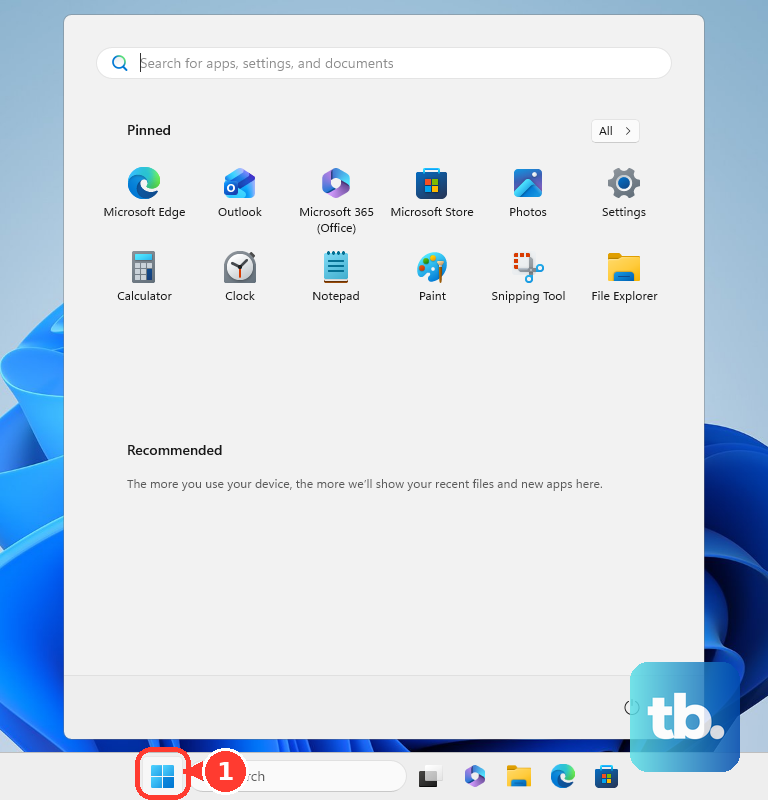
When repeated keystrokes are ignored or typing feels delayed, open Start, choose Settings, open Accessibility, then Keyboard, and switch Filter keys off. Hold Right Shift for eight seconds to toggle Filter Keys.
For a Surface Pro Keyboard or Type Cover, use Settings, Accessibility, and Keyboard to switch Sticky Keys, Filter Keys, or other keyboard settings on or off. On Windows 10, use Settings, Ease of Access, then Keyboard.
Use the current Settings route for Windows 11 instead of older Control Panel walkthroughs or registry Flags edits.
Fix Mac keyboard settings that mimic stuck keys
This fixes modifier keys that act held down, delayed key presses, pointer movement from keys, and wrong characters.
Open the Apple menu, choose System Settings, open Accessibility, then Keyboard, and turn Sticky Keys off.
Press Option-Command-F5, or press Touch ID three times on supported Macs, then use Accessibility Shortcuts to turn Sticky Keys off.
Open the Apple menu, choose System Settings, open Accessibility, then Keyboard, and turn Slow Keys off if keys respond only after being held longer than usual.
Open System Settings, select Accessibility, choose Pointer Control, and turn Mouse Keys off if keyboard keys move the pointer.
Open System Settings, select Keyboard, choose Text Input, open Edit, and turn on Show Input menu in menu bar if keys type unexpected characters.
Open the Input menu and select the correct keyboard layout.
Check Chromebook and mobile keyboard accessibility
Use these settings when a physical keyboard on a Chromebook, phone, or tablet acts sticky after cleaning.
On a Chromebook, select the time at the bottom right, or press Alt+Shift+s, then open Settings, Accessibility, and Keyboard and text input, and turn Sticky keys off.
If Chromebook keystrokes repeat too easily, use Keyboard and text input to adjust Bounce keys, which sets the delay between repeated keystrokes. Use Slow keys only for the opposite problem, when you want every key held down a little longer before it registers.
On iPhone or iPad with a physical keyboard, open Settings, choose Accessibility, then Keyboards & Typing, and adjust or disable Key Repeat, Sticky Keys, or Slow Keys.
On Android 16.0 or later with a physical keyboard attached, open Settings, choose Accessibility, then Physical keyboard accessibility, and turn Sticky Keys, Slow Keys, or Bounce Keys on or off. If that menu is missing, attach the physical keyboard and check again.
On a Samsung Galaxy phone that uses the default Samsung Keyboard, tap the Microphone icon at the bottom left of the keyboard or on the navigation bar to type by voice while the keys are sticking. If it's missing, go to Settings > General management > Keyboard list and default, turn on Google Voice Typing and Keyboard button on navigation bar, then open Samsung Keyboard > Voice input and select the voice input you want to use. Screens can vary by model and software version.
For a work or school Chromebook, ask the administrator whether Sticky keys is forced on or off by policy.
Rule out connection or driver problems
Unplug a USB keyboard, wait briefly, then plug it back in.
Move the keyboard to a different USB port.
Remove the USB hub and plug the keyboard directly into the computer.
Check the cable for a secure connection.
Charge a wireless keyboard or replace its batteries.
Turn a Bluetooth Mac keyboard on.
Turn Bluetooth on for the Mac.
Disconnect and reconnect the Bluetooth keyboard.
Test the keyboard on another computer.
Install any driver the keyboard needs on that second computer first, because some devices will not work without one. Replace or service the keyboard if it still fails there.
Search the Windows taskbar for Check for updates, open Check for updates, and select Check for updates under Windows Update.
Search the Windows taskbar for Device Manager, open Device Manager, double-click the keyboard device, then select Driver > Update Driver and follow the instructions.
For a Dell Windows laptop, right-click Start, open Device Manager, expand Keyboards, right-click each entry, choose Uninstall device, and restart the computer.
For a Dell Windows PC with SupportAssist, open SupportAssist from the Start menu, use the Home tab, choose Update Software, select Start, follow the prompts, and restart if prompted.
When a laptop or low-profile key stays stuck after cleaning, choose service or replacement instead of removing the keycap.
Frequently Asked Questions
Can I pull off laptop keys to clean underneath?
Do not pull off laptop or low-profile keycaps unless the manufacturer says that model is designed for it. Dell says laptop and low-profile keyboards are not designed for keycap removal, and Apple directs MacBook users to compressed air or service.
Why do my keys act stuck even after cleaning?
Accessibility settings can change how a keyboard responds. Check Sticky Keys, Filter Keys, Slow Keys, Mouse Keys, Bounce Keys, or Key Repeat on the device using the keyboard.
Is compressed air safe for a sticky keyboard?
Use a compressed-air can in short blasts the way the manufacturer recommends. Do not use an air compressor, and keep moisture away from openings.
When should I replace or service the keyboard?
On the MacBook models covered above, seek service if keys remain unresponsive after Apple's cleaning procedure. An external keyboard may need replacement if it also fails on another computer with any required keyboard driver installed.