You hit play, but Steam stays on “Running Install Script” instead of opening your game. Start with a complete Steam restart, then work through file repairs and the installer named in the error. These fixes cover Steam on 64-bit Windows 10 and Windows 11; retry the game after each fix and stop when it launches.
Restart Steam completely
Closing the main window alone leaves Steam running in the background, so give it a full restart.
- 1.Exit Steam completely, including its instance in the Windows notification area.
- 2.Reopen Steam.
- 3.Launch the affected game from your Library.
- 4.If the message returns, save your open work.
- 5.Restart your PC.
- 6.Reopen Steam and retry the game.
Check for setup waiting behind Steam
Before repairing anything, look for an installer waiting for your input. Press Alt+Tab to inspect your other open windows.
Complete any displayed prompts in the game's trusted prerequisite installer.
Approve an administrator-consent prompt if one appears and you have administrator authorization.
If there is no waiting prompt, or completing it leaves Steam stuck, verify the game's files next.
Verify the affected game's files
Verification repairs missing or damaged game files.
Open Steam's Library.
Right-click the affected game.
Select Properties....
Open Installed Files.
Click Verify integrity of game files.
Let verification finish.
Launch the game again.
Give the installation an administrator retry
Bethesda recommends launching Steam with administrator privileges for this exact message.
- 1.Exit Steam completely, including its notification-area instance.
- 2.Right-click the Steam shortcut or
steam.exe. - 3.Select Run as administrator.
- 4.Approve the elevation prompt with administrator authorization.
- 5.Launch the affected game from your Library.
Clear Steam's download cache
Still stuck? Clearing the download cache is another fix Bethesda recommends for this message. Have your sign-in details ready for the retry.
Open Steam > Settings > Downloads.
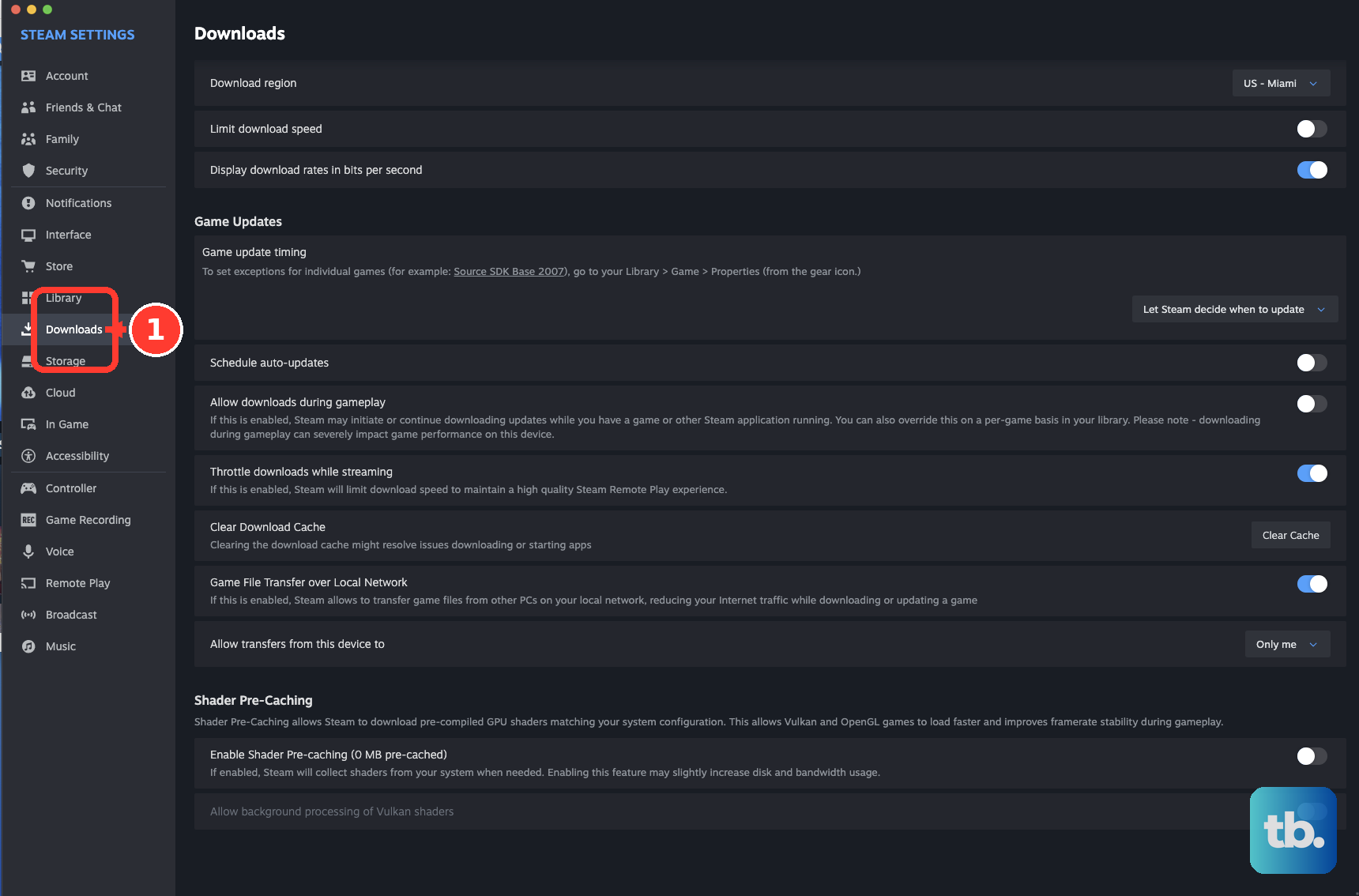
Next to Clear Download Cache at the bottom of the tab, select Clear Cache.
Complete the confirmation.
Sign back in if prompted.
Launch the affected game again.
If the same message returns, repair the Steam library folder next.
Repair the library and update Steam
Go to Steam > Settings > Storage.
Select the library drive containing the affected game.
Open its ... menu.
Select Repair Folder to repair the library folder's permissions.
Retry the game after the repair finishes.
If it still stalls, select Steam > Check for Steam Client Updates....
Install any offered update.
Restart Steam.
If you use the Steam client beta and the problem remains, open Steam > Settings > Interface > Client Beta Participation.
Select No beta chosen to test the normal client.
Click Restart Now.
Tip: Library repair is especially relevant when Steam cannot write to the game folder correctly.
Fix the prerequisite that will not finish
An unsuccessful prerequisite installation causes Steam to repeat the install script when the publisher's setup checks require another attempt.
Read the installer window or error message to identify the component involved. Focus on that component; leave unrelated runtimes and other Visual C++ packages installed.
If the error names Microsoft Visual C++, open Control Panel > Programs > Programs and Features.
Select the affected Microsoft Visual C++ Redistributable.
Choose Repair if it is available.
If that control is absent, select Change.
Select the installer's Repair option.
If the required runtime is missing, open Microsoft's Visual C++ download page. For a game requiring the supported v14 runtime, use the Latest supported redistributable version table. Older runtime families are separate dependencies; the latest v14 package does not replace them.
Download the package matching the game's architecture: X86 for a 32-bit game, X64 for a 64-bit game, or the applicable ARM64 package. A 64-bit PC can need both x86 and x64 runtimes.
Run the matching Microsoft-signed installer.
Complete its installation prompts.
Retry the game.
For a missing .NET Framework 3.5 dependency, press Win+R.
Enter winver to check your Windows version.
On Windows 10 or Windows 11 through 25H2, accept Windows' .NET Framework 3.5 installation prompt. To open the feature manually instead, search Start for Windows Features.
Open Turn Windows features on or off.
Select .NET Framework 3.5 (includes .NET 2.0 and 3.0).
Click OK.
Complete the feature download and installation.
On Windows 11 26H1 or later, open Microsoft's .NET Framework 3.5 page instead. The Windows Features route does not apply to these versions.
Select Download .NET Framework 3.5 for Windows 11 26H1.
Run the standalone installer.
Complete its prompts.
Restart Windows if the installer requests it.
Retry the game.
If a Controlled folder access notification identifies the trusted installer as blocked, check the blocked executable's location.
Select that notification after confirming it identifies the trusted installer.
Choose Add an allowed app.
Select the blocked executable.
Retry the installation.
Reinstall the game or repair the client
Reinstallation addresses a damaged game installation or Steam client.
Back up game saves that are not safely synchronized or stored elsewhere. Save locations vary by game.
For a problem limited to one game, open Steam's Library.
Right-click the affected game.
Select Manage > Uninstall.
Select the game in your Library.
Click Install.
Launch the game after installation finishes.
If the problem affects multiple games or Steam itself, open Valve's Steam download page.
Select Install Steam to download the Windows installer.
Run the installer using an administrator account.
Install into your existing Steam directory. This repair route preserves installed games.
Get help for a script that keeps returning
A publisher's installer can fail or incorrectly detect whether setup succeeded. If the same named script keeps returning after these repairs, contact the publisher about its installer or success detection.
Select the game in Steam's Library.
Select Support from the tabs above the Activity section, or click the ... button if your Steam window shows it instead.
Select Gameplay or technical issue > I am having another problem > Contact Game Support to find the publisher's support contact.
Send support the script or prerequisite name, exact installer error, Windows version, and relevant installer logs.
On a work or managed PC with locked security controls, give your administrator the blocked executable, error, and affected game so they can resolve the restriction.
If the publisher's troubleshooting does not resolve the issue, sign in to Steam Support. Choose Steam Client for a client-wide problem or Games, Software, etc. for the affected game, then follow its troubleshooting and contact prompts.
Frequently Asked Questions
Should I end the installer in Task Manager?
Do not forcibly terminate an active prerequisite installer as a general fix. For a confirmed unresponsive game left over from a previous launch, press Ctrl+Shift+Esc. Open Processes, select that game, and choose End task. Retry the game through Steam.
Can I skip the install script through a Steam setting?
Valve's install-script documentation describes no user setting for skipping the script. When a prerequisite installer reports failure, Steam tries it again on the next launch, so fix the prerequisite named in the installer window instead.
What should I try on Steam Deck?
Restart through STEAM > Power > Restart. If a Windows game still fails through Proton, open Properties > Compatibility, enable Force the use of a specific Steam Play compatibility tool, and test the latest official Proton version. This tests compatibility; it does not guarantee a prerequisite repair.
What if the prerequisite download is failing?
Open Steam > Settings > Downloads > Download Region. Choose another nearby region and retry the download. For a connection problem, test another network or Ethernet instead of Wi-Fi. These checks address failed downloads, not a purely local installer failure.