

To fix Steam Achievement Manager not showing achievements, update SAM, keep Steam running with the account that owns the game, then clear achievement filters and refresh the list. Older SAM installations can fail to read Steam’s newer achievement data, so start with an update. These steps cover gibbed’s Steam Achievement Manager for Windows, with controls named for version 7.0.41.
The short version
- Update first: Get the packaged SAM release and extract its complete contents outside the Steam installation folder.
- Keep Steam running: SAM requires the desktop client, a signed-in account, and network access.
- Check filters: Clear the achievement search text and turn off active locked or unlocked filters.
- Separate the symptoms: A missing game needs picker troubleshooting, while an empty achievement list needs retrieval and compatibility checks.
| Fix or check | When to use it | What it does |
|---|---|---|
| Update SAM | An older copy shows empty lists | Adds newer Steam schema support |
| Move SAM outside Steam | SAM rejects its startup location | Corrects the application location |
| Start Steam and sign in | Steam is closed or signed out | Provides the required Steam session |
| Install the Steam client | The desktop client is missing | Supplies a required application |
| Clear achievement filters | Filters hide entries within a game | Shows locked and unlocked entries |
| Refresh the selected game | Retrieval needs another attempt | Reloads achievements and statistics |
| Refresh and unfilter the picker | The game itself is missing | Reloads the visible game list |
| Add a Steam App ID | An owned game remains absent | Adds its picker entry manually |
| Open a game directly | The picker is the obstacle | Opens its manager by App ID |
| View Steam achievements online | You need to compare lists | Provides another place to view achievements |
| Check publisher configuration | An achievement is missing or protected | Checks whether developer restrictions apply |
Update SAM to read Steam’s achievement data
Start with an update if your copy of SAM is older. Version 7.0.40 introduced support for Steam’s new stats schema, the data structure SAM reads to load achievement information. That compatibility change is included in version 7.0.41.
Open the official SAM release page, expand Assets, and download the packaged ZIP. Close SAM, then extract the complete archive into a separate folder outside the Steam installation directory. With Steam running and signed in, launch SAM.Picker.exe from that extracted folder and open the affected game.
If SAM will not start because you placed it directly in Steam’s installation directory, close SAM. Move or extract its complete application folder to a location outside that directory, then launch SAM.Picker.exe with Steam running. SAM explicitly rejects the Steam installation directory as its startup location.
Keep the Steam desktop client running
SAM needs Steam running, an authenticated account, and network access. Close SAM, start the Steam desktop client, and sign into the account that owns the affected game. Make sure network access is available, leave Steam open, then launch SAM.Picker.exe and open the game again.
If you need the desktop client, open the official Steam download page and select Install Steam. Get the Windows client for the Windows SAM application. Once the client is installed, start it and sign in before returning to SAM.
Clear the achievement display filters
An achievement list can look empty because SAM is filtering what it displays. Open the game in SAM and select Achievements. Clear the text beside Filter so a previous search does not restrict the results.
Under Show only, turn off the active locked or unlocked button so neither is selected. SAM can then display both locked and unlocked achievements from the loaded schema. If the list remains empty with both filters off, refresh the game’s data next.
Refresh the game and read the status message
In the game’s SAM window, select Refresh and wait for retrieval to finish. Inspect Achievements, then read the status message at the bottom of the window. This refresh retries retrieval of the selected game’s achievements and statistics.
If the status message reads Failed to load schema., update an older SAM installation using the release steps above. Repeated refreshes do not repair an unsupported schema. If you already have version 7.0.41 and retrieval still fails, compare the game’s achievements on Steam’s website using the steps below.
Restore a game missing from the picker
Use these steps when the game itself is missing from SAM’s initial window. Return to SAM.Picker.exe and clear the text beside Filter. Open Game filtering and check Show games.
For other application types, check Show demos, check Show mods, and check Show junk. Select Refresh Games, wait for loading to finish, and open the desired game. If an owned game still does not appear, add it with its Steam application ID.
These controls change which games appear in the picker. If you can already open the game but its achievement list is blank, use the update, achievement filter, and game refresh checks instead.
Add a missing game with its App ID
Open the game’s Steam store page in a browser and find the numeric application ID immediately after /app/ in its address. Copy that number, then return to SAM.Picker.exe. Enter it in the box beside Add Game, select Add Game, and open the resulting entry.
Manual entry is useful when an owned game is absent from the downloaded game list. SAM still checks ownership, so entering an App ID does not bypass that requirement. It also does not repair an empty achievement schema inside a game you can already open.
Open the game directly when the picker fails
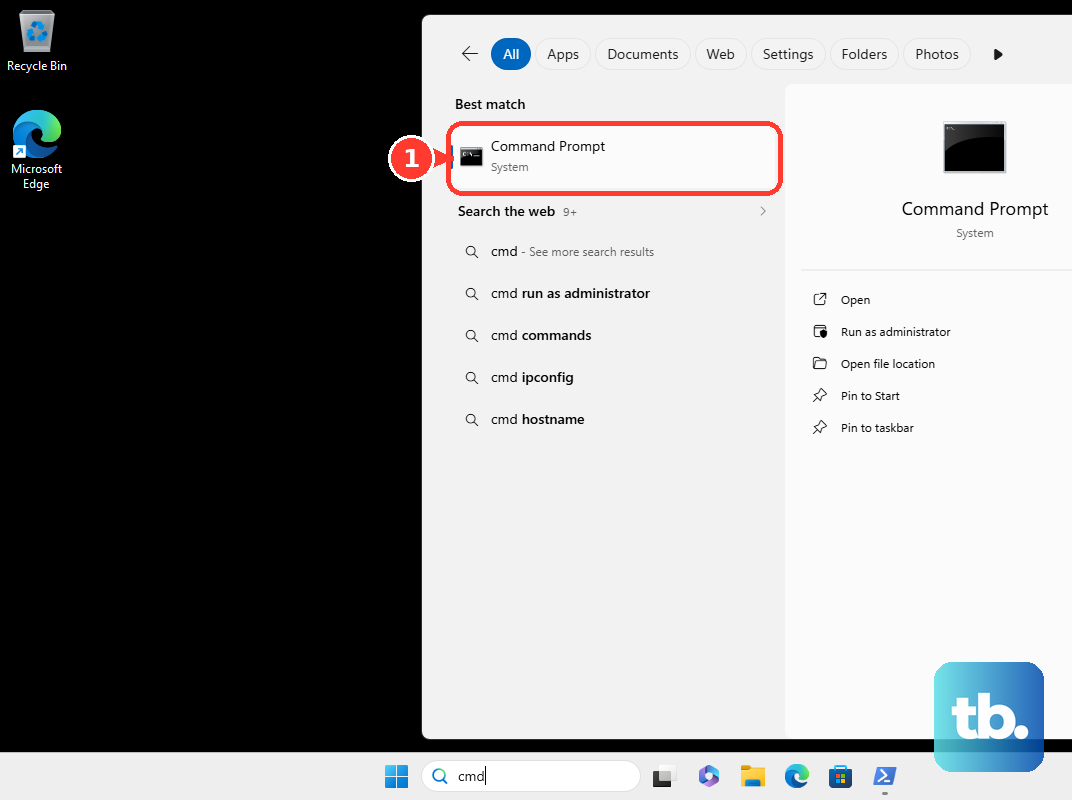
You can also open the game manager directly with its application ID. Keep Steam running and signed in, then open Command Prompt in the extracted SAM folder. Run the following command, replacing APPID with the game’s numeric Steam application ID.
SAM.Game.exe APPIDThis opens the game manager without selecting its title in the picker. It still requires Steam authentication and does not fix schema parsing. If the game manager opens but remains empty, compare its list with Steam’s achievement page.
Compare Steam’s list and check developer restrictions
In a browser, open https://steamcommunity.com/achievements/APPID, replacing APPID with the game’s numeric application ID. Compare the achievements shown there with the list in SAM. This gives you another place to view achievements and helps establish whether the display problem is confined to SAM.
If an achievement is missing or protected, check its availability on Steam and consult the game’s developer. Valve’s developer settings determine who can unlock an achievement, and SAM has no consumer setting that overrides that configuration. Protection concerns editing permissions and alone does not explain an entirely empty achievement list.
If Steam’s website displays achievements that SAM still cannot load after the update, filter, and refresh checks, you can view them on the website. The browser page lets you view the achievements, but it does not repair SAM.
Frequently Asked Questions
Does SAM 7.0.41 fix anything besides achievement schema compatibility?
Version 7.0.41 also fixes missing integer statistics. That is a separate change from the new Steam stats schema support introduced in version 7.0.40.
Can you view a game’s Steam achievement page without owning it?
You can view the general Steam Community achievement page even without owning the game. Viewing that page does not establish ownership for SAM.
What happens when a developer deletes a Steam achievement?
Deleted achievements disappear for everyone. A missing entry can therefore reflect a change to the game’s achievement configuration.
Is signing into Steam in a browser enough to use SAM?
Signing into the Steam website alone does not satisfy SAM’s desktop-client requirement. You need the Steam desktop client running with an authenticated account.