A Google Drive upload that crawls or stops halfway leaves you waiting with no clear explanation. The cause is usually a slow connection, a struggling browser or app, or a setting that limits the transfer. Start with a couple of quick comparisons, then work through the fixes for the device you're using.
Check Drive and compare connections first
Open the Google Workspace Status Dashboard and find Google Drive.
Open any incident details to see whether Google reports disruption or latency.
If it does, follow the listed workaround and retry once the service recovers.
Connect your uploading device to another available network.
Retry the same upload. If it's faster on the second network, you're looking at a connection problem rather than a browser, app or account problem.
Tip: Use the same file for each comparison so the results are easy to judge.
Fix uploads that crawl only in your browser
Open drive.google.com in another up-to-date browser, sign in to the same account and retry. Drive supports the two most recent versions of compatible browsers. To update desktop Chrome, open More > Help > About Google Chrome, let the update check finish, and select Relaunch if it appears.
Next, test a private session through More > New Incognito window, then sign in to Drive and retry. If that works better, go to More > Extensions > Manage extensions in your regular window. Turn suspected extensions off one at a time and test after each change, including any extension that alters CORS.
To clear stored browser data, open More > Delete browsing data and choose All time. Select Cookies and other site data and Cached images and files, then select Delete data. Reopen Drive and retry.
If you blocked Drive's permissions in the past, open drive.google.com and select View site information > Site settings to restore JavaScript and site data, which Drive needs to work. In Firefox, if tracking protection breaks Drive, select the shield beside the address bar, turn Enhanced Tracking Protection off for that site, and retry after the page reloads.
Remove a desktop upload limit
This applies if you upload through Drive for desktop on Windows or Mac. An upload cap can hold the transfer back even when your connection has bandwidth to spare.
Click the Drive desktop icon and open Settings > Preferences > Advanced Settings.
Clear the Upload rate checkbox to remove the cap, or raise the limit instead. The values are in kilobytes per second.
If syncing is paused, open the Drive icon's Settings menu and select Resume syncing.
If you're testing a browser upload, select Pause syncing in the same menu for a while so desktop sync traffic doesn't compete with it.
Give the upload a better network connection
Weak Wi-Fi and other traffic on your network can eat into the bandwidth your upload needs.
Move the uploading device closer to the router. On a mesh network, place the points closer together, in open spots with fewer walls or other obstructions between them.
Pause other large transfers and backups. Stop streaming you don't need and turn off unused devices that are using bandwidth, then repeat the upload.
Connect a compatible computer to the router with an Ethernet cable and retry. This comparison helps isolate a Wi-Fi problem.
On Windows 11, if your router shows separate 2.4 GHz and 5 GHz networks, pick the other one from the available Wi-Fi networks and test again.
If you have Nest Wifi Pro, Nest Wifi or Google Wifi, open Google Home and go to Home > Wifi > Network Preference > Run speed test. Check the upload result. This test measures the connection between the router and the internet.
To prioritize the uploading device on those Google routers, open Home > Wifi > Devices, select your device and choose Prioritize device. Pick a duration and select Save.
If the built-in Windows 11 VPN is connected and it's the only VPN configured, select the Network/Volume/Battery group on the taskbar, open VPN, and turn off its quick-setting toggle before running a comparison upload. If several VPNs are configured, select Manage VPN connections there to find the active one. Other VPN apps have their own controls.
Restart the connection and refresh Drive
Disconnect the power cables from the modem and router.
Wait at least 30 seconds.
Reconnect the modem first.
Wait for the modem to reconnect before you power up the router.
Retry the upload once both devices finish starting. If your equipment has its own restart procedure, follow that instead.
If the desktop client still stalls, click the Drive icon and select Settings > Quit.
Reopen Google Drive.
Install the latest desktop client from Google's official Drive product page using Download Drive for desktop.
If desktop syncing still misbehaves, restart the computer. On Windows 11, select Start > Power > Restart.
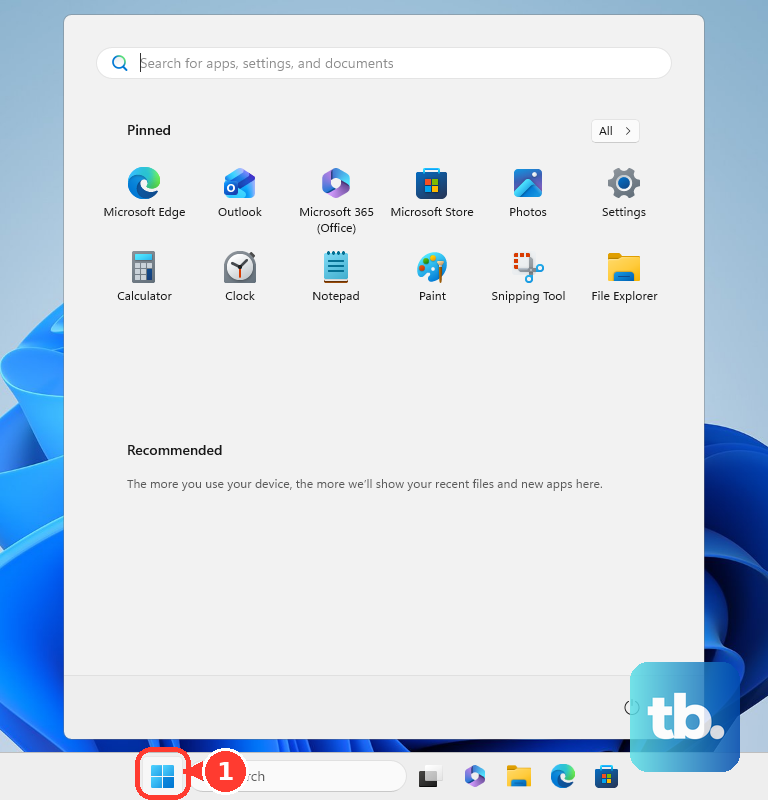
Tip: Retry after each change so you know which one fixed the problem.
Keep long uploads running while you wait
Sleep settings and browser power saving are common reasons a long upload gets cut off.
In desktop Chrome, open More > Settings > Performance > Always keep these sites active > Add > Add sites manually. Enter drive.google.com and select Add.
On a battery-powered Windows computer, Mac or Chromebook, plug into power to lift Chrome's Energy Saver restriction. You can also open Chrome's More > Settings > Performance and turn Energy Saver off.
On Windows 11, open Start > Settings > System > Power & battery > Screen, sleep, & hibernate timeouts. Increase Make my device sleep after for the power state you're using.
On a Mac laptop that has the option, open the Apple menu > System Settings > Battery > Options. Turn on Prevent automatic sleeping on power adapter when the display is off.
Keep the Mac plugged in for the upload.
Unblock phone uploads waiting for a connection
These settings remove mobile-data restrictions and get a misbehaving Drive app working again.
On Android, if you want uploads to use mobile data, open Drive's Menu > Settings > Data usage and turn Transfer files only over Wi-Fi off.
On iPhone, open Settings > Cellular and turn on Cellular Data.
On the same screen, turn on the switch for the Google Drive app. On a cellular iPad, this settings category may be labeled Cellular Data.
On a Pixel, open Settings > Network & internet > Data Saver > Unrestricted data and turn on Google Drive. Other Android phone makers use different menu labels.
If your iPhone or iPad is on Wi-Fi, open Settings > Wi-Fi, tap the network's Info button and turn Low Data Mode off.
To update Drive on Android, tap your profile icon in the Google Play Store, then go to Manage apps & devices > Updates available.
To update Drive on iPhone or iPad, tap your profile icon in the App Store, then go to App Updates.
If Drive misbehaves on a Pixel, open Settings > Apps > See all apps > Drive > Storage & cache and select Clear cache.
Reopen Drive and retry.
When the upload stops instead of slowing down
If your account is full, your computer is short on disk space or the file is too big, you need a different fix. These checks deal with uploads that fail or stop. They won't make your connection faster.
Open drive.google.com/drive/quota to review your account storage. Gmail and Google Photos share the same storage, so check them as well.
Use Move to Trash on files you don't need. To get the space back, open Trash and select Empty Trash. Confirm you no longer need those files first, because deletion is permanent.
For Drive for desktop, free up space on the local drive named in the error message. Having cloud storage available doesn't remove the need for local cache space.
Quit and reopen Drive once you've freed up space.
Check an unusually large file against Drive's limits. Regular stored files can be up to 5 TB, while converted Docs, Sheets and Slides have their own limits, and your available storage must also cover the upload. Shrink or split an oversized file before you retry.
If a video has finished uploading but Drive says it's still processing, wait and try playing it later. Processing happens separately from the upload.
Switch upload routes and get help for persistent problems
Trying another upload method shows whether the problem is limited to one client. If desktop syncing fails, open drive.google.com, select New > File Upload or Folder Upload, and choose the source.
If browser uploads keep failing on a supported Windows or Mac computer, install Drive for desktop and sign in. Then drag the files into the Google Drive folder in File Explorer or Finder so they upload through desktop sync.
On a work or school account, ask your administrator about enforced bandwidth limits or network restrictions. Workspace uploads and copies that hit the 750 GB limit have to wait for it to reset within 24 hours, and retrying won't get around it.
If none of this helps, contact your internet provider about upload speeds that stay below what your plan promises. If the problem only affects Drive, open Help > Send feedback in Drive on the web, describe the issue and select Send. Google's support page also offers Contact us and a help community, and whether you get direct support depends on your account and eligibility.
Frequently Asked Questions
Will putting files in a ZIP make Google Drive uploads faster?
It can help if compressing the files reduces their total size, but that doesn't always happen. Media that's already compressed may barely shrink. On Windows 11, right-click the file or folder and choose Show more options > Send to > Compressed (zipped) folder. On a Mac, Control-click it and choose Compress.
Does buying more Google One storage increase upload speed?
No. More storage fixes a full personal Google Account. It won't fix a slow network or remove an upload cap in Drive for desktop.
Should I delete the Drive for desktop cache to fix a stuck upload?
No. Deleting the desktop cache can destroy uploads that haven't synced yet. If Drive says you're low on local disk space, free up space on the drive it names, then quit and reopen Drive.
Does the 750 GB upload limit apply to personal Google Accounts?
Google documents the 750 GB upload-and-copy limit for Workspace users. Don't assume personal accounts have the same limit.