Slack notifications on a Mac go silent when Slack is paused, macOS blocks alerts, Focus is active, or a specific conversation has its own notification rule. Start with the fastest settings first, then move into sounds, browser permissions, and reinstall steps when the basics are already correct.
1. Start With Slack Notification Preferences
Check Slack before changing anything in macOS. A single setting decides whether you get alerts for every channel message or only for mentions and direct messages.
- 1.Click your profile picture in the sidebar.
- 2.Choose Preferences.
- 3.Open Notifications.
- 4.Under How to notify you, check Desktop notifications.
- 5.Under What to notify you about, choose Everything for regular channel alerts or Mentions and direct messages for only mentions and DMs.
- 6.Under Also notify you about, check the extra categories you want, such as Thread replies, VIP messages, or Huddles when those options appear in your workspace.
Use Everything when the missing alerts are normal channel messages. Use Mentions and direct messages when you only want Slack to interrupt you for direct activity.
2. Resume Paused Alerts In Slack
Click your profile picture in the sidebar, hover over Notifications, then click Resume notifications. Another quick option is to type /dnd off in any Slack message composer and press Enter.
To check the schedule, click your profile picture, open Preferences, choose Notifications, then go to Working hours. Open Allow notifications, choose Every day, Weekdays, or Custom, then set the start and end time when Slack should notify you.
Slack Do Not Disturb overrides your desktop notification choice, so turn it off before changing other alert settings. If your Slack status paused notifications, click your profile picture, select your current status or Update your status, then clear the status, edit it, or uncheck Pause notifications before saving.
3. Allow Slack Through macOS Focus
Open the Apple menu, choose System Settings, then open Notifications. Go to Application Notifications, select Slack, and turn on Allow notifications.
Choose Temporary or Persistent, then turn on Play sound for notification and Badge application icon if you want sound and Dock badges. macOS has its own notification gate, and Slack needs permission there even when the Slack app settings are correct.
Next, check Focus from Control Center in the menu bar, click anywhere in the Focus section, then click the active Focus, such as Do Not Disturb, so it is no longer highlighted. To keep Focus enabled and still receive Slack alerts, open Apple menu, System Settings, then Focus.
Choose the Focus, open Allowed Apps, choose Allow Some Apps, click Add, select Slack, click Add, then click Done. Review Set a Schedule in that Focus and disable schedules you do not want.
4. Unmute The Channel Or DM
When Slack notifications work everywhere except one conversation, fix the channel, DM, app, or bot rule instead of changing your global settings again. For a channel, open the channel, click the Notifications icon at the top, then change it from Mute and hide or adjust the notification options so the channel can notify you.
For a one-person DM, open the DM, click the Notifications icon, then use that control to unmute the conversation. For a group DM, open the group DM, click the Notifications icon, then choose the unmute option shown in the menu.
For an app or bot DM, open Tools, choose Apps, search for the app or bot, select it, click the app or bot name in the conversation header, then click Mute to turn muting off. You can also clean up conversation exceptions from one place.
Click your profile picture, open Preferences, choose Notifications, then scroll to Exceptions to the defaults. Click the megaphone, mention, or mute icon to adjust a conversation, or click the close icon to reset that conversation to your default settings.
5. Restore Sounds And Dock Badges
Alerts can arrive silently or without a Dock badge, which makes them easy to miss. In Slack, click your profile picture, open Preferences, then Notifications.
Go to Sound & appearance, uncheck Mute all sounds from Slack, then choose sounds from the notification-type drop-down menus. Click Show an example to test the alert, and check Show a badge • on Slack's icon to indicate new activity.
Then open Apple menu, System Settings, Notifications, then Slack, and turn on Badge application icon. For sound output, open Apple menu, System Settings, Sound, then Sound Effects.
Set Play sound effects through to the correct output device, raise Alert volume, and enable Play user interface sound effects when the option appears.
6. Fix Browser Notification Permissions
Slack in a browser needs two permissions: Slack notification settings and browser website notification access. Keep the Slack workspace open in the browser for browser notifications.
Chrome: open More, then Settings, Privacy and security, Site Settings, and Notifications. Next to Allowed to send notifications, click Add and add your Slack workspace URL.
From the Slack tab, you can also click View site information beside the address bar and turn on Notifications. Safari: open Safari, then Settings, Websites, and Notifications.
Set your Slack workspace to Allow. Then open Apple menu, System Settings, Notifications, select the Slack website entry, and turn on Allow Notifications.
Firefox: open Firefox, Settings (labeled Preferences on some older versions), Privacy & Security, Permissions, Notifications, then Settings. Set your Slack workspace to allowed and keep Firefox open for Web Push delivery.
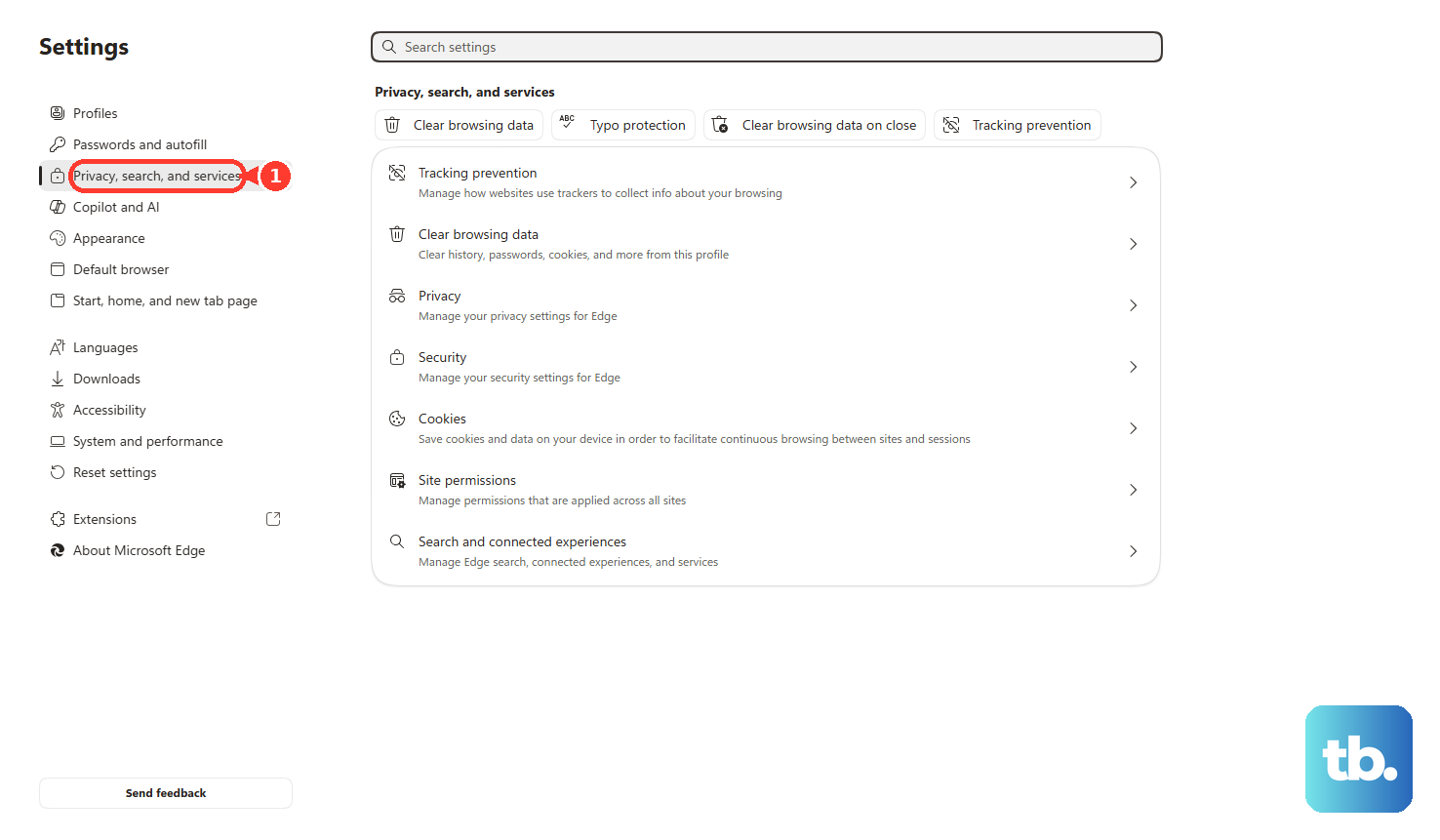
Microsoft Edge: open Settings and more, then Settings, Privacy, search, and services, Site permissions, and All sites. Select your Slack workspace, open Permissions for this site, and set Notifications to Allow.
In Chrome, also open More, Settings, Privacy and security, then Go to Safety Check. Under Safety recommendations, review Permissions removed for [n] sites and re-allow your Slack workspace there when Chrome removed it.
7. Update Or Reinstall Slack
After the notification settings are right, update Slack. The direct-download app and the Mac App Store version update from different places.
For the direct-download Mac app, click Slack in the Mac menu bar, choose Check for Updates, then click Restart to Apply Update. If the help icon is badged, click the help icon, open the update card, then click Restart Slack.
For the Mac App Store version, open App Store, choose Updates, then click Update next to Slack. Quit Slack completely and reopen it, then restart your Mac after the Slack and macOS settings above are correct.
Use a clean reinstall as the last local fix. Quit Slack, search Finder for Slack applications, and move Slack app results to Trash.
For the direct-download app, press Command + Shift + G in Finder, enter ~/Library/Application Support/Slack, then move the files and folders there to Trash. For the Mac App Store version, press Command + Shift + G, enter ~/Library/Containers/com.tinyspeck.slackmacgap/Data/Library/Application Support/Slack, then move those files and folders to Trash.
Empty Trash, then install Slack again from Slack's official Mac download page or the App Store. This removes local Slack app data, so sign in again after reinstalling.
8. Check Lock Screen Summaries And Work Controls
Change the relevant macOS notification options directly when notifications disappear while the screen is locked, the display is sleeping, or the Mac is mirroring a display. Open Apple menu, System Settings, then Notifications.
In Notification Center, turn on notifications when the display is sleeping and when the screen is locked. For mirroring or sharing, choose Allow Notifications.
On Macs where Apple Intelligence is available and turned on, change notification summaries from Apple menu, System Settings, Notifications, then Summarize notifications. To change it only for Slack, go back to Notifications, select Slack, then adjust Summarize notifications.
For Reduce Interruptions, open System Settings, Focus, then Reduce Interruptions and choose which notifications are allowed. If you do not see Reduce Interruptions, click Add Focus, choose Reduce Interruptions, then choose which notifications are allowed.
If a work-managed Mac still misses Slack alerts, ask IT to confirm Slack for macOS is current and deployed correctly. When the Slack version number starts with MSQ, your organization manages updates.
Frequently Asked Questions
Why do Slack notifications work on my iPhone but not my Mac?
Slack and macOS use separate notification controls on the Mac. Check Slack > Preferences > Notifications, then Apple menu > System Settings > Notifications > Slack, and turn off the active Focus from Control Center.
Why do I only get Slack notifications for mentions and DMs?
Slack is set to Mentions and direct messages. Open Slack > Preferences > Notifications > What to notify you about, then choose Everything for regular channel message notifications.
Why are Slack badges stuck after I read everything?
Open the affected workspace in the Slack desktop app or browser and press Shift + Esc. Slack uses that shortcut to mark stuck notifications as read.
Do Slack keyword alerts work in threads?
No. Slack keyword notifications are exact-match alerts, and Slack says they do not trigger from thread messages. Add keywords from Slack > Preferences > Notifications > Channel keywords.
Can Slack email notifications replace Mac notifications?
Use email notifications only as a fallback when you are inactive in Slack. Slack can email mentions, DMs, and followed-thread replies, but email does not fix Mac desktop push notifications.











