

When router.asus.com will not open, the fastest fix is to stop relying on the older hostname and use ASUS’s current login paths. Start with the official Web GUI address and LAN IP, then move through HTTPS, DNS, app, reset, and recovery options until the router settings page opens.
Use the current ASUS router address first
Start with ASUS’s current Web GUI address before changing computer or router settings.
- 1.Turn on the ASUS router and wait for it to finish starting up.
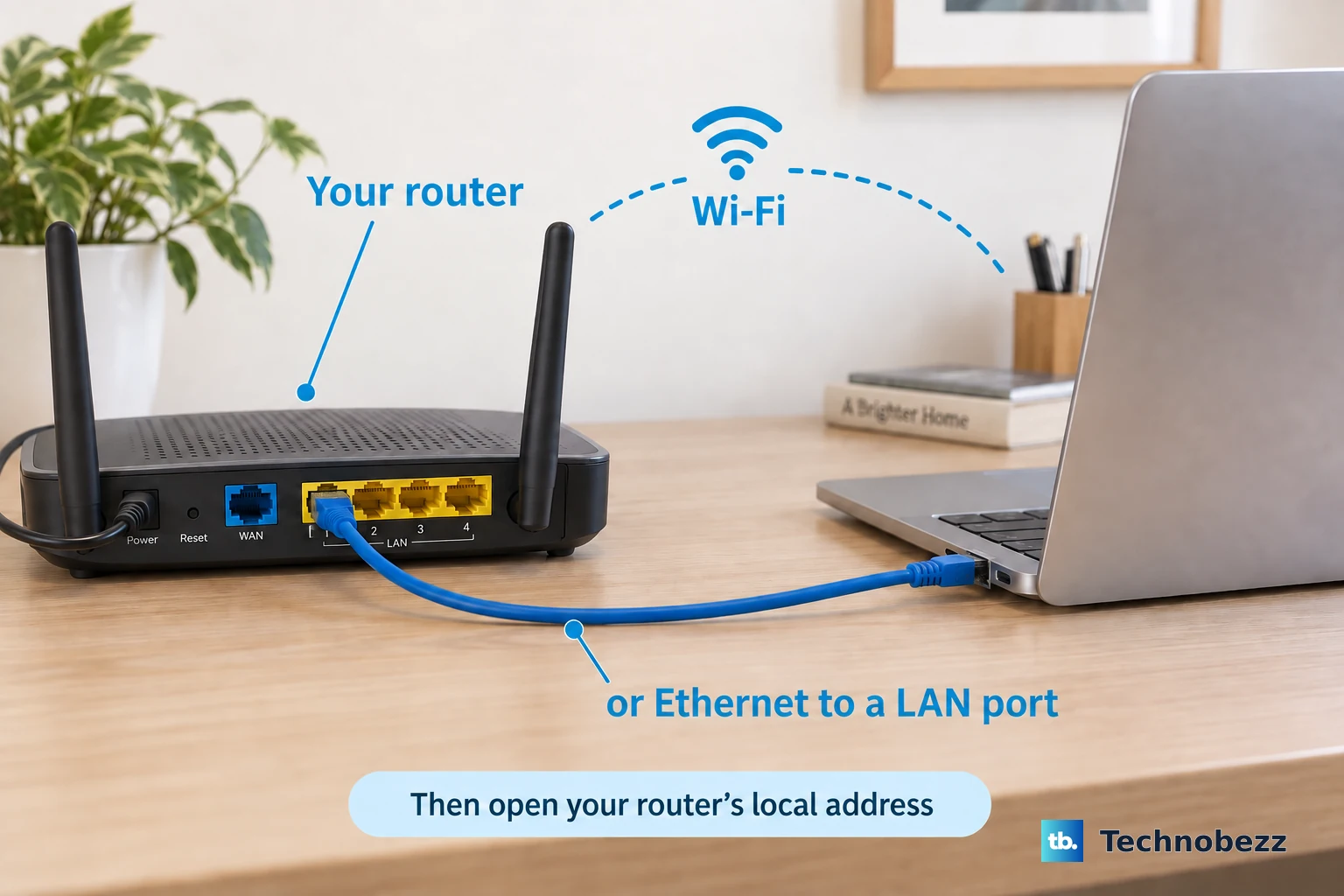
- 2.Connect your phone or computer to the ASUS router by Wi-Fi or Ethernet.
- 3.Open Microsoft Edge, Firefox, Safari, or Chrome.
- 4.Enter http://www.asusrouter.com in the address bar.
- 5.If that page does not open, enter http://192.168.50.1.
- 6.Sign in with the router username and password.
Open the router by its LAN IP
This fixes router-name lookup failures when router.asus.com or www.asusrouter.com does not resolve.
Look for the default IP address on the router label.
Enter http://192.168.50.1 in the browser while your device is connected to the ASUS router.
Enter http://192.168.1.1 if the first address does not load.
Sign in when the ASUS Web GUI login page appears.
Confirm you are on the ASUS network
This method applies during first setup, after a factory reset, or when your phone or computer is connected to another Wi-Fi network. The router settings page opens from the ASUS router’s local network.
For Wi-Fi setup, connect to the default ASUS network name shown on the product label, such as ASUS_XX.
For wired setup, connect the modem to the router WAN port, then connect your computer to a router LAN port with another RJ45 cable.
Connect the router power, press the Power button, and check that the Power and Wi-Fi or LAN LEDs are on.
Open http://www.asusrouter.com or the router LAN IP again.
Try the HTTPS login page
Use HTTPS when the browser forces a secure version of the router page. Enter https://www.asusrouter.com:8443 in the browser address bar; ASUS lists 8443 as the default HTTPS port.
When the browser shows a certificate warning, choose Advanced, then select Proceed to www.asusrouter.com unsafe or Go on to the webpage. Sign in to the ASUS Web GUI. If you changed the HTTPS port earlier, replace 8443 with your configured port.
If the warning keeps blocking access, use ASUS’s certificate workflow or Let’s Encrypt workflow from the router Web GUI; ASUS says only one of those certificate methods works at a time.
If HTTPS still fails, open the router LAN IP with HTTPS, such as https://192.168.50.1:8443.
Use the ASUS Router App instead
The app is the clean fallback when the browser hostname is the only broken part, on a model ASUS supports. ASUS does not support the app on any cable modem model, and on supported DSL models the app covers router login and partial management only, with Quick Internet Setup excluded. Check your model on ASUS’s app support list before you rely on this method.
- 1.Install ASUS Router App from Google Play or the iOS App Store.
- 2.Connect your phone to the router’s default SSID shown on the label.
- 3.Open ASUS Router App and tap Setup.
- 4.Choose ASUS Router, tap Allow, then tap Start.
- 5.Choose the Internet type, set the Wi-Fi name and password, and create the router login name and password.
- 6.Use the app home screen to manage the router.
Fix DNS settings that bypass local router names
Chrome Secure DNS and Firefox DNS over HTTPS can send name lookups outside the ASUS router’s local network path, which breaks local router hostnames even when the router is reachable by IP. Chrome’s automatic mode and Firefox’s Default Protection fall back to the normal resolver when a lookup fails, so the usual culprit is an enforced configuration: Chrome set to a custom provider, or Firefox on Increased Protection or Max Protection. If the router opens by IP but not by name, turn the feature off or add an exception, then try the name again.
In Chrome on a computer, open Settings, go to Privacy and security, open Security, and turn off Use secure DNS under Advanced.
In Chrome on Android, open More, open Settings, go to Privacy and security, tap Use secure DNS under Security, and turn Use secure DNS off.
In Firefox, open the menu, go to Settings, open Privacy and Security, find DNS over HTTPS, open Advanced settings, and choose Off.
For Firefox, open Manage Exceptions in the DNS over HTTPS section and add the router hostname if you want an exception instead of turning the feature off.
If DNS controls are locked by a work, school, managed, or parental-control device, use the router LAN IP instead.
If this method fails, use ASUS Device Discovery to find the router on your network.
Find the router with ASUS Device Discovery
This applies when you are using Windows and the usual router address still will not open. ASUS Device Discovery finds ASUS routers, repeaters, access points, and wireless media bridges on the local network.
Go to the ASUS Official Website, search for your exact router model, and open Support or Driver and Utility.
Choose Driver and Utility, select your Windows version, open Utilities, and download ASUS Device Discovery.
Unzip and install the utility, then open it from the desktop shortcut or Start menu.
Connect the Windows PC to the router by Wi-Fi or Ethernet.
Click Search, select the router, model, or SSID, then click Setting to log in.
Reset the router when access breaks
This fixes forgotten router login details or broken router settings that block access.
If you can still sign in, open the Web GUI, go to Administration, open Restore/Save/Upload Setting, click Restore, confirm with OK, wait for the reboot, and configure the router again.
If you cannot sign in, keep the router powered on, find the RESET button, press and hold it for 5 to 10 seconds until the Power LED starts flashing, release it, and wait until the LEDs turn on again.
After the reset, connect to the router by Wi-Fi or Ethernet and open http://www.asusrouter.com or the LAN IP.
Complete Quick Internet Setup by choosing Create A New Network, setting the Internet connection type, creating the Wi-Fi name and password, and creating a new router login name and password.
Use recovery options for deeper failures
When standard reset does not restore access, use ASUS’s Hard Factory Reset process for supported models.
Turn the router off, press and hold WPS, turn the router on, keep holding while the power light is on, release WPS after the Power LED starts flashing, and wait for the automatic reboot.
Use Firmware Restoration in the cases ASUS documents: the router fails to update its firmware the regular way, the power light flashes abnormally, or third-party firmware has left the router operating irregularly. It is not a regular update method, and it works only while the router is in Rescue Mode.
Download the latest firmware and ASUS Firmware Restoration from the exact router model support page.
Install the utility, connect a Windows PC to the router by Ethernet, set the PC IPv4 address to 192.168.1.10 with subnet 255.255.255.0, put the router into Rescue Mode with the Reset button while reconnecting power, then upload the unzipped firmware through Firmware Restoration. After the router reboots, set the PC to obtain its IP address and DNS server address automatically, then try the Web GUI.
Use http://www.asusrouter.com, https://www.asusrouter.com:8443, or a LAN IP such as http://192.168.50.1 as the closing check; do not use router.asus.com as the main fix.
Frequently Asked Questions
Is router.asus.com still the right ASUS router login address?
Treat router.asus.com as an older hostname. ASUS’s current support path for mainstream wireless routers uses http://www.asusrouter.com, https://www.asusrouter.com:8443, or the router LAN IP.
What ASUS router IP should I try first?
Try http://192.168.50.1 first, then http://192.168.1.1. ASUS also says the default IP can be printed on the router label.
Why does my browser warn that the ASUS router page is not private?
The HTTPS Web GUI can show a certificate warning. ASUS allows immediate access through Advanced, or you can use the router certificate workflow or Let’s Encrypt workflow from the Web GUI to remove the warning permanently.
What should I do if I forgot the ASUS router username or password?
Factory reset the router with the RESET button for 5 to 10 seconds until the Power LED flashes, wait for it to reboot, then set it up again and create new login credentials.