

Fix Roblox textures not loading by allowing downloads to finish, checking Roblox Status, and adjusting graphics settings before repairing or reinstalling the app. If textures look wrong across several experiences on Windows, update your graphics driver. When only one experience is affected, its creator may need to repair the content.
Start with the shared checks, then follow the steps for your device. Missing world textures, blurry graphics, and broken website images need different fixes, so choose the steps that match what you see.
The short version
- Check the scope: Compare experiences and check Roblox Status before changing your device.
- Adjust graphics: Try automatic graphics quality, or lower quality when your device struggles.
- Repair locally: Restart, update, and use the repair steps for your platform if several experiences remain affected.
- Separate website issues: Use browser troubleshooting for website images and launching problems.
| Fix | When to use it | Where it applies |
|---|---|---|
| Allow more loading time | Large experiences download slowly | All platforms |
| Check service status | Assets fail across experiences | All platforms |
| Compare experiences and contact the creator | Only one experience fails | All platforms |
| Try Ethernet | Wi-Fi may be unstable | Compatible computers and consoles |
| Use automatic graphics | Let Roblox control quality | Clients with graphics controls |
| Lower graphics quality | Rendering or memory pressure | Clients with graphics controls |
| Increase graphics quality | Blurry or simplified detail | Capable hardware with graphics controls |
| Close demanding background apps | Other apps consume resources | Multitasking devices |
| Leave and re-enter | Low-memory warning appears | iPhone and iPad |
| Choose simpler experiences or stronger hardware | Memory warnings persist | Resource-limited devices |
| Restart the computer | Desktop app trouble persists | Windows and Mac |
| Force-stop Roblox | Android app trouble persists | Pixel steps provided |
| Restart the Android device | Reopening the app does not help | Pixel 6 and later, including Fold |
| Close and reopen Roblox | The app is unresponsive | iPhone |
| Restart PlayStation | Console app trouble persists | PS5 and PS4 |
| Update Roblox and Android | Updates are available | Google Play apps and Pixel system menus |
| Update Roblox on Apple devices | An app update is available | iPhone and iPad |
| Update the Apple operating system | A system update is available | Compatible iPhones and iPads |
| Update Roblox on PlayStation | Update or connection trouble | PS5 and PS4 |
| Replace the old Store app | You use the light-gray icon app | Windows |
| Update the graphics driver | Abnormal textures across experiences | Windows 10 and Windows 11 |
| Clear app cache | Android app trouble persists | Pixel steps provided |
| Clear app storage | Cache clearing does not help | Android with manufacturer-specific menus |
| Run the desktop installer again | Application files may be damaged | Windows |
| Uninstall and reinstall on Windows | Reinstalling over the app fails | Windows 10 and Windows 11 |
| Remove and reinstall on Mac | Mac application files may be damaged | Supported macOS versions |
| Delete and reinstall on Apple mobile devices | Simpler app fixes fail | iPhone and iPad |
| Resolve deletion restrictions | App deletion is blocked | Restricted or managed Apple devices |
| Try another browser | Website images or launching fail | Supported desktop browsers |
| Disable an interfering extension | An extension affects loading | Desktop Chrome steps provided |
| Clear browsing data | Website or launch trouble persists | Desktop Chrome steps provided |
| Contact Roblox Support | Reproducible failures remain | All platforms |
| Follow Xbox troubleshooting | Xbox app trouble persists | Xbox One |
Check loading time and the connection first
Allow additional loading time after joining, especially for a large experience over a slow connection. Roblox does not specify a universal waiting period. Compare the affected experience with another one to help identify whether the problem is confined to particular content.
If missing assets affect several experiences, open Roblox Status and check Asset Delivery, Games, Player, and Avatar. Read any active incident affecting those services. When Roblox reports an outage, wait for recovery and retry the experience.
If the problem affects only one experience, inform its creator. Roblox says faulty scripts and excessive objects are problems only the creator can repair. If the whole experience fails to open, follow the steps for Roblox games not loading.
On a computer or console with Ethernet support, connect to your router by cable and retry Roblox. This helps determine whether unstable Wi-Fi is responsible. If the wireless connection is weak, work through the steps to fix a weak Wi-Fi signal.
Match graphics settings to the symptom
In a Roblox client with graphics controls, select the Roblox logo to open the experience menu, or press Esc on a computer. Open Settings, switch graphics quality to automatic, then select Resume. Check the result before making another adjustment.
For rendering trouble on weak hardware or under memory pressure, return to Settings and turn off automatic graphics quality. Move Graphics Quality left, then select Resume. Lower quality deliberately reduces visual detail, so expect a simpler appearance.
When textures are blurry or simplified and your hardware has enough resources, open Settings and turn off automatic graphics quality. Move Graphics Quality right, then select Resume. This increases visual quality, but it is not a guaranteed repair for failed texture downloads.
On multitasking devices, close unnecessary applications consuming substantial system resources and retry Roblox. If your client does not expose the graphics controls, continue with the applicable device steps below.
On iPhone or iPad, Error Code: 292 indicates low memory. Select Leave, then re-enter the experience or choose a less demanding one. If memory warnings persist, try simpler experiences or a device with more RAM and greater graphics capability.
Restart Roblox or your device
On Windows, right-click Start, choose Shut down or sign out, then select Restart. Reopen Roblox and retry the affected experience. Roblox also recommends restarting your computer on Mac.
On a Pixel phone, open Settings > Apps > See all apps > Roblox > Force stop, then tap OK. Reopen Roblox. Other Android manufacturers use different app settings paths.
To restart a Pixel 6 or later, including Fold, hold Power + Volume up for a few seconds, then tap Restart. Reopen Roblox afterward. Use your manufacturer’s button combination on other Android models.
For an unresponsive Roblox app on an iPhone without a Home button, swipe up from the bottom and pause midway, find Roblox, then swipe its preview upward. On an iPhone with a Home button, double-click Home, find Roblox, and swipe its preview upward. Open Roblox again.
On PS5, press PS and select Power > Restart PS5. On PS4, hold PS to open the Quick Menu, then choose Power > Restart PS4. Retry Roblox after the console restarts.
Install app and system updates
For Roblox installed through Google Play, open Google Play Store, select your profile icon, and choose Manage apps & devices > Updates available. Update Roblox, then reopen it. On Pixel, check Android updates through Settings > System > Software update; other manufacturers use different menus.
On iPhone or iPad, open App Store, select your profile icon, then open App Updates. Install an available Roblox update and reopen the app.
For an iOS or iPadOS update, back up your device and connect it to power and Wi-Fi. Open Settings > General > Software Update, tap Download and Install if offered, and complete the displayed instructions.
On PS5 or PS4, highlight Roblox, press Options, and select Check for Update. If updating fails, open Settings > Network > Test Internet Connection.
If you still use the old Microsoft Store app with the light-gray desktop icon, find Roblox - Windows in Microsoft Store and install it. Sign in with your existing Roblox account and complete Xbox-account linking if requested. The replacement app has a blue desktop icon.
Update your Windows graphics driver
Roblox recommends current graphics drivers for abnormal textures on computers. On Windows 10 or Windows 11, right-click Start and open Device Manager. Expand Display adapters, right-click your graphics processor, and select Update driver, then choose the automatic driver-search option.
You can also obtain the driver matching your graphics processor and Windows version from the GPU manufacturer’s official support page. Follow the steps to find and update your graphics driver if you need help identifying the hardware. Retry the affected experiences after updating.
Clear Roblox app cache on Android
Clearing the cache removes Roblox’s cached app files. On Pixel, open Settings > Apps > See all apps > Roblox > Storage & cache and tap Clear cache. Reopen Roblox and check the result; this is a general app repair step, not a guaranteed texture fix.
If the problem persists, try clearing app storage. Clearing storage removes locally stored app data and requires you to sign in again. Return to the same Pixel app settings and select Clear storage, then tap OK. Reopen Roblox and sign in; some Android devices call this action Clear data, and manufacturer-specific paths vary.
Reinstall Roblox when simpler fixes fail
On Windows, Roblox says reinstalling can replace damaged or missing application files without first uninstalling. Close Roblox and other applications, then obtain the installer from the official Roblox download page and run it. If that does not help, proceed with removal and a fresh installation.
Uninstalling removes the Roblox application from your computer. On Windows 11, open Start > Settings > Apps > Installed apps, find Roblox, and select More > Uninstall. Restart the computer and reinstall Roblox.
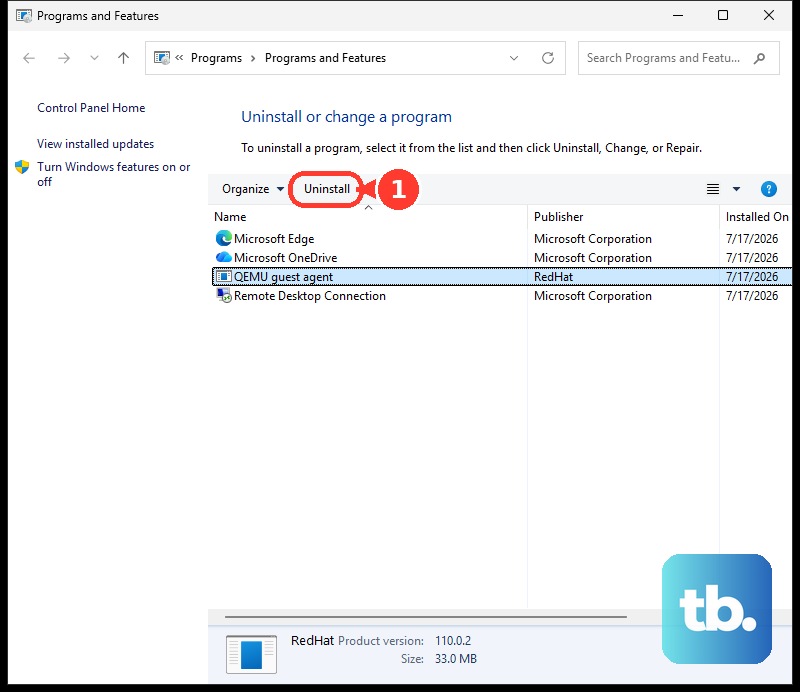
For desktop programs on Windows 10 or Windows 11, you can instead open Control Panel > Programs > Programs and Features. This uninstall step removes the Roblox application. Right-click Roblox and select Uninstall, then restart and install Roblox again.
On Mac, Roblox’s reinstall procedure starts by removing the app. Press Command + Option + Esc; if Roblox is running, select it and click Force Quit. Moving Roblox to the Trash removes the application. Open Finder > Applications, move Roblox to the Trash, then reinstall it using the official download page.
Deleting Roblox on iPhone or iPad removes its local app data. Touch and hold Roblox, tap Remove App, then Delete App, and confirm with Delete. Reinstall it from the official Roblox App Store listing and sign in.
Removing only the Home Screen icon does not complete this reinstall procedure. If parental restrictions prevent deletion, ask the parent to set Deleting Apps to Allow; for a managed device, contact its administrator. Once deletion is permitted, repeat the deletion and reinstall steps.
Use browser fixes for website images and launching
Browser troubleshooting fits broken website images and failures when launching an experience from the website. Try opening Roblox in another up-to-date supported browser (Chrome, Firefox, or Microsoft Edge on Windows; Chrome, Firefox, or Safari on Mac), sign in, and launch the experience again. Browser cache is separate from the Roblox Player’s downloaded assets.
In desktop Chrome, open More > Extensions > Manage extensions. Turn off a suspected ad blocker or Roblox-related extension, then retry. Roblox identifies ad-blocking extensions as a potential loading problem.
Deleting the selected browsing data removes cookies, other site data, and cached images and files, and you will need to sign in to Roblox again. Open More > Delete browsing data, choose All time, and select Cookies and other site data and Cached images and files. Select Delete data, then reopen Roblox’s website and sign in.
Report persistent texture failures
If missing textures remain reproducible after the applicable fixes, contact Roblox Support through its support form. Include your Roblox username, device model, operating system version, error messages, and the steps that reproduce the failure. Explain whether one or several experiences are affected and mention recent device or network changes.
For Xbox One, open Roblox’s Xbox troubleshooting page and follow its link to Microsoft’s An application won't start on Xbox One instructions. If the problem remains, include your Xbox gamertag as well as your Roblox username, error messages, and error codes when contacting Roblox Support.
Frequently Asked Questions
Why does Roblox show a low-memory warning when my iPhone has free storage?
Error Code: 292 concerns RAM pressure, not insufficient storage. Having free storage does not mean your device has enough memory available to run the experience.
How can I check whether my Windows graphics hardware meets Roblox’s requirement?
Press Windows + R, enter dxdiag, and press Enter. Open Display, or the numbered Display tabs, and inspect Feature Levels. Roblox requires DirectX 10 feature-level support or higher, and a software setting cannot add unsupported hardware capability.
What should I do if only my avatar thumbnail shows a gray X?
On Roblox’s website, open Avatar and select Redraw beneath the avatar image. Allow several minutes for regeneration. This addresses the website avatar thumbnail rather than missing world textures.
Can an incorrect device clock affect Roblox connections?
Correcting inaccurate date and time is a general connection troubleshooting step. On the current iPhone or iPad interface, open Settings > General > Date & Time and turn on the setting that sets the date and time automatically. For automatic time-zone detection, open Settings > Privacy & Security > Location Services > System Services and turn on Setting Time Zone.