Optonline.net sign-in problems usually start with the wrong portal, a rejected Optimum ID password, broken browser data, or old mail app settings. Start with Optimum’s current sign-in route, then use password recovery, browser cleanup, and mail app settings in that order. The fixes below use current Optimum, Apple, Google, and Microsoft support steps.
1. Start at the current Optimum sign in page
- 1.Go to optimum.net.
- 2.Select Sign in.
- 3.Enter your Optimum ID and password.
- 4.In the Internet area, select Email.
- 5.If you see Email Inbox, select View all.
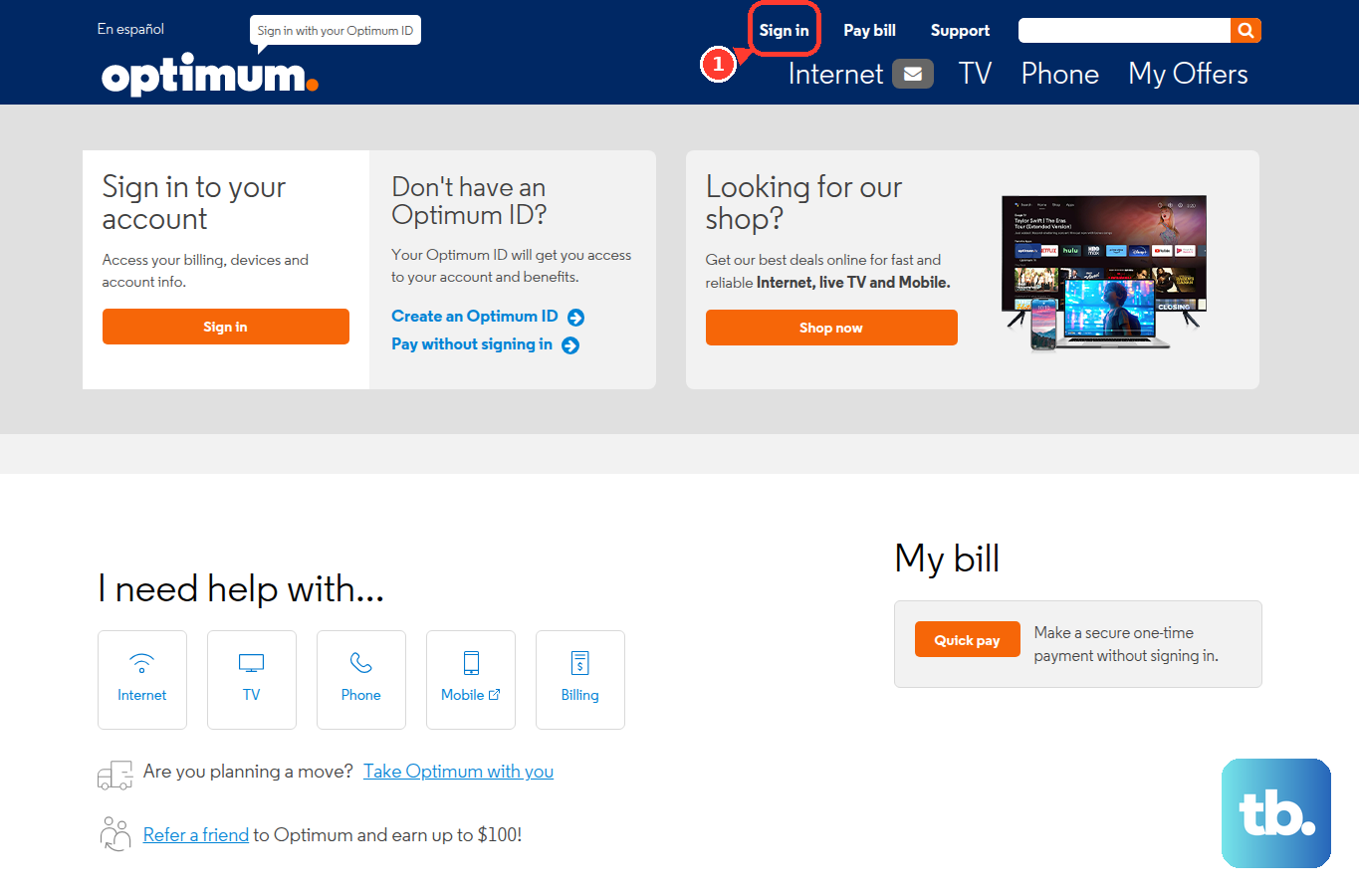
This is the current starting point for residential Optimum Internet customers with an active Optimum ID and an Optimum or Optonline email mailbox.
2. Restart webmail from the Optimum portal
This fixes the webmail callback or cookie loop that says Try logging in again from the application. Go to webmail.optimum.net.
If webmail opens, sign in with your Optimum ID and password. If the callback error appears, go back to optimum.net, select Sign in, and open Email from the Internet area.
3. Reset the password or recover the Optimum ID
Go to optimum.net/pages/idhelp.html. Under Forgot your password?, select Follow the steps to reset your password, or go directly to optimum.net/reset-password.
Complete the password recovery prompts. Then sign in again from optimum.net.
If you forgot the Optimum ID, return to optimum.net/pages/idhelp.html. Under Forgot your Optimum ID?, select We'll send you a message with your ID(s).
You can also use optimum.net/recover-id and recover by email, mobile phone, or account number. If you have not created an Optimum ID, select Create an Optimum ID. For the primary Optimum ID, create it at the service location.
4. Replace outdated Optonline and Suddenlink advice
Use optimum.net > Sign in for current Optimum My Account sign-in, not suddenlink.net. For mail apps, replace mail.optonline.net with mail.optimum.net.
Do not use old Windows Mail and Calendar instructions, because Microsoft support for Windows Mail, Calendar, and People ended on December 31, 2024.
5. Clear browser data when webmail loops
In Chrome on a computer, open More, then choose Delete browsing data. Select a time range such as All time, check Cookies and other site data and Cached images and files, then select Delete data.
In Microsoft Edge, open Settings and more, then Settings, Privacy, search, and services, Clear browsing data, and Choose what to clear. Choose a time range, select Cookies and other site data and Cached images and files, then select Clear now.
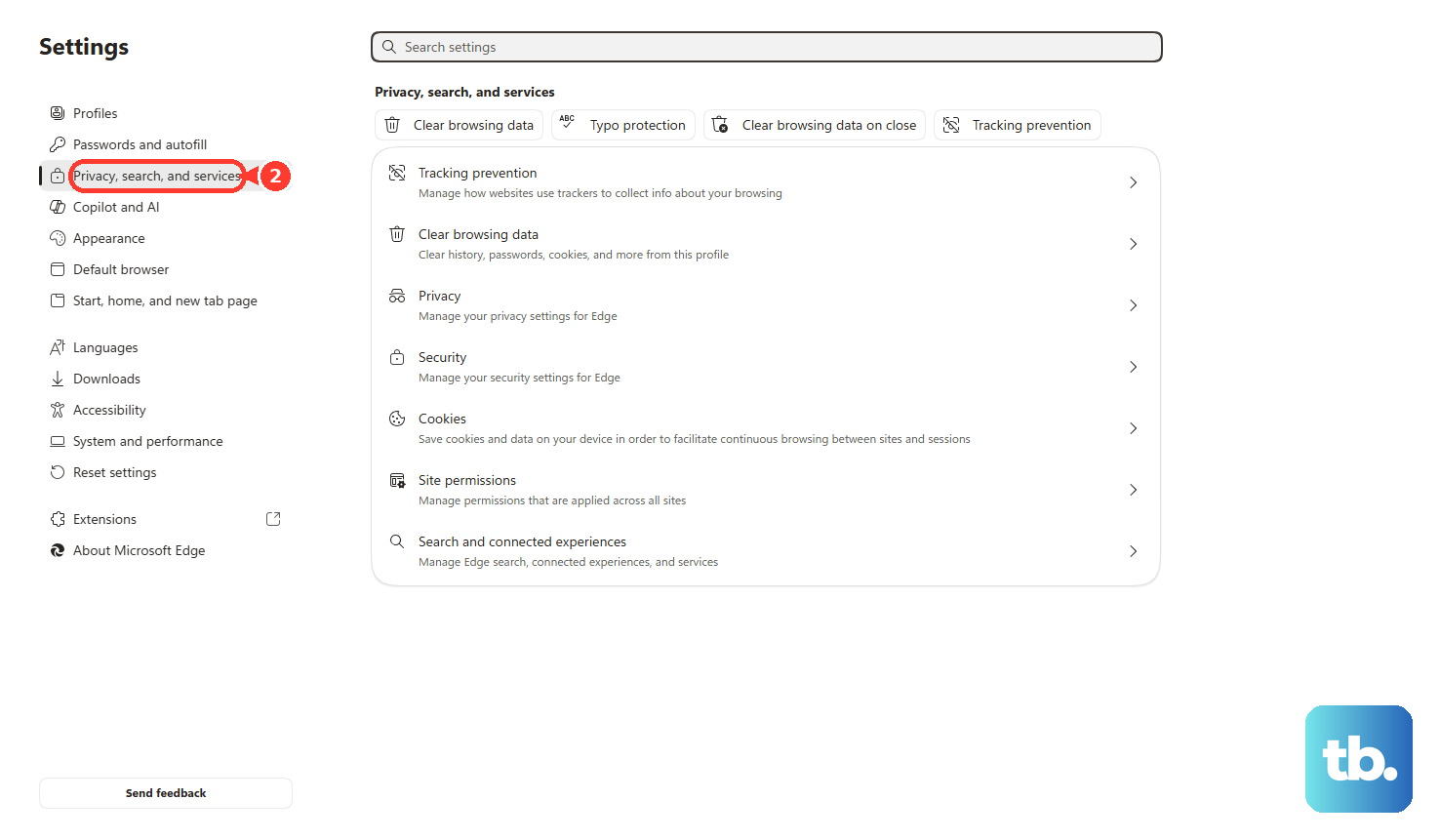
In Edge, you can also press Ctrl+Shift+Del or open edge://settings/clearbrowserdata. In Safari on Mac, open Safari, then Settings, Privacy, and Manage Website Data.
Select the Optimum website data and select Remove. Or select Remove All to clear data for every site.
On iPhone in Safari, open More, then Bookmarks, History, More, and Clear. Choose the timeframe, then select Clear History.
6. Correct the server settings in your mail app
Open the manual account setup area in Outlook, Apple Mail, the Gmail app, Thunderbird, or your other mail client. Use mail.optimum.net as the server host.
For IMAP inbound mail, use port 993 with SSL. For POP inbound mail, use port 995 with SSL. For SMTP outbound mail, use port 465 with SSL.
Use your Optimum email username and password. Enable SMTP authentication when your app shows that setting. Leave POP port 110 and SMTP port 587 out of the setup because Optimum marks them as legacy and not recommended.
7. Remove and re add the account on your device
On iPhone or iPad, open Settings, then Apps, Mail, and Mail Accounts. Tap the Optonline or Optimum account, then choose Sign Out or Delete Account.
To add it again, go to Settings, Apps, Mail, Mail Accounts, and Add Account. Enter your email address, select Next, choose Add Other Account, and select Mail Account.
Enter your name, email address, password, and description. Choose IMAP or POP, enter the Optimum incoming and outgoing server settings, then select Save.
In the Gmail app on Android, tap your Profile. Choose Manage accounts on this device, select the email account, and choose Remove.
To add it again in the Gmail app, tap your Profile. Choose Add another account, select Other, enter the full email address, and choose Next.
Select Personal (IMAP), enter the password, and choose Next. Enter the Optimum IMAP settings, then finish the on-screen steps.
In new Outlook for Windows, open View and View settings, or use File, Account info, Accounts, and Your accounts. Under Email accounts, select Add Account.
Enter the Optonline.net address, choose Continue, enter the password, and select Done. In classic Outlook for Windows, select File.
Select Add Account, enter your email address, choose Connect, enter the password, select OK, and select Finish.
8. Use account management or Optimum support
This fixes mailbox, household subaccount, recovery, and account-side problems that a local sign-in retry does not solve. For household email account management, go to memberservices.optonline.net/acctms/webmaillogin.
Sign in with the primary Optimum ID and password. Use Add or delete additional accounts, Change passwords, or Enable or disable your SpamAway feature.
For Optimum support, go to optimum.com/contact-us. Under Already have Optimum?, choose Chat now, call the regional support number shown, or use Find a store.
For support in the My Optimum app, sign in with your Optimum ID and password. Go to My Account, then select Chat with us.
Optimum lists Billing and Account support as Sunday through Saturday, 8 AM to 8 PM, and Technical support as available 24/7.
Frequently Asked Questions
Is Optonline.net email the same sign in as Optimum?
For current Optimum customers, Optonline.net email sign-in uses your Optimum ID and password through optimum.net or Optimum webmail.
Why does webmail.optimum.net tell me to log in again from the application?
That message points to a login session or cookie problem. Start again at optimum.net, select Sign in, then open Email from the Internet area.
Will deleting the Optonline.net account from my iPhone close the mailbox?
No. Removing the account from iPhone does not close the email account with Optimum. It only removes the saved account from the device.
What should I use instead of mail.optonline.net in a mail app?
Use mail.optimum.net with the current Optimum settings. IMAP uses port 993 with SSL, POP uses 995 with SSL, and SMTP uses 465 with SSL.