Chrome no sound often comes down to a muted player, a blocked site permission, or audio going to the wrong device. Start with the quick checks first, then move through Chrome permissions, saved site data, updates, Windows audio settings, and reset options until sound comes back.
Check volume and the active output
Open a video or song in Chrome and raise the volume in the website’s own player. If other apps or websites have sound, your speakers are working and the problem is limited to that site or Chrome.
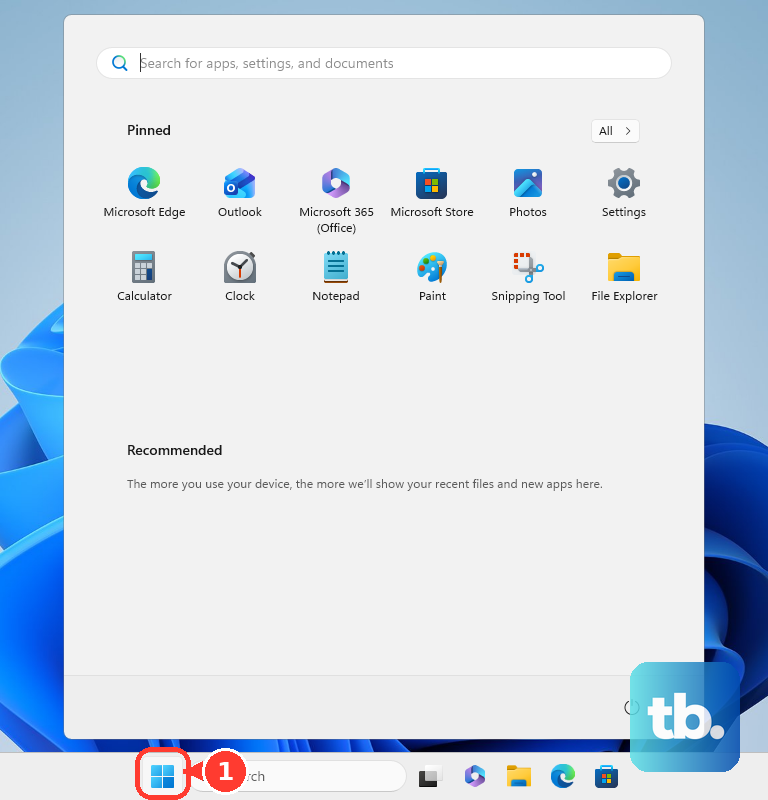
On Windows 11, open Start, go to Settings, then System, then Sound. Under Output, select the correct audio device, make sure it is not muted, and turn the volume slider up.
On Mac, open the Apple menu, choose System Settings, then Sound, then Output. Select the device you want, raise Output volume, make sure Mute is off, and adjust Balance if the sound is only coming from one side.
On a Chromebook, select the time at the bottom right and drag the volume slider up. Next to the slider, open Audio settings and choose the output device with the green check.
If Chrome still has no sound after the volume and output are right, allow sound inside Chrome next.
Allow sound in Chrome
This fixes Chrome when sites are blocked from playing audio at the browser level.
Open Chrome and select More.
Choose Settings.
Go to Privacy and security, then Site settings.
Open Additional content settings, then Sound.
Select the option that allows sites to play sound.
Fix one silent website
The most common single-site cause is a saved sound permission that blocks audio only on that website.
Open the site that has no sound in Chrome.
Select View site information at the left of the address bar.
Select Site settings, then change the site’s Sound permission to an allowed setting.
Select Reset permissions for that site if the permission change does not restore sound, then reload the page and test the audio again.
Use Chrome media controls
Chrome’s media control helps when audio is paused or playing from a tab you lost track of.
- 1.Play music, video, or other audio in a Chrome tab.
- 2.Open Media control at the top right of Chrome.
- 3.Select pause or play to control the audio.
- 4.Select the playing tab from Media control to jump back to it.
Turn off extensions that interfere with sound
Extensions change how pages load and behave, including media playback. Test Chrome with the suspect extension turned off when the audio problem started after an extension was added or updated.
Open Chrome, select More, then Extensions, then Manage Extensions. Turn off the extension you suspect, reload the silent page, and try the audio again.
If sound returns, remove the extension or leave it disabled. If nothing changes, turn the extension back on and clear Chrome’s stored site data and permissions next.
Delete Chrome browsing data
Use this when Chrome keeps a bad saved setting or one group of pages stays silent.
- 1.Open Chrome and select More, then Delete browsing data.
- 2.Choose a time range such as All time.
- 3.Select Cookies and other site data and any other items you want to remove.
- 4.Select Site settings to remove saved permissions.
- 5.Select Delete data, then restart Chrome and test sound again.
Update Chrome
This fixes audio problems tied to an outdated Chrome build or a browser update waiting to relaunch.
Open Chrome and select More.
Go to Help.
Select About Google Chrome.
Choose Relaunch when Chrome offers it.
If Relaunch is not shown, Chrome says you are on the latest version.
Repair Windows audio for Chrome
This applies when Windows system sounds work but Chrome stays silent, or when Chrome sends sound to the wrong output device. The steps below use Windows 11 labels. Windows 10 support ended on October 14, 2025, but Microsoft still publishes Windows 10 versions of these audio troubleshooting steps.
Open Start, go to Settings, then System, then Sound, then Volume mixer. Under Apps, make sure Chrome is not muted and its volume slider is turned up.
In the same Volume mixer, confirm the correct Output device is selected for Chrome. On supported Windows 11 devices, press Windows logo key + Ctrl + V to open the enhanced volume mixer.
When the whole Windows audio system is unreliable, turn Audio enhancements off for your output device.
Change the Default format under the device’s advanced sound settings and test audio.
Run the automated Audio troubleshooter in the Get Help app.
Open services.msc, restart Windows Audio, restart Windows Audio Endpoint Builder, then test audio in Chrome again.
Reset or reinstall Chrome
Reset Chrome after site permissions, extensions, browsing data, updates, and device audio settings have failed. In Chrome, go to More, then Settings, then Reset settings, then Restore settings to their original defaults, and select Reset settings.
If Chrome still has no audio, uninstall and reinstall it from Google’s official Chrome download page. On Windows 11, close all Chrome windows, open Start, go to Settings, then Apps, then Installed apps, open More next to Google Chrome, and choose Uninstall.
On Mac, quit Chrome from the Dock, open Finder, go to Applications, and drag Google Chrome to the Trash. Google also provides an optional profile removal path at ~/Library/Application Support/Google/Chrome before reinstalling.
On a school or work device, Chrome sound settings can be controlled by an administrator. Ask your IT team to allow sound for Chrome or the affected site if the setting is locked.
Frequently Asked Questions
Why does Chrome have no audio but other apps do?
Chrome can be muted in Windows Volume mixer, assigned to the wrong output device, blocked by a site sound permission, or affected by an extension.
Why is only one website silent in Chrome?
That site can have its own player volume muted, or Chrome can have a saved Sound permission for that specific site. Open View site information, select Site settings, and check the Sound permission.
Should I use Chrome flags or hardware acceleration fixes for no audio?
No. Use Chrome sound permissions, extension controls, browsing data cleanup, updates, and device audio settings instead.
Can a managed school or work Chromebook block Chrome sound?
Yes. Managed Chrome settings can control whether sites are allowed to play sound. If the setting is locked, contact your administrator.











