

To fix Netflix games not showing up, update Netflix, check your profile’s maturity restrictions, and confirm that your device supports the game. On a phone or tablet, you can also install a compatible game directly from its app store listing without restoring the missing games row. On a TV or computer, check eligibility for Netflix’s separate games beta.
The short version
- Missing mobile section: Update Netflix and check the home screen for Mobile Games.
- Direct access: Install a compatible Netflix game through Google Play or the App Store.
- Missing individual title: Check the profile’s maturity allowance, the game’s requirements, and its release status.
- TV and computer access: Confirm your region and device or browser meet the games beta requirements.
| What you see | What to try | What it addresses |
|---|---|---|
| Missing Android games row or shortcut | Update Netflix through Google Play | Netflix app updates |
| Missing iPhone or iPad games row | Update Netflix through the App Store | Netflix app updates |
| Android game missing inside Netflix | Install the game through Google Play | Access without the games row |
| iPhone or iPad game missing inside Netflix | Install the game through the App Store | Access without the games row |
| Title missing on one profile | Try another eligible profile | Profile maturity allowance |
| Profile rating blocks a game | Adjust maturity restrictions in Netflix | Non-Kids profiles with an account password |
| Restrictions need browser management | Adjust parental controls on the account website | Profile restrictions, including passwordless accounts |
| Title missing from store search | Compare the game’s requirements with your device | Device compatibility |
| Game requires newer Android software | Install an available Android update | Eligible devices below the required version |
| Game requires newer Apple software | Install an available iOS or iPadOS update | Eligible devices below the required version |
| Announced mobile game is missing | Check its release status | Titles that have not launched |
| TV or computer games are missing | Check regional eligibility | Games beta availability |
| TV games section is missing | Check the account’s device compatibility filter | Supported TVs and streaming devices |
| Computer games are missing | Open Netflix in Chrome or Edge | Supported browser access |
| Chrome shows only mobile titles | Check the region and update Chrome | Browser requirements |
| Edge shows only mobile titles | Check the region and update Edge | Browser requirements |
| One TV or browser game is missing | Try another title and check later | Temporary removal for updates or fixes |
| Netflix malfunctions on Android | Fully restart the device | General app recovery |
| Android app problems persist | Clear Netflix’s app data | App recovery that removes video downloads and signs you out |
| Android app still malfunctions | Reinstall Netflix where it can be removed (not Samsung Galaxy) | App recovery that removes video downloads |
| Mobile profile switching fails | Sign out and back in | Refreshing the app’s sign-in |
| Apple profile switching still fails | Reinstall Netflix | Profile recovery that removes video downloads |
| TV profile switching fails | Use Netflix’s sign-out menu or remote shortcut | Sign-in refresh on supported TVs and players |
| Availability remains unresolved | Contact Netflix through the app | Help for your device and missing title |
Update Netflix and check the mobile games section
Start with a Netflix app update when the entire games row or shortcut is missing. On Android, open the Netflix Google Play listing and tap Update when offered. Reopen Netflix and find Mobile Games on the home screen, or tap Games. Select a title and tap Get Game.
For iPhone or iPad, open the Netflix App Store listing and tap Update when available. Reopen Netflix and find Mobile Games on the home screen. Select a title, then tap Get Game or Play Game.
The latest Netflix Android app requires Android 9 or later. The current US App Store listing requires iOS 26.0 or iPadOS 26.0 for Netflix, while individual games have separate requirements. If your device cannot install the current Netflix app, check the particular game’s store listing for its compatibility requirements.
Install the game directly from the app store
A missing Netflix row does not prevent direct installation of a compatible mobile game. Open Google Play or the App Store, search for the game by name, and select Netflix’s listing. This gives you access without restoring the row inside Netflix.
On Android, tap Install, then choose Accept if a permissions prompt appears. Once installation finishes, tap Open. If requested, tap Continue, enter your Netflix credentials, and choose a profile.
On iPhone or iPad, tap Get or the cloud icon, then tap Open after installation. If authentication is requested, tap Next, enter your Netflix credentials, and select Log in. Choose the profile you want to play with.
Enter your Netflix credentials only in Netflix’s own app or website or in an official Netflix game installed from its store listing, and never share a code, password, or remote access with someone who contacts you. If the title is missing from store search too, check its compatibility and release requirements below.
Check the profile’s maturity restrictions
A mobile game can disappear when its rating exceeds the selected Netflix profile’s maturity allowance. Choose another eligible profile and check for the title again. Inside an installed game, use its profile icon to change profiles.
For a non-Kids profile, open Netflix, tap My Netflix, then tap the profile name and select Manage Profiles. Select the affected profile and open Viewing Restrictions > Maturity Rating. Enter the account password and choose an appropriate rating that permits the game.
Accounts without a password need the browser procedure. Open your Netflix Account page, select Profiles > Adjust parental controls, and choose the affected profile. Verify your identity with the offered code or password method, change Maturity Rating, and select Save.
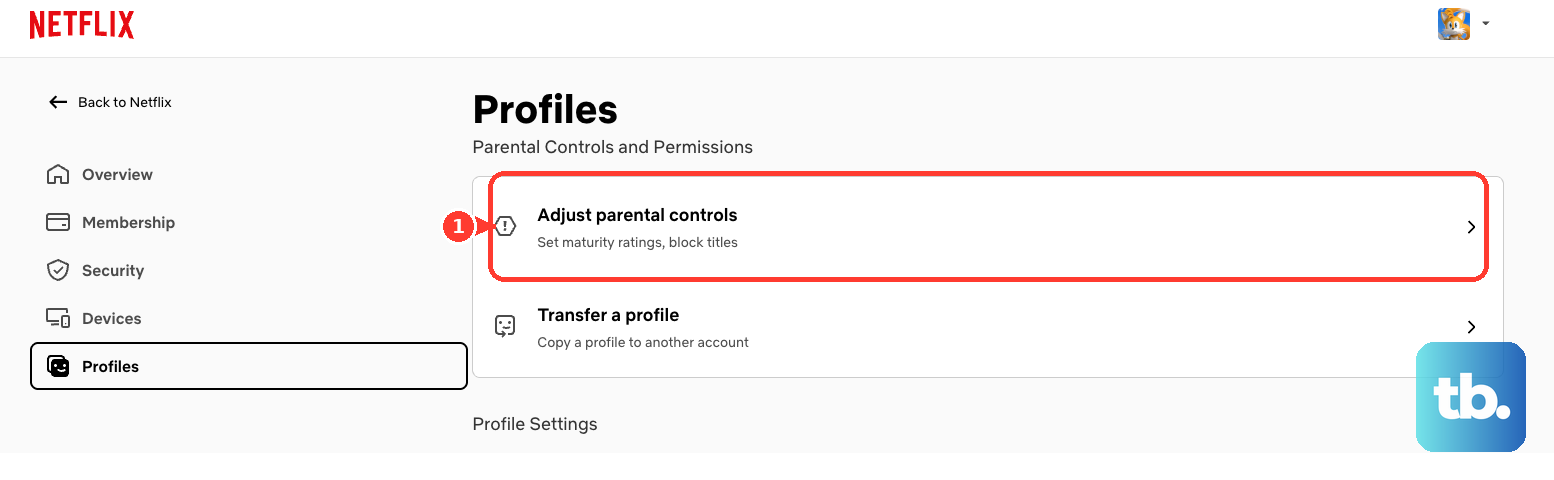
You can manage Netflix profile maturity restrictions when a profile’s allowance blocks a game. If the changed settings have not refreshed, switch to another profile and back. Keep any adjustment appropriate for the person using that profile.
Check the game’s requirements and release status
When one title is missing, compare your device with the requirements in that game’s dedicated Netflix support information and store listing. A device that runs Netflix may still fail an individual game’s requirements. If your phone or tablet cannot meet those requirements, use a compatible device.
On Android, open Settings > About phone or About tablet > Android version to check your version. If the game needs a newer version and your device is eligible for it, open Settings > System > Software updates and follow the update instructions. Manufacturer labels can differ, so follow your device’s software update controls, then check the game’s listing again.
For an eligible iPhone or iPad that needs an update, back up the device and connect it to power and Wi-Fi. Open Settings > General > Software Update, then tap Download and Install when available. Complete the displayed instructions before checking the game again.
An announced title may not have launched yet. Check Netflix’s current game listings and the official store listing to confirm its release status. If it is still unreleased, check again after launch; changing device settings cannot make it available early.
Check eligibility for games on your TV
TV games belong to Netflix’s games beta, which has its own regional and device requirements. Open Netflix on the TV, select a profile, and look for Games at the top. If that option is missing, check both your location and your TV or streaming device’s compatibility.
The TV and computer beta currently includes Australia, Austria, Belgium, Brazil, Canada, Finland, France, Germany, Ireland, Italy, Mexico, Netherlands, New Zealand, Poland, South Africa, Spain, Sweden, Switzerland, the United Kingdom, and the United States. This list applies to the TV and computer beta, not mobile-game availability. Outside those regions, wait for availability or use compatible mobile games.
On Netflix’s website, open Manage Access and Devices and enable Show devices compatible with games. If your device is listed as compatible, obtain its manufacturer’s software update instructions. If games remain missing after those checks, contact Netflix through the mobile app.
Use a supported browser for computer games
On a computer in a supported region, open Netflix’s website in Chrome or Edge, choose a profile, and select Games. Look for the Games or Party Games rows. If you see only mobile titles, confirm regional eligibility and update the browser; a mobile-game listing does not mean that title runs in the browser.
To update desktop Chrome, open More > Help > About Google Chrome. Allow the update check to finish, select Relaunch when offered, and reopen Netflix’s games page. On Linux, update Chrome through the package manager; on ChromeOS, use the operating system updater.
In desktop Edge, open Settings and more > Help and feedback > About Microsoft Edge. Install the available update and select Restart when offered, then return to Netflix and check the games section again. If your work or school manages Edge and prevents updating, contact the administrator.
If just one TV or browser game has disappeared, try another available title and check again later. Netflix says individual games can temporarily disappear while updates or fixes are underway.
Repair Netflix on Android when the app malfunctions
Use general Android app troubleshooting after checking game eligibility when Netflix itself is malfunctioning. Fully power off your phone or tablet, turn it back on, and reopen Netflix. Locking the screen does not complete this restart.
Clearing Netflix’s app data removes downloaded shows and movies and signs you out. To proceed, touch and hold Netflix’s icon, select App info, and open Storage & cache > Clear storage. Tap OK, then reopen Netflix and sign in; device labels may vary.
Reinstalling Netflix also removes downloaded shows and movies. If the app still malfunctions on an Android device that lets you remove Netflix, open Netflix’s Google Play listing, tap Uninstall, then tap Install. Open Netflix and sign in again. Netflix can’t be removed on Samsung Galaxy phones and tablets, so use the other recovery steps there and contact Netflix if the problem continues.
These are general app recovery steps, not guaranteed fixes for a missing games catalog. Reinstalling Netflix does not change a game’s eligibility. If the title remains missing after checking its requirements and your profile, contact Netflix.
Refresh Netflix when profile switching fails
Signing out ends your current sign-in in the Netflix app. If profile switching fails on Android, iPhone, or iPad, open Netflix, tap My Netflix, tap the profile name, and select Sign Out. Confirm Sign Out, then sign back in.
Reinstalling Netflix deletes its downloaded shows and movies. For an unresolved profile-switching error on iPhone or iPad, touch and hold Netflix’s icon, tap Remove app > Delete app, then confirm Delete. Reinstall Netflix from the App Store using its cloud icon.
Signing out on a TV ends the Netflix sign-in on that device. For profile-switching errors on supported smart TVs and streaming players other than Apple TV, press Back from Netflix’s home screen. With the top menu, open the upper-left profile icon, select Get Help > Sign out, and confirm Yes, then sign in again.
If those sign-out controls are unavailable, press Up, Up, Down, Down, Left, Right, Left, Right, Up, Up, Up, Up, then select Sign out and sign in again. This shortcut addresses sign-in trouble; it does not enable unsupported games. Apple TV uses separate Netflix sign-out instructions for profile-switching problems.
Contact Netflix with the missing game’s details
For unresolved availability problems, open Netflix on Android, iPhone, or iPad and tap My Netflix. Tap the profile name or menu icon, select Help, then tap Call or Chat. Provide the game’s name, your device model, operating system version, and selected profile. Explain whether the entire games section is missing or only one title.
Frequently Asked Questions
How do you open a Netflix game that is already installed?
Tap the game’s own Home Screen icon instead of opening it through Netflix. On Android, also check the app drawer for the installed game.
What if an installed Netflix game is hidden on an iPhone?
On an iPhone that supports app hiding, swipe left beyond the Home Screen pages to App Library, open Hidden, and authenticate. Touch and hold the game, tap Don’t Require Face ID, and authenticate again; applicable devices use Touch ID or Passcode wording instead. This addresses a missing installed icon, not Netflix’s missing games row.
Can Google Play restrictions block a Netflix game download?
Yes, local Google Play restrictions can block downloads or updates, although they do not necessarily hide search results. Open Google Play, tap the profile icon, then open Settings > Family > Content restrictions. The parent or restriction owner can adjust the relevant rating filter using the configured PIN.
Where can a parent change Family Link restrictions for a game?
The parent can open Family Link, select the child, and open Controls > Google Play. Select the relevant content category and adjust its permitted rating. These settings address restricted installations or updates, separately from Netflix’s profile maturity filters.
Can you play Squid Game on a Netflix Kids profile?
Netflix excludes Kids profiles from Squid Game. Choose an eligible profile with an appropriate maturity allowance for that game.
What if Apple parental controls prevent a game from installing?
With Apple’s upgraded iOS 27 or iPadOS 27 parental controls, the parent opens Settings > Family > the child’s name > Apps & Websites > App Store > Installing Apps and chooses Allowed where permitted. For age filtering, return to the child’s settings, open Content & Privacy Restrictions, choose the relevant category under Content Restrictions, and select an appropriate permitted rating. Regional and age-based mandatory restrictions may apply.