

A mouse wheel that jumps, scrolls backward, moves too fast, or stops responding can make a normal laptop or desktop feel broken. The fix is usually one of three things: clean the mouse, correct the scroll setting, or refresh the connection or driver.
Start with the quick checks first, then move into Windows, Mac, browser, and device-specific fixes only when scrolling still feels wrong.
1. Rule Out Dirt, Power, and the Mouse Itself
Before changing software, make sure the wheel and sensor are clean and the mouse has power. A dirty wheel, dusty optical sensor, weak battery, or loose wireless connection can make scrolling fail across every app.
Turn the mouse off or unplug it.
Wipe the outside, wheel, and optical sensor with a soft lint-free cloth.
For Microsoft mice, use 70% or less isopropyl alcohol on the cloth, or use mild soap and water on a lint-free cloth or cotton swab.
For Magic Mouse, clean the sensor on the bottom with compressed air or a cloth.
Replace or recharge the batteries on a wireless mouse.
Turn the mouse off and back on. On Magic Mouse, slide the bottom switch off until no green is visible, then slide it back on.
Do not take the mouse apart or lubricate the wheel as a normal repair. Current vendor guidance points to external cleaning, software steps, support, repair, or replacement.
2. Change Windows Scrolling Settings
If scrolling works but feels backward, too fast, too slow, or strange in inactive windows, open Start > Settings > Bluetooth & devices > Mouse on Windows 11. On Windows 10, open Start > Settings > Devices > Mouse instead.
Under Scrolling, set Roll the mouse wheel to scroll to Multiple lines at a time or One screen at a time.
Move Lines to scroll at a time until the wheel speed feels right.
Turn Scroll inactive windows when hovering over them on or off.
On Windows 11, set Scrolling direction to Down motion scrolls down or Down motion scrolls up. Windows 10 has no built-in scrolling direction control.
For a mouse with a horizontal tilt wheel, open Related settings > Additional mouse settings > Wheel, then adjust Horizontal Scrolling.
3. Tune Mac Scroll Direction and Speed
On a Mac, fix scroll direction first: open Apple menu > System Settings > Mouse, then turn Natural scrolling on or off to change direction.
For speed, open Apple menu > System Settings > Accessibility > Pointer Control > Mouse Options, then drag Scroll speed.
If pointer movement also feels inconsistent, go to System Settings > Mouse > Advanced and turn Pointer acceleration on or off.
Scroll direction and scroll speed live in different menus, so check both before blaming the mouse.
4. Reconnect a Bluetooth Mouse
Re-pairing gives the mouse a fresh Bluetooth connection when scrolling cuts out, lags, or works only after moving the mouse around.
- 1.Turn off other Bluetooth devices temporarily.
- 2.On Windows, hold the mouse pairing button until the LED flashes.
- 3.Open Start > Settings > Bluetooth & devices > Add device > Bluetooth.
- 4.Select the mouse, then choose Done.
- 5.On Mac, open Apple menu > System Settings > Bluetooth, then connect the mouse when it appears.
For an Apple wireless accessory that still will not connect, connect its cable to the Mac, wait 1 minute, then disconnect it. Apple says this pairs the accessory with the Mac and charges its battery.
5. Refresh Windows Mouse Drivers
If the wheel stopped working after an update, a new adapter, or a Bluetooth change, install optional driver updates from Start > Settings > Windows Update > Advanced options > Optional updates.
Select available driver updates, choose Download and install, then restart.
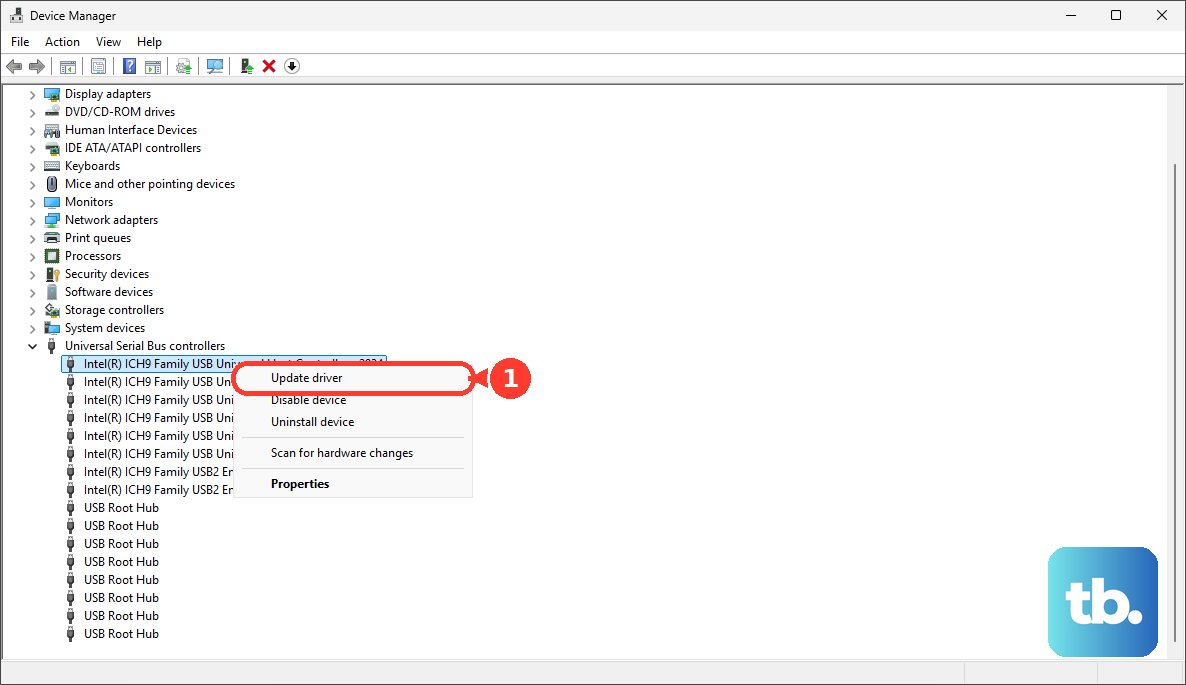
Update the device from Right-click Start > Device Manager.
Expand Mice and other pointing devices, Human Interface Devices, Bluetooth, or Universal Serial Bus controllers, right-click the device, choose Update driver, then choose Search automatically for updated driver software.
Reinstall a bad device entry from Device Manager.
Right-click the device, choose Uninstall device, choose Uninstall, then restart the PC.
Roll back a bad recent driver from the device Properties > Driver > Roll Back Driver.
Choose a reason, choose Yes, then restart if prompted.
If Windows does not find a driver, use the mouse maker or PC maker official support site.
6. Use the Current App for Logitech, Razer, and Corsair Mice
Gaming mice and productivity mice can have scroll-wheel behavior controlled by their own software, so use the current vendor app for the device.
For supported Logitech mice on Windows, install Logi Options+.
Open the mouse settings menu and go to POINT AND SCROLL.
Click Scroll wheel, then enable or disable smooth scrolling.
For supported Razer mice with HyperScroll Pro, open Razer Synapse.
Select the mouse, go to SCROLLING, then adjust SCROLL WHEEL STAGES.
For custom wheel haptics, choose Custom, open CUSTOM under ACTIVE SCROLL WHEEL HAPTICS, adjust the available wheel settings, then choose SAVE.
For Corsair iCUE-compatible mice, open iCUE.
Select the mouse, then use Device Settings to update firmware or change available device settings.
In iCUE v5.14 or newer, select the cog wheel for Device Settings.
Do not use Logitech SetPoint, older Logitech Options, Logitech Control Center, Firmware Update Tool, Connection Utility, or Unifying Software as the main fix. Logitech marks those tools as no longer supported or maintained and points supported devices to Logi Options+.
7. Fix Scrolling Inside Chrome, Firefox, Edge, Excel, or Outlook
When scrolling breaks in one app but works everywhere else, start with that app.
In Chrome, open More > Help > About Chrome, allow the update to install, then choose Relaunch.
In Chrome, open More > Extensions > Manage Extensions, then turn off or remove scrolling and mouse utility extensions.
In Chrome, open More > Settings > Reset settings > Restore settings to their original defaults > Reset settings.
In Firefox, open the menu, choose Help > Troubleshoot Mode, then choose Restart.
If scrolling works there, the likely cause is an extension, theme, or hardware acceleration.
Disable extensions or themes one at a time, and try turning off hardware acceleration.
In Firefox, update from Help > About Firefox, then choose Restart to update Firefox.
In Firefox, refresh the browser from Help > More Troubleshooting Information > Refresh Firefox > Refresh Firefox > Finish.
In Edge, open Settings and more > Settings > About Microsoft Edge to update.
In Edge, open Extensions > Manage extensions, then turn off or remove add-ons.
In Edge, open Settings and more > Settings > Reset settings > Restore settings to their default values > Reset.
Browser extensions, browser settings, and Office zoom shortcuts can make the mouse look guilty.
If the wheel zooms instead of scrolling in Excel or Outlook, release Ctrl and check whether the Ctrl key is stuck.
Excel and Outlook use Ctrl plus the mouse wheel for zoom.
8. Adjust Chromebook, iPad, and Android Scroll Controls
Chromebook settings are under the time menu.
Select the time at the bottom right, then open Settings > Device > Touchpad or Touchpad and mouse.
Adjust Mouse speed, Touchpad speed, Reverse, and the primary button.
For Chromebook scroll acceleration, open Settings > Device > Mouse, then turn Controlled scrolling on or off.
If the built-in touchpad will not scroll, clean dust or dirt from the touchpad.
Then press Esc several times, drumroll your fingers on the touchpad for ten seconds, then turn the Chromebook off and back on.
On iPad, go to Settings > General > Trackpad & Mouse.
Drag the tracking speed slider, and turn Natural Scrolling on or off.
On an Android 14+ tablet with a connected physical keyboard that has a touchpad, open Settings > System > Touchpad.
Adjust Reverse scrolling and Cursor speed.
9. Check Updates, Managed Settings, and Hardware Faults
When every normal fix fails, look outside the mouse settings. System updates, managed-device policies, and hardware faults can block the usual repairs.
On a Mac, install updates from Apple menu > System Settings > General > Software Update, then restart and test the mouse again.
To run Apple Diagnostics, shut down the Mac and disconnect external devices except the keyboard, mouse, display, Ethernet if used, and power.
On Apple silicon, press and hold the power button until startup options appear, release at Options, then press and hold Command-D.
On Intel, turn on the Mac and immediately hold D, or hold Option-D if D does not work.
On Dell, HP, and Lenovo Windows PCs, use the official support app or driver page to install system updates that affect Bluetooth, USB, chipset, BIOS, firmware, or peripheral behavior.
Dell users can use Check for updates or Detect This PC on Dell Drivers & Downloads.
HP users can use HP Support Assistant or HP Software and Drivers.
Lenovo users can open Lenovo Vantage > System Update > Check for Updates.
If you are on a work or school device and see managed browser settings, extensions you cannot remove, or update controls you cannot change, contact your IT team.
Managed Windows, Chrome, and ChromeOS policies can block local changes.
Need to keep navigating while you troubleshoot? On Windows, open Start > Settings > Accessibility > Mouse, then turn on Mouse keys to move the pointer with the numeric keypad.
Frequently Asked Questions
Why does my mouse scroll one screen at a time?
Windows is set to scroll a full screen per wheel notch. Open Settings > Bluetooth & devices > Mouse, then set Roll the mouse wheel to scroll to Multiple lines at a time.
Why does my Logitech mouse scroll differently after installing software?
Logi Options+ can change smooth scrolling for supported Logitech mice on Windows. Open Logi Options+ > POINT AND SCROLL > Scroll wheel, then enable or disable smooth scrolling.
Can too many Bluetooth devices make mouse scrolling lag?
Yes. Turn off other Bluetooth devices temporarily, switch airplane mode on for 10 to 15 seconds and off again, then test the mouse. Also test the mouse on another PC.
What can I use while my mouse wheel is still broken?
On Windows, turn on Mouse keys from Settings > Accessibility > Mouse. It lets you move the pointer with the numeric keypad while you troubleshoot or replace the mouse.