

You open Minecraft, hit sign in, and the Launcher, console, or mobile app refuses the account that should work. Sometimes Xbox services are down, sometimes the wrong Microsoft account is selected, and sometimes Windows, family settings, or a device link is blocking access. Start with the fastest checks below, then move into the account and device-specific fixes that match what you see on screen.
1. Check Xbox and Minecraft service status first
Check status before changing passwords or resetting apps because Minecraft sign-in uses Microsoft and Xbox services.
Open Xbox.com, choose Support, then open Xbox status.
Check the official Mojang Status feed for Minecraft service notices.
If Xbox status or Mojang Status shows a sign-in or Minecraft services incident, wait for recovery, then try Minecraft again.
When the service is down, local repairs do not restore login. Move on only when status is clear.
2. Switch to the Microsoft account that owns Minecraft
Start the Minecraft Launcher.
Select your username in the upper-left corner.
Choose view all accounts.
Select Switch Account.
Choose or add the Microsoft account that owns Minecraft.
If Minecraft opens but shows demo mode, missing ownership, or the wrong access, the Launcher is usually signed into the wrong Microsoft account. For a plain Launcher sign-in reset, select the dropdown menu in the top-left corner with your Gamertag, choose Log out, select Microsoft Login, and sign back in.
3. Reset Bedrock sign-in on console or mobile
Bedrock Edition has an in-game Microsoft account reset path for PlayStation, Nintendo Switch, mobile, and other Bedrock platforms.
Open Minecraft.
Go to Settings.
Open Account.
Select Sign out of your Microsoft Account.
Select Sign in for free!, then follow the code or browser sign-in prompts.
On mobile, start Minecraft, tap Sign In, choose Sign In in the new window, then enter the Microsoft account details or select a saved account.
4. Relink PlayStation or Nintendo Switch correctly
When Bedrock asks for a code, shows an associated-gamertag error, or keeps connecting to the wrong Microsoft account, use the platform linking flow.
On Nintendo Switch, select Sign in with a Microsoft Account inside Minecraft, open the Remote Connection page on a phone or PC browser, enter the code shown on the Switch, and complete Microsoft sign-in.
On PlayStation, select Sign in with a Microsoft account from the Minecraft title screen, scan the QR code or visit microsoft.com/link, enter the on-screen code, and sign in with the intended Microsoft account.
If the PlayStation profile is linked to the wrong Microsoft account, start Minecraft on PlayStation, open Settings from the launch screen, go to Account, select Unlink Microsoft account, confirm, then return to the title screen and link the correct Microsoft account.
5. Refresh Launcher tokens and Xbox app services
In Minecraft Launcher, open Settings, choose Accounts, open Advanced Options, select Clean up cached account tokens, then sign in again.
Open the Xbox app on Windows, sign in with the same Microsoft account. If the Xbox app launches with missing content or a game will not install or update, select your Profile picture, go to Support, choose Gaming Services Repair Tool, then select Start Troubleshooting.
Search the taskbar for Credential Manager, open Windows Credentials, remove entries that start with or contain Xbl and entries related to Minecraft Launcher or the affected Microsoft account, restart the PC, then sign in again.
Repeated credential prompts, stale privacy settings, missing ownership, and “Can’t connect to Minecraft services” can come from cached tokens or missing Windows gaming components. Do not use Xbox Console Companion as the Windows fix. Microsoft deprecated Xbox Console Companion for Windows on August 28, 2023; use the current Xbox app.
6. Repair or reinstall the Minecraft Launcher
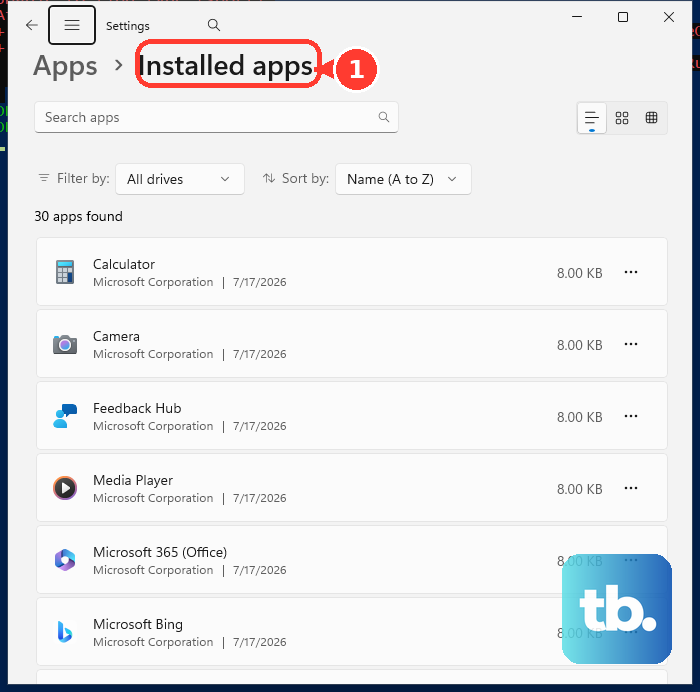
Use Windows app repair before a reinstall when the login window fails, the Launcher crashes during login, or the app cache is corrupt.
- 1.Open Start.
- 2.Go to Settings, then Apps, then Installed apps.
- 3.Find Minecraft Launcher.
- 4.Select More, then Advanced options.
- 5.Select Repair.
- 6.If login still fails, return to the same screen and select Reset.
Then update Windows. On Windows 11, go to Start, Settings, Windows Update, Check for Windows updates, then choose Download & install if offered.
On Windows 10, go to Start, Settings, Update & Security, Windows Update, then Check for updates.
Also confirm you are on Windows 10 version 22H2 or newer under Settings, System, About, Windows specifications, Version, because the Xbox app needs it for some features.
For Microsoft Store install, update, entitlement, or sign-in failures, press Windows Logo Key + R, type wsreset.exe, select OK, wait for the blank Command Prompt window to close and Microsoft Store to open, then retry the Launcher.
If the Launcher still fails, go to Start, Settings, Apps, Installed apps, Minecraft Launcher, More, then Uninstall. Reinstall it from the official Minecraft download page or Microsoft Store, then sign in again.
7. Recover the Microsoft account behind Minecraft
When the password, security code, locked account, or username is the blocker, Minecraft cannot fix the sign-in by itself.
Use Microsoft’s account sign-in helper or Microsoft Support account options first.
For a forgotten password, choose the Microsoft or Xbox password reset and recovery flow, then follow the security-code prompts.
If normal verification fails, open Microsoft’s account recovery form from a device and location previously used with the account, provide a working contact email, then wait for Microsoft’s response, normally within 24 hours.
Do not try to fix a current login problem by migrating a Mojang account. Migration is closed, and unmigrated Mojang accounts can no longer be migrated or used to sign in to Minecraft.net or the Minecraft Launcher for migration.
8. Allow Minecraft for a child account
Have the parent or organizer sign in at account.xbox.com/settings.
Select the child profile.
Open Privacy or Xbox Series X|S, Xbox One, and Windows 10 devices Online Safety.
Set the needed options to Allow, especially You can join multiplayer games and You can join cross-network play.
Select Submit.
Have the player sign out of Minecraft or the Xbox app, then restart Minecraft.
If a child account can sign in but cannot join multiplayer, Realms, or cross-platform play, change Xbox privacy and online safety settings from the parent or family organizer account.
On Xbox, press the Xbox button, open Profile & system, Settings, Account, Family settings, Manage family members, select the member, then open Privacy & online safety, Xbox privacy, View details & customize.
To enable Minecraft Realms, open Friends & clubs and set You can create or join clubs to Allow.
Then open Communication & multiplayer and set You can join multiplayer games and You can join cross-network play to Allow.
In the Xbox Family Settings app, sign in as the organizer, select the child or member, open Content restrictions, then Manage Minecraft, and enable Multiplayer and Clubs as needed; the app saves automatically.
Then have the player restart Minecraft and sign in again.
If parental consent is missing or expired, the parent or guardian should open the consent email link and approve it, or go to family.microsoft.com or Microsoft Family Safety, open the child account, manage permissions or consent, then have the child sign out and back into Minecraft.
9. Use the right path for Education or support
Minecraft Education uses a school or organizational account, not a personal Microsoft, Gmail, Yahoo, or iCloud account. From Welcome to Minecraft Education, select Sign In, then enter the school or organizational email and password.
If Minecraft Education shows an unable-to-sign-in message, contact the IT administrator to verify the email and assigned Minecraft Education license.
If no licensed account is available, launch Minecraft Education, stay on Welcome to Minecraft Education, and choose If you don’t have an account, try a demo lesson.
For unresolved player issues, use Minecraft Help Center and Contact us. For Xbox account and sign-in help, use Xbox Support, Contact us, or Chat with our support virtual agent. For Microsoft account recovery, use Microsoft’s account sign-in helper or Microsoft Support account options.
Frequently Asked Questions
Why does Minecraft say I do not own the game after I log in?
The Launcher is signed in with a Microsoft account that does not own Minecraft, or Windows has not confirmed the entitlement. Switch accounts in the Minecraft Launcher first, then confirm the Xbox app is using the Microsoft Store account that owns Minecraft: select your profile picture, then Settings, then Account, then Change my Microsoft Store account.
Can I still fix Minecraft login by migrating a Mojang account?
No. Mojang account migration is closed. Unmigrated Mojang accounts can no longer be migrated or used to sign in to Minecraft.net or the Minecraft Launcher for migration.
Why can my child log in but not join Minecraft multiplayer?
Xbox privacy or Microsoft family settings are blocking multiplayer, Realms, or cross-network play. A parent or organizer must allow those options, submit the change, then have the child restart Minecraft.
What should I do when Minecraft keeps asking me to sign in again?
Clean cached account tokens in the Minecraft Launcher, then sign back in. On Windows, also sign into the Xbox app with the same Microsoft account and, if content is missing, run the Gaming Services Repair Tool from the Xbox app under Profile picture, then Support.
How long does Microsoft account recovery take for a lost Minecraft account?
After you submit Microsoft’s account recovery form, Microsoft normally responds within 24 hours. Complete the form from a device and location previously used with the account and provide a working contact email.