Your keyboard's letter keys won't respond, type numbers, or fire off shortcuts instead of entering text. That's frustrating, but the symptom tells you where to start. Check the connection first, then use the matching fixes below for your Windows 11 PC, Mac, or Chromebook.
Start with power and connection checks
For an external keyboard, check these basics before changing software settings.
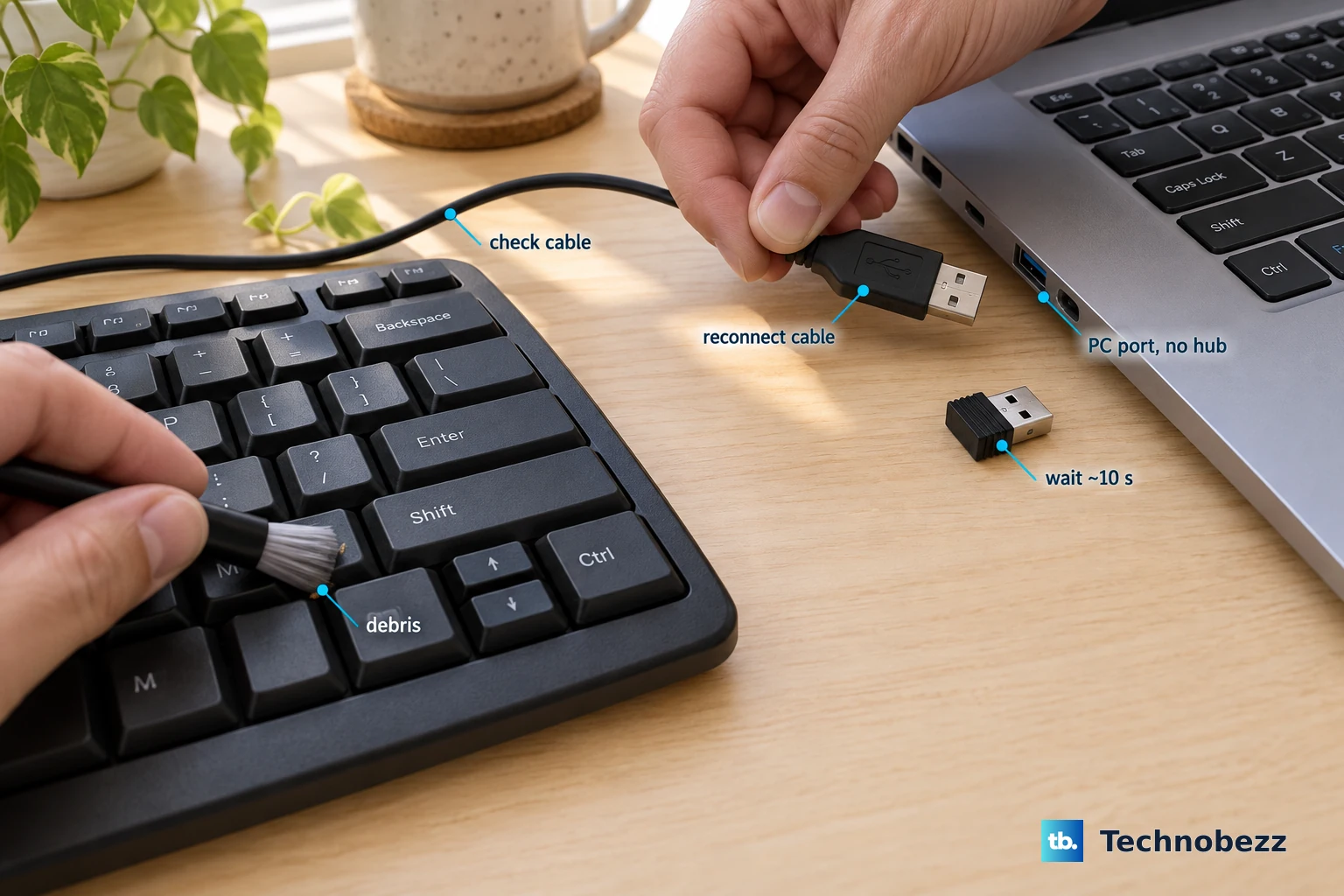
- 1.Unplug the keyboard briefly, then reconnect it. For a wireless USB receiver, wait about 10 seconds before reconnecting it.
- 2.Try another USB port directly on the computer, bypassing any USB hub.
- 3.Inspect the keyboard cable for damage.
- 4.Charge a rechargeable keyboard or replace its batteries.
- 5.Check for debris obstructing the affected keys.
Get a temporary way to type
On Windows 11, turn on On-Screen Keyboard under Settings > Accessibility > Keyboard.
Click its letters with your mouse to type.
If you're still at the Windows sign-in screen, open Accessibility > On-Screen Keyboard in the lower-right corner.
If the on-screen keyboard shows only navigation keys, select General. Closing and reopening it retains the selected layout.
On a Mac, enable Show Input menu in menu bar under System Settings > Keyboard > Text Input > Edit if the menu is missing.
Select Input menu > Show Keyboard Viewer.
Click the viewer's keys to type.
On a Chromebook, turn on On-screen keyboard under Settings > Accessibility > Keyboard and text input.
Keep this alternate keyboard available while you troubleshoot, especially before changing Windows drivers.
Turn off unintended keyboard accessibility modes
Ignored taps or repeated letters are the symptoms to check for key filtering. In Windows 11, turn off unintended Filter Keys under Settings > Accessibility > Keyboard. If letters unexpectedly act as shortcuts, turn off unintended Sticky Keys there too.
On a Mac, turn off Slow Keys under Apple menu > System Settings > Accessibility > Keyboard if short presses do nothing. For letters that control the pointer, turn off Mouse Keys under System Settings > Accessibility > Pointer Control.
On a Chromebook, the filtering controls are under Settings > Accessibility > Keyboard and text input. Turn off unintended Slow keys or Bounce keys for ignored presses, or Sticky keys for modifiers that remain active.
Chromebook pointer control also uses letters including U, O, J, K, L, I, and M when primary-key mode is enabled. Turn off Mouse keys under Settings > Accessibility > Cursor and touchpad > Mouse keys. To keep numeric-keypad pointer control, turn off only Use primary keys instead.
Restore letters when keys type numbers or wrong characters
This fixes input modes and layouts that make working keys produce unexpected text.
If your laptop has an embedded numeric keypad and letters produce numbers, press Num Lock. Use Fn+Num Lock instead when it is a secondary key function; this fix applies only to keyboards with that feature.
On Windows, select your intended layout from the taskbar's Input language icon. Windows+Space also switches layouts, and the sign-in screen has its own Input language selector.
If your Windows layout is missing, open Settings > Time & language > Language & region.
Select Language options from your language's … menu.
Add the intended layout using Keyboards > Add a keyboard.
On a Mac, enable Show Input menu in menu bar under System Settings > Keyboard > Text Input > Edit.
Select the intended layout from the Input menu.
On a Chromebook, open Settings > Device > Keyboard > Change input settings.
Under Input methods, select the keyboard you want to use.
Reconnect a Bluetooth keyboard
For a Windows Bluetooth keyboard, switch Bluetooth off under Settings > Bluetooth & devices.
Switch Bluetooth back on.
If the keyboard still won't connect, select its More options (…) > Remove device.
Put the keyboard in pairing mode using its model-specific instructions.
Reconnect it through Add device in Windows.
For a rechargeable Apple Magic Keyboard, switch the keyboard off.
Switch it back on.
Confirm that Bluetooth is enabled under System Settings > Bluetooth on your Mac.
Connect the keyboard to the Mac with the matching USB-C or Lightning cable.
Disconnect the cable after one minute.
Follow your keyboard model's pairing instructions whenever its buttons or connection procedure differ.
Check the app when typing fails in one place
For letters that fail in just one app, start with remapping, extensions, and the app's typing settings.
Test typing in another app. If the problem stays in one program, check that program before changing system drivers.
If you use PowerToys on Windows, close it. This stops Keyboard Manager remapping, including app-specific remaps.
Test typing again with PowerToys closed.
For a Chrome-only problem, open More > Extensions > Manage extensions.
Turn off one suspected extension.
Test typing again to check whether that extension affects the problem.
Select Remove only for an extension you've identified as the culprit.
If Word replaces existing letters as you type, open File > Options > Advanced. These controls apply to Word for Microsoft 365, Word 2024, Word 2021, Word 2019, and Word 2016.
Under Editing options, clear Use overtype mode.
Clear Use the Insert key to control overtype mode to stop Insert from switching it back on.
Update Windows or repair the keyboard driver
Use these steps when letters still fail across Windows apps after the connection, accessibility, and layout checks. Keep a mouse and an alternate input method available before uninstalling a keyboard driver.
Check for updates through Settings > Windows Update > Check for updates.
Install available updates.
Restart when requested.
If the problem began immediately after a keyboard driver change, open Device Manager by right-clicking Start.
Expand Keyboards.
Open the affected keyboard's Properties.
Select Driver > Roll Back Driver. This requires administrator access and a previous driver; if the option is unavailable, use the reinstallation steps below.
Choose a reason for rolling back.
Confirm with Yes.
Restart if prompted.
To reinstall instead, select Uninstall device by right-clicking the affected keyboard under Device Manager > Keyboards.
Confirm with Uninstall.
Restart the PC. Windows attempts to reinstall the keyboard driver.
Find out whether the keyboard needs service
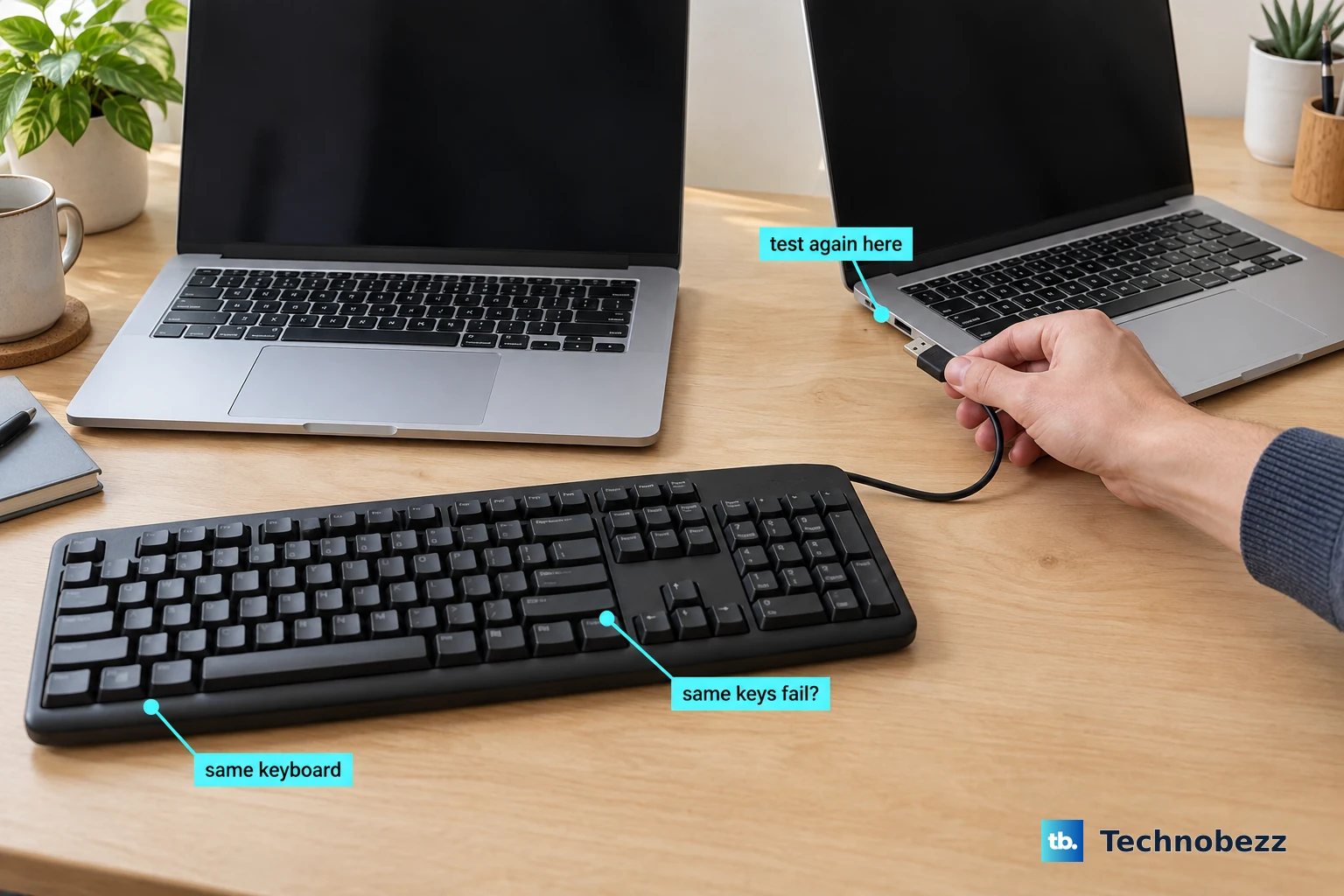
Connect an external keyboard to another computer to check whether the same letters fail there.
For a Windows-compatible keyboard, install its required manufacturer driver if needed.
Arrange service or replacement if the keyboard also fails on the second computer. Failure on both supports a problem with the keyboard itself.
For a Mac with an external keyboard, test a different keyboard on the affected Mac as an additional comparison.
On a Chromebook with a built-in keyboard, turn the computer off.
Turn it back on.
Open Settings > About ChromeOS > Diagnostics.
Run the keyboard test, keeping the test window active.
For a MacBook from 2015 or later, or a MacBook Pro from 2016 or later, hold the laptop at a 75-degree angle for Apple's compressed-air cleaning procedure.
Spray across the affected keys from left to right, keeping the can upright and its straw about half an inch away.
Repeat with the laptop rotated onto one side.
Repeat with the laptop rotated onto the other side.
Seek service if those MacBook keys remain unresponsive after cleaning.
Check your model's support instructions before trying a hardware reset or removing keyboard parts.
Frequently Asked Questions
Why do letters navigate a page instead of typing when Narrator is running?
Narrator scan mode uses letters for navigation. Focus the editable field first. If scan mode stays active, press Narrator+Spacebar to turn it off. Caps Lock and Insert are the default Narrator keys.
Can I assign a broken letter to another key temporarily?
Yes. In PowerToys Settings, open Keyboard Manager > Remap a key > Add key remapping. Choose a working spare key under Select. Choose the required letter under To send, then save with OK. This provides temporary input without repairing the failed key, and it does not work on password screens.
Should I hard-reset a Chromebook if letter keys still fail?
Try the less disruptive checks first. Back up local files before a hardware reset because Google's reset procedure carries a risk of deleting some files in Downloads. For most Chromebooks, shut down, hold Refresh, tap Power, and release Refresh when startup begins. Use your model's specific instructions if it requires a different reset procedure.
What if the affected keyboard belongs to a work or school computer?
Ask the device administrator to review persistent failures. Windows Keyboard Filter supports administrative restrictions on certain Enterprise, Education, and IoT editions, including restrictions affecting software keyboards. It does not apply to ordinary Home or Pro editions. Work or school Chromebooks require administrator involvement for a factory reset.