

Your keyboard and mouse can fail for simple reasons: a loose USB receiver, dead batteries, broken Bluetooth pairing, or a driver that stops loading correctly in Windows.
Start with the fixes that need the least input first.
Once you have even temporary control of the PC, move through pairing, driver, and startup repairs.
1. Check power cables and USB ports first
Start with the shared pieces: power, ports, hubs, and cables.
Unplug the keyboard and mouse USB cables.
Wait for Windows to unload the device driver.
Plug each device back in.
Try a different USB port on the PC.
If you use a USB hub, make sure the hub has power.
Remove the USB hub and connect the keyboard or mouse directly to the computer.
Check each cable for damage.
Fully charge or replace the batteries in battery-powered devices.
Remove dirt blocking keys, the mouse sensor, or touch surfaces.
Do this before changing Windows settings.
A bad hub or drained battery can look exactly like a Windows failure.
2. Reseat the wireless receiver
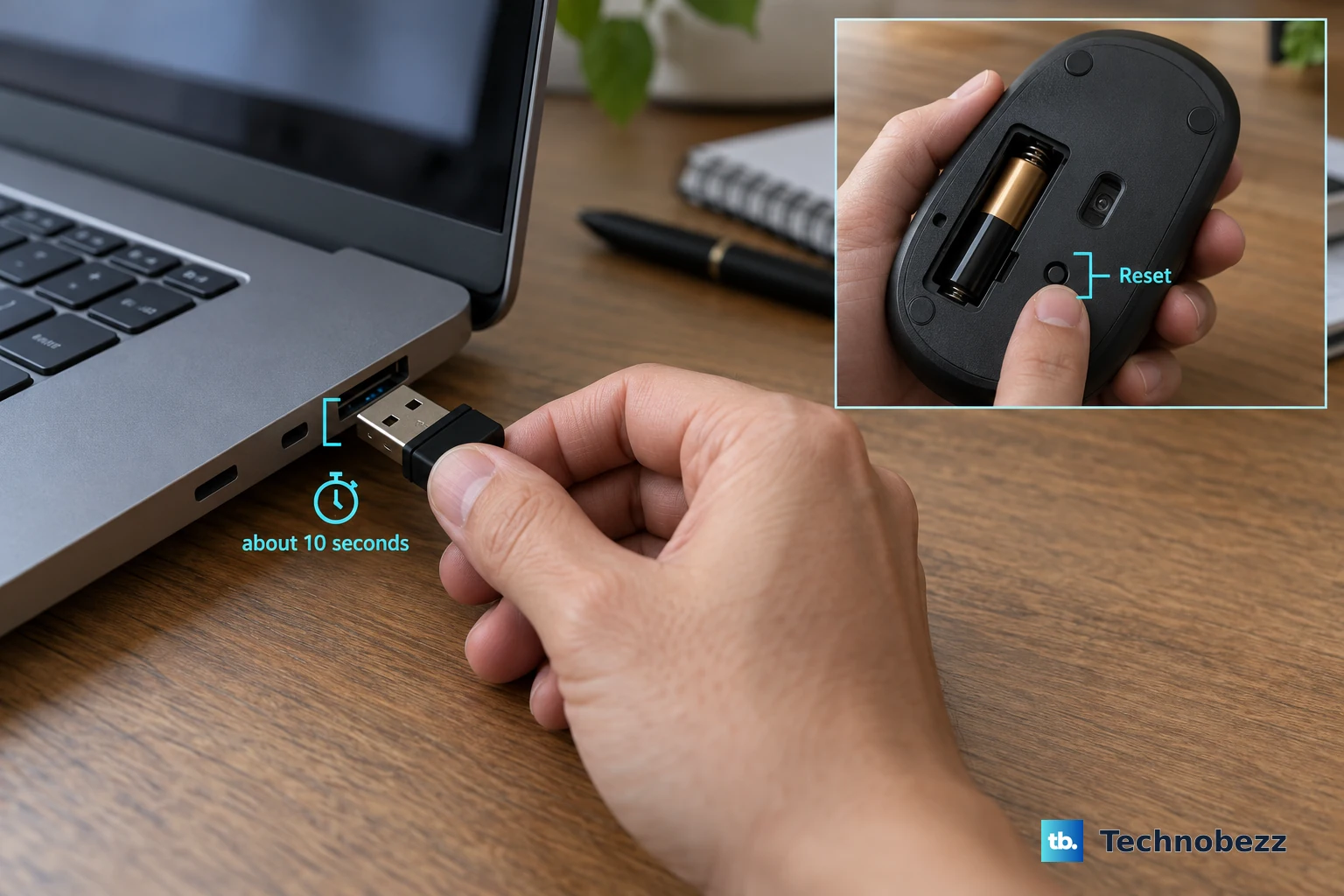
Unplug the USB receiver.
Wait about 10 seconds.
Plug it back into the USB port.
Look on the bottom of the keyboard or mouse for a Reset button and press it if your model has one.
Many wireless keyboards and mice are not Bluetooth devices.
They use a small 2.4 GHz USB receiver, and that receiver needs a fresh connection.
For supported Logitech devices, turn the keyboard or mouse on, plug the wireless receiver into a USB port, then hold the Easy-Switch button until the light blinks.
On supported Logitech keyboards, press fn + P for 3 seconds to select the Windows/Linux/ChromeOS layout.
3. Get control without your main keyboard or mouse
You need some way to click, type, or navigate before deeper Windows repairs.
Use the built-in accessibility tools.
To type without the physical keyboard: press Windows + Ctrl + O to open the On-Screen Keyboard.
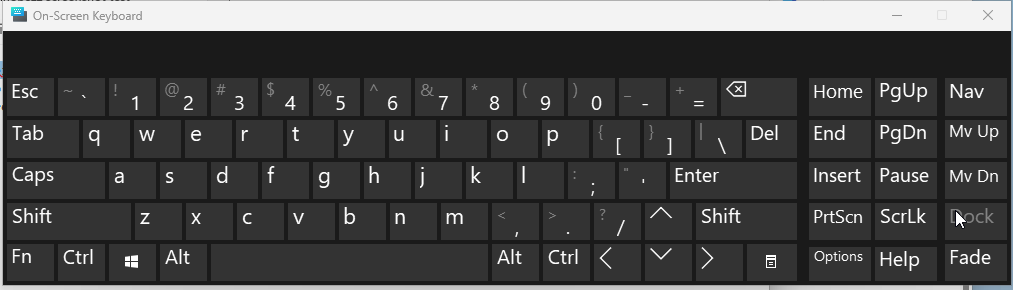
You can also open Start > Settings > Accessibility > Keyboard, then turn on On-screen keyboard.
To move the pointer without a mouse: open Start > Settings > Accessibility > Mouse, then turn on Mouse keys.
Use the numeric keypad keys 7, 8, 9, 4, 6, 1, 2, and 3 to move.
Press / for the left mouse button, - for the right mouse button, 5 to click, and + to double-click.
To use voice controls on Windows 11 version 22H2 or later: open Start > Settings > Accessibility > Speech, then turn on Voice access.
On first setup, select the language, choose Agree and continue, download the language files, and choose your microphone.
4. Rebuild Bluetooth pairing
For a Bluetooth keyboard or mouse, fix the radio connection before touching drivers.
Open Start > Settings > Bluetooth & devices.
Make sure Bluetooth is on.
Select the Network, Sound, or Battery icons on the right side of the taskbar.
Make sure Airplane mode is off.
Go back to Start > Settings > Bluetooth & devices.
Turn Bluetooth off.
Wait a few seconds.
Turn Bluetooth back on.
Remove and pair the device again from Start > Settings > Bluetooth & devices > Devices.
Select More options for the keyboard or mouse, then choose Remove device > Yes.
Put the device in pairing mode and pair it again.
If the keyboard or mouse does not appear, open Start > Settings > Bluetooth & devices > Devices.
Under Device settings, set Bluetooth devices discovery to Advanced.
For Microsoft or Surface Bluetooth accessories, hold the pairing button for 5 to 7 seconds until the light blinks, then choose Add a device > Bluetooth and select the device.
5. Install Windows driver updates
If input works before Windows loads but fails after sign-in, update the keyboard, mouse, touchpad, Human Interface Device, or Bluetooth driver.
Open Start > Settings > Windows Update > Advanced options.
Turn on Receive updates for other Microsoft products, then select Optional updates.
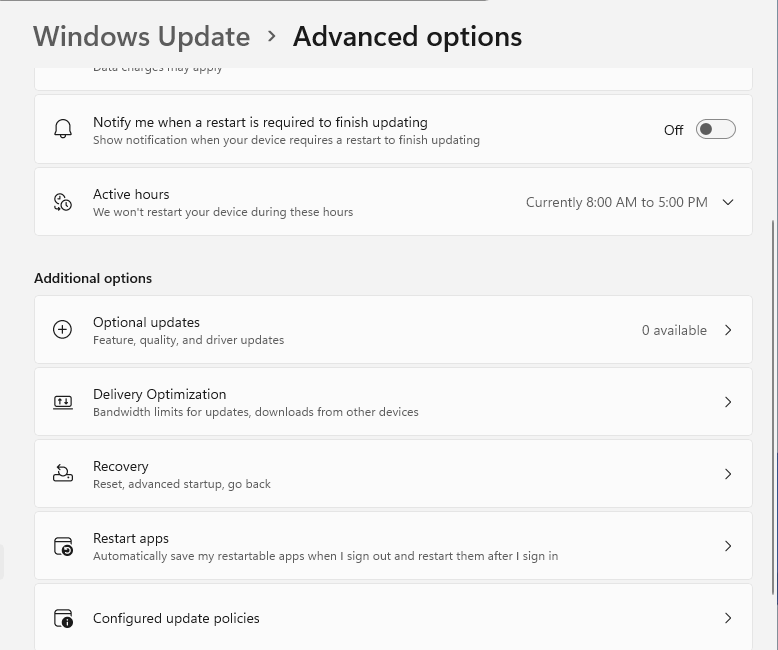
If driver updates are listed, select them, choose Download and install, then restart by right-clicking Start > Shut down or sign out > Restart.
Next, use Device Manager.
Right-click Start, open Device Manager, then expand Keyboards, Mice and other pointing devices, Human Interface Devices, or Bluetooth.
Right-click the device, choose Update driver > Search automatically for updated driver software, then select Search for updated drivers on Windows update if Windows offers it.
6. Roll back or reinstall the device driver
A recent driver update can break a keyboard, mouse, touchpad, or Bluetooth adapter.
Roll it back when the button is available.
Right-click Start, open Device Manager, expand the matching category, right-click the device, then choose Properties > Driver > Roll Back Driver.
Choose a reason, select Yes, and restart if Windows prompts you.
If there is no rollback, reinstall the device instead.
Right-click Start and open Device Manager.
Expand Keyboards, Mice and other pointing devices, Human Interface Devices, or Bluetooth.
Right-click the keyboard, mouse, touchpad, or Bluetooth adapter.
Select Uninstall device.
In the uninstall window, select Uninstall.
Restart by right-clicking Start > Shut down or sign out > Restart.
Windows attempts to reinstall the driver after restart.
If the device still does not appear, open Device Manager, select Action, then choose Scan for hardware changes.
Use a manual driver only when Windows Update does not provide a working one.
Download it from the official Dell, HP, Lenovo, Logitech, or device maker support page, then install it through Device Manager > Update driver > Browse my computer for drivers > Browse > OK > Next > Close.
7. Fix settings that block keystrokes or pairing
Check the accessibility keyboard settings when only some keys fail, repeated taps get ignored, or modifier keys behave strangely.
Open Start > Settings > Accessibility > Keyboard, then turn Filter keys off.
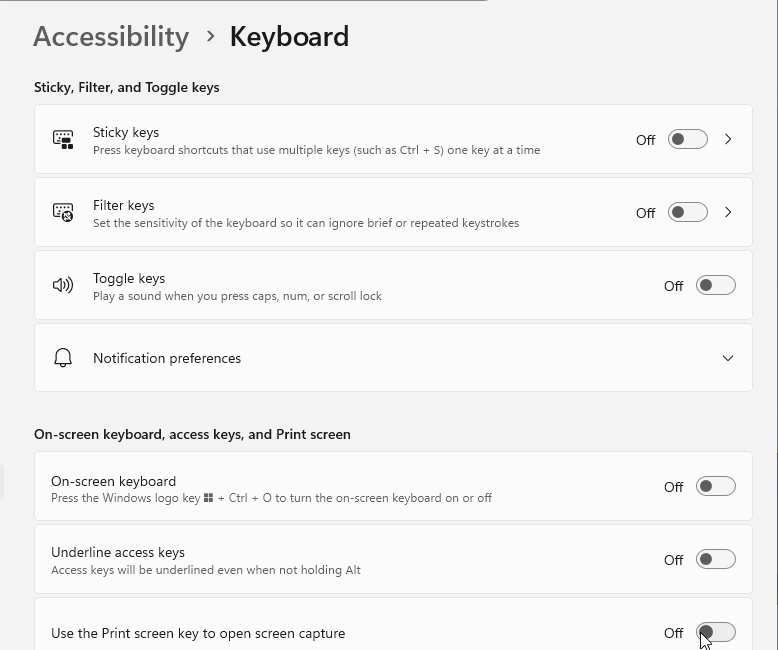
Review Sticky keys and Toggle keys when Shift, Ctrl, Alt, or lock-key behavior is wrong.
For Bluetooth devices, run the current Bluetooth troubleshooter from the Get Help app.
Where it still appears, you can also reach it from Start > Settings > System > Troubleshoot > Other troubleshooters; next to Bluetooth, select Run and follow the instructions.
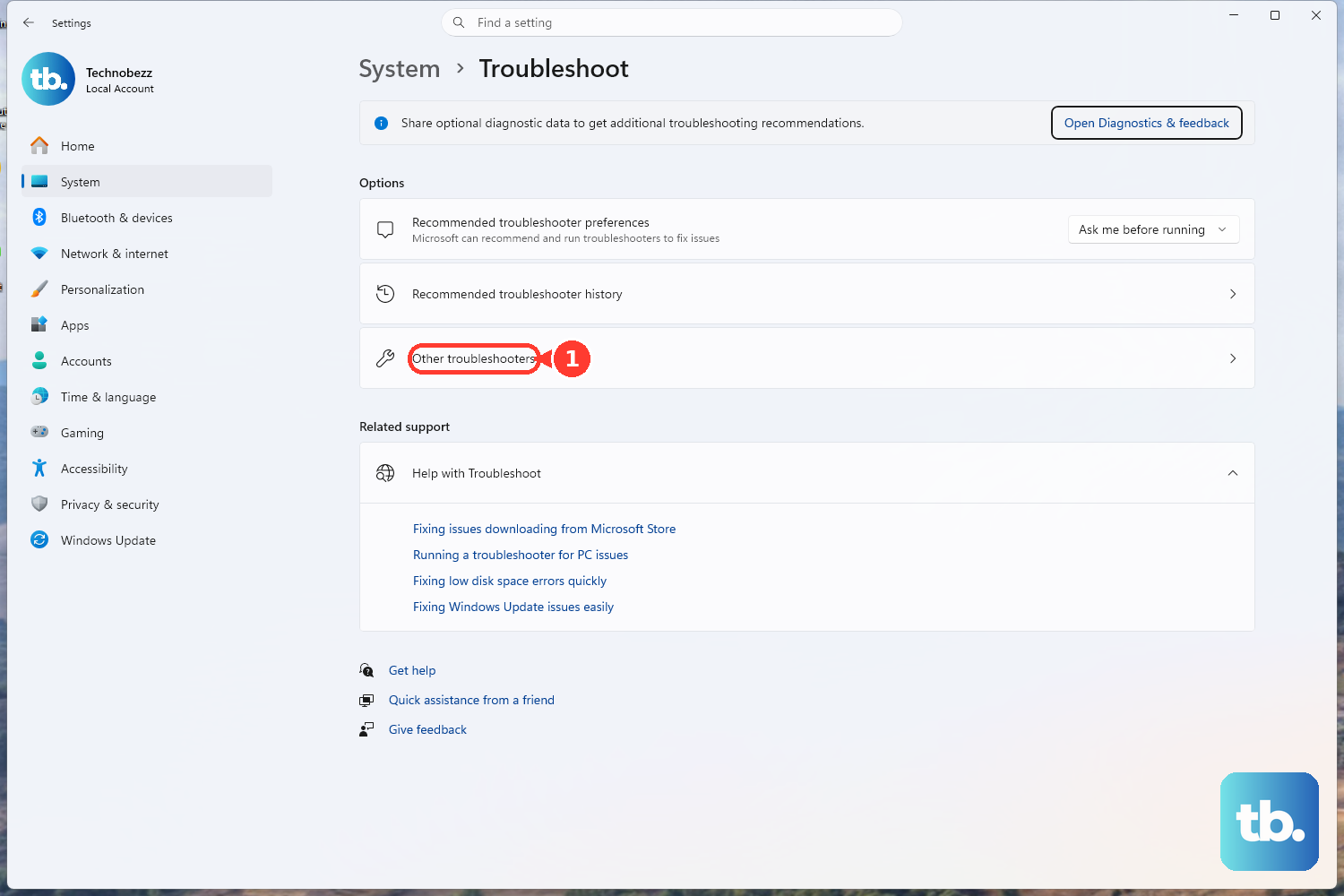
Skip the old Keyboard troubleshooter and MSDT commands.
Microsoft is retiring legacy inbox troubleshooters and redirecting or removing MSDT-based troubleshooters on newer Windows 11 releases, so use current Settings troubleshooters, Windows Update, Device Manager, or Get Help.
8. Test the hardware on another PC
Connect the keyboard or mouse to another PC.
If it works there, the original computer still needs driver, Bluetooth, startup, or policy troubleshooting.
If it fails there too, replace or service the device.
If the device requires a driver, install the correct driver on the test PC before judging the hardware.
Use the manufacturer tools for built-in laptop keyboards, touchpads, and branded accessories.
On Dell and Alienware PCs, open SupportAssist, go to Home > Update Software, select Start, install driver or BIOS updates, and restart if prompted.
Dell also offers SupportAssist keyboard diagnostics.
On HP PCs, search for and open HP PC Hardware Diagnostics Windows, then run the available mouse, touchpad, or keyboard test.
If a notebook keyboard cannot type, shut down, press Power, immediately press Esc repeatedly, then use the available HP diagnostics or UEFI tests.
For Surface Pro Keyboard or Type Cover issues, install the latest updates, detach the keyboard or Type Cover, force a restart, reattach it, and confirm the connection.
For Lenovo external USB keyboard or mouse issues, fully seat the connector, remove extension cables or switchboxes, try another USB port, then reinstall the driver from Device Manager if needed.
9. Use Safe Mode for startup conflicts
If the keyboard or mouse works in recovery or Safe Mode but fails in normal Windows, a startup app, utility, driver, service, or security tool is interfering.
- 1.Hold the power button for 10 seconds to force shutdown.
- 2.Repeat that 2 to 3 times until Windows enters Recovery Mode.
- 3.Go to Troubleshoot > Advanced Options > Startup Settings > Restart, then press F5 for Safe Mode with Networking.
In Safe Mode, open Device Manager and update or roll back the affected driver.
To test startup conflicts, sign in as an administrator, search for msconfig, and open System Configuration.
Select Services > Hide all Microsoft services > Disable all > Apply, then select Startup > Open Task Manager.
In Startup apps, select each enabled startup item and choose Disable.
Close Task Manager, select OK in System Configuration, and restart.
On a work or school PC, stop when Windows says device installation is blocked by policy or tells you to contact your system administrator.
Managed devices can block USB receivers, device classes, removable devices, or driver updates through Group Policy or Intune.
Frequently Asked Questions
Why did my keyboard and mouse stop working at the same time?
A shared USB hub, USB receiver, Bluetooth radio, driver, startup service, or device-installation policy can affect both devices at once. Check the physical connection first, then move to Bluetooth, drivers, and Safe Mode.
How can I sign in when the keyboard does not work?
Reseat the USB cable or wireless receiver first. After Windows is accessible, use Windows + Ctrl + O for the On-Screen Keyboard, Mouse Keys for pointer control, or Voice access on Windows 11 version 22H2 and later.
Should I download a driver from a driver website?
No. Use Windows Update first. If you need a manual driver, download it only from the official device maker or PC maker support page, such as Dell, HP, Lenovo, Logitech, or the accessory manufacturer.
Is Windows 10 still covered by these fixes?
Many of the same support steps still exist for Windows 10, but free Windows 10 support ended on October 14, 2025. The instructions above prioritize Windows 11.