

If hyperlinks are not working in Excel, select a linked cell and check its destination with Insert > Link, edit a HYPERLINK formula in the formula bar, and use a complete URL for links created in Excel for the web. Hyperlinks in Excel break in a few predictable ways. The address points to the wrong place, the workbook opens with protection, Excel for the web refuses a desktop-style link, or Windows/macOS sends the click to the wrong app.
Start with the link itself, then move through browser limits, security prompts, app defaults, and Office repair. These fixes cover Excel for Microsoft 365, Excel 2024, Excel 2021, and Excel for the web.
1. Rebuild the hyperlink from Excel's Link menu
Use Excel's own link dialog first when a web link, file link, email link, or jump inside the workbook opens the wrong place.
- 1.Select the linked cell or object.
- 2.Go to Insert > Link.
- 3.Or right-click the cell or object and choose Link or Edit Hyperlink.
- 4.For a webpage or file in Excel for Windows, choose Existing File or Web Page, then enter the destination in Address. The next step also applies to Excel for Windows. In Excel for Mac, go to Insert > Link, then choose Web Page or File for a URL or file, or This Document for a cell reference.
- 5.For a jump inside the workbook, choose Place in This Document, then enter the cell reference or defined name.
- 6.Select OK.
Ctrl+K opens the same link dialog in desktop Excel.
2. Repair the HYPERLINK formula
Select the cell that contains the formula. Click the formula bar. Use =HYPERLINK(link_location, [friendly_name]).
Replace link_location with a valid URL, UNC path, file path, cell reference, or named range supported by your Excel version. Press Enter.
If the cell uses a formula instead of an inserted link, the destination belongs in the formula bar. Excel for the web supports HYPERLINK formulas for web addresses only. Open the workbook in desktop Excel for file paths and other supported desktop destinations.
3. Switch browser links to full URLs
Excel for the web needs absolute hyperlinks because a short relative address that works in desktop Excel fails in the browser.
Select the linked cell in Excel for the web. Go to Insert > Hyperlink. Enter the visible label in Display Text.
Enter the complete address in URL, including the protocol, server, path, and file name. Select OK. Use a full address with the protocol, server, folder path, and file name for workbook links opened in a browser.
4. Move unsupported web links into cells
Excel workbooks opened in a browser do not keep every desktop hyperlink location active: hyperlinks in charts, graphics, and noncontiguous ranges become text strings.
Put the link in a normal worksheet cell through Insert > Hyperlink. Add it as a standard cell hyperlink, and select OK. Open the workbook in desktop Excel when you need chart, graphic, or noncontiguous-range hyperlinks to work as interactive links.
5. Correct the workbook's Hyperlink base
Open the workbook in desktop Excel. Go to File > Info. Select Properties > Advanced Properties.
Open the Summary tab. Edit Hyperlink base. A workbook-level Hyperlink base changes how relative links resolve, and a bad base sends links to the wrong folder or server. For links that need to survive a workbook move, put the full absolute address in the Insert Hyperlink dialog box.
6. Allow trusted workbooks to leave Protected View
For downloaded workbooks, email attachments, and files from unsafe locations, Excel opens with extra protection. For a workbook you trust, use the unlock option Excel shows.
When the yellow Message Bar appears, select Enable Editing. When a red Protected View message appears and you trust the file, select File > Edit Anyway.
When a Security Warning bar appears for trusted external content or workbook links, select Enable Content. If Excel asks to make it a trusted document, select Yes. On a managed work or school device, contact the administrator when these buttons are locked by policy.
7. Unblock the workbook or trust its folder
Windows marks downloaded files from untrusted locations. If a trusted workbook keeps opening with restrictions, remove that file-level block. Open File Explorer.

Right-click the workbook and select Properties. Select Unblock. Select Apply > OK.
Sign out and back in if the change does not take effect immediately. For a known-safe folder, add a trusted location in Excel through File > Options > Trust Center > Trust Center Settings > Trusted Locations. Select Add new location, select Browse, choose the folder, then select OK until the dialogs close.
8. Reset the app that opens web or email links
Use these default-app settings when Excel accepts the link, but the click opens the wrong browser, opens the wrong mail app, or fails during handoff.
For web links on Windows, open Start > Settings > Apps > Default apps, select your browser, then set the HTTP and HTTPS associations shown there.
For email links on Windows 11, open Default apps, select Outlook or your mail app under Set defaults for applications, choose the mail link and file types, then select Set default.
For email links on Windows 10, open Default apps, select Email, then choose Outlook or your preferred mail app.
For email links on Mac, open Mail, choose Mail > Settings or Preferences > General, then choose the app from Default email reader.
For the default browser on current macOS (Ventura 13 and later), go to Apple menu > System Settings > Desktop & Dock > Default web browser; on earlier macOS versions, use Apple menu > System Preferences > General > Default web browser.
9. Update or repair Office
When multiple valid hyperlinks fail across multiple workbooks, repair or update the Office installation.
On Windows 11, right-click Start and select Installed apps, select your Microsoft 365 or Office product, select the ellipsis, then choose Modify.
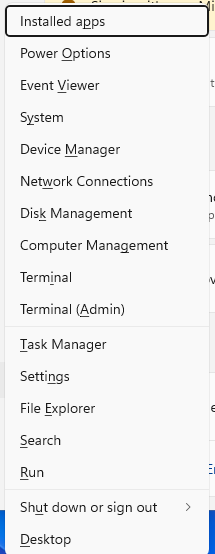
For Click-to-Run installs, choose Online Repair > Repair. On Windows 10, use Start > Apps and Features > your Office product > Modify.
To update Office on Windows, open Excel and go to File > Account or Office Account, then select Update Options > Update Now. If updates are disabled, select Enable Updates first.
To update Office on Mac, open Excel and choose Help > Check for Updates. In Microsoft AutoUpdate, select Update or Update All, then restart Excel after the update finishes.
Office for Mac updates now require macOS Sonoma or later, so upgrade macOS first if Microsoft AutoUpdate cannot deliver current updates on an older macOS release.
Skip old hyperlink fixes such as suspicious-website checks, Update links on save, and registry edits. Microsoft lists suspicious-website link checking as unavailable in Office versions newer than 2013, and the registry workaround belongs to a specific Outlook security issue, not normal Excel hyperlink repair.
Frequently Asked Questions
Why do Excel file links open in the browser instead of the desktop app?
For Microsoft 365 file links stored on OneDrive or SharePoint, Windows users with a qualified Microsoft 365 subscription can set the preference in an Office app under File > Options > Advanced > File open preference. The setting covers supported Word, Excel, and PowerPoint file links stored in OneDrive or SharePoint.
How do I change Excel file links shared in Teams?
In Teams for Windows, go to Settings and more > Settings > Files and links. Under Always open Word, PowerPoint, and Excel files in, choose Teams, Desktop App, or Browser.
Are workbook links the same as hyperlinks?
No. Workbook links pull data or references from another workbook. Hyperlinks open a webpage, file, email address, or location in the workbook. Use Data > Queries and Connections > Workbook Links only for broken workbook or data links.
Should I disable Protected View to fix Excel hyperlinks?
No. For a workbook you trust, use Enable Editing or File > Edit Anyway. For a known-safe folder, use a Trusted Location. On managed devices, ask the administrator to change locked security settings.