


To fix GPS signal not found in Pokémon GO on Android, turn on location services, give the game location permission, and enable precise location on Android 12 or later. Then turn on Improve Location Accuracy, move to an open outdoor area, and check your internet connection.
Check Pokémon GO after each change and stop once your position returns. Android menus vary by manufacturer, so follow the version and device labels beside each path.
The short version
- Location access: Turn on Android location and allow Pokémon GO to access it while you play.
- Better accuracy: Enable Use precise location on Android 12 or later and Improve Location Accuracy where supported.
- Reception and connection: Move outdoors and switch between Wi-Fi and mobile data.
- Persistent errors: Compare your location in Google Maps, then restart and update before clearing game data.
| Fix or check | When to use it |
|---|---|
| Enable Android location | Location services are off |
| Grant game location permission | Pokémon GO cannot access location |
| Enable precise location | Android 12 or later permits only approximate access |
| Enable Location Accuracy | Position remains inaccurate |
| Enable location scanning | Wi-Fi and Bluetooth scanning are off |
| Move outdoors | Buildings or enclosed spaces obstruct reception |
| Remove Galaxy accessories | A case or accessory may interfere |
| Reposition a Galaxy in a stationary vehicle | Tinting or nearby electronics affect reception |
| Switch connection types | Wi-Fi or cellular data is unreliable |
| Connect to reliable Wi-Fi | A usable wireless network is available |
| Turn off Airplane mode | The mode is enabled |
| Check congestion and data allowance | Mobile service struggles at an event or stops working |
| Compare with Google Maps | You need to distinguish a game fault from a phone fault |
| Run Galaxy location diagnostics | Location is inaccurate across apps |
| Update Google Play services | Location problems persist after basic checks |
| Contact the phone manufacturer | Location remains faulty across apps after troubleshooting |
| Keep the screen awake | The error follows screen-off or background use |
| Disable Pixel Battery Saver | Device power restrictions are active |
| Disable Galaxy Power saving | Galaxy power restrictions are active |
| Remove the game from Sleeping apps | Samsung lists Pokémon GO there |
| Adjust Pixel Data Saver | Google services face restrictions on mobile data |
| Force-stop Pokémon GO | The game still fails after location checks |
| Restart the phone | Reopening the game does not help |
| Update through Google Play | Your Google Play installation has an update |
| Update through Galaxy Store | Your Galaxy Store installation has an update |
| Update system software | Your manufacturer offers an Android update |
| Refresh game data | The problem persists in Pokémon GO |
| Clear the game cache | Refreshing game data does not help |
| Clear local game storage | Simpler game troubleshooting fails |
| Remove a configured mock-location provider | You see Failed to detect location |
| Contact Pokémon GO support | Location works elsewhere but the game still fails |
Turn on location and allow the game to use it
Open Settings > Location and turn on Use location. On Samsung Galaxy devices, open Settings > Location and turn on the switch at the top. Return to Pokémon GO and check your position.
Touch and hold the Pokémon GO app icon, then open App info > Permissions > Location. Select Allow only while using the app. On Android 12 and later, also turn on Use precise location on that screen.
Keep Pokémon GO visible while checking the result. You do not inherently need Allow all the time for foreground gameplay; that permission is relevant to background tracking, such as troubleshooting Adventure Sync separately.
Improve Android location accuracy
On Android 12 and later with Google Play services, open Settings > Location > Location Services > Location Accuracy. Turn on Improve Location Accuracy. Samsung spells the intermediate menu Location services.
On Android 11 and earlier, Google's instructions use Settings > Location > Advanced > Location Accuracy. Turn on Improve Location Accuracy, then check the game again. Google's Android 9 location settings start at Security and Location > Location, and manufacturer paths can differ.
On Android 12 and later, open Settings > Location > Location Services and enable Wi-Fi scanning and Bluetooth scanning. Google's instructions for Android 11 and earlier place these controls under Location; its Android 9 path is Security and Location > Location > Advanced > Scanning. Enable the services where your device offers them, then reopen Pokémon GO.
Find a clearer signal and a reliable connection
Move outdoors to an open area with a clear view of the sky. Tall buildings, enclosed spaces, and vehicle tinting can obstruct reception, so keep the phone's antennas unobstructed while checking Pokémon GO.
On a Galaxy device, remove non-Samsung or non-certified cases and accessories to check for interference. If you are checking reception in a stationary vehicle, place the phone with a clear window view, away from vehicle displays, other electronics, and wireless charging equipment.
Pokémon GO recommends switching from Wi-Fi to cellular data, or from cellular data to Wi-Fi, then checking the game again. If your wireless connection is weak, follow the steps to fix a weak Wi-Fi signal before relying on that network.
On Android phones using Google's network layout, open Settings > Network & internet > Internet, turn on Wi-Fi, and connect to a reliable network. If Airplane mode is enabled, swipe down and turn it off using its Quick Settings control. Layouts vary by manufacturer.
At crowded events, move to a less congested area and check the connection again. If mobile data is failing, check your remaining data allowance with your carrier.
Check whether location fails in other apps
Open Google Maps and tap Your location at the bottom right. A missing or gray location dot, or a wide uncertainty circle, indicates that Maps also has difficulty locating you accurately. Follow any displayed location-accuracy advice and compare its position with Pokémon GO.
On a compatible Galaxy device, open Samsung Members > Discover > Diagnostics > Phone diagnostics > Location accuracy. Some versions place diagnostics under Support, and available tests vary by model. Use the result to help investigate a problem affecting multiple location apps.
If location problems persist, check for a Google Play services update on phones with the current Google services settings layout. Open Settings, tap your profile picture, and select All services. Under Privacy and security, open System services > Google Play services and tap Update or Install when offered. Google's Location Accuracy service depends on Google Play services.
If location works elsewhere, continue with the game troubleshooting below. If it remains faulty across apps after completing the applicable phone settings and update checks, contact the phone manufacturer for support or repair.
Remove device power and data restrictions
If the error follows screen-off or background use, wake and unlock the phone, then keep Pokémon GO visible while checking location. On Pixel phones, swipe down and tap Battery Saver to turn it off. Standard Battery Saver limits background location, while Extreme Battery Saver also disables location-related Wi-Fi and Bluetooth scanning.
On Samsung Galaxy devices, open Settings > Device care > Battery > Power saving and turn the switch off. Then open Settings > Device care > Battery > Background usage limits > Sleeping apps. If Pokémon GO is listed, open More options > Remove and remove the game.
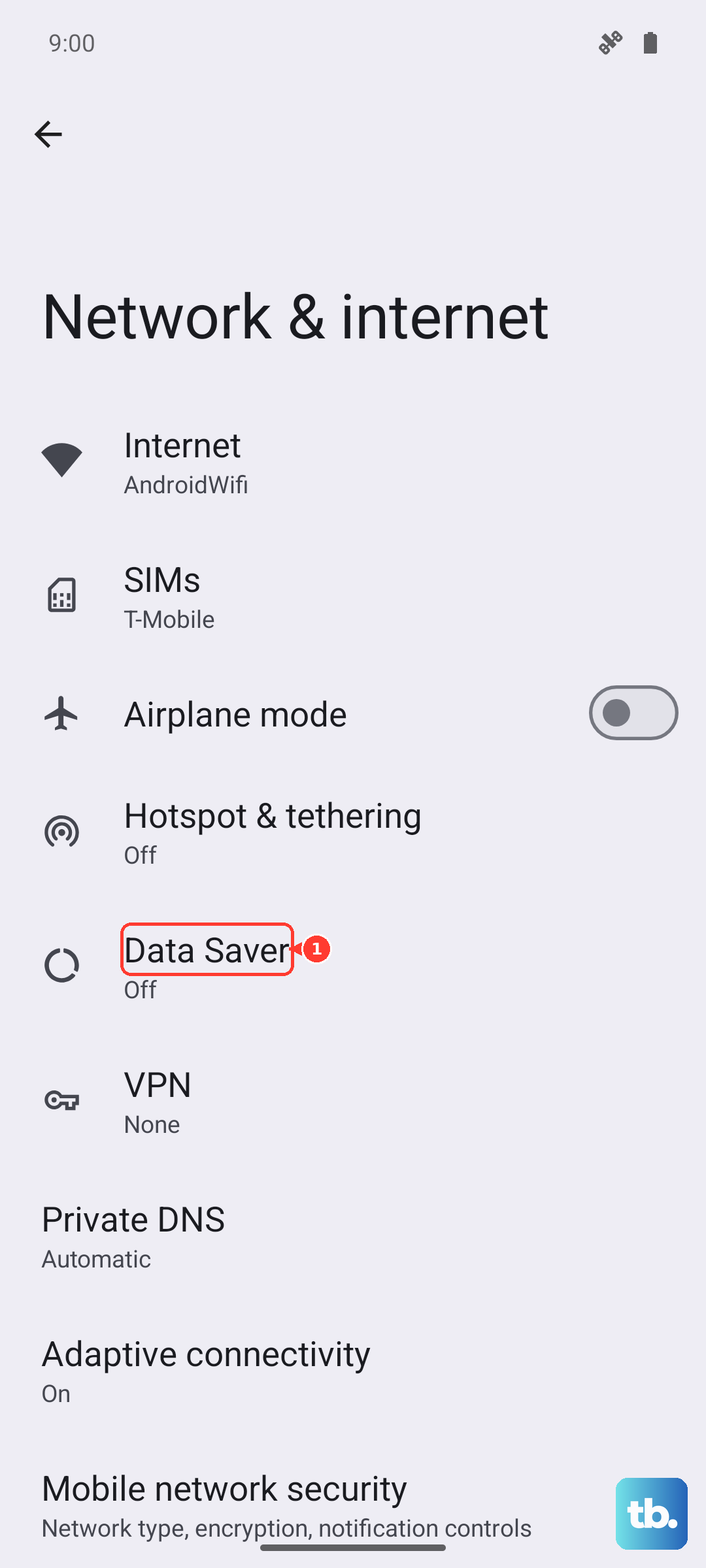
On a Pixel using mobile data with Data Saver enabled, open Settings > Network & internet > Data Saver > Unrestricted data. Enable Google Play services and Google Play Store where listed, or turn off Data Saver. Pokémon GO identifies these two services in its background-data troubleshooting instructions.
Restart the game and install updates
On Pixel, open Settings > Apps > See all apps > Pokémon GO > Force stop, then tap OK. Reopen the game and check location. If the error remains, restart the phone.
On Pixel 6 and later, hold Power + Volume up for a few seconds, then tap Restart. On Pixel 5a and earlier, hold Power for about 30 seconds or until the phone restarts. On Galaxy devices with Samsung's top-right Quick Settings layout, swipe down from the top right, tap the Power icon, then tap Restart twice.
For Google Play installations, open Google Play Store, tap your profile icon, and select Manage apps & device. Under Updates available, tap See details, then tap Update beside Pokémon GO when offered.
For the Galaxy Store edition on a compatible Samsung device, open Galaxy Store > Menu > Updates. Tap the circling-arrow update icon beside Pokémon GO if it is listed. Galaxy Store updates require a Samsung account.
On devices using Google's system update layout, open Settings > System > Software updates. Follow the instructions for an available manufacturer-supported update and restart when required.
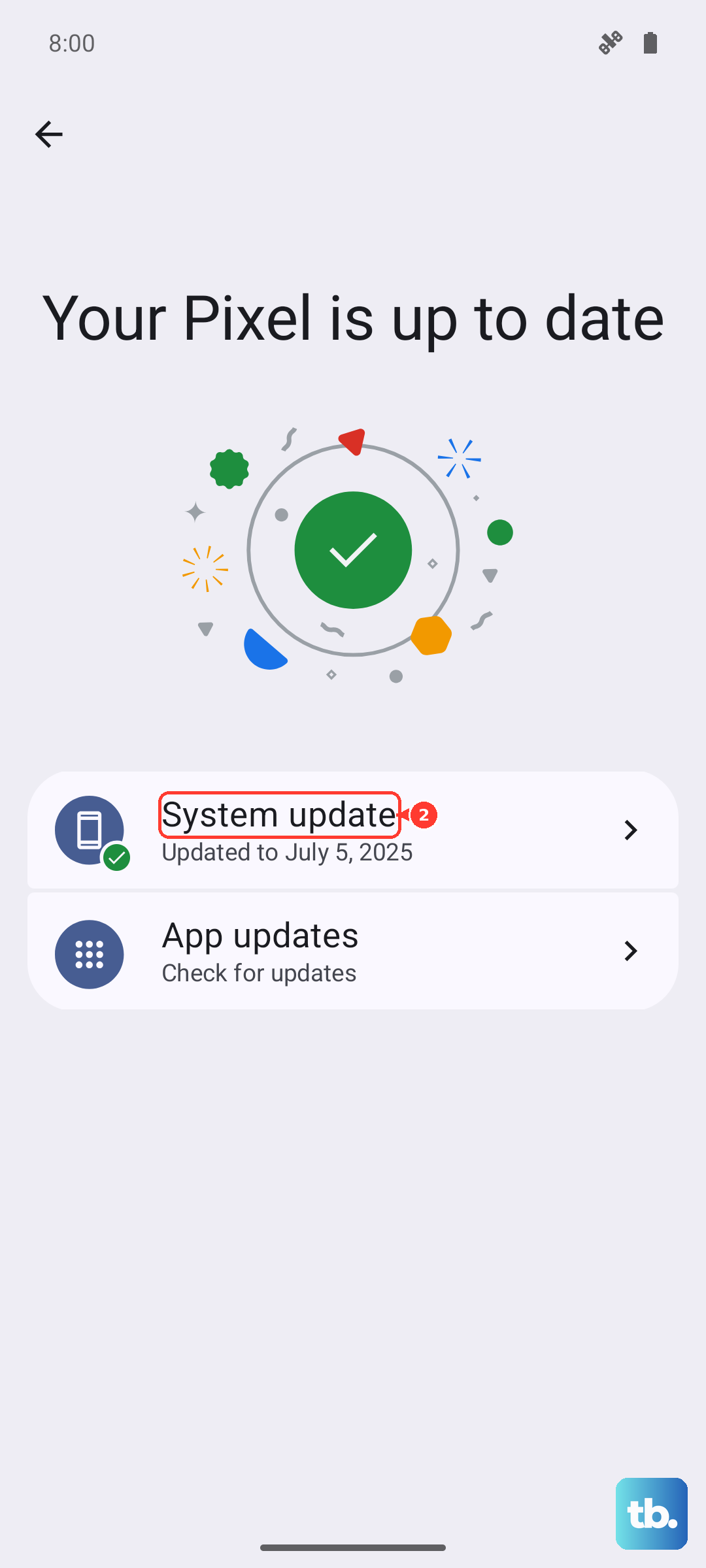
On Galaxy, open Settings > Software update > Download and install. Some models show System updates instead of Software update, and depending on your carrier the button may read Check for system updates or Check for software updates. Follow the available update instructions and restart when required.
Refresh game data and clear the cache
From Pokémon GO's Map View, open Main Menu > Settings > Advanced Settings > Refresh Game Data. Pokémon GO says refreshing game data can resolve a variety of gameplay issues, but it may turn off Adventure Sync. Afterward, check Adventure Sync if you previously enabled it.
If the error persists, clear the game's temporary cache. On Pixel, open Settings > Apps > See all apps > Pokémon GO > Storage & cache > Clear cache. Other manufacturers may name the storage screen Storage.
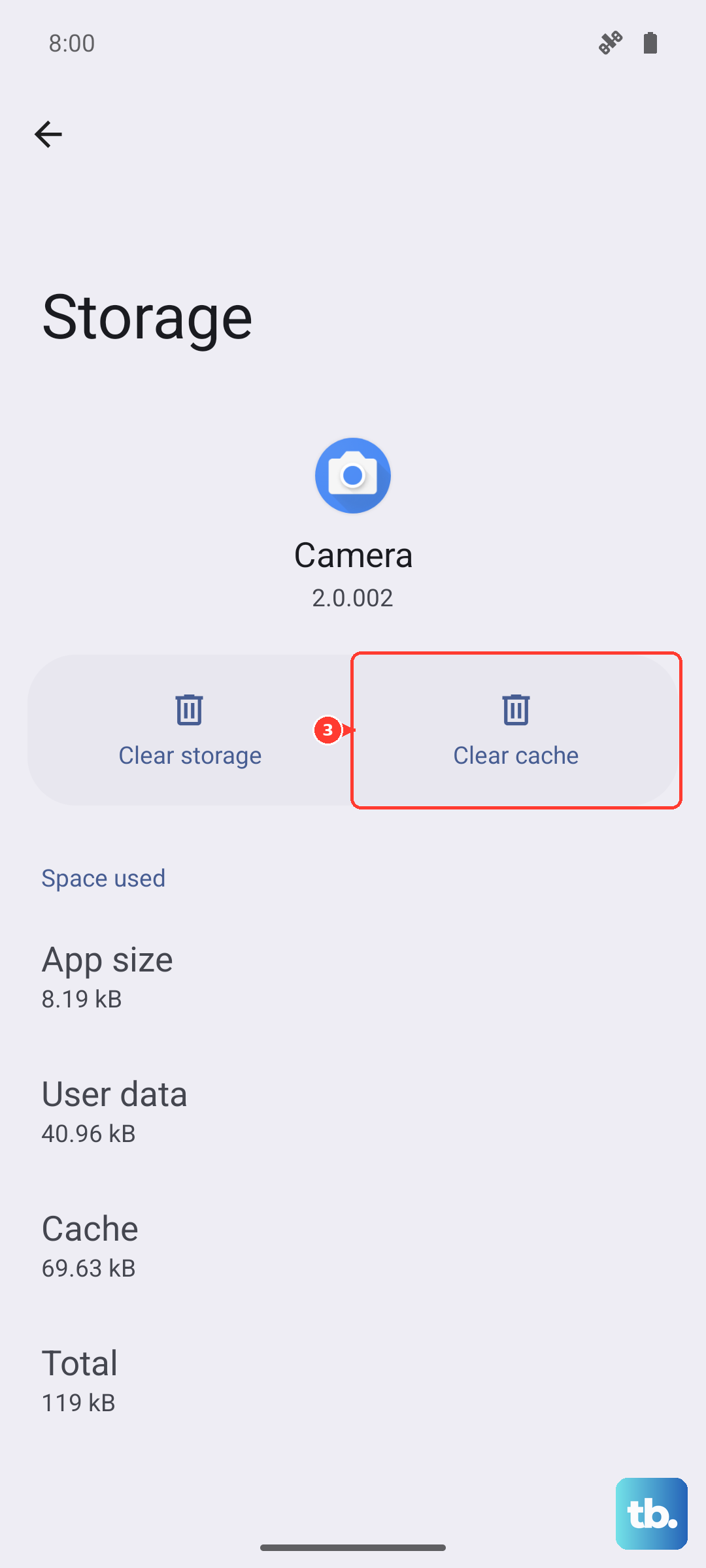
Save clearing local app data for after these simpler checks, and make sure you know your original account's login details first. On Pixel, return to Storage & cache, tap Clear storage or Clear data, matching the displayed label, then tap OK. On Galaxy, open Settings > Apps > Pokémon GO > Storage > Clear data and tap Delete.
Clearing local data removes the app's local information and can require you to sign in again. Use the same Pokémon GO account when reopening the game. Pokémon GO stores your account progress online.
Resolve a different location error or contact support
If the message is Failed to detect location and you have configured a mock-location app, remove that selection. Open Settings > System > Advanced > Developer options, open Select mock location app, and ensure no provider is selected. Newer devices may omit Advanced.
When location works elsewhere but Pokémon GO still fails, check the game's known issues before reporting the problem. From Map View, open Main Menu > Settings > Help, then use the contact button in the upper-right corner. Include the exact error text, phone model, app version, and the steps that reproduce the failure.
Frequently Asked Questions
Will moving the phone in a figure eight fix the GPS error?
Moving your phone in a figure eight a few times can correct compass direction in Google Maps until the blue-dot beam narrows and points correctly. Use it for a direction problem; compass calibration does not establish that Pokémon GO can receive a satellite signal.
What does Pokémon GO require from an Android device?
Your device must meet the published requirements, including Android 9 or later, at least 2GB of RAM, GPS and Location Services, and a strong connection. Use a supported non-rooted device with a stable OS release. Some tablets lack GPS, and meeting the minimum specifications does not guarantee support for every configuration.
Can a phone running 32-bit Android still play Pokémon GO?
Pokémon GO has ended support for 32-bit Android devices. Confirm your device's architecture with its manufacturer rather than judging it from RAM alone. Save your account login details, install the game on a compatible 64-bit Android device, and sign in with the same account.
Should you clear Google Play services storage too?
Save that for an advanced fallback after exhausting other troubleshooting. Google cautions that clearing its storage can remove saved credentials or payment-related information and require you to authenticate again. Clearing its cache removes temporary service data and is a separate troubleshooting option.
Can you check Pokémon GO in Samsung Safe mode?
You cannot run Pokémon GO in Samsung Safe mode because downloaded apps are disabled there. Safe mode can help you investigate device-wide interference from downloaded apps, but restart normally before checking the game.
Should you disable Pokémon GO's own Battery Saver?
Pokémon GO says its in-game Battery Saver turns off the display while the phone points downward, and the game continues tracking distance traveled while it is on. It also says device-based battery saving modes can affect Adventure Sync distance tracking, while Pokémon GO's own Battery Saver doesn't.