

To fix Google Maps not working on Android Auto, check the car connection, update Maps and Android Auto, then restore location access or clear Maps' cache. If Android Auto already opens, start with the fix for your symptom, such as a missing Maps icon, an incorrect location, or silent directions. Perform setup and phone interaction while parked.
The short version
- Connection problems: For wired Android Auto, connect directly with a high-quality USB data cable shorter than 1 meter.
- Freezing or crashing: Update Maps and Android Auto, then force-stop Maps and clear its cache.
- Wrong location: Check Maps' location permission and turn on the available accuracy controls.
- Silent directions: Turn on Maps sound and check your vehicle's navigation volume.
| Problem | Fix to try |
|---|---|
| Android Auto will not connect | Check the cable, pairing, and vehicle settings |
| Maps freezes or crashes | Update, force-stop, and clear cached files |
| Maps icon is missing | Reactivate Maps and review launcher visibility |
| Position is wrong or missing | Restore location access and accuracy |
| Location jumps or data stalls | Review battery and data restrictions |
| Destination entry fails | Select a destination directly or retry voice entry |
| Directions are silent | Check Maps sound and vehicle navigation volume |
| Crashes or saved connections remain faulty | Reset Maps data or saved car connections |
| GPS or receiver failures continue | Check reception and firmware, then report the failure |
Restore the connection to your car
For wired Android Auto, connect your phone directly to the vehicle's Android Auto USB port with a high-quality USB data cable shorter than 1 meter. Remove USB hubs and extensions, and try the phone manufacturer's cable. Google recommends replacing the cable when a connection that previously worked stops working.
Keep the car parked with the infotainment system on, then complete the displayed setup and any requested Android Auto update. Check the infotainment settings and enable Android Auto. Use your vehicle manual for the exact menu and instructions to restart the infotainment system.
For wireless Android Auto, turn on Bluetooth, Wi-Fi, and Location Services on your phone, then open its Bluetooth settings. If your car supports pairing through the steering-wheel shortcut, hold the voice-command button to initiate pairing; otherwise, follow the vehicle manual. Complete pairing, then tap Android Auto on the car display if projection does not start.
If your wireless-capable car also supports USB projection, reconnect through its Android Auto USB port. If you have never connected successfully, confirm that your phone runs Android 11 or later, has an active data plan, and connects to an Android Auto-compatible car or receiver. Check wireless compatibility separately.
Update and reopen frozen apps
Open Google Play Store, tap your profile icon, and select Manage apps & devices. Under Updates available, update Maps and Android Auto when offered. You can also open the official Google Maps listing and tap Update when offered for your device.
On a Pixel, open Settings > Apps > See all apps > Maps > Force stop, then tap OK. Reopen Maps after stopping it. Other Android manufacturers may use different labels for these app controls.
You can also restart your phone. On Pixel 6 and later, including Fold, hold Power + Volume up for a few seconds, then tap Restart. On Pixel 5a and earlier running an Android Auto-compatible Android version, hold Power for approximately 30 seconds or until the phone restarts.
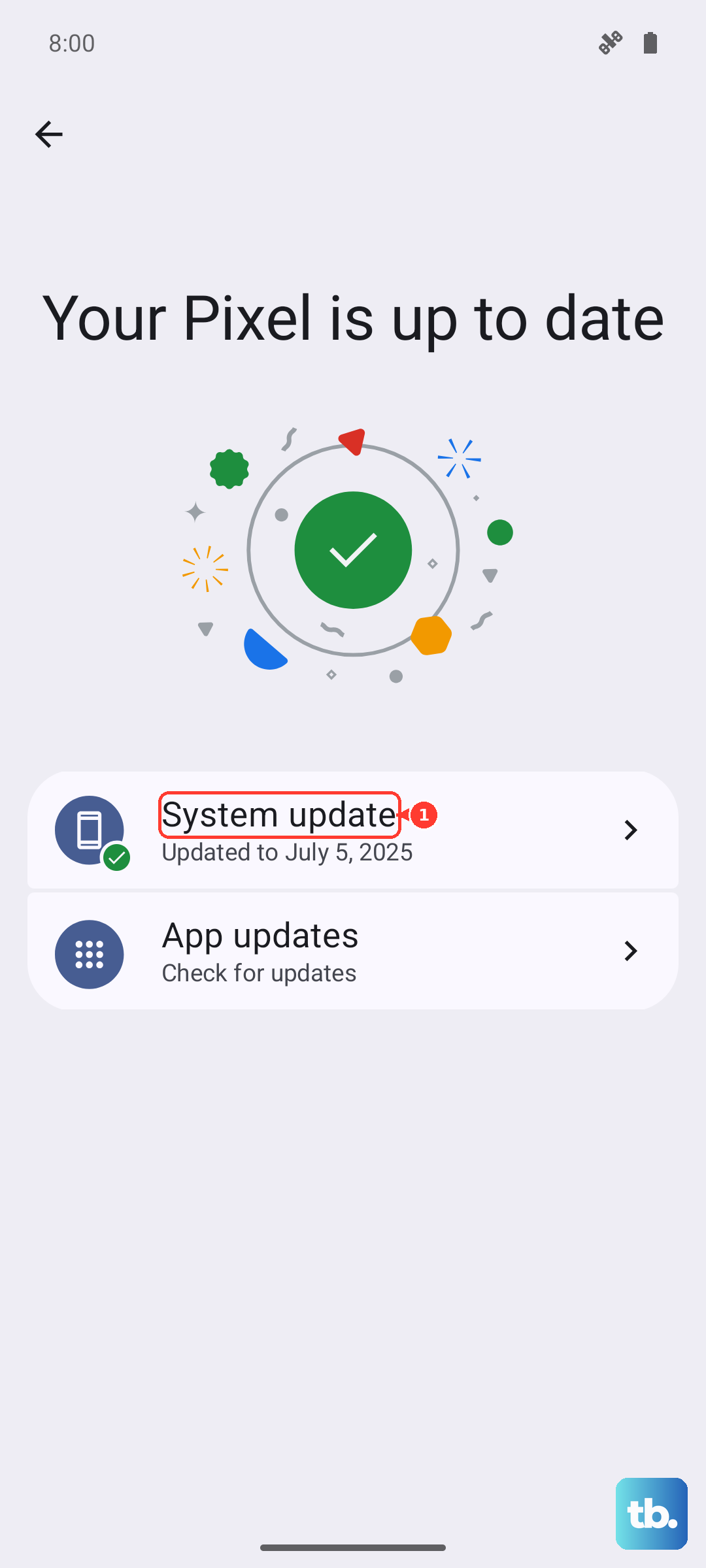
On Pixel, check for a system update through Settings > System > Software update, then follow the available instructions. Other manufacturers use different update menus.
Clearing Maps' cache removes temporary files. On Pixel, open Settings, go to your app settings, and select See all apps > Maps > Storage & cache, then tap Clear cache. Reopen Maps and try it again.
Clearing Android Auto's cache also removes temporary files. On Pixel with these controls, open Settings > Apps > See all apps > Android Auto > Storage & cache and tap Clear cache. This is a general app troubleshooting step.
Bring back a missing Maps icon
On Samsung phones, unused-app sleeping can make Maps disappear from Android Auto. Open Maps on your phone to reactivate it, then reopen Android Auto's app launcher. If unused-app sleeping caused the disappearance, go to your phone's battery settings and turn off Auto-disable unused apps or Put unused apps to sleep.
Search your phone's Settings for Android Auto, then open Customize launcher. Restore Maps if your build provides an editable visibility control for it. Exit and restart Android Auto for launcher changes to appear.
Fix a missing or inaccurate location
Turn on Mobile data or Wi-Fi and turn off Airplane mode. Open Maps on your phone, tap Your location, and inspect any accuracy warning. Move somewhere with better GPS or Wi-Fi reception when practical.
Open Settings > Location and turn on Use location; manufacturer labels may vary. On Pixel, continue to App location permissions > Maps and select Allow only while using the app. On Android 12 and later with precise-location controls, touch and hold Maps, open App info > Permissions > Location, and turn on Use precise location.
On Android 12 and later with Google Play services, open Settings > Location > Location Services > Location Accuracy and enable Improve Location Accuracy. On Android 11 with Google Play services, open Settings > Location > Advanced > Location Accuracy. Enable Improve Location Accuracy there.
If your phone exposes nearby-network scanning controls, enable them as another location troubleshooting step. On Android 12 and later, open Settings > Location > Location Services and enable Wi-Fi scanning and Bluetooth scanning. On Android 11, find those controls directly under Settings > Location.
If the direction beam points incorrectly, open Maps on your phone while parked and move the phone in a figure eight until the beam narrows. Alternatively, while outside, tap the blue dot, select Calibrate, and follow the camera instructions. Camera-assisted calibration depends on Street View availability.
Review battery and data restrictions
Google identifies Battery Saver as a possible cause of jumping location and some GPS interruptions. On Pixel, swipe down from the top of the screen and tap Battery Saver to switch it off. Try navigation again afterward.
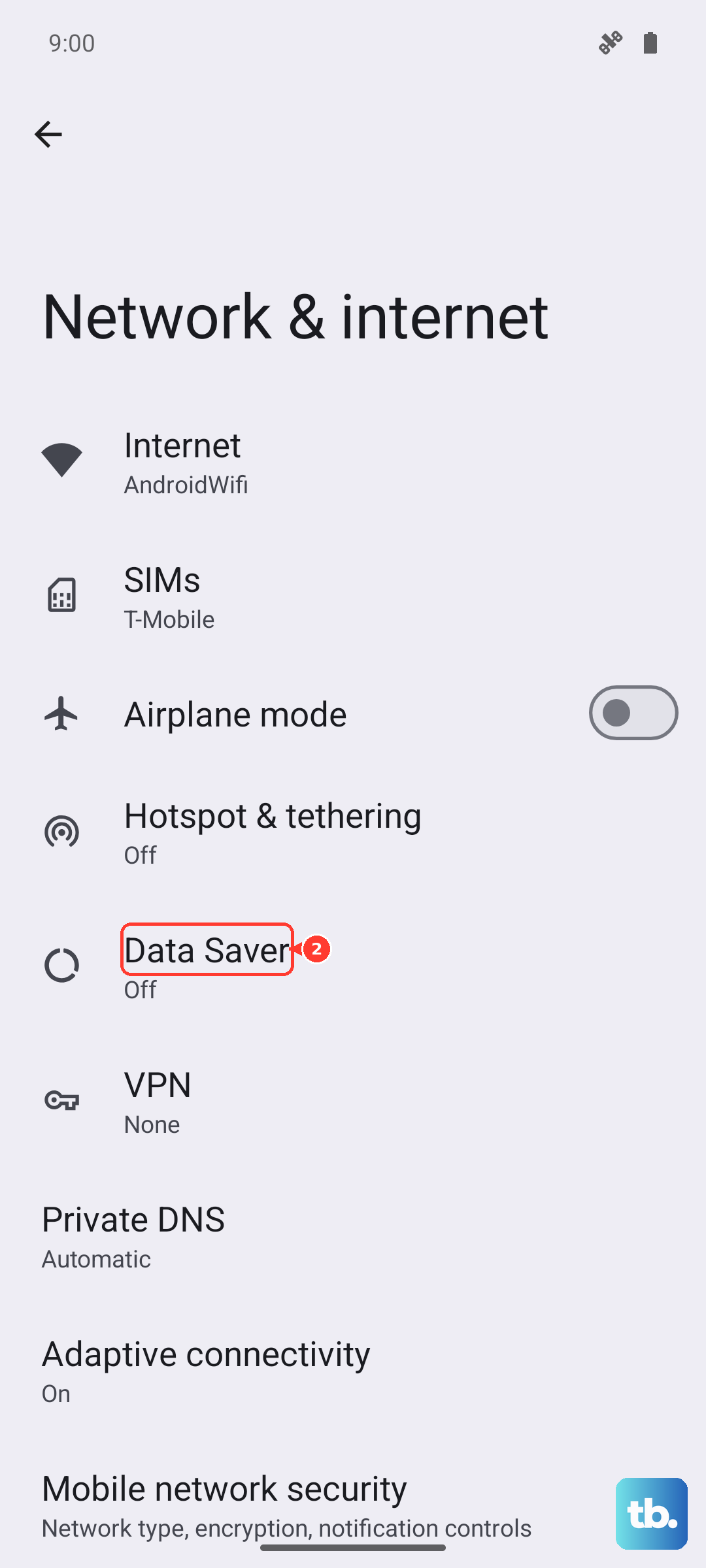
For background-connectivity problems on phones with these controls, open Settings > Network & internet > Data Saver and switch it off. To keep Data Saver enabled, open Unrestricted data and enable Maps, plus Android Auto if listed. Use this as a general connectivity check when Maps cannot access data in the background.
Get destination entry working again
When Android Auto opens but voice entry fails, open the car display's app launcher and select Maps. Tap Search, then choose Recent, Categories, or Saved and select a destination. Park before typing, because keyboard entry is intentionally unavailable while driving.
To retry voice navigation, say Hey Google, then request directions, or tap the microphone and make your request. For a stuck route, say Stop navigation, then request the destination again. These controls use the available Gemini or Google Assistant integration.
When using the steering-wheel control, hold the voice-command button until the Android Auto tone, then speak. Reduce background noise if commands are not heard. With an aftermarket receiver, have the installer check microphone operation if the problem continues.
Restore spoken directions
If music plays but directions are silent, check your vehicle manual's navigation-volume controls. Some vehicles keep separate volume levels for navigation, media, and voice, so adjusting music volume may leave navigation at a different level.
On your phone, start Maps navigation, tap Mute, then select Sound. For louder guidance, tap your profile picture or initial and open Settings > Navigation > Guidance volume, then choose Louder. Under Navigation, select Play test sound to check the phone-side audio settings.
Reset app data or saved car connections
Clearing Maps' app data deletes its local app data. If Maps keeps crashing, open your phone's Settings, locate Maps under Apps, and use its storage controls to clear app data. On Samsung, open Settings > Apps > Maps > Storage > Clear data; confirmation wording varies.
For trouble connecting to a second car, Google recommends resetting Android Auto's saved cars. Disconnect your phone, then open Settings > Connected devices > Connection preferences > Android Auto > Previously connected cars and open the top-right menu. The next step removes all saved car connections. Tap Forget all cars, then reconnect.
Address persistent GPS or receiver problems
For repeated GPS signal loss, charge your phone and check reception outside with a clear view of the sky. Metallic window film can obstruct reception in your car. Persistent GPS failure may require device repair.
For an aftermarket receiver, check its manufacturer's website for firmware matching the exact receiver model and follow the installation instructions. If updates and local troubleshooting do not resolve the failure, open Settings > Connected devices > Connection preferences > Android Auto. Open the top-right menu, select Send feedback, and describe the failure, phone, vehicle, and connection type.
Frequently Asked Questions
Can offline maps help when mobile service drops?
Yes, downloaded offline maps let Google Maps on your phone guide you when your connection is slow or unavailable, as long as the entire route is within the downloaded area, but they do not repair a failed Android Auto connection. Offline maps can't be downloaded in some countries or regions. While online and signed in, open Maps, tap your profile picture or initial, and choose Offline maps, then select Select your own map. Cover the entire intended route and tap Download. Offline driving lacks live traffic and alternative routes.
Why does Maps play chimes instead of spoken directions?
Maps may need to download voice guidance. Connect your phone to reliable internet, obtain directions, and keep Maps open while the voice guidance downloads.
How do you restore traffic information on the car display?
In Maps on the car display, open Settings > Traffic and turn the toggle on. Traffic information must be available, and offline navigation cannot provide live traffic.
Does Bluetooth audio mean a car supports Android Auto?
No, ordinary Bluetooth audio does not establish Android Auto compatibility, and neither does having a USB port. Your car or receiver must support Android Auto. Android Go edition is unsupported.
Do you need to download Android Auto again?
Android Auto is integrated into currently supported phones, so a separate initial download is normally unnecessary. Its Google Play listing lets you check device availability and updates.