Gmail Promotions filtering breaks in a few obvious ways: the tab disappears, newsletters land in Primary, valid offers go to Spam, or messages seem to vanish. The fix starts with Gmail’s category controls, then moves through filters, spam settings, sync, and Apple Mail’s separate category view.
1. Switch on the features Gmail uses for sorting
Start with smart features when the Promotions tab is missing, empty, or suddenly sorting less accurately. Open Gmail on the web, select the Settings gear, and select See all settings. Open General and find Smart features. Turn on smart features in Gmail, Chat, and Meet, then reload Gmail if prompted.
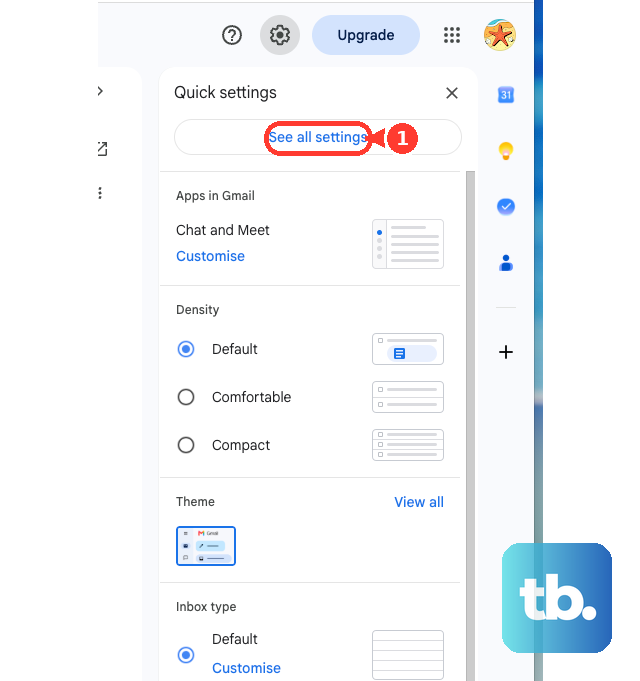
Gmail’s automatic Primary, Social, and Promotions categories depend on smart features. For a work or school Gmail account, your organization may control this setting. Contact your Google Workspace admin when Smart features is blocked or missing.
2. Restore the Promotions tab on desktop
Open Gmail on a computer and select the Settings gear. Under Quick settings, set Inbox type to Default. Select Customize, check Promotions, and select Save. The Promotions tab appears only with Gmail’s Default inbox type.
The full settings path works too: select Settings, See all settings, Inbox, set Inbox type to Default, check Promotions under Categories, then select Save Changes. Gmail lets you show or hide existing category tabs; it does not create custom tabs.
3. Add Promotions inside the Gmail app
Phone settings live inside the Gmail app, not your device’s main mail settings. On Android: Open Gmail, tap Menu, choose Settings, and select your account. Tap Inbox type, choose Default Inbox, open Inbox categories, then add Promotions.
On iPhone or iPad: Open Gmail, tap Menu, and choose Settings. Tap Inbox type and choose Default Inbox. Go back to Settings, open Inbox customizations, tap Inbox categories, then turn on Promotions.
4. Move one sender into the right tab
Open Gmail on the web and open the category tab that currently contains the message. Drag the message to the correct tab, such as Promotions or Primary. Confirm future handling if Gmail asks. Use a manual move when one store, newsletter, receipt sender, or brand keeps landing in the wrong category.
Gmail uses that move to handle future mail from that sender. This is the fastest fix for one sender. Use a filter for repeated mistakes across a sender, domain, or keyword pattern.
5. Force repeat senders with a filter
A Gmail filter gives matching messages the same category every time. Open or select a message from the sender in Gmail on the web, select More, and choose Filter messages like these. Confirm the sender or search criteria, then select Create filter.
Check Categorize as and choose Primary, Social, Updates, Forums, or Promotions. Check Also apply filter to matching conversations to update existing matching mail. Select Create filter.
Filters are account-level. New incoming mail follows the filter, and the matching-conversations checkbox applies the same action to existing mail that matches.
6. Remove rules that hide Promotions mail
Open Gmail on the web, select the Settings gear, and select See all settings. Open Filters and Blocked Addresses. Find filters using Skip the Inbox (Archive it), Delete it, Forward it to, Apply the label, or Categorize as. Select Edit to change the rule, or select Delete to remove it, then select Update filter after editing.
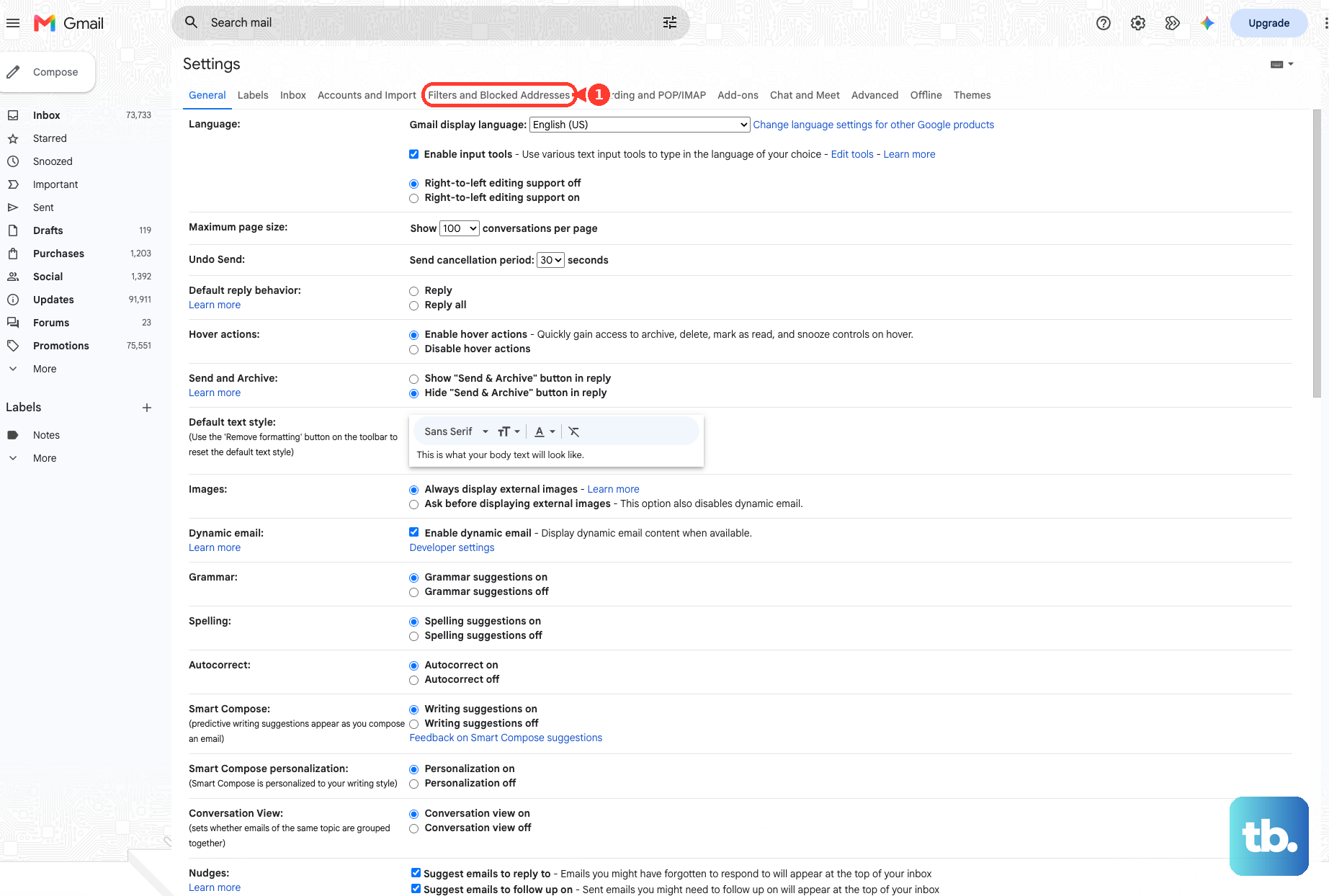
A custom filter can make Gmail look broken by archiving, deleting, forwarding, labeling, or recategorizing messages before they appear in Promotions. Check this section when messages appear in All Mail, Trash, another label, or the wrong Gmail category.
7. Recover missing messages and correct spam
Search first so you know where Gmail put the message. In Gmail search, enter category:promotions, category:promotions in:inbox, or category:promotions -in:inbox. To include Spam and Trash on a computer, select the search box, open Show search options, open the Search dropdown, choose Mail & Spam & Trash, enter the sender or keywords, then select Search.
When a valid message is in Spam on a computer, open Spam, check the box next to the message, then select Not spam at the top. In the Gmail mobile app, open the message, tap More, then choose Report not spam. To protect a trusted sender, add the sender to Google Contacts or create a Gmail web filter with Never send it to Spam and Categorize as.
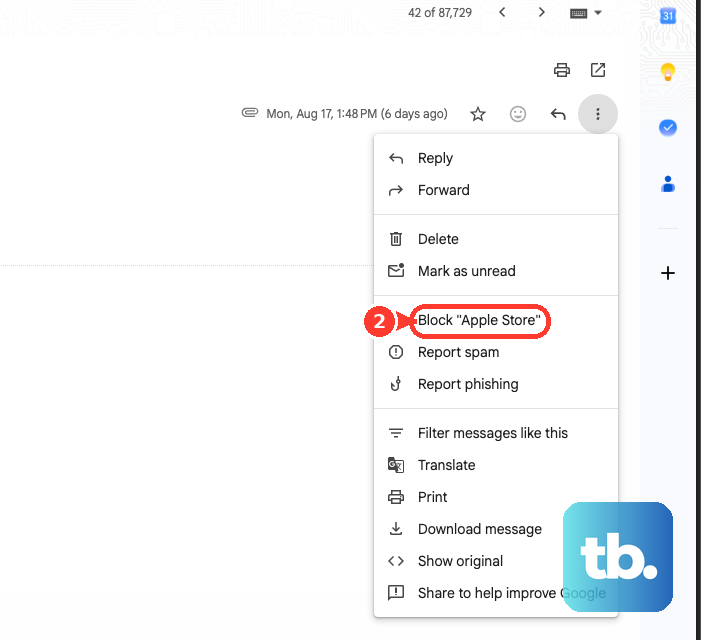
For junk mail, open or select the unwanted email and choose Report spam. To block a sender, open the message, select More, choose Block [sender], then confirm. To stop promotional mail you no longer want, open the email, select Unsubscribe next to the sender name, then confirm with Unsubscribe or Go to website.
8. Separate Gmail problems from app and Apple Mail problems
Gmail can sort mail correctly while a stale app view, browser issue, or Apple Mail category layer makes the inbox look wrong. On Android: Open the Gmail app, tap Menu, choose Settings, and select your account. Check Sync Gmail. If the app view stays stale, manually sync, update Gmail from Google Play, restart the device, and check the internet connection.
On desktop Gmail: Use a current supported browser such as Chrome, Firefox, or Safari. If Gmail settings are missing or the page behaves incorrectly, open Gmail in another supported browser, use a private window, or disable browser extensions and applications.
On iPhone Mail: On iOS 18.2 or later, in supported countries and regions, Apple Mail has its own Primary, Transactions, Updates, and Promotions categories. To see everything, swipe left on the categories at the top of an inbox until All Mail appears, or tap More and choose List View. To recategorize a sender in Apple Mail, open the message, tap More Actions or More, choose Categorize Sender, pick the category, then tap Continue.
On Mac Mail: In macOS Sequoia 15.4 or later, select the View Options button and turn off Show Mail Categories, or open View and deselect Show Mail Categories. Click the selected category button until All Mail appears. To disable Mail’s message filter, select View, Filter, Disable Message Filter, or press Command-L. Then open Mail, Settings, Rules, and edit or disable rules that move, delete, flag, or hide Gmail messages.
Do not use old Not Promotions advice as the fix. Google’s documented Gmail fixes are moving the message to the right tab or creating a filter with Categorize as.
For non-Gmail accounts linked with Gmailify, do not set up Gmailify as a new sorting fix because Google says Gmailify and third-party POP fetching (Check mail from other accounts) stop supporting new users after the first quarter of 2026, with existing users supported until January 2027. Gmail POP and IMAP access from other apps is unaffected; existing linked accounts can be unlinked from Settings, See all settings, Accounts and Import, and Check mail from other accounts.
Frequently Asked Questions
Why is my Gmail Promotions tab missing?
The Promotions tab appears only with Gmail’s Default inbox type. Turn on Default inbox, open Inbox categories, and select Promotions. Smart features also need to be enabled for automatic Gmail category sorting.
How do I make one sender always go to Promotions?
Open Gmail on the web, select a message from that sender, choose More, Filter messages like these, Create filter, Categorize as, Promotions, then Create filter.
Why are Gmail Promotions messages going to Spam?
Open the message in Spam and choose More, then Report not spam. For trusted senders, add the sender to Google Contacts or create a filter with Never send it to Spam.
Can Apple Mail change my Gmail Promotions tab?
Apple Mail categories are separate from Gmail’s category tabs. Switch Apple Mail to All Mail or turn off Show Mail Categories on Mac to check Gmail without Apple’s category layer.