You open Recovery to repair Windows, but Fix problems using Windows Update says This option is currently unavailable. The next move depends on whether your PC meets the requirements, your organization manages updates, or Windows Update itself is failing. Start with eligibility, then follow the relevant checks below to get to a repair that preserves your files and apps.
Check whether your Windows installation qualifies
This feature requires an eligible Windows 11 installation. Windows 10 does not have it, including PCs covered by Extended Security Updates.
Open Settings > Windows Update.
Select Check for updates.
Install the available updates. The minimum requirement is Windows 11 version 22H2 plus the February 2024 optional update, or a subsequent update. Use a currently supported Windows release instead of deliberately installing that old prerequisite.
For a PC with organization-managed updates, go straight to the IT checks below. Microsoft excludes managed updates from this feature, and ordinary update troubleshooting does not remove that restriction.
Meeting the version requirements alone does not guarantee access to the repair option. The remaining checks address specific update problems; none guarantees a fix for the unavailable message.
Finish pending updates and restart
Let pending update installations finish.
Save your open work.
When a restart is pending, select Start > Power > Update and restart.
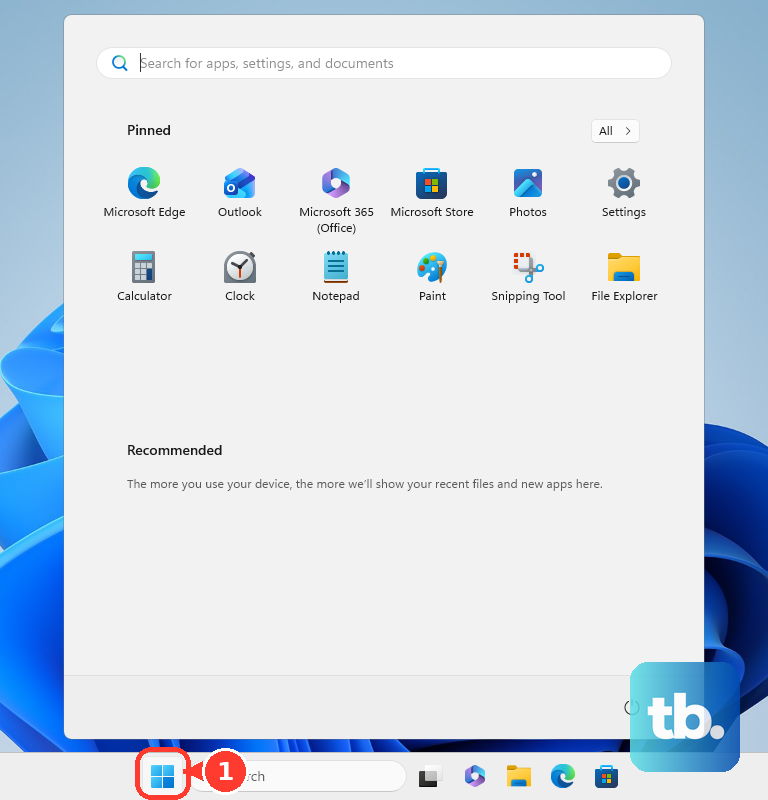
After signing back in, check Settings > System > Recovery for the repair option.
If Windows requires administrator privileges, have an existing administrator install the updates or approve the elevation request.
Run the Windows Update troubleshooter
This troubleshooter addresses update errors, not managed-update exclusions.
Open Start > Settings > System > Troubleshoot > Other troubleshooters.
Select Run beside Windows Update.
Complete the troubleshooting workflow.
Restart your PC.
Open Settings > Windows Update.
Select Check for updates.
To use the diagnostic workflow directly instead, open Get Help.
Enter windows update troubleshooter in its Search bar.
Follow the diagnostic workflow.
Restore power, connectivity, and download space
Use these checks when connection problems, metering, or insufficient storage are stopping downloads. These checks address download obstacles without changing feature eligibility.
Connect your PC to AC power.
Reconnect to your network through Settings > Network & internet > Wi-Fi, or connect using Ethernet.
If metering is restricting downloads, open Settings > Windows Update > Advanced options.
Turn on Download updates over metered connections. Downloads on a billed connection can incur charges.
If storage is insufficient, open Start > Settings > System > Storage > Cleanup recommendations.
Review the proposed removals. Preserve Windows.old if you still need to roll back an upgrade.
Select Clean up for the removals you have reviewed.
Ask IT to review managed-update restrictions
Microsoft excludes devices with managed updates from this repair feature. For an organization-managed PC, checking its update configuration comes before further repair attempts.
Ask your IT administrator to review Windows Autopatch, deployment-service enrollment, and configured update policies. Have the administrator remove unintended configurations at their management source.
There is no documented consumer override. Removing a restriction corrects an eligibility problem; it does not guarantee that a separate repair failure will disappear.
Retry the repair from Recovery
Once your PC meets the requirements and updates are working, open Start > Settings > System > Recovery.
Select Reinstall now under Fix problems using Windows Update.
Select OK. This reinstalls the current Windows version while preserving your files, apps, and settings.
Keep the PC connected to power and the internet throughout the repair.
Restart afterward unless you allowed the automatic restart.
If Windows Update offers a reinstall recommendation after an installation failure, select Reinstall now there instead.
Select OK to start that repair.
Restart afterward.
If the option remains unavailable or the repair fails, try the system-file repair below. Use the installation-media route in the final section when you need an alternative to the Settings option.
Repair damaged Windows components
Use DISM and System File Checker to address Windows component and system-file corruption. These tools repair underlying damage without bypassing the feature’s eligibility restrictions.
Search for cmd from Start.
Right-click Command Prompt.
Select Run as administrator.
Run DISM.exe /Online /Cleanup-image /Restorehealth and wait for it to finish.
After DISM succeeds, run sfc /scannow and wait for completion.
Check Settings > System > Recovery again.
If DISM cannot complete because Windows Update is broken, its alternative repair route requires a compatible Windows repair source. An arbitrary downloaded ISO is not sufficient.
Use installation media when the option stays unavailable
An in-place repair preserves files, apps, and settings when you can sign in to Windows and use compatible media with the retention option below.
- 1.Back up your files before starting.
- 2.Obtain compatible media from Microsoft’s Windows 11 download page for x64 PCs or Windows 11 for Arm-based PCs page for Arm64 devices. Check device compatibility and driver requirements. Do not assume Windows 11 25H2 media can repair an Arm device supplied with version 26H1.
- 3.While signed in to Windows, open the installation media in File Explorer. For a downloaded ISO, mount it first.
- 4.Run setup.exe and select Yes.
- 5.Select Change what to keep, then Keep personal files and apps. Stop if that retention option is unavailable.
- 6.Select Next, then Install.
Frequently Asked Questions
Is Reset PC the same as repairing Windows through Windows Update?
No. Reset PC is more disruptive: even Keep my files removes installed apps and settings. Back up your files and obtain your BitLocker recovery key, if applicable, before resetting.
Can Installation Assistant replace a same-version repair?
Windows 11 Installation Assistant upgrades eligible installations on compatible x64 PCs. It does not guarantee a same-version repair and does not support Arm PCs.
Does Advanced startup unlock the unavailable repair option?
No. Advanced startup opens the Windows recovery environment for tools such as reset, restore, and update removal. It does not open or unlock the Windows Update repair-install feature.
Will installing an update from Microsoft Update Catalog enable the feature?
A matching Catalog package installs a prerequisite or corrective update when ordinary updating fails. It does not independently enable the repair feature. Match the package to your Windows release and processor architecture, and follow the KB’s installation instructions and prerequisites.











