

Facebook problems today can look like a frozen app, a spinning feed, broken Reels, missing notifications, or a login screen that will not let you in. Start by checking whether Meta is having a wider problem, then work through the app, browser, connection, and account fixes that match what you see.
1. Check Meta's status first
Before changing phone or browser settings, rule out a Meta-side issue.
- 1.Open metastatus.com.
- 2.Check tiles such as Facebook Login, Messenger Platform, Ads Manager, and Meta Business Suite.
- 3.For login issues, open metastatus.com/facebook-login and use View History or RSS Feed for incident details.
Meta Status covers Meta business and platform products, not every consumer Facebook feature. It still gives you the fastest official check for Facebook Login and platform trouble.
2. Restart Facebook the right way
If the app is frozen, stuck on a spinner, or opening to a blank screen, close it fully and reopen it. On iPhone or iPad, open the App Switcher, swipe to Facebook, swipe up on the app, then reopen Facebook from the Home Screen or App Library.
On Android, swipe up from the bottom, hold, let go, swipe up on Facebook, and open Facebook again. If Facebook still fails to load, restart the device.
On iPhone, press and hold the correct buttons until the power-off slider appears. Drag the slider, wait 30 seconds, then press and hold the side or top button until the Apple logo appears.
To show the slider, hold the side button and either volume button on iPhone X or later. Hold the side button on iPhone SE (2nd or 3rd generation), 8, 7, or 6. Hold the top button on iPhone SE (1st generation), 5, or earlier.
On Android, open the phone's Power menu. Use the restart option from your device maker.
3. Update the app and confirm support
Open the App Store or Google Play, search for Facebook, and tap Update if the store shows it. Meta directs users to the phone's app store for the latest Facebook app.
The Facebook app supports Android 8.0 or later, iPhone with iOS 15.1 or later, and iPad with iPadOS 15.1 or later. If the device is below those versions, update the operating system, use facebook.com in a supported browser, or switch to a supported device.
For a clean install, use facebook.com/install, the official Facebook listing in the App Store, or the official Facebook listing in Google Play. On Android, Facebook Lite from Google Play is the better fit for low storage or slow networks; Meta says it uses less data, takes less space, installs faster, loads screens more quickly, and works on 2G.
4. Fix loading and connection failures
Feed loading, uploads, videos, and Reels need a stable connection. If you are on Wi-Fi, reconnect to Wi-Fi, and if the connection is slow, restart the router or modem. Then reopen Facebook.
When Facebook works on Wi-Fi but not cellular data on iPhone, check the app's cellular access. Open Settings, tap Cellular, and turn on Cellular Data for Facebook. When that switch is off, iPhone uses only Wi-Fi for Facebook.
5. Clear bad app and site data
Use these fixes when Facebook opens but pages look wrong, links fail inside the app, or one browser breaks while another works. On Android, open Settings > Apps or Applications > Facebook > Storage > Clear cache. Use Clear storage or Clear data only after accepting that Android will sign you out and remove local app data.
On iPhone or iPad, open Settings > General > iPhone Storage or iPad Storage > Facebook > Offload App. Then reinstall from the app icon or the App Store.
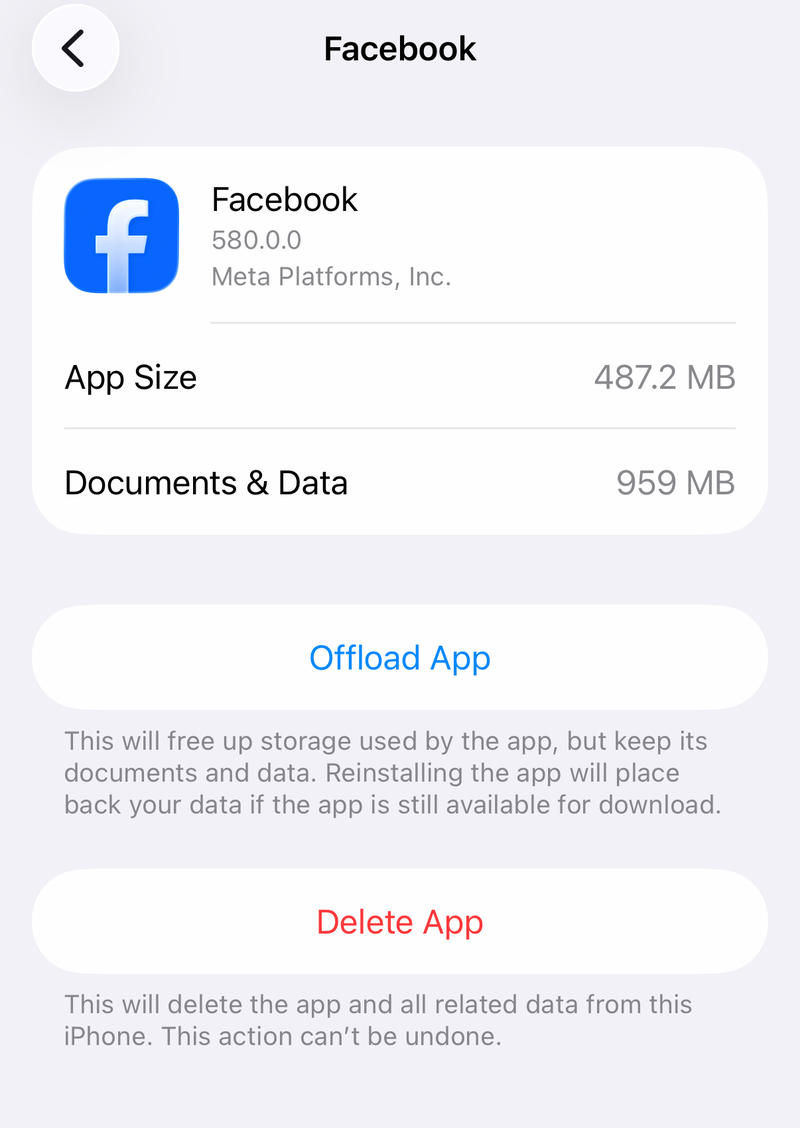
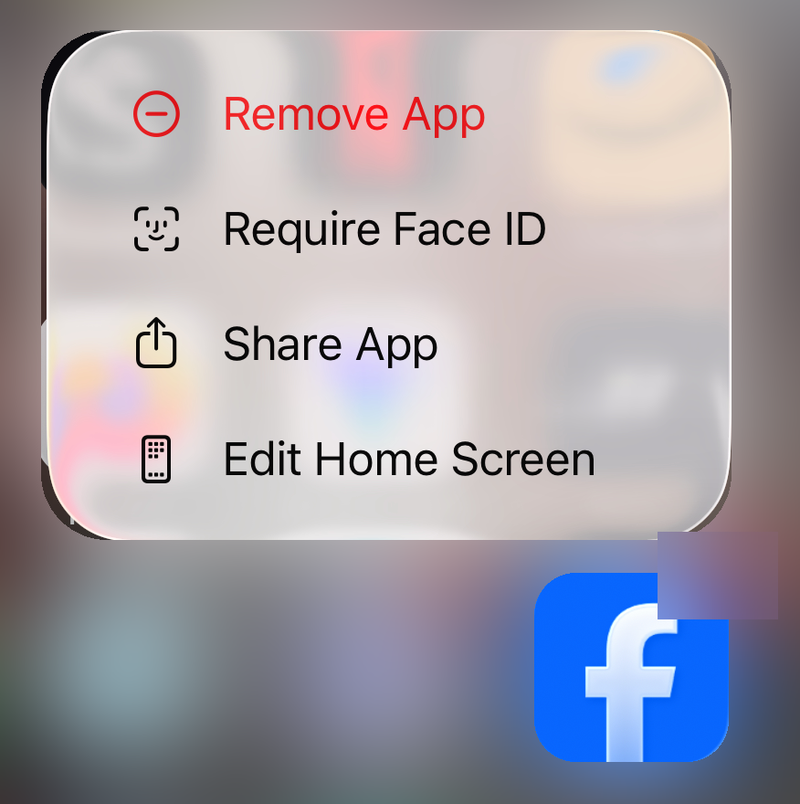
To delete and reinstall on iPhone or iPad, touch and hold Facebook. Tap Remove App, tap Delete App, confirm with Delete, then reinstall from the official App Store listing.
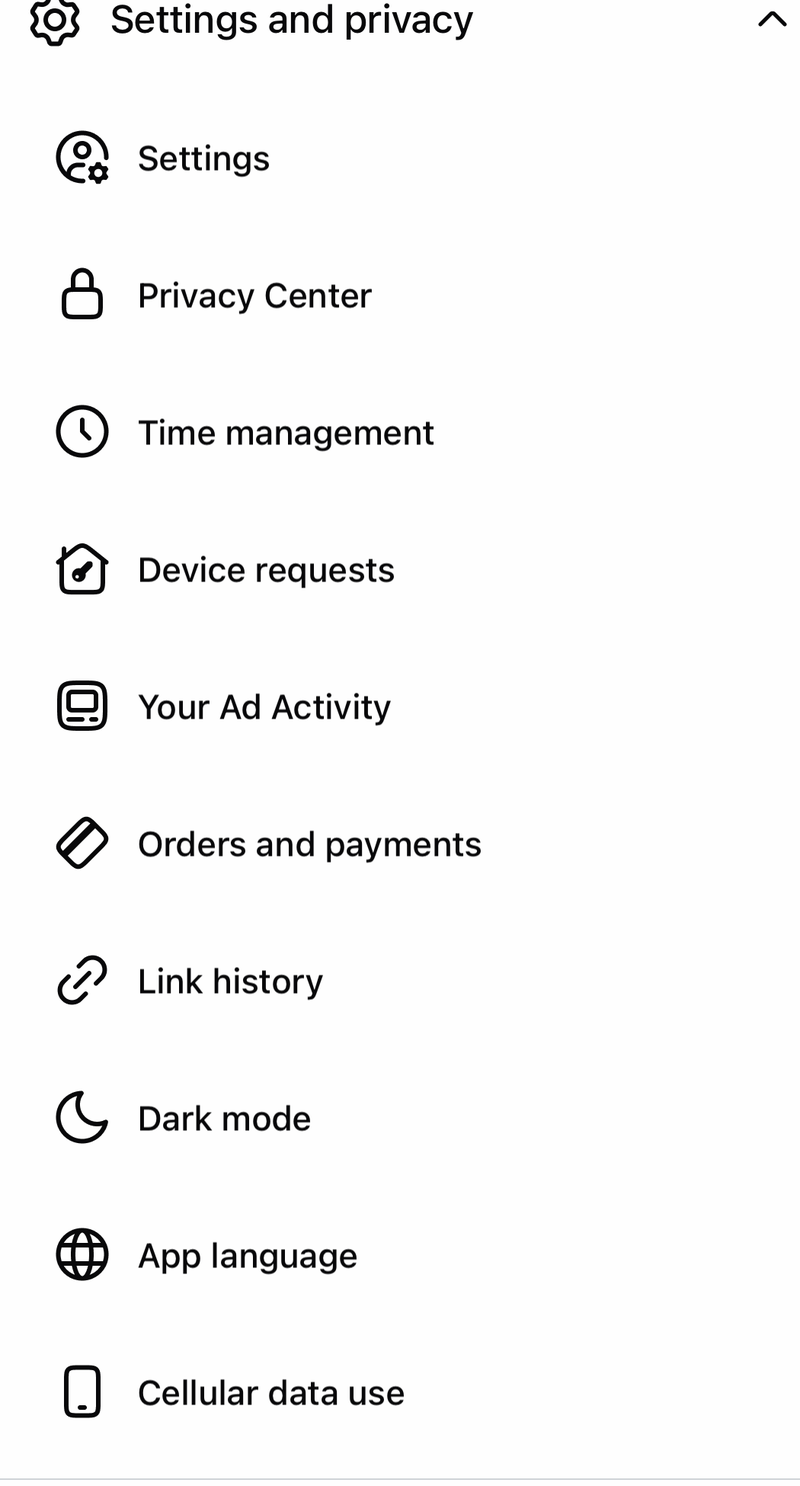
For Facebook's in-app browser, open a link inside Facebook. Tap the top-right more actions Options button, tap Settings, tap Clear next to Cookies and cache, then confirm with Clear.
Do not use the older path that says to clear Facebook cache from Menu > Settings & privacy > Settings > Browser. The current verified Meta path clears in-app browser cookies and cache from an opened in-app browser link.
6. Repair Facebook in your browser
When facebook.com fails in a browser, close the page and reopen it. If the problem stays in that browser, clear its browsing data, then try another browser such as Chrome or Firefox.
In Chrome desktop, open More > Delete browsing data. Choose a time range such as All time, select the data types, and click Delete data.
On Safari for iPhone, open Settings > Apps > Safari > Clear History and Website Data. On Safari for Mac, open Safari > Settings > Privacy > Manage Website Data. Select facebook.com or remove all website data.
In Firefox, open the Firefox menu and go to Settings > Privacy & Security. Clear cache or browsing data under Cookies and Site Data or Browsing data.
For Chrome desktop problems that disappear in another browser or private window, disable extensions. Turn them back on one at a time. To reset Chrome, use More > Settings > Reset settings > Restore settings to their original defaults > Reset settings.
If Facebook Login, comments, plugins, or Marketplace fail in Chrome, check cookies next. Open More > Settings > Privacy and security > Third-party cookies. To remove only Facebook site data, choose See all site data and permissions, search for facebook.com, select Delete, and confirm with Delete.
7. Recover login and account access
Account problems need Facebook's recovery routes, not repeated reinstalling. Use a device and browser you have used with Facebook before.
For a normal login failure, open facebook.com/login/identify. Enter your email address or mobile phone number, then follow Facebook's recovery prompts.
From the login screen, tap Forgot password?. Enter your email address, mobile number, full name, or username.
For a suspected hacked account, open facebook.com/hacked on a device you used before. Follow the guided recovery flow.
For a suspended or disabled personal account, log into Facebook and follow the appeal prompts within 180 days of suspension. If you do not appeal a suspension within 180 days, or if the appeal is unsuccessful, Meta says the account will be permanently disabled.
8. Restore notifications and permissions
Fix notifications in Facebook first, then check the phone's system setting. In Facebook, tap Menu in the top left, scroll down and tap Settings, then tap Notifications below Preferences. Adjust the notification categories and Push settings.
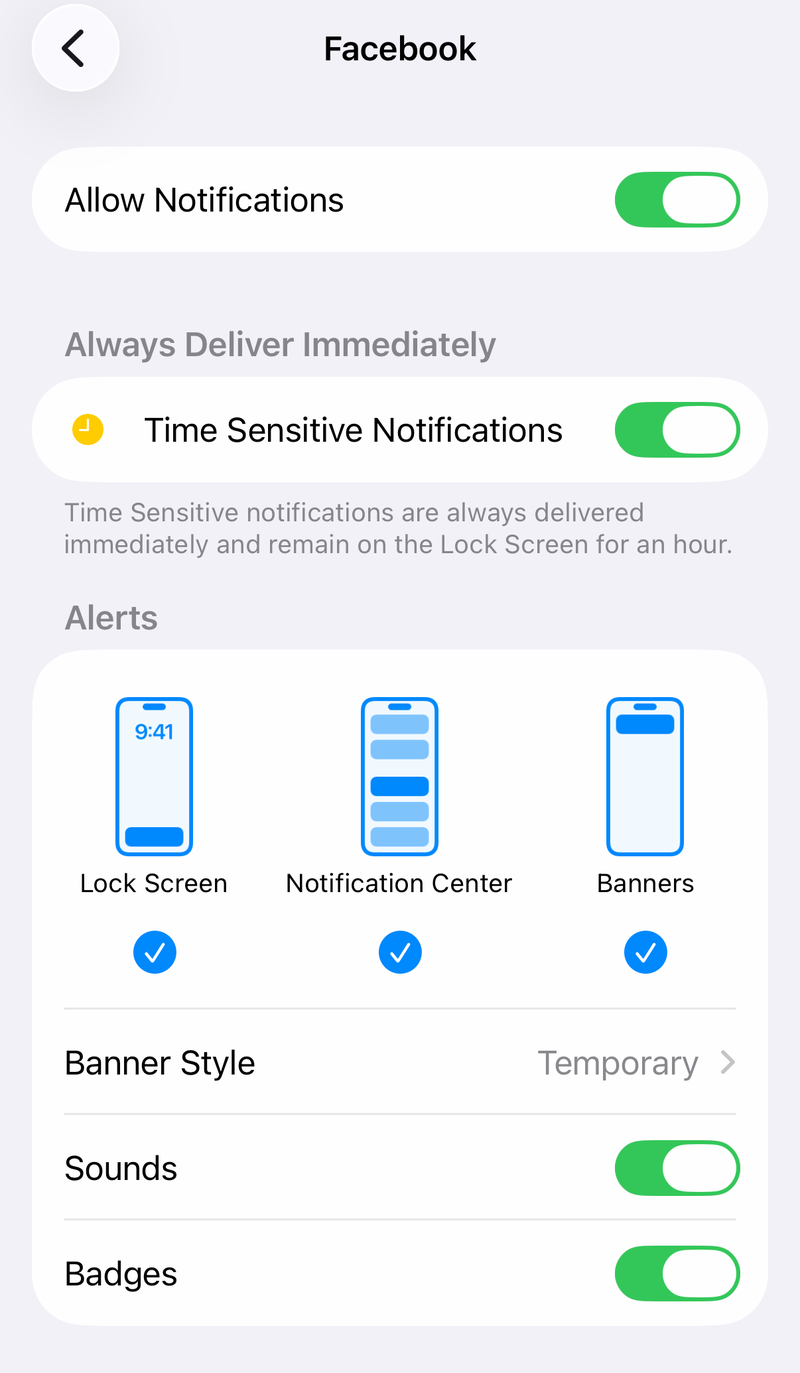
On iPhone or iPad, open Settings > Notifications > Facebook > Allow Notifications. Set alerts, sounds, badges, Lock Screen, Notification Center, and banners.
For camera, microphone, photos, contacts, location, or motion problems on iPhone or iPad, open Settings > Privacy & Security. Choose the data type, tap Facebook, and choose the needed permission.
On Android, open Settings > Apps > Facebook > Permissions. Choose the permission, then select Allow or Don't allow.
9. Sign out or report the bug
If your account works but the session is stuck, tap Menu in the top left of Facebook. Scroll to the bottom, tap Log Out, reopen Facebook, and sign in again.
For sessions on other devices, open Menu > Settings & privacy > Settings > Meta Account > Login and security > Where you're logged in. Choose a device, then tap Log out. If your account shows Select devices, use it to log out of multiple devices.
After the matching local fixes fail, report the bug from the screen where it happened. On mobile, go back to the problem screen, shake your phone, choose Report problem, select Include in report or Don't include, and submit the details.
If your menu shows the reporting path, use Menu > Help & support > Report a problem > Continue to report a problem. For Page or Group admin trouble, use Facebook's Page recovery form or the Group appeal option instead of treating it as an app problem.
Frequently Asked Questions
Why is Facebook not working today when other sites load?
Open Meta Status and check Facebook Login or platform tiles first. If Meta shows no relevant incident, restart Facebook, update the app, and clear the matching app or browser data.
Should I delete and reinstall Facebook?
Do it after closing the app, restarting the device, and updating Facebook. On iPhone or iPad, try Offload App first because it keeps documents and data; Delete App removes the app before reinstalling.
What fixes Facebook on Wi-Fi but not mobile data?
On iPhone, open Settings, tap Cellular, and turn Cellular Data on for Facebook. For Wi-Fi loading problems, reconnect to Wi-Fi or restart the router or modem.
How do I report a Facebook bug from the app?
Return to the screen where the problem happened, shake the phone, tap Report problem, choose Include in report or Don't include, and submit the details.