

Facebook Marketplace search breaks in a few familiar ways: no results, listings from the wrong city, filters that hide everything, or old search suggestions that keep coming back. Start with the Marketplace search controls, then clear the app or browser data that can keep bad results stuck on screen.
These fixes use Meta, Apple, Google, Android, Microsoft, and Mozilla support steps.
1. Use Marketplace Search First
Start in the right search box first. In the Facebook app, tap Menu, next tap Marketplace, then tap Search. Type the item, brand, or category you want.
The main Facebook search bar is not the same as Marketplace search. On desktop, open Facebook in a computer browser, click Marketplace in the left menu, then type in the Marketplace search field.
2. Remove Filters Blocking Results
Open Menu. From there, tap Marketplace. Tap Search and enter your query, and after that, tap Filters.
Check Category, Price, Condition, Date listed, Location, Delivery, and Local pickup. Remove the filters that are too strict, then tap the apply option shown on your screen.
A narrow price range, wrong category, old date filter, or pickup setting can make Marketplace look broken even when search is working. For fresher or closer listings, stay in Filters, open Sort by, then choose Distance or Date listed. Meta says these sort and filter controls are not available on mobile browsers, so use the Facebook app or desktop web.
3. Set The Right Marketplace Location
If Marketplace keeps showing another city, fix the search area before touching app settings. In the Facebook app, tap Menu, then tap Marketplace. Tap the location shown on the right.
Tap the map and move it or search for a new location. Tap Custom local radius and drag the slider, then tap Apply. On desktop, open Marketplace from the left menu and edit the location from the Marketplace filter panel.
4. Give Facebook Location Access
On Android, open Settings. Go to Apps, tap Facebook, open Permissions, choose Location, then allow location access.
On iPhone or iPad, open Settings. Tap Privacy & Security, tap Location Services, turn on Location Services, tap Facebook, then choose an allowed location setting.
Phone-level location permissions matter when local Marketplace results are wrong. For more accurate local listings, enable precise location too. On iPhone or iPad, use Settings > Privacy & Security > Location Services > Facebook > Precise Location. On Android, use Settings > Location > App location permissions > Facebook, choose location access, then enable precise location if that control appears.
5. Restart Facebook Or Refresh Marketplace
Once filters and location are right, refresh the session. On iPhone or iPad, open the App Switcher, swipe to Facebook, and swipe up on Facebook. Open Facebook again from the Home Screen or App Library.
This clears a stuck Marketplace screen without signing you out. On Android, open Recents and swipe Facebook away. You can also open Settings, tap Apps, choose Facebook, tap Force stop, then reopen Facebook.
On desktop web, reload Marketplace. In Chrome on a computer, press F5 or Ctrl+R. To reload while ignoring cached content, press Shift+F5 or Ctrl+Shift+R.
6. Clear Facebook Cache And Browser Data
On Android, open Settings. Tap Apps or Applications, choose Facebook, tap Storage, then tap Clear cache. If Marketplace search is still broken, return to Storage.
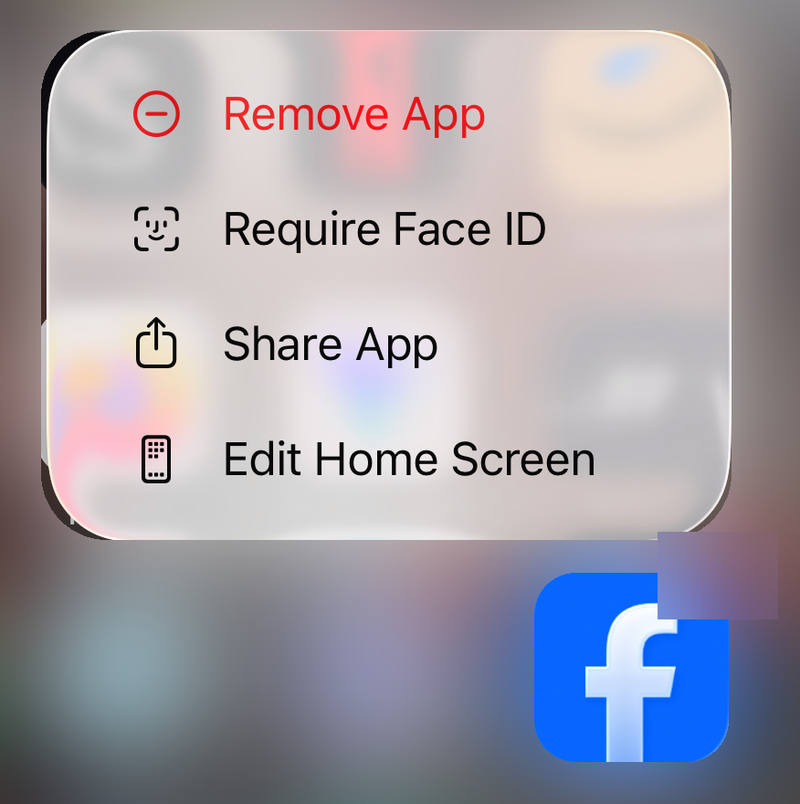
Tap Clear storage or Clear data, then sign back in. On iPhone or iPad, delete and reinstall Facebook to clear the app data. Touch and hold Facebook, tap Remove App, tap Delete App, confirm with Delete, then reinstall Facebook from the App Store.
Bad local data can keep old Marketplace results, cookies, or search pages around. Start with the least disruptive cleanup.
For Facebook in Chrome, open More, choose Delete browsing data, pick a Time range, select Cookies and other site data and Cached images and files, then choose Delete data. In Chrome on Android, tap More > Delete browsing data, choose a time range and data types such as Cookies and site data and Cached images and files, then tap Delete data.
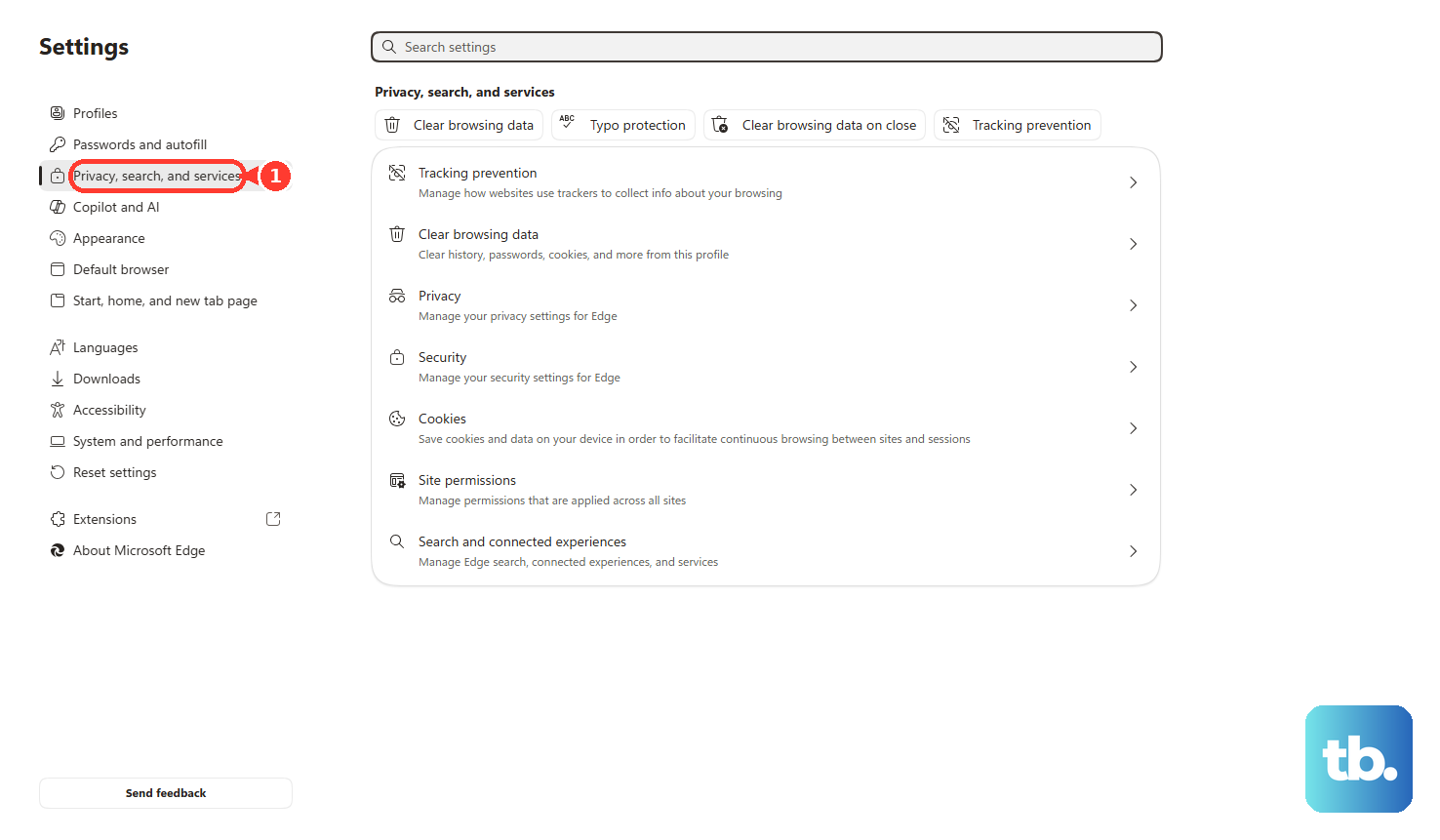
In Microsoft Edge, go to Settings and more > Settings > Privacy, search, and services > Clear browsing data > Choose what to clear. Select a Time range, Cookies and other site data, and Cached images and files, then choose Clear now. You can also press Ctrl+Shift+Del.
In Firefox, open Menu, go to Settings, choose Privacy & Security, then use Cookies and Site Data or Browsing data. Choose Clear Data or Manage Data to remove cookies, site data, and cached web content.
In Safari on iPhone or iPad, open Settings, tap Apps, choose Safari, tap Clear History and Website Data, choose a timeframe, then tap Clear History. On Mac, open Safari, choose History, then choose Clear History.
7. Update Or Reinstall From Official Stores
Update Facebook from the official store for your device.
- 1.On Android, open Google Play.
- 2.Tap your Profile picture.
- 3.Go to Manage apps & device.
- 4.Tap Manage.
- 5.Open Facebook.
- 6.Tap Update.
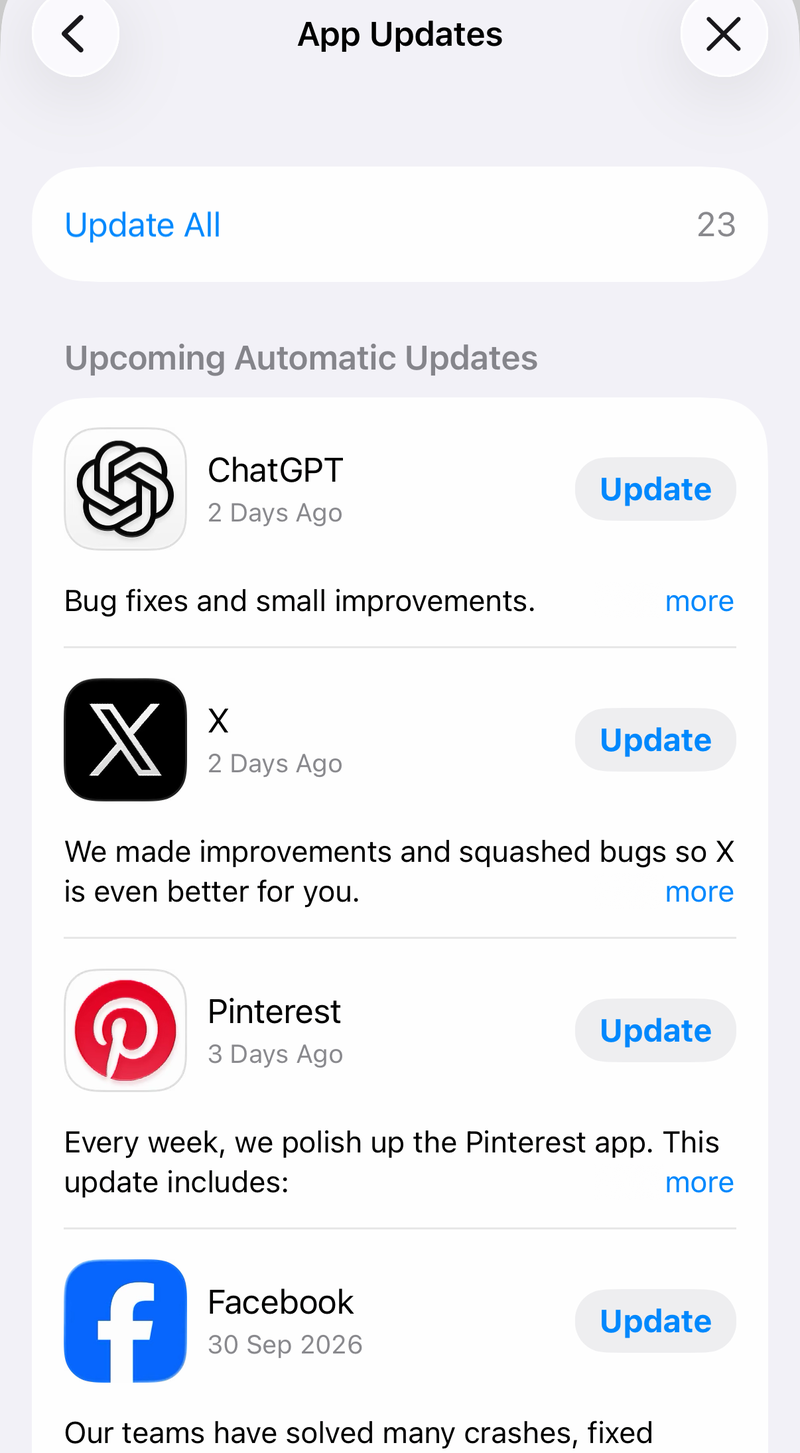
An outdated app build can leave Marketplace search behaving badly. On iPhone or iPad, open the App Store, tap the My Account button or your photo, go to App Updates, then tap Update next to Facebook.
You can also use Meta’s official Facebook install page and follow the App Store or Google Play prompt for your device. Do not use third-party APK sites or old Facebook versions as a Marketplace search fix.
8. Fix Account Access Or Report The Bug
When Facebook shows a Marketplace warning, limit, or suspension, request review from the app. Go to your profile, tap Profile status, and select Marketplace under Extra features. Tap Fix it now, choose Request review, then follow the prompts.
If the problem is stale search suggestions, clear recent searches instead. In the Facebook app, tap Search in the top right, tap See all, choose Clear all, then confirm with Clear all.
For a repeatable Marketplace search bug, report it from the problem screen. Shake your phone, tap Report a problem, choose Include in report, describe the issue, then submit it.
You can also use Menu > Help & support > Report a problem > Continue to report a problem or Continue to report > Include in report.
If the account cannot fully use Marketplace, search will not behave like a normal Marketplace search. Meta says Marketplace is available in many countries for adults with active Facebook accounts, and users in the United States must be at least 18.
Frequently Asked Questions
Why does Facebook Marketplace search show no results?
Use the Marketplace search box, remove strict filters, reset the location radius, and check Marketplace access on the account. Those are the main search-specific causes covered by Meta’s help pages.
Why are Marketplace results coming from the wrong area?
Edit the Marketplace location and radius inside Filters, then allow Facebook location access in the phone’s settings. Turn on precise location for more accurate nearby results.
Can I sort Marketplace results from a mobile browser?
No. Meta says sorting and filtering by distance or new listings is not available on mobile browsers. Use the Facebook app or desktop web.
Does clearing Facebook search history fix Marketplace search?
It only fixes stale search suggestions. It will not restore missing Marketplace access or change the listings shown by filters, location, or account limits.
Should I wipe the Android system cache partition for Marketplace search?
No. Use the current app-level path instead: Settings, Apps, Facebook, Storage, then Clear cache or Clear data.