When drag and drop stops working in Outlook, moving mail or attaching files turns into extra clicks fast. The fix depends on where you use Outlook: classic Outlook, new Outlook, Outlook on the web, or Outlook for Mac. Start with the Windows and Outlook fixes below, then use the browser, device, or account-specific steps that match your setup.
Install the Windows fix first
If you use classic Outlook for Microsoft 365 on Windows 11 version 24H2, install the current Windows cumulative update before changing Outlook settings. Microsoft fixed a drag-and-drop regression that affected classic Outlook after early 2025 Windows updates, especially on some high-DPI or legacy DPI scaling setups.
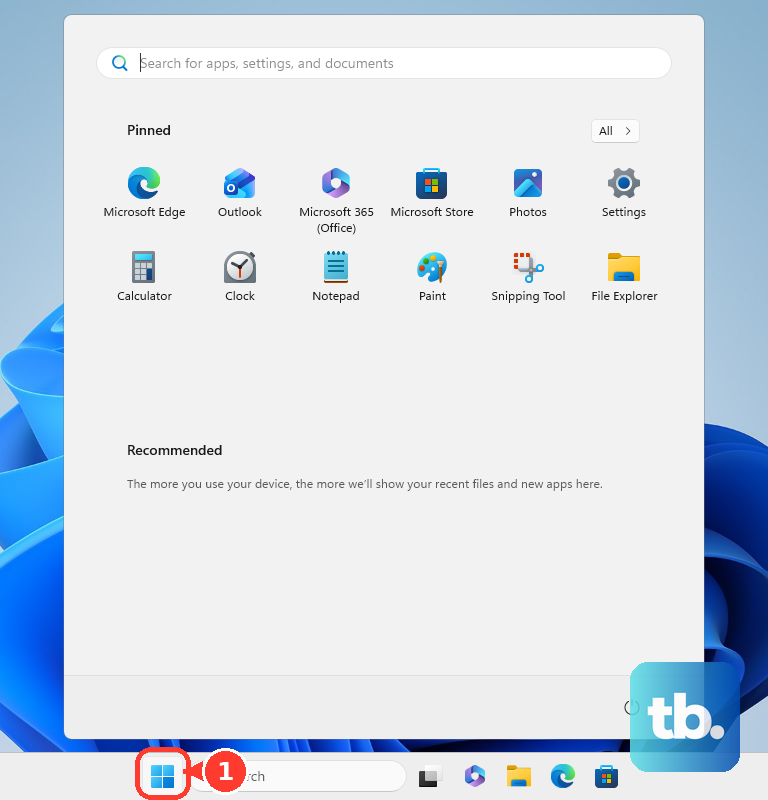
Open Start, go to Settings, choose Windows Update, and select Check for updates. Install the available cumulative update, including KB5052093 or any later cumulative update, then restart Windows.
After Windows starts again, open Outlook and drag a message to a folder. If drag and drop still fails, change Outlook’s display compatibility setting next.
Change Outlook display compatibility
On affected Windows 11 24H2 PCs, the most common Outlook-specific cause is the classic Outlook display compatibility setting.
Open classic Outlook and select File. Choose Options, then General. Under User interface options, select Optimize for best appearance instead of Optimize for compatibility.
Close Outlook, reopen it, and test the same drag again. This workaround applies to the same classic Outlook regression that Windows updates fix, so use it when you cannot update immediately.
Update Outlook and Office
Outdated Office components break normal Outlook behavior, including moving messages between folders. In classic Outlook, go to File, then Office Account, then Update Options, and select Update Now.
If Update Now is missing, select Enable Updates first. Return to Update Options and run the update.
Restart Outlook after the update finishes. When Outlook’s update menu is not available, open Start, then Settings, then Windows Update, then Advanced options, and turn on Receive updates for other Microsoft products when you update Windows.
Test classic Outlook without add-ins
These add-in steps apply to classic Outlook. They fix drag and drop when an Outlook add-in is interfering with messages, folders, or compose windows. New Outlook uses a different safe mode command, olk.exe --safe, which also turns off web add-ins and some other features.
Close classic Outlook completely.
Press Windows + R, type Outlook.exe /safe, and select OK.
If Outlook asks for a profile, choose the default profile and select OK.
Try dragging a message to a folder while Outlook is in Safe Mode.
Restart Outlook normally.
Go to File, Options, Add-ins, Manage, COM Add-ins, and Go.
Clear the add-in check boxes and select OK.
Select File, then Exit.
Reopen Outlook and turn add-ins back on one at a time until the broken drag behavior returns.
Use the built-in move or attach commands
When drag and drop is temporarily broken, the fastest workaround is Outlook’s supported move, copy, and attach commands.
In new Outlook or Outlook on the web, select the message, use the ribbon’s Move group, and choose Move. You can also right-click the message, choose Move or Copy to folder, and pick the destination folder.
In classic Outlook, select the item, open the ribbon’s Move group, choose Move, and select a folder. If the folder is not shown, choose Other Folder; for copying, use Copy to Folder.
For keyboard moving in classic Outlook, select the item, press Ctrl + X to move or Ctrl + C to copy, open the destination folder, and press Ctrl + V.
For attachments, open a draft and use Attach File instead of dropping the file into the message. In new Outlook, use New mail, Message, Insert, and Attach File; in classic Outlook, use the draft’s Message tab, Include, and Attach File.
Fix Outlook on the web in your browser
Use this method when drag and drop fails in Outlook on the web or Outlook.com, but the Outlook desktop app works. Browser support, browser updates, and extensions are the right places to check.
Open Outlook on the web in a supported current browser. On Windows 11, use Microsoft Edge, Mozilla Firefox, or Google Chrome; on macOS, use Microsoft Edge, Safari 16 or higher, Mozilla Firefox, or Google Chrome.
Update the browser before testing again. In Microsoft Edge, open Settings and more, then Help and feedback, then About Microsoft Edge. In Chrome, open More, then Help, then About Google Chrome, and select Relaunch when prompted.
Turn off browser extensions that interfere with Outlook.com, especially ad blockers and popup blockers. In Edge, open Extensions, then Manage extensions. In Chrome, open More, then Extensions, then Manage extensions. Turn off the extension, reload Outlook, and test again.
Check the mouse or trackpad
If drag and drop fails outside Outlook too, the problem is the input device rather than Outlook. On Windows, open Start, then Settings, then Bluetooth & devices, then Mouse, and confirm the primary mouse button and pointer speed are set correctly.
For a laptop touchpad that cannot drag reliably, use Windows Update to get touchpad driver updates. You can also update or reinstall the touchpad driver from Device Manager, then restart Windows if prompted.
On a Mac trackpad, enable dragging from Apple menu, System Settings, Accessibility, Pointer Control, and Trackpad Options. Turn on Use trackpad for dragging, choose Three Finger Drag, select OK, and try Outlook again.
If the mouse or trackpad works normally in other apps but Outlook still refuses to drag, repair the Outlook setup next.
Repair the Outlook setup
Use these repair steps after updates, display settings, add-ins, browser checks, and input-device checks have not solved the problem.
- 1.Create a new classic Outlook profile by holding Shift while starting Outlook, choosing Options, selecting New, entering a profile name, and adding your email account.
- 2.Reset the classic Outlook navigation pane only when the folder pane or folder targets are broken: close Outlook, press Windows + R, type Outlook.exe /resetnavpane, and select OK.
- 3.Repair Office on Windows by right-clicking Start, opening Installed apps, selecting your Microsoft 365 or Office product, choosing the ellipsis, then Modify. For a Click-to-Run installation, the most common type, choose Online Repair, then Repair. For an MSI-based installation, in Change your installation select Repair, then Continue.
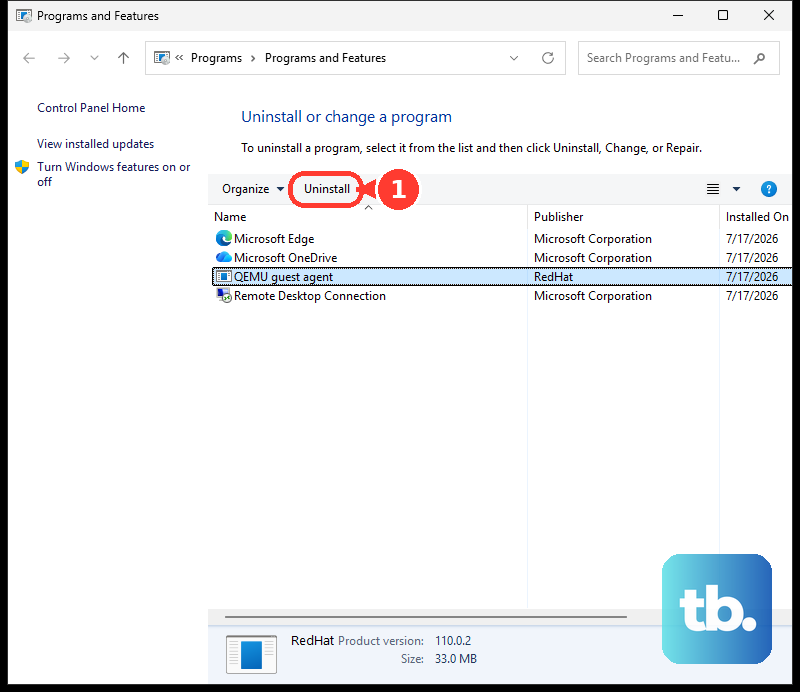
- 4.Reinstall Microsoft 365 or Office only after the earlier repair steps fail. Uninstall it from Control Panel, Programs, and Programs and features, then reinstall from m365.cloud.microsoft/apps by signing in and choosing Install apps.
Work and school accounts
This fixes cases where the issue is tied to a Microsoft 365 service incident or a managed device restriction rather than your local Outlook app.
For a work or school account, ask your Microsoft 365 admin to check Service health in the Microsoft 365 admin center for Outlook or Exchange Online incidents.
If no incident is listed, ask the admin to select Report an issue and complete the form.
If you use a managed Windows device and file dragging fails in browser-based Outlook, ask IT to review the policy at Computer and User Configuration, Windows Components, Internet Explorer, Internet Control Panel, Security Page, Internet Zone, and Allow drag and drop or copy and paste files.
Ask IT to set that policy to Enabled or Not configured when users should be allowed to drag files or copy and paste from that zone.
Frequently Asked Questions
Why can’t I drag emails into folders in classic Outlook?
On Windows 11 version 24H2, Outlook for Microsoft 365 (classic Outlook) had a drag-and-drop regression that KB5052093 and later cumulative updates fix. Add-ins, a damaged Outlook profile, or a broken folder pane can also cause it.
Can I still move messages without drag and drop?
Yes. Select the message and use Outlook’s Move command, or right-click the message and choose Move or Copy to folder. In classic Outlook, Ctrl+X or Ctrl+C, then Ctrl+V in the destination folder, is also supported.
Why won’t files drag into Outlook on the web?
Use a supported current browser, update it, and turn off extensions such as ad blockers or popup blockers before testing again. On managed work devices, company policy can also block file drag and drop in browser security zones.
Does pressing Esc fix Outlook drag and drop?
No. Use the current update, add-in, profile, repair, browser, input-device, and admin-service steps instead.











