Your Zoom meeting ended, but the local recording is still stuck as double_click_to_convert files instead of a playable video. That means Zoom's desktop app still has to convert the raw computer recording, and the fix has to happen on Windows, macOS, or Linux because local computer recording is not supported on iOS, iPad, or Android. Start with Zoom's own conversion screens, then repair the file association, storage location, or app install only if the recording still refuses to convert.
Let Zoom finish the conversion
End the meeting normally, then leave Zoom open while it converts the local recording.
Keep the computer awake, keep the disk active, and wait until Zoom finishes creating the playable recording.
Do not close the laptop, shut down or restart the computer, or rename the double_click_to_convert.zoom files while conversion is running.
If conversion does not start after Zoom is open and the computer stays awake, convert it from Zoom's recordings screen next.
Convert from the current Zoom recordings screen
Often the computer recording still exists and Zoom simply has not been told to convert it from the recordings page.
Sign in to the Zoom Workplace desktop app and select the Home tab.
Click Open recordings, then open My files, Meeting recordings, and Computer recordings.
Find the recording that shows Convert, then click Convert.
This path applies to computer recordings saved on the same Windows, macOS, or Linux computer where they were created, with Zoom Workplace at Zoom's current global minimum version or higher.
Double-click the right Zoom file
Open the local recording folder that contains the failed recording.
Find double_click_to_convert_01.zoom and double_click_to_convert_02.zoom.
Double-click double_click_to_convert_01.zoom to start conversion in Zoom.
Zoom's manual conversion step points at double_click_to_convert_01.zoom specifically, so if that file does not launch conversion, use the Convert button in the desktop app or repair the file association below instead of double-clicking the other numbered files.
Leave the file names unchanged because renaming a .zoom file to .mp4 or .mpeg does not transcode the recording.
Find the local recording folder
Use this when you do not know where Zoom saved the local recording, or when the files were moved and double-clicking no longer works.
Sign in to the Zoom Workplace desktop app and click your profile picture.
Open Settings, select the Recording tab, and check Local recording storage.
Click Open beside Storage location to open the folder directly.
Click Change only for future recordings, then choose a valid local folder on the computer.
Keep future local recordings out of Dropbox, Google Drive, OneDrive, external drives, and network storage because Zoom flags those locations for saving and conversion problems.
Repair the Windows file association
When Windows asks how to open the .zoom file, assign it to Zoom's converter.
- 1.In How do you want to open this file, choose More apps.
- 2.Click Browse, then open
C:/Users/(PC username)/AppData/Roaming/Zoom/bin. - 3.Select
zTscoder.exe; if it is missing, skip to the reinstall section below. - 4.Select Always use this app to open .zoom files when you want future double-clicks to use Zoom automatically.
- 5.Click OK and wait for conversion to finish.
Set the Zoom converter on macOS
Use this when double-clicking a .zoom file on a Mac does not launch conversion, and Zoom Workplace is installed with its Transcode component present.
From the desktop, click Go, then Applications.
Find zoom.us, right-click the folder, and choose Show Content package.
Open Contents, then Frameworks.
Find Transcode, right-click it, and copy it.
Open Applications in Finder and paste Transcode there.
Return to the recording folder, right-click double_click_to_convert_01.zoom, and choose Get Info.
Set Open with to Transcode, then double-click double_click_to_convert_01.zoom.
Free disk space before you retry
Check the available storage on the computer where the Zoom recording was made.
Free space on the drive if it is low or Zoom shows Error Code 614.
Retry conversion from Zoom's Convert button, or double-click double_click_to_convert_01.zoom.
Keep the raw .zoom files in place until Zoom finishes creating the playable recording.
Update or reinstall Zoom Workplace
Zoom's converter ships inside the app itself: zTscoder.exe in Zoom's bin folder on Windows, and Transcode inside the zoom.us app on macOS. Updating or reinstalling Zoom Workplace puts those files back when one of them is missing from your install.
Sign in to the Zoom desktop app.
Click your profile picture.
Choose Check for Updates.
Install the newer version when Zoom offers one.
If conversion still fails, open Zoom's official Download Center.
Download the current Zoom Workplace installer for your computer.
On Windows, open Control Panel.
Choose Uninstall a Program or Programs and Features.
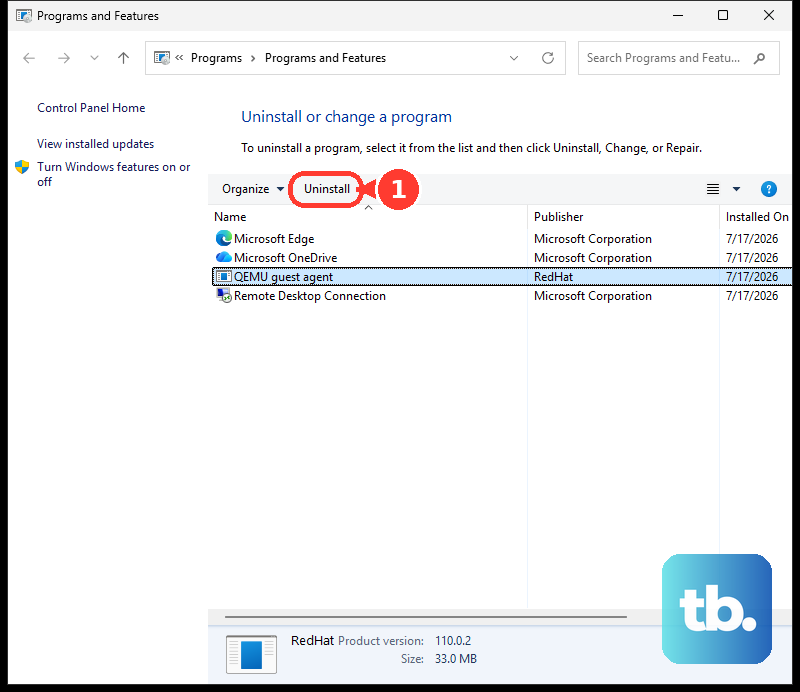
Select zoom.us or Zoom Workplace.
Click Uninstall.
Click Yes to confirm.
Reinstall Zoom from the Download Center.
On macOS, open Zoom and choose Zoom Workplace in the top toolbar.
Select Uninstall Zoom Workplace.
Click OK.
Reinstall Zoom from the Download Center.
On Linux, run the removal command for your distribution: sudo apt remove zoom, sudo zypper remove zoom, or sudo yum remove zoom.
Reinstall Zoom from the Download Center.
Handle work computers and old online fixes
When Check for Updates is missing on a managed Windows computer, check whether the MSI version is installed. Right-click the Zoom desktop shortcut, open Properties, and check Target; a path under Users points to EXE, while Program Files or Program Files (x86) points to MSI. For MSI installs, contact your IT team or Zoom account admin.
Zoom currently documents two routes to the same Convert action, and which one you see depends on the version and layout of your Zoom Workplace app. Zoom's computer-recordings article sends you through Home, Open recordings, My files, Meeting recordings, Computer recordings, and Convert. Zoom's computer-recording troubleshooting article still publishes the older surface: Meetings tab, Recorded tab, the meeting topic with the computer recording, then Convert. Try the recordings screen first, and use the Meetings route if that is the layout your app shows.
Do not downgrade Zoom to old 4.x builds or rename .zoom files to .mp4. Zoom's August 1, 2026 minimum enforcement is 5.17.5 for Windows and 6.0.2 for macOS, Linux, Android, iOS, and Intune, and renaming does not convert the recording.
For future meetings, enable local recording in the Zoom web portal under Settings, Recording, and Record to computer files. If you are a licensed user on a Pro, Business, or Enterprise account with cloud recording enabled, choose More, Record, and Record to the cloud during the meeting to avoid local conversion files.
Frequently Asked Questions
Can I open a computer recording from the Zoom web portal?
For a recording that appears there, yes. Sign in to the Zoom web portal, open Recordings & Transcripts, choose Computer recordings, and click Open beside the recording. The browser opens the Zoom desktop app and redirects to the file location.
Why does the web portal not show my computer recording?
Treat the Zoom web portal's Computer recordings view as incomplete for local recordings. Playback also requires the same device that made the recording, so use the desktop recordings screen or the local storage folder when the portal view is empty.
How do I make future Zoom meetings record automatically?
In the Zoom web portal, open Settings, Recording, enable Automatic recording, choose Record to computer or Record in the cloud, and click Save. This affects new meetings after the setting change; edit existing meetings and PMI separately.
Should I use CleanZoom before reinstalling?
Use standard uninstall first. Clean removal can remove local Zoom settings and cryptographic keys, so reserve it for cases where standard reinstall fails.