Discord’s Installation has failed message leaves you stuck before the app even opens. Start with a clean reinstall: close Discord, remove its local folders, restart Windows, and download a fresh installer. If that error returns, work through the checks below to address permissions, storage, and connection or security blocks.
Give Discord a clean installation
Quit Discord from the Windows system tray.
Press Ctrl+Shift+Esc to open Task Manager.
Select each Discord process and choose End task, repeating until no Discord processes remain.
Close any Discord browser tabs.
Press Windows+R, enter %appdata%, and press Enter.
Before deleting anything, back up any Discord settings or local data you want to keep.
Delete only the Discord folder inside that location. This cleanup removes local Discord data and settings.
Press Windows+R again, enter %localappdata%, and press Enter.
Delete only the Discord folder in this second location.
If Windows says files are in use, return to Task Manager and use End task on the remaining Discord processes before retrying the deletion.
Save your work before restarting.
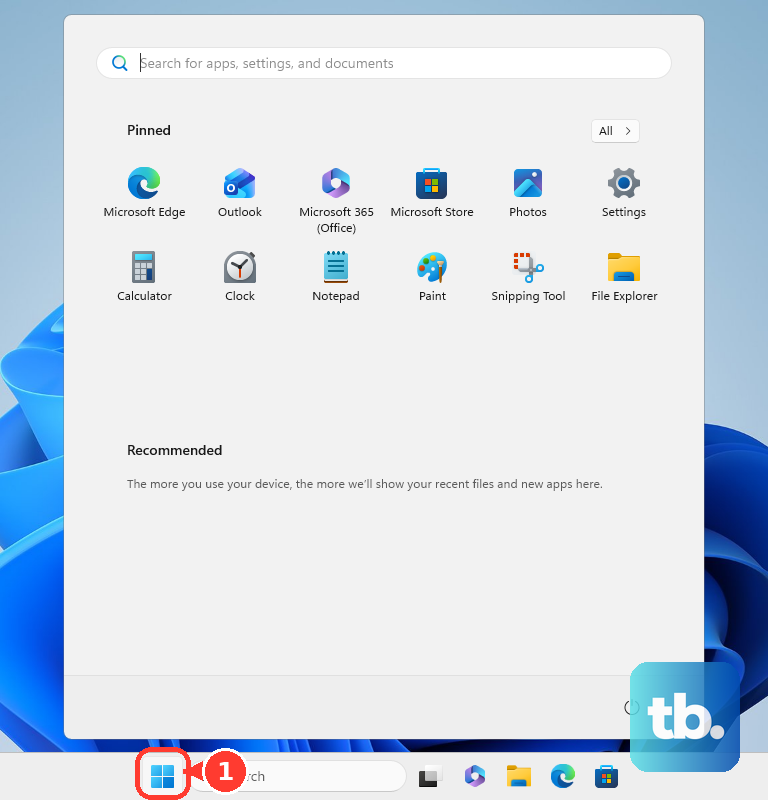
Select Start > Power > Restart.
After signing in, open Discord’s official download page.
Under Windows, choose x64 for an Intel or AMD 64-bit PC, or ARM64 for an ARM-based PC.
Run the newly downloaded installer.
Remove an existing installation and address permissions
A corrupt existing installation or a permission failure blocks setup from completing.
If Discord still appears in your installed-app list, uninstall it through Windows. Skip removal if it is absent.
On Windows 11, open Start > Settings > Apps > Installed apps.
Find Discord and select More (…) > Uninstall.
On Windows 10, search for Control Panel. This route also works on Windows 11.
Open Programs > Programs and Features.
Select Discord and choose Uninstall.
After uninstalling, repeat the Discord folder cleanup above.
Restart Windows through Start > Power > Restart.
For a permissions-related failure, right-click the fresh official installer and select Run as administrator.
Approve the Windows elevation prompt using an administrator account to run setup.
Make sure your Windows installation is supported
The installer needs to match your PC. Discord lists Windows 10 or later and requires supported 64-bit Windows; support for 32-bit Windows ended on June 15, 2024.
Search Start for “about”.
Open About your PC.
Check System type for your Windows architecture. A 32-bit installation requires migration to supported 64-bit Windows. Choosing a different installer cannot make that change.
For 64-bit Windows, retry with the matching x64 or ARM64 download.
If the matching installer still fails, check storage and Windows updates next. If your operating system needs upgrading, use Discord in a supported desktop browser in the meantime.
Free up storage and install Windows updates
When your system drive is low on space, open Start > Settings > System > Storage > Cleanup recommendations on Windows 11. Review Temporary files and select Clean up only for files you are ready to remove.
On Windows 10, search for Disk Cleanup. Select the system drive and choose OK. Review the file categories before confirming removal.
On Windows 11, check for updates through Start > Settings > Windows Update > Check for updates. On Windows 10, use Settings > Update & Security > Windows Update > Check for updates. Ordinary free Windows 10 support ended in October 2025.
Install applicable updates. Restart Windows through Start > Power > Restart. Retry Discord setup after signing in.
Check a VPN or proxy connection
An interfering VPN or proxy disrupts Discord’s download or installation.
Temporarily disconnect your VPN through its own app. Follow any work or school network requirements.
Retry the official download and installer.
Alternatively, connect your PC to another trusted, working internet connection.
Retry the download and installation on that connection.
If you use a proxy, record its original settings before making changes.
Open Settings > Network & internet > Proxy.
For an enabled manual proxy, select Set up next to Use a proxy server to open Edit proxy server.
Turn Use a proxy server off.
Select Save.
For a configured setup script, select Set up next to Use setup script instead. In Edit setup script, turn Use setup script off and select Save.
Retry Discord setup with the interfering connection disabled.
Restore your original proxy settings if required.
Resolve a confirmed antivirus block
If Microsoft Defender blocked the official installer, check the event before allowing anything through.
- 1.Open Windows Security > Protection history.
- 2.Expand the event associated with the Discord installer and review the detection. Do not allow an unexplained detection.
- 3.For a quarantined file confirmed to be safe, select Restore. For a blocked event confirmed to be a false positive, choose Actions > Allow instead.
- 4.If Defender detects the confirmed-safe restored file again, select Allow on device.
- 5.Retry the official Discord installer. If you used Actions > Allow, Defender has already removed the blocked file, so download a fresh installer from Discord’s official download page first.
Get help when setup still fails
Still getting the same error? Follow Discord’s support ticket instructions to its support portal and select Sign in. Help Center credentials are separate from your Discord app credentials; select Sign Up and activate the account by email if you need a support account.
Choose Submit a request and select the relevant support category. Complete Subject and Description with your Windows version, architecture, error, and fixes already tried.
Attach an error screenshot and any available setup log using Add file. Select Submit to send the request.
While you wait, open Discord’s Getting Started page and select web client to sign in through a supported desktop browser. This gives you access to Discord while the installation problem remains unresolved.
Frequently Asked Questions
Should I install .NET Framework 4.5 to fix Discord setup?
No. Windows 10 22H2 includes .NET Framework 4.8, and current Windows 11 releases include 4.8.1. Microsoft does not allow an earlier 4.x version to be installed over a later one. Investigate an actual framework error instead of trying to downgrade.
What if Windows only permits apps from Microsoft Store?
Outside S mode, open Settings > Apps > Advanced app settings > Choose where to get apps on Windows 11 and select Anywhere. On Windows 10, open Settings > Apps > Apps & features > Choose where to get apps and choose the option permitting apps from anywhere. Leaving S mode is a separate, free, permanent change. Using Discord in a desktop browser avoids that change.
What should I do on a work or school PC?
If Windows says settings are managed or prevents a required change, contact your device administrator with the installer error and your request to install Discord. There is no universal consumer override for organizational restrictions.
Can I use Discord on my phone while the Windows installer is broken?
Yes. Install the official Discord app from Google Play or the Apple App Store and sign into your existing account. Discord does not support its mobile-browser experience.