Discord can be open, messages can arrive, and the familiar ping can still stay silent. When Discord notification sounds are not working, the cause usually sits in Discord sound settings, server or channel notification rules, or your device notification controls.
Start inside Discord, then move outward to Windows, Mac, mobile, or browser permissions.
Check Discord sound toggles first
Open Discord on desktop or web and go to User Settings Notifications Sounds. Turn on the sounds you expect to hear, especially Message, Mention, Call rings, Users joining or leaving voice, Deafen, and Mute.
Stay in User Settings Notifications and turn Enable Desktop Notifications on. Discord says this controls desktop pop-up notifications, while in-app sounds can still play separately.
Send yourself a test message or ask someone to mention you. If the ping returns, the problem was Discord's own notification sound settings.
Switch off Do Not Disturb
Use this when Discord is silent across more than one server or device. Discord says Do Not Disturb is the status that silences sounds, and the status follows your account across desktop and mobile.
Click your avatar in the bottom-left corner of Discord.
Open the status menu and choose Online instead of Do Not Disturb.
If Do Not Disturb was set for a duration, wait for it to expire or change your status manually. Mobile push notifications can still appear while this status is active, but desktop sound stays muted until the status changes.
Unmute the server that went quiet
This fixes missing sounds from one server while other Discord notifications still work.
On desktop or web, right-click the server icon or open the server dropdown at the top of the server.
Choose Notification Settings.
Turn Mute Server off.
Select All Messages or Only @mentions, depending on which notifications should make sounds.
On mobile, tap the server name.
Select Notifications to open that server's notification screen, then look under Server Notification Settings.
Choose All Messages or Only @mentions.
Keep Mobile Push Notifications enabled when you want phone alerts for that server.
Fix channel notification overrides
The most common cause is a single channel or category overriding the server's normal notification behavior.
On desktop or web, right-click the channel and open Notification Settings.
Choose Use Server Default, All Messages, or Only @mentions.
Avoid Nothing and Mute when you expect sound from that channel.
You can also open the server's Notification Settings, go to Notification Overrides, select the channel or category, and set it to All or Mentions.
On mobile, long-press the channel and open Notifications Settings.
Review Streamer Mode
Streamer Mode can suppress Discord sounds and notifications while you are sharing or recording.
- 1.Open Discord on desktop and go to User Settings Streamer Mode.
- 2.Turn Enable Streamer Mode off.
- 3.Turn Disable Sounds off when you want notification audio.
- 4.Turn Disable Notifications off when you want notification alerts.
- 5.If OBS or XSplit keeps re-enabling it, turn Automatically Enable/Disable off.
Check Windows or Mac notification sound controls
The most common cause outside Discord is the operating system blocking notifications, muting the app, or sending sound to the wrong output.
On Windows 11, open Start Settings System Notifications.
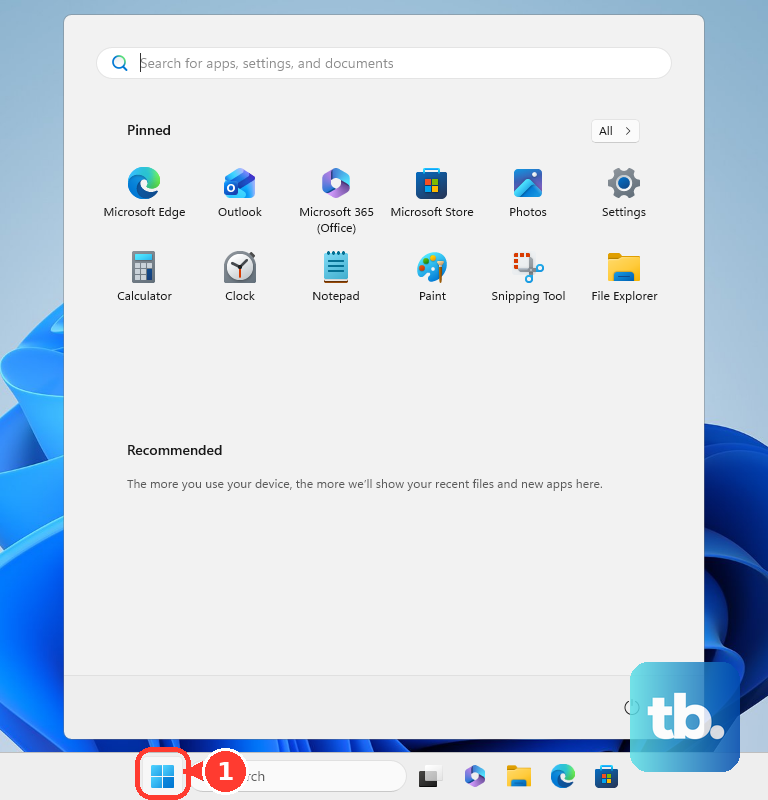
Turn Notifications on, select Discord, turn its notifications on, and enable Play a sound.
On Windows 10, open Settings System Notifications & actions.
Turn Get notifications from apps and other senders on, select Discord, and enable Play a sound when a notification arrives.
Use the speaker icon or Quick Settings to unmute Windows and raise volume.
Open Settings System Sound Volume mixer and make sure Discord, or the browser running Discord, is not muted and is using the expected output device.
On macOS, open Apple menu System Settings Notifications.
Select Discord or the Discord website under Application Notifications, turn Allow notifications on, choose an alert style, and enable the sound-related notification options.
Use the volume keys or Control Center Sound to raise Mac volume.
Open Apple menu System Settings Sound Output, choose your speakers or headphones, raise Output volume, clear Mute, and check Alert volume.
Clear Focus and Do Not Disturb on your device
Windows 11 can silence notifications when Do not disturb is active. Open notification center by selecting the clock or notification bell, or press Windows key + N, then select the bell with zZ to turn it off.
To stop Windows from enabling it automatically, open Start Settings System Notifications, expand Turn on do not disturb automatically, and disable rules such as During certain time of the day, When duplicating the display, When playing a game, and When using an app in full-screen mode.
On macOS, open Control Center Focus and turn off Do Not Disturb or the active Focus.
To allow Discord during a Focus, open Apple menu System Settings Focus, select the Focus, click Allowed Apps, choose Allow Some Apps from the Notifications pop-up menu, then add Discord.
If this method fails, check Discord's server and channel settings again, because Focus can be clear while Discord itself is still muted.
Fix Discord notification sounds on mobile
On Discord mobile, tap the Notifications icon to the right of your profile, tap the ellipsis in the top-right corner, and open Notification Settings. You can also tap your profile icon in the bottom-left, tap the Settings icon on your profile card, then open App Settings Notifications.
Turn In-app notification on. Discord says you will not receive notifications while Discord is open and in focus on the device.
On Android, open Settings Notifications App notifications Discord and turn All Discord notifications on. Then open categories such as Server Messages or Social Direct messages and make sure the categories you expect are enabled and not silent.
On iPhone or iPad, open Settings Notifications Discord, turn Allow Notifications on, choose the alert locations you want, and turn Sounds on. Also check Settings Focus for an active Focus such as Do Not Disturb, Personal, Sleep, or Work, and either allow Discord or turn the Focus off from Control Center.
Repair the app or browser setup
Use these last when Discord's own notification settings and your device sound settings already look right.
- 1.Refresh Discord desktop with Ctrl+R on Windows or Linux, or Cmd+R on macOS.
- 2.Completely quit Discord, including the tray or menu bar copy, then reopen it.
- 3.Install the current desktop app from https://discord.com/download for Windows, Mac, or Linux.
- 4.For Discord in Chrome, Safari, Firefox, or Edge, allow notifications for https://discord.com in the browser's notification or site-permission settings.
- 5.On a school or work-managed device, ask the device admin to check whether OS or browser notification policies block Discord.
On Windows, reserve a clean reinstall for persistent app-side failures after the settings checks. Close Discord from the system tray, end Discord processes, delete the Discord folders from %appdata% and %localappdata%, restart Windows, then reinstall from Discord's official download page.
Older guides may mention seasonal event sound packs or unofficial client mods for changing notification sounds. Do not use those as current supported fixes; use Discord's built-in User Settings Notifications Sounds controls and your OS notification settings instead.
Frequently Asked Questions
Why do Discord sounds work in some servers but not one specific server?
That usually means the server is muted or a channel override is set to Nothing, Mute, or mentions only. Check the server's Notification Settings first, then the quiet channel's Notification Settings.
Does Discord Do Not Disturb stop notification sounds on every device?
Discord says Do Not Disturb is the status that silences sounds and follows your account across desktop and mobile. Mobile push notifications can still appear, but sound stays muted until you switch status.
Why do I see Discord notifications but hear no sound on Windows?
Windows can allow notifications while the app or notification sound is muted. Check Discord under Windows Notifications, then check Volume mixer for Discord or the browser running Discord.
Can I choose custom Discord notification sounds on iPhone?
The current official iOS control is the Sounds on/off toggle for Discord notifications. Apple does not expose full custom per-app Discord sound selection there.