
Seeing a notification badge on your Messages app but finding no new texts when you open it can be frustrating. Check your notification settings and try the troubleshooting steps below to address the incorrect count.
Force Quit and Relaunch the Messages App
Start with the quickest fix. Swipe up from the bottom of your screen and pause in the middle to open the app switcher. Find the Messages app card and swipe it all the way up to close it. Then, tap the Messages icon on your Home Screen to reopen it. Reopening the app may help clear a stuck notification badge.
Restart Your iPhone 17
A full restart clears out temporary system glitches that can confuse the notification system. It's a good next step if force quitting didn't work. Just go to Settings > General > Shut Down, slide to power off, and turn it back on after 30 seconds.
If your iPhone is unresponsive, try a force restart. This doesn't erase any data. Quickly press and release the Volume Up button, then quickly press and release the Volume Down button. Finally, press and hold the Side button until you see the Apple logo appear on the screen.
Check Your Focus Modes
Focus modes are powerful, but they can silently filter notifications. Swipe down from the top-right corner to open Control Center and look at the Focus icon. If any Focus (like Work, Sleep, or Personal) is active, it might be hiding notification badges for Messages.
You can also check and customize this by going to Settings > Focus. Tap on the active Focus and review "Allow Notifications" to make sure Messages is not being silenced.
Review Messages Notification Settings
It's possible the notification settings for the Messages app got changed. Open Settings, tap Apps, then tap Messages. Tap on Notifications.
Here, make sure "Allow Notifications" is turned on. Check that "Badges" is enabled. Under "Alerts," choose where you want notifications to appear. Tap "Sounds" to enable audio alerts, and make sure your phone isn't silenced or its volume turned down completely.
Check for Thread-Specific Notification Mutes
You can mute notifications for individual message threads. Open the Messages app and look for a conversation that has a bell icon with a slash through it next to the contact's name. If you see that, alerts for that specific chat are muted.
To unmute it, tap the contact's name or info icon at the top of the conversation, and turn off the "Hide Alerts" toggle.
Update iOS to the Latest Version
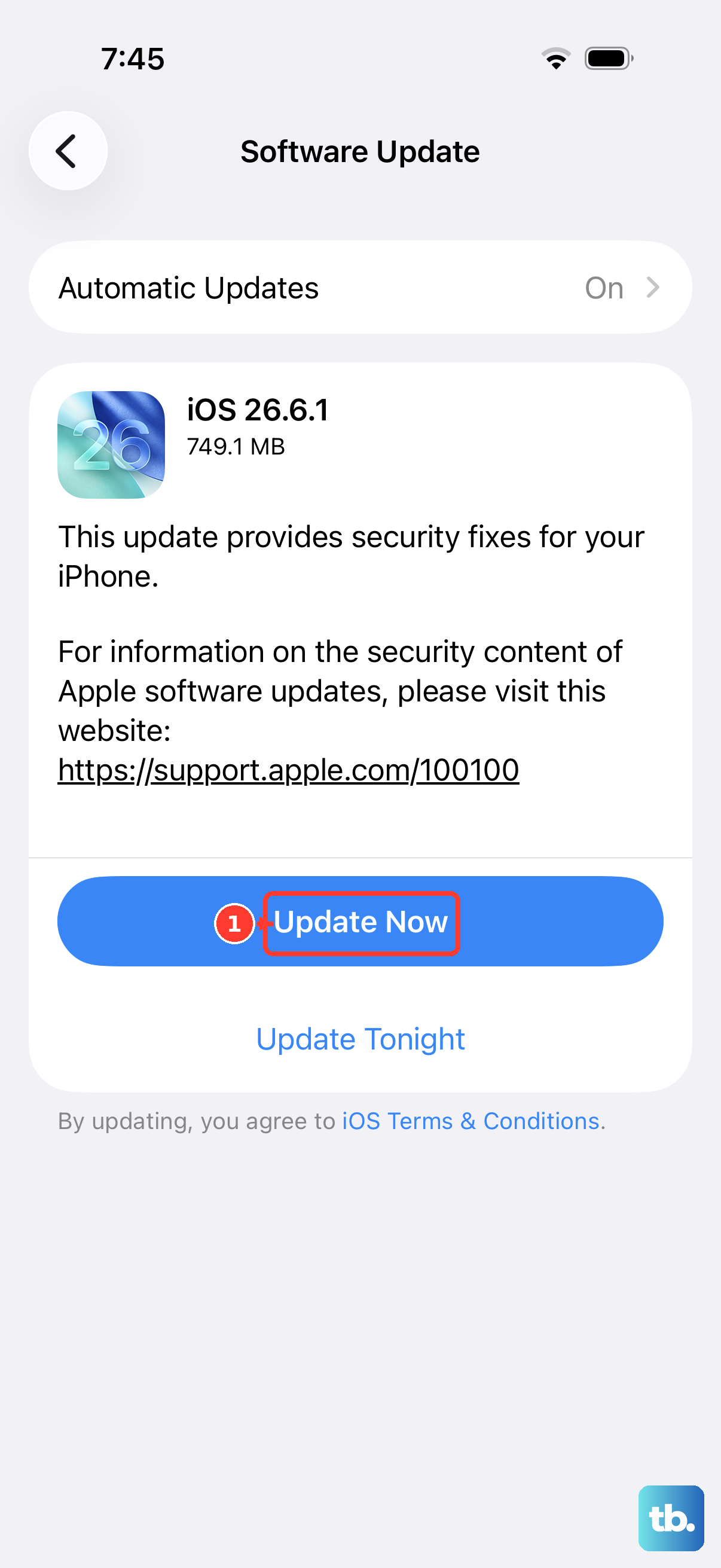
Software bugs that affect notifications are often patched in updates. Back up your iPhone, connect it to power and Wi-Fi, and go to Settings > General > Software Update.
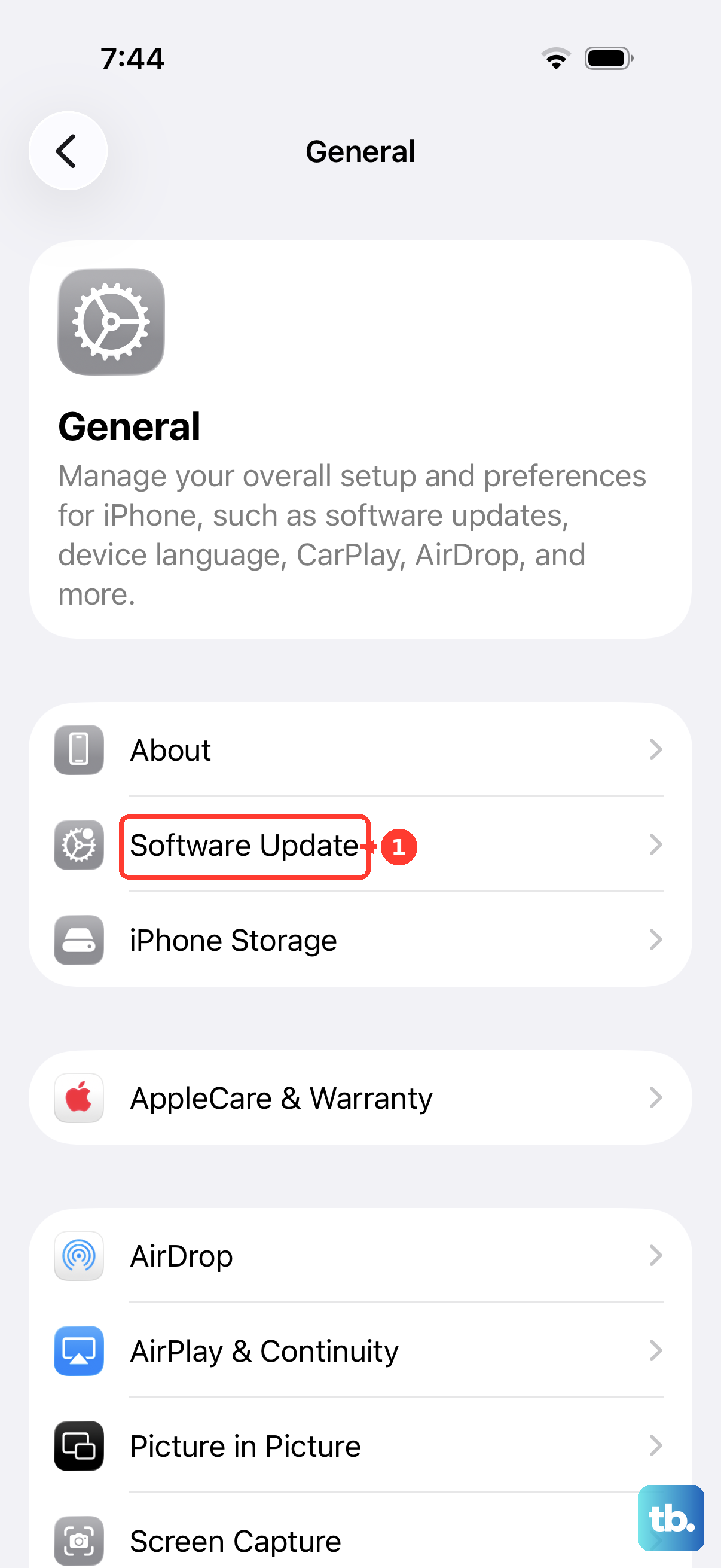
Install any available update. After the phone restarts, check if the message badges are behaving correctly. An update may help if a software issue is affecting your notifications.
Reset All Settings
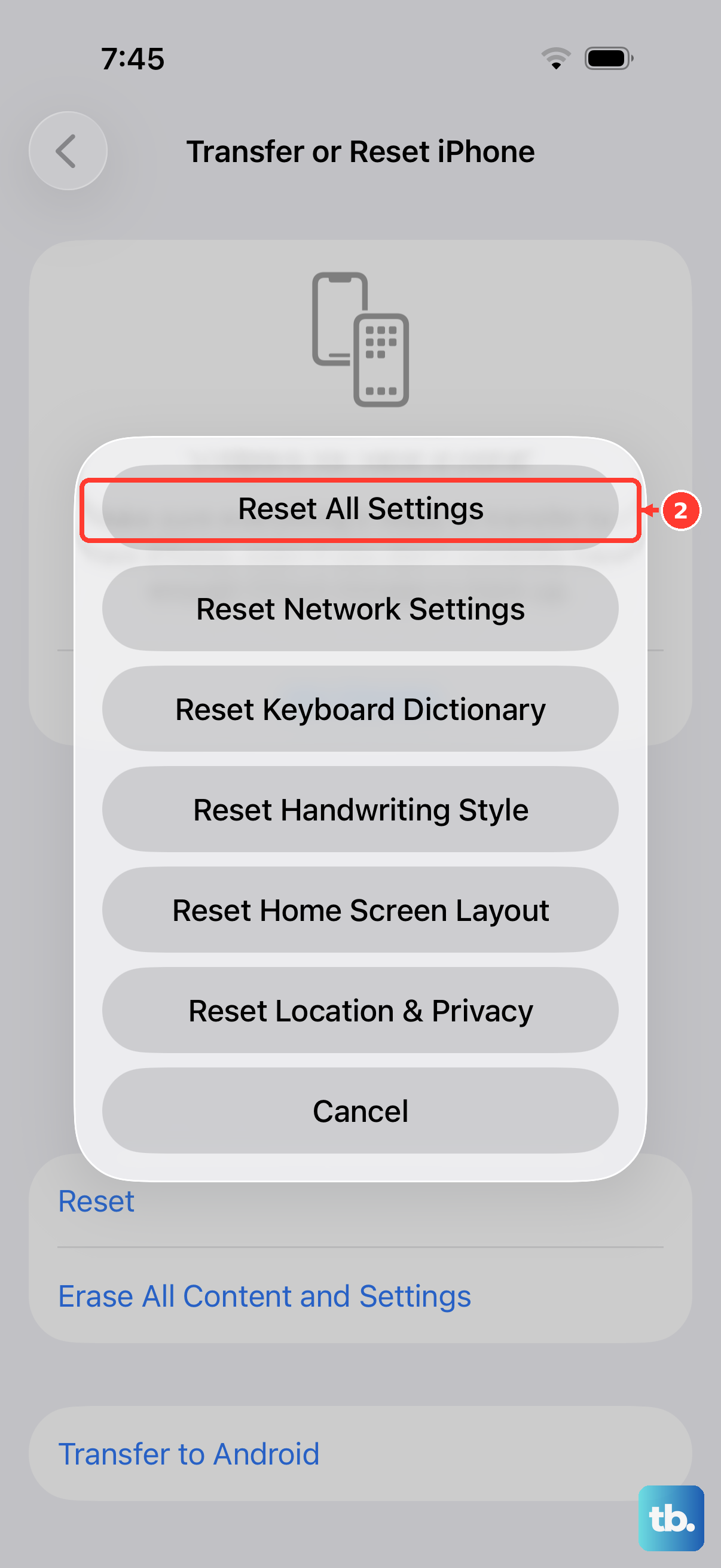
This resets settings including notifications, Wi-Fi, wallpaper, and privacy permissions on your iPhone 17. It won't delete your apps, photos, or messages, but you will need to rejoin Wi-Fi, re-pair Bluetooth devices and your Apple Watch, and set up Face ID again.
Go to Settings > General > Transfer or Reset iPhone. Tap Reset and then choose Reset All Settings. Enter your passcode and confirm. Afterward, review your notification settings and enable the alerts you want.
Sign Out and Back Into iMessage
If the problem involves iMessage, try signing out and back in to your Apple Account for iMessage. Go to Settings > Apps > Messages. Tap on "Send & Receive."
Tap your Apple Account and select "Sign Out." After signing out, restart your iPhone 17, then go back and sign in with your Apple Account again. Open Messages afterward and check whether the badge count has changed.
Check Notification Grouping Settings
You can change how Messages notifications are grouped to make them easier to review. Go to Settings > Notifications > Messages.
Scroll down and tap on "Notification Grouping." Choose "Automatic," "By App," or "Off" for the layout you prefer. On the Lock Screen, tap a notification group to view the recent notifications from that app, then tap an individual notification to open it.
Disable and Re-enable iMessage
You can also try turning iMessage off and back on. Open Settings and go to Apps > Messages. Turn off the switch for "iMessage," then turn it back on.
Activation may take some time. You might see a "Waiting for activation" message. Once iMessage is active again, open Messages and check whether the notification badge matches your unread messages.
Ensure Date & Time Are Set Automatically
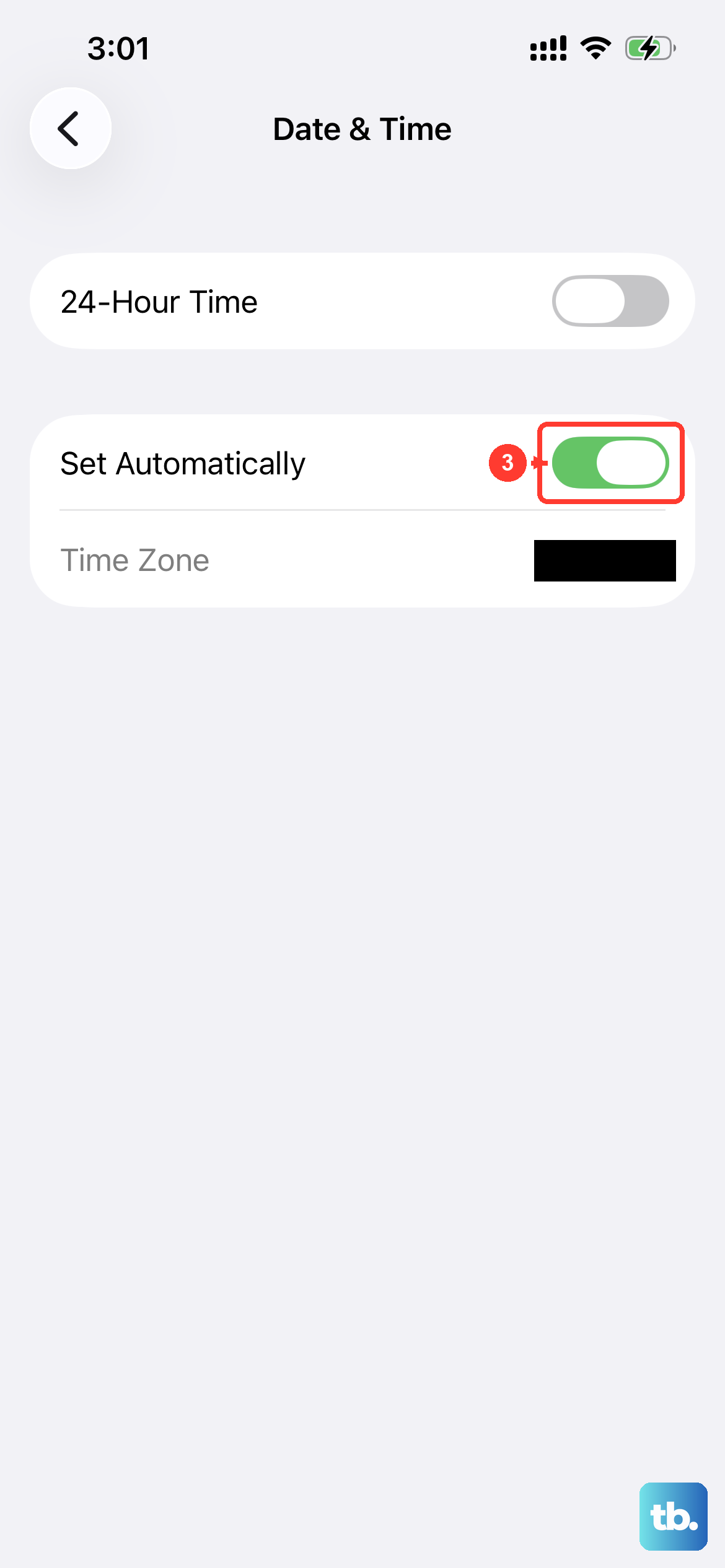
Check that your iPhone's date and time are correct if notifications appear out of order. Go to Settings > General > Date & Time.
Make sure "Set Automatically" is turned on. This lets your iPhone 17 set its date and time automatically instead of relying on a manually entered time.