

Discord mute sound not working usually comes down to three places: your voice state, Discord's own sound toggles, or the device handling app audio. Start by identifying whether you are missing a Push-to-Talk beep, a notification sound, or all Discord audio. Then use the matching fix below.
Start with the mute and output basics
Run these checks first before changing deeper audio settings.
- 1.Join a voice channel or call and check the mic icon and headset icon. When either one has a slash, click or tap it to unmute or undeafen.
- 2.Check your keyboard, headset, microphone, audio interface, and computer mute or volume buttons. Turn off hardware mute and raise the output volume.
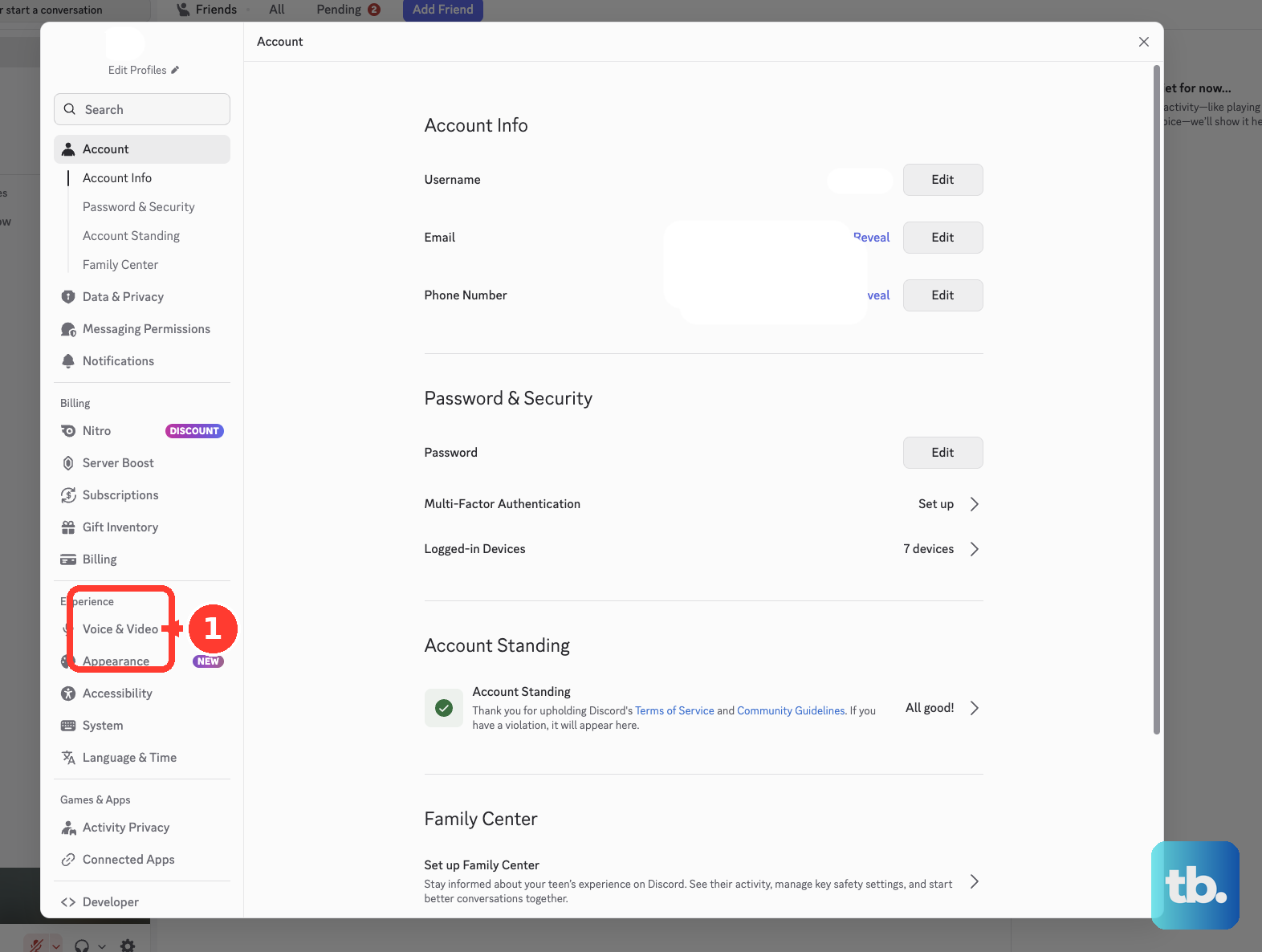
- 3.Open Discord User Settings, choose Voice & Video, open the Voice tab, and set Output Device to the speakers or headphones you use.
- 4.Raise Output Volume in Voice & Video, then test the sound again.
- 5.Quit Discord completely, including any tray or background process, then reopen Discord and test the mute, Push-to-Talk, or notification sound again.
Turn on Push-to-Talk sounds
This fixes the missing beep when Push-to-Talk activates or deactivates. Open Discord and click the User Settings cog. Go to Notifications and find PTT Activate and PTT Deactivate.
Select PTT Activate and PTT Deactivate. Return to a voice channel and press your Push-to-Talk key to test the activation and deactivation sounds.
If a server muted or deafened you
Use this when your mic or headset icon stays muted after you try to change it yourself. A server owner or administrator controls server mute and server deafen. Open the voice channel or call and check the mic icon or headset icon after you click it.
Contact a server owner or administrator and ask them to remove the server mute or server deafen from your account. Leave and rejoin the voice channel after they remove it, then test your mic and audio cue again.
Fix notification sounds blocked by Discord
Streamer Mode blocks notification sounds when its sound suppression setting is enabled. Open User Settings, choose Streamer Mode, then turn off Enable Streamer Mode. To keep Streamer Mode on, leave Enable Streamer Mode enabled and turn off Disable Sounds.
Server and channel mutes stop most notification sounds on desktop, though a muted server still notifies you for @everyone mentions. For one channel, open the channel and click the bell icon in the upper-right corner. For a server, open the server name menu, choose Notification Settings, then review Mute [Server Name] and Notification Overrides.
For ringtone or call sounds, open User Settings, go to Notifications, and turn on Incoming Ring. The Event Sound Pack dropdown is not a permanent setting. It appears on desktop and browser only while Discord is running a seasonal sound pack, and selecting Discord Default there restores the standard Discord sounds during that event window.
Repair Discord voice settings on desktop
Use these when the right output device is selected but Discord voice cues or audio still fail.
- 1.Open User Settings, choose Voice & Video, open Debugging, and select Reset Voice and Video Settings.
- 2.Return to Voice & Video, scroll to Audio Subsystem, and switch to the other option, Standard to Legacy or Legacy to Standard, then restart Discord when prompted and test again.
- 3.In Voice & Video, turn off Enable Quality of Service High Packet Priority when audio is intermittent or degraded.
- 4.Install the current Stable Discord app from discord.com/download when you are using PTB, Canary, iOS TestFlight, or an Android Beta or Alpha build.
Check Windows app sound controls
Windows can mute Discord or send its audio to the wrong output device while other system sounds still work. Open Start, go to Settings, choose System, then open Sound and Volume mixer. Under Apps, make sure Discord is not muted and turn its volume slider up.
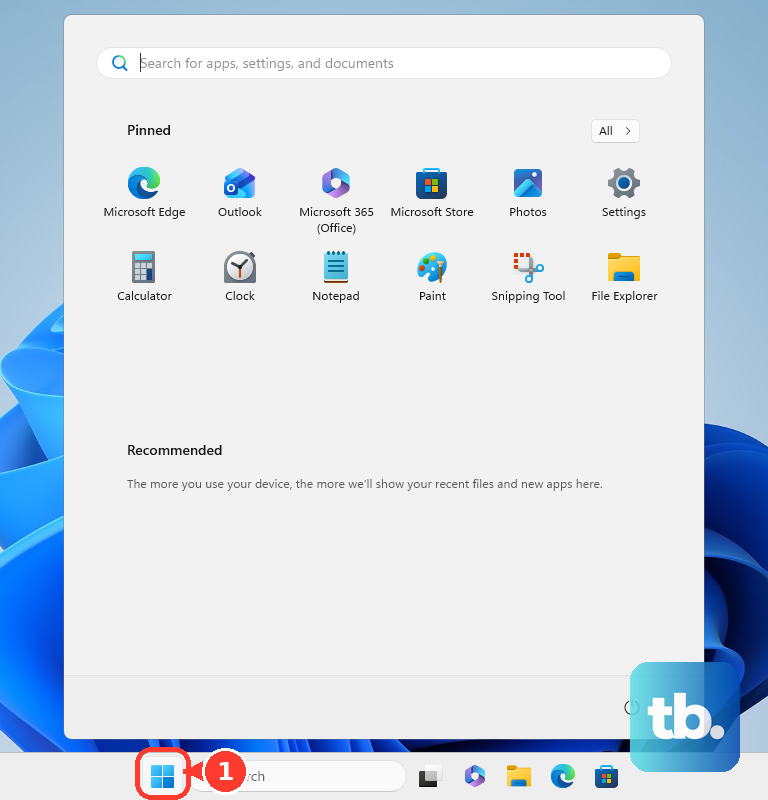
In the same Volume mixer area, open Discord's Output device setting and choose the speakers or headphones you use. Next, open Start, type services.msc, press Enter, then restart Windows Audio and Windows Audio Endpoint Builder.
Open Device Manager, expand Sound, video and game controllers, right-click your audio device, choose Update driver, then restart your PC. If Windows changes fail, reset Discord's voice settings and reinstall the current Stable app from discord.com/download.
Make Discord sounds work on Mac
This fixes Discord notification sounds that are blocked, routed to the wrong device, or too quiet on macOS. Open the Apple menu, go to System Settings, then choose Notifications. Select Discord and turn on Play sound for notification.
Open the Apple menu again, go to System Settings, then choose Sound. Open Sound Effects, set Play sound effects through to your output device, raise Alert volume, and turn on Play user interface sound effects when you want system interface sounds.
Fix Discord web sound in Chrome
Open Chrome and select More. Go to Settings, choose Privacy and security, and open Site settings. Select Additional content settings, then open Sound and allow sites to play sound, or remove discord.com from the blocked list.
When the issue is tied to mic access in Discord web, go back to Site Settings. Open Microphone and remove Discord from Not allowed to use your microphone. Rejoin a Discord voice channel and choose Allow when Chrome prompts. Use the Discord desktop app when you rely on mute and Push-to-Talk controls every day.
Fix mobile Discord notification sounds
Use this when Discord notifications arrive silently on iPhone or Android. These settings control mobile notification sounds, not the desktop Push-to-Talk activation beep.
On iPhone, open the Settings app, go to Apps, choose Discord, open Notifications, then turn on Allow Notifications. In Discord's iOS notification settings, turn Sounds on. Use Announce Notifications only when you want Siri to read Discord notifications aloud.
When Focus is blocking audio, open Control Center, tap and hold Focus or Do Not Disturb, then tap Do Not Disturb to turn it off. To allow Discord through Focus instead, go to Settings, choose Focus, open Do Not Disturb, choose Allow Notifications, open Apps, and add Discord.
On Android, open Settings, go to Notifications, choose App notifications, select Discord, then turn on All Discord notifications or the relevant notification category. Open a Discord notification category such as Messages, Direct messages, Friend requests, Reaction Notifications, or Voice connected, then choose Alerting instead of Silent. On Pixel, use Notification categories, open the category, choose Sound, select a sound, and tap Save.
Turn off or adjust Notification organizer when Android is bundling and silencing lower-priority Discord notifications. Turn off Do Not Disturb, or open the active mode's Notification filters, choose Apps, and allow Discord.
Frequently Asked Questions
Why can I hear Discord voice chat but not the Push-to-Talk sound?
Voice output and Push-to-Talk cues use different Discord settings. Turn on PTT Activate and PTT Deactivate under User Settings > Notifications, then check Output Device and Output Volume under Voice & Video.
Why are Discord notifications silent on my phone?
Your phone is blocking the notification sound. On iPhone, enable Allow Notifications and Sounds for Discord, then check Focus. On Android, enable Discord notifications and set the relevant category to Alerting instead of Silent.
Can a server mute stop me from fixing Discord audio myself?
Yes. When a server owner or administrator applies server mute or server deafen, that person or another administrator needs to remove it before voice works normally in that server.
Can I replace Discord mute sounds with client mods?
Discord does not offer a supported consumer method for replacing mute or notification sounds with third-party client mods. Use Discord's built-in notification settings, operating system sound controls, and the Stable app.