

To fix Apple TV Continue Watching not working, enable viewing history, select the correct profile, and allow supported streaming apps to share your progress. If the problem persists, reopen the app, update its software, and check whether playback also fails on another device.
Start with the settings for your device, since the Apple TV box and Apple TV apps have different menus. The Apple TV 4K paths below use the tvOS 27 interface.
The short version
- Enable history: Turn on Use Play History or the viewing history setting for your device.
- Check your profile: Each profile has its own history, so select the profile associated with your viewing.
- Check connected apps: Only participating streaming apps can share progress with Apple TV.
- Match the symptom: A missing Home Screen preview needs a different setting from stalled progress inside the app.
| Fix | When to use it |
|---|---|
| Enable viewing history | Progress is not being tracked or synchronized |
| Check your Apple Account | History differs between devices |
| Switch profiles | You see another viewer’s queue |
| Enable a connected streaming app | Progress is missing from a participating service |
| Change Top Shelf | Only the Apple TV 4K Home Screen preview is wrong |
| Open the episode through Search | The queue opens the wrong episode |
| Select Add to Watchlist | You want to restore a title’s Watchlist membership |
| Close and reopen the app | Apple TV is stuck or unresponsive |
| Restart the device | Reopening the app has not helped |
| Update software and apps | Updates are available for the affected device or app |
| Check service status | Titles also fail to play |
| Test another device on the same connection | You need to check whether playback failures affect more than one device |
| Restart the router and modem | Playback also fails on another device using that connection |
| Test Ethernet | Your Apple TV has an Ethernet port and playback fails over Wi-Fi |
| Repair or reset the Windows app | The app remains faulty and exposes Advanced options |
| Delete and restore the iPhone or iPad app | Reopening and updating have not resolved the app problem |
| Reset the living-room app | A supported smart-TV or streaming-device app remains unresponsive after restarting |
| Contact support | History or integration failures persist |
Turn on viewing history
On Apple TV 4K, open Settings > Apps > TV and turn on Use Play History. The same path applies on current iPhone, iPad, and Apple Vision Pro software. Check this setting on the devices where you watch.
On Mac, open the Apple TV app and choose TV > Settings > Playback, then select Use Viewing History. In the Windows app, select the Sidebar Actions button, open Settings > Playback, and enable Use viewing history.
On Android phones and tablets, open Apple TV and tap the account icon at the top right to open Settings, then turn on Use Play History. On supported smart TVs, streaming devices, consoles, and cable or satellite versions that expose this control, open the app sidebar, select Settings, and turn on Use Play History. If history was already enabled, check the account and profile next.
Select the right account and profile
Check that each device uses the Apple Account associated with the viewing history you want. Separate profiles have separate histories, so a different profile can show a different queue even on the same device.
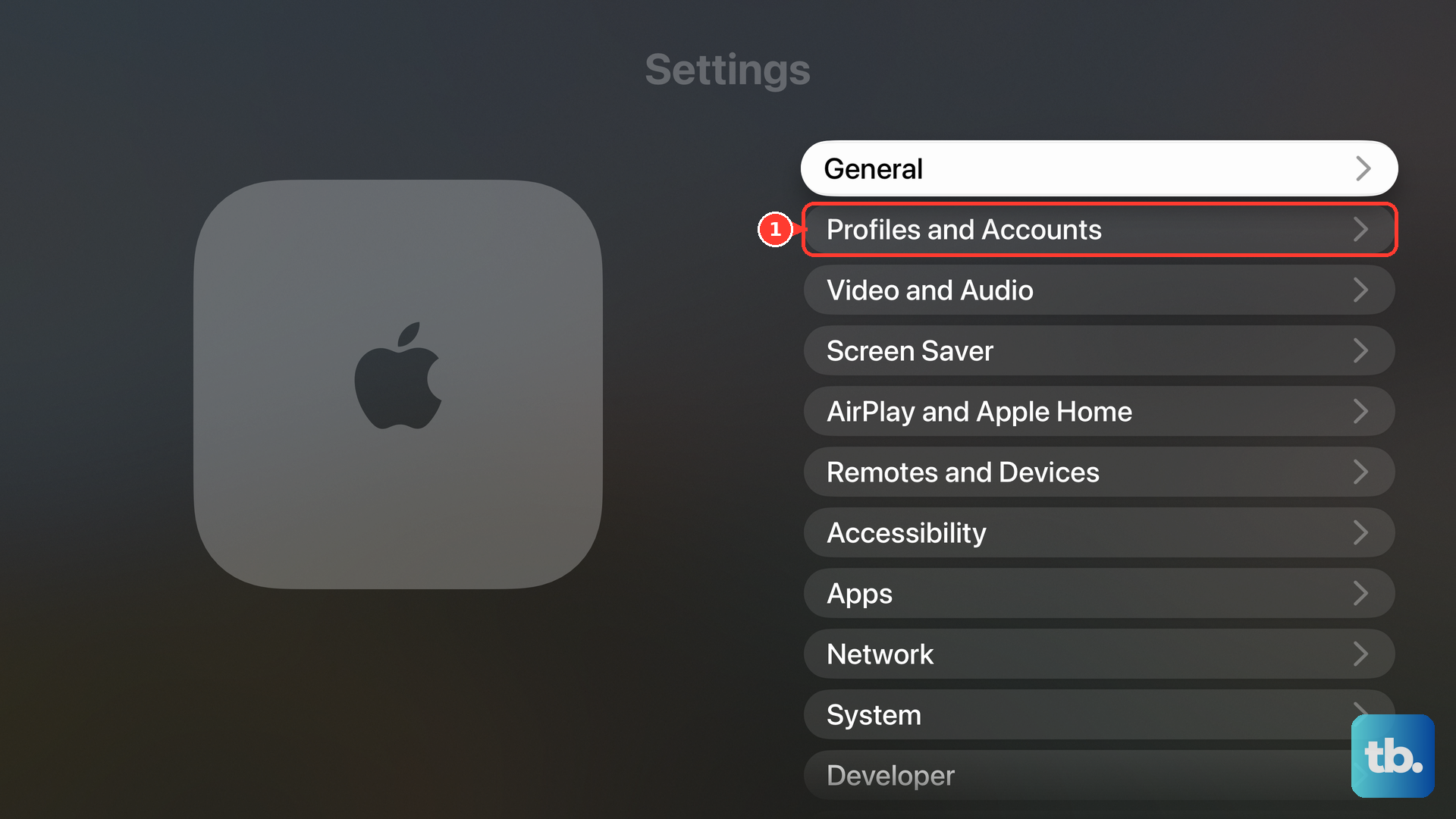
On Apple TV 4K, open Settings > Profiles and Accounts > Switch Current Profile and select your name. Alternatively, hold the remote’s TV button to open Control Center, open the profiles tab, and select your profile. On supported smart TVs, streaming devices, consoles, and cable or satellite versions, open the sidebar and choose Settings > Profiles > Switch Current Profile, then select the intended profile.
Sign in only through Apple’s own app or website, and never share a code, password, or remote access with someone who contacts you. To sign in on iPhone or iPad, open Apple TV, select Home, tap the Account button, and complete sign-in with the account you use for viewing. On Mac, click Apple Account at the bottom left and complete sign-in with that same account.
Allow connected streaming apps to share progress
If the missing progress belongs to another streaming service, check its connection to Apple TV. On Apple TV 4K, open Settings > Apps > TV > Connect to TV and enable the supported service.
On iPhone, iPad, or Vision Pro, open Apple TV and choose Account > Connected Apps, then enable the participating app. Only participating apps can share progress, and availability varies by service and region. If the issue stays limited to one connected service, contact that app’s developer after checking for updates.
Restore the preview or open the correct episode
When only the Apple TV 4K Home Screen preview is wrong, open Settings > Apps > TV > Top Shelf and select Continue Watching. Highlight Apple TV in the Home Screen’s top row to see the preview. This setting controls the preview rather than synchronization inside the app.
For a queue that opens the wrong episode, open Search in Apple TV, find the series, open its details, and select the intended episode directly. After watching, check Home > Continue Watching for subsequent progress. Android and some cable or satellite versions do not have Home; use Search to reach the episode directly.
To restore a title’s Watchlist membership on a TV, highlight the title, hold the remote’s center button, and select Add to Watchlist. On iPhone, iPad, or Android, touch and hold the title for that option. On Mac or Windows, open the title and click the Add button. Apple does not promise that changing Watchlist membership repairs an incorrect resume timestamp.
Reopen the app and restart the device
On Apple TV 4K with a touch-capable Siri Remote or Apple TV Remote, press TV twice quickly to open the app switcher. Move to Apple TV, swipe up on the clickpad or touch surface, and reopen the app from the Home Screen. If it remains stuck, choose Settings > System > Restart.
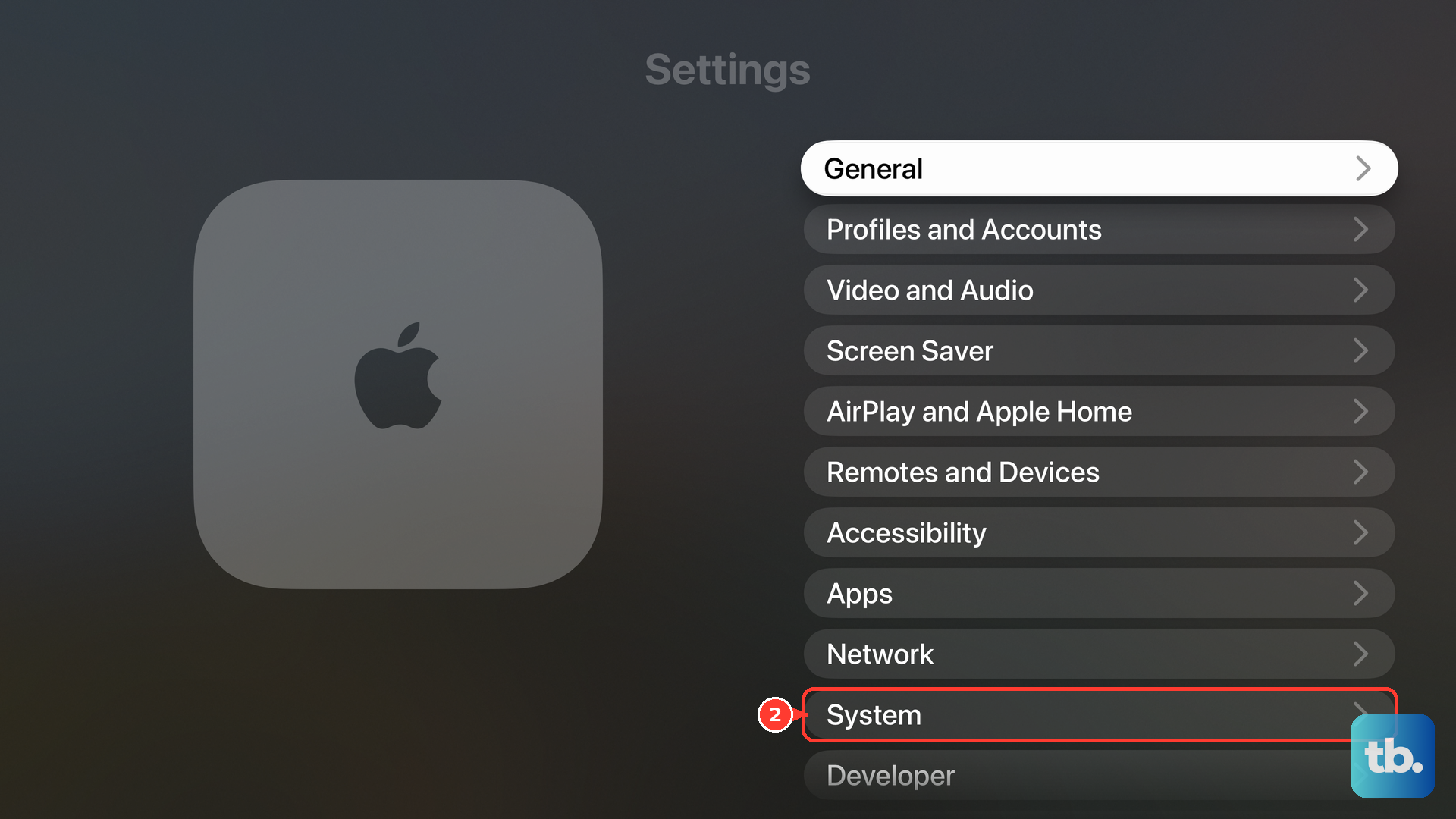
If you cannot reach that menu, hold TV + Back until the status light flashes rapidly. With the first-generation remote, hold TV + Menu instead. Another supported restart method is to disconnect power, wait five seconds, and reconnect it.
On iPhone or iPad, open the app switcher by swiping up from the bottom, or double-clicking Home on models with that button. Find Apple TV, swipe its preview upward, and reopen it. On a smart TV or streaming device, turn the device off and back on.
With Apple TV active on Mac, press Command + Q and reopen the app. If it is unresponsive, press Option + Command + Esc, select TV, and click Force Quit. Reopen TV and check your queue again.
Update Apple TV and connected apps
On an Apple TV offering the System update menu, open Settings > System > Software Updates > Update Software. Select Download and Install when an update is offered, and leave power and networking connected until installation finishes. You can enable Automatically Update in Software Updates for subsequent updates.
On other Apple devices, install the latest supported system software to update Apple TV. For available iPhone or iPad app updates, including connected streaming apps, open the App Store, tap the profile icon, and select App Updates. Install available updates; if none are offered for the affected app, update iOS or iPadOS.
On Windows, update Windows and drivers, then update Apple TV through Microsoft Store. On Android, update Android and update Apple TV through Google Play Store. Connected compatible smart TVs, streaming devices, and consoles normally update the app automatically.
Check the connection when titles will not play
When Continue Watching also fails to launch content, check Apple’s System Status page and the affected streaming provider’s status page. If an interruption is reported, retry later. These checks address streaming failures rather than guaranteeing a history repair.
Test playback on another device using the same connection. If playback fails there too, investigate the network or contact your internet provider. You can restart the router and modem by disconnecting and reconnecting their power.
On an Apple TV with an Ethernet port, test a wired connection. Ethernet takes precedence over Wi-Fi. If playback works but history still fails across devices, move to support after checking the account, profile, and history settings.
Repair or reset an app that stays unresponsive
Use these recovery options after reopening and updating have failed to resolve an app problem. Choose the procedure for your device, since these actions have different effects and are not guaranteed repairs for synchronized history.
On Windows 11, open Start > Settings > Apps > Installed apps, then select the More icon beside Apple TV. If Apple TV exposes Advanced options, open it and select Repair when available. If Advanced options is missing, continue to support.
Reset can remove local app data. If Windows app repair is unavailable or unsuccessful and Reset is offered, select it.
Deleting Apple TV from iPhone or iPad removes local app data and configuration. Touch and hold Apple TV, tap Remove App, then tap Delete App; if the shortcut instead offers Delete App, tap it and then tap Delete. Open the App Store, search for Apple TV, and tap the Redownload button.
On supported smart TVs, streaming devices, consoles, and cable or satellite services, resetting Apple TV erases accounts and app configuration on that device. If restarting has not resolved an unresponsive app, open its sidebar, choose Settings, and select Reset. Sign in again afterward.
Get help for persistent history problems
If progress still fails to update, open Apple TV Support and choose Get started under Still need help. Report the affected devices, software versions, profiles, and services, plus whether the same history problem occurs elsewhere. For a failure limited to a third-party streaming app, contact that app’s developer.
Frequently Asked Questions
Why does the next episode fail to start even when Continue Watching is correct?
Next-episode autoplay is separate from viewing-history synchronization. On Apple TV 4K, open Settings > Apps > TV and turn on Play Next Episode. On Android, open Apple TV, tap the account icon, and turn on Play Next Episode.
Should you clear play history to refresh Continue Watching?
Clear Play History is a destructive history reset, not a refresh. On Apple TV 4K, it removes the current profile’s viewing history across devices and its Continue Watching items. Reserve it for deliberately rebuilding the queue.
Can you reach the Apple TV settings without the physical remote?
You can use a compatible iPhone or iPad as a remote for Apple TV 4K or Apple TV HD. Connect both devices to the same Wi-Fi network, open Control Center > Apple TV Remote, select the Apple TV, and enter the displayed four-digit passcode if requested. If the control is missing, choose Add Controls > Add a Control > Remote.
What does resetting the TV Store cache on Mac address?
Apple describes Reset TV Store cache as a remedy for stale or incorrectly loading Store pages. For that symptom, open TV > Settings > Advanced, select Reset TV Store cache, and retry the affected Store page.
Can content restrictions explain why specific titles are missing?
Content restrictions can filter specific titles, so review them when only some titles are missing. On Apple TV 4K, open Settings > Apps > TV, select your profile name, open Restrictions, and review the Movies and TV Shows ratings. In the Android app, tap the account icon, open Content Restrictions, enter the existing passcode, and adjust the ratings.