Your headphones worked yesterday, your mouse paired last week, and now Windows acts like Bluetooth disappeared. The Bluetooth Support Service, shown in Windows as bthserv, can be part of the problem, but it is not the only part of the Bluetooth chain. Start with the Windows controls that block Bluetooth immediately, then restart the service, rebuild the pairing, and repair the driver path.
1. Confirm Bluetooth is actually switched on
Clear the fast blockers first. If Bluetooth or Airplane mode is in the wrong state, restarting Bluetooth Support Service wastes time.
Select the Network, Sound, or Battery icon next to the time and date. Select the Bluetooth tile to turn Bluetooth off. Wait a few seconds, then select the Bluetooth tile again to turn it on.
Make sure Airplane mode is turned off. If your laptop has a physical Bluetooth switch, move it to the on position.
You can also use the Settings path. Open Start > Settings > Bluetooth & devices, then switch Bluetooth off and back on. Press Windows + A when you want to open Quick Settings directly.
2. Run Microsoft’s current Bluetooth troubleshooter
Open the Get Help app. In the Search bar, enter Bluetooth troubleshooter. Follow the steps shown in Get Help.
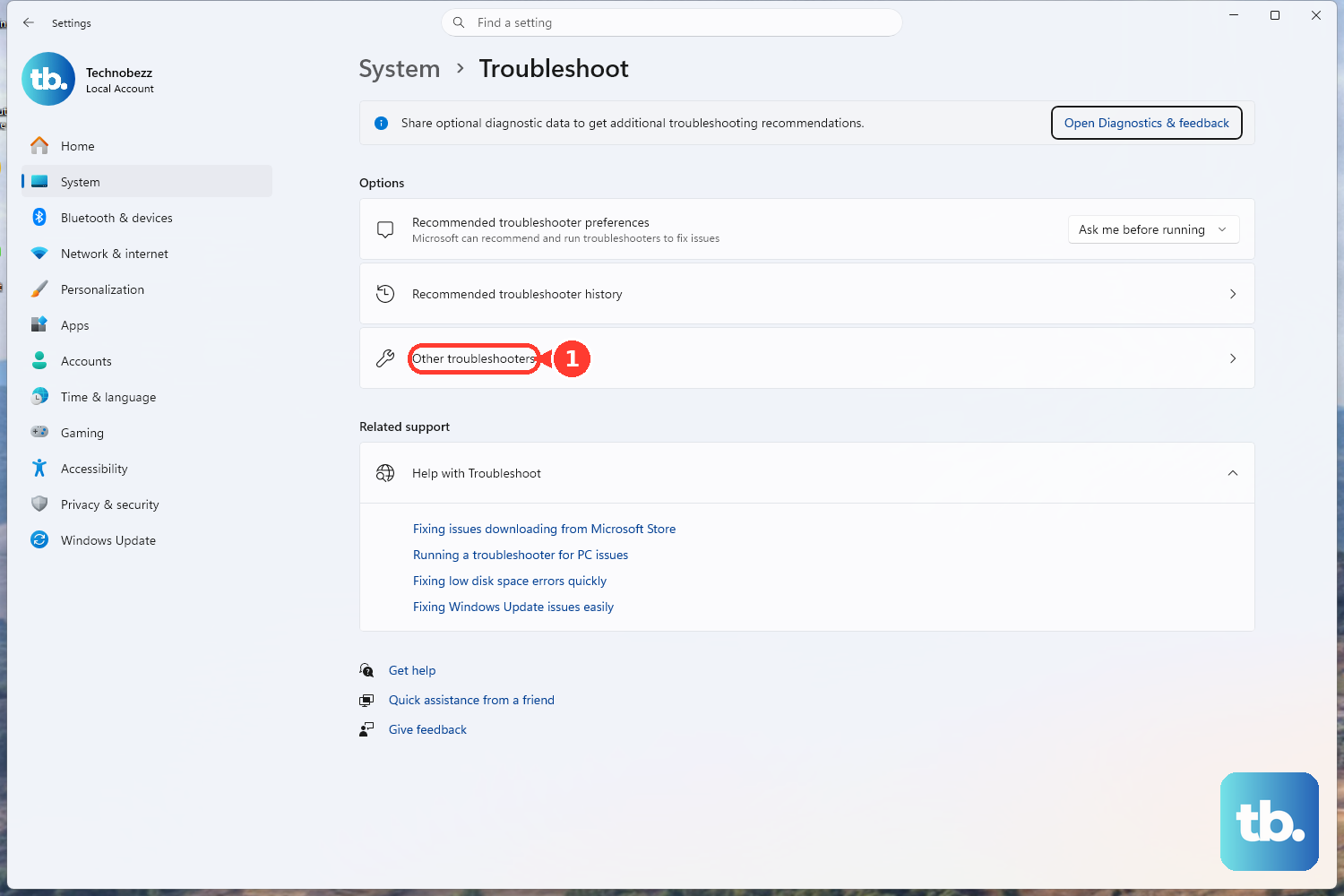
Microsoft’s current route is the Get Help troubleshooter, so use it before changing service startup settings. There is also a Settings route: open Start > Settings > System > Troubleshoot > Other troubleshooters, then choose the Bluetooth or Get Help troubleshooter if Windows shows it.
3. Restart Bluetooth Support Service cleanly
When Bluetooth is present but keeps failing or disconnecting, restart the service Microsoft identifies as Bluetooth Support Service. Press Windows key + R, type services.msc, select OK, scroll to Bluetooth Support Service, right-click Bluetooth Support Service, and select Restart.
The service name is bthserv. On PCs that require elevation, use an administrator account for service changes.
4. Re-enable bthserv when it was turned off
Use this only when Bluetooth Support Service is disabled or refuses to start. Press Windows key + R, type services.msc, and select OK.
Next, open Bluetooth Support Service and select Properties. Set Startup type to Manual, then select Apply and select Start.
Microsoft lists the default startup type for bthserv as Manual, so do not treat a permanent switch to Automatic as the standard fix. For an administrator command-line repair, open Command Prompt as administrator and run sc.exe config bthserv start= demand, then run sc.exe start bthserv. Use start= auto only when you deliberately want automatic startup.
5. Rebuild the pairing for the problem device
Open Start > Settings > Bluetooth & devices > Devices. In Devices, select More options for the problem Bluetooth device. Select Remove device, then select Yes.
Return to Bluetooth & devices and select Add device. Put the accessory into pairing mode using the device maker’s button or key sequence. Pair the device again.
If Bluetooth is on and bthserv is running, focus on the accessory that still fails. A clean pairing removes the old device entry and creates a fresh connection. Before pairing, make sure the accessory is on, charged or using fresh batteries, and in range.
After that, turn the accessory off, wait a few seconds, then turn it back on. Move it away from unshielded USB devices plugged into USB 3.0 ports.
6. Expand discovery when devices do not appear
When Windows cannot see a nearby accessory during pairing, change the discovery setting by opening Start > Settings > Bluetooth & devices > Devices, finding Bluetooth devices discovery under Device settings, and choosing Advanced.
For classic Bluetooth options, stay on Devices, go to Related settings, and select More Bluetooth settings. When More Bluetooth settings is missing, Microsoft points to a missing adapter or driver, so move to the driver steps next.
7. Repair the Bluetooth driver path
A driver problem can make the service look broken. Work through the official Windows driver routes in this order.
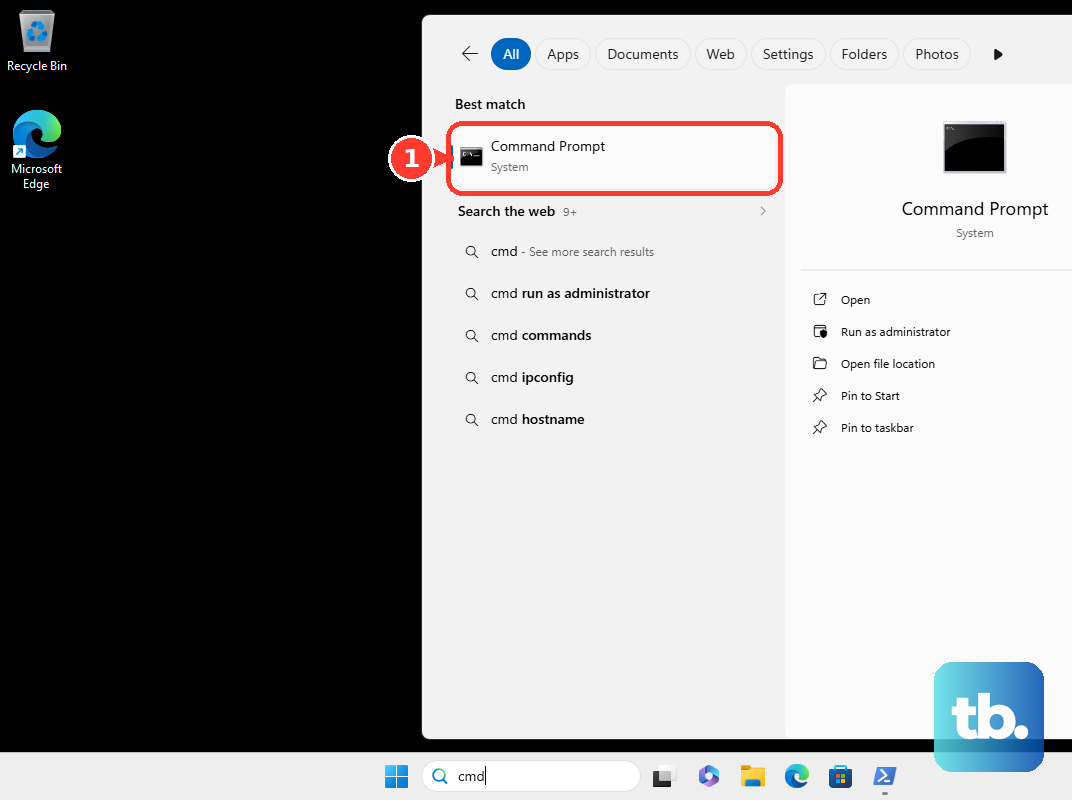
- 1.Open Start, type Device Manager, and select Device Manager.
- 2.Expand Bluetooth.
- 3.Right-click your Bluetooth adapter.
- 4.Select Update driver.
- 5.Select Search automatically for drivers.
- 6.Follow the on-screen instructions, then restart the PC after the update completes.
Next, open Start > Settings > Windows Update, select Check for updates, install available updates, and restart. Then check optional drivers at Windows Update > Advanced options > Optional updates. If relevant Bluetooth or wireless driver updates appear, select them and choose Download & install.
If the adapter still fails, open Device Manager, expand Bluetooth, right-click the Bluetooth adapter, select Uninstall device, and restart. Windows automatically reinstalls the Bluetooth driver after restart.
After a recent driver or Windows update, open the adapter’s Properties, select the Driver tab, select Roll Back Driver if available, and follow the prompts.
When Windows does not find the right driver, use your PC maker’s support site. Search by your device model number, download the latest Bluetooth driver for Windows 11, install it, and restart. Surface PCs use Microsoft’s Surface drivers and firmware page, Dell PCs use Dell Drivers & Downloads, and supported Intel wireless adapters use Intel’s Wireless Bluetooth driver pages.
8. Stop power settings from cutting the connection
Select the Battery icon from the taskbar. Check whether Energy Saver Mode is enabled. Turn Energy Saver Mode off, then test the Bluetooth device again.
Use these steps when Bluetooth connects, then drops. Then check adapter power management: open Device Manager, expand Bluetooth, right-click the Bluetooth device, select the Power Management tab, and uncheck Allow the computer to turn off this device to save power. Some adapters do not show a Power Management tab.
9. Separate app, browser, and work PC restrictions
If normal Windows Bluetooth works but one app fails, check that app’s access. For Microsoft Store apps, open Start > Settings > Privacy & security, select the relevant App permission, and choose which apps can access it.
Website Bluetooth has its own prompt. In Microsoft Edge, turn Bluetooth on in Windows, make the device discoverable, open the website, click or tap the page when it asks to connect, select the device, and choose Pair or Connect. In Google Chrome, use the site prompt to choose Pair or Connect for a Bluetooth Low Energy device.
On a managed work or school PC, policy can block Bluetooth discovery, discoverable mode, Swift Pair, allowed Bluetooth services, Web Bluetooth prompts, or Bluetooth Settings pages. Ask your IT team to review Bluetooth policy, Edge Web Bluetooth policy, and Settings Page Visibility policy when the controls are missing or blocked.
Skip older instructions that run the legacy MSDT or Control Panel Bluetooth troubleshooter as the main fix. Microsoft’s current Bluetooth troubleshooting path uses Get Help.
Frequently Asked Questions
What is Bluetooth Support Service in Windows?
Bluetooth Support Service is the Windows service named bthserv. Microsoft’s Bluetooth disconnecting guidance includes restarting this service.
Should Bluetooth Support Service be set to Automatic?
No, not as the normal repair. Microsoft lists bthserv with a Manual default startup type. Set it back to Manual when it was disabled, and use Automatic only when you deliberately want that startup behavior.
Why is More Bluetooth settings missing?
Microsoft says More Bluetooth settings can be missing when the Bluetooth adapter or driver is missing. Update, reinstall, or install the correct Bluetooth driver from Windows Update or the PC maker.
Can a website Bluetooth problem be separate from Windows Bluetooth?
Yes. Edge and Chrome use browser prompts for website Bluetooth connections. That is separate from standard Windows pairing and separate from restarting bthserv.











