

To fix battery drain after updating to iOS 26, let post-update activity finish for a few days, then check Settings > Battery and address the apps or settings consuming extra power. Turn on Low Power Mode for longer runtime while you investigate. If the drain continues, check for software updates, adjust the activity responsible, and review battery health.
The short version
- Start with update activity: Wait a few days when the battery screen shows Ongoing iOS Update or Ongoing Device Setup.
- Find the cause: Use View All Battery Usage to compare app activity, notifications, and cellular coverage.
- Save power now: Turn on Low Power Mode to reduce background work and some features.
- Check battery condition: Consider battery replacement when the battery health screen shows Service.
| Check or fix | When it helps |
|---|---|
| Wait for update activity | Update or setup activity is still running |
| Review battery usage | You need to identify the activity consuming power |
| Follow battery suggestions | Personalized suggestions appear above Daily Usage |
| Low Power Mode | You need to reduce power use immediately |
| Adaptive Power | You want automatic adjustments on a supported model |
| Update iOS | Drain persists and an update is available |
| Update downloaded apps | An app stands out in battery usage |
| Restart | Your phone behaves unexpectedly |
| Limit Background App Refresh | Background refresh contributes to app activity |
| Reduce Mail fetching | Mail activity stands out |
| Restrict location access | An app shows location-related background activity |
| Reduce notifications | An app frequently wakes the screen |
| Reduce Sports Live Activity updates | Apple Sports uses more frequent updates |
| Lower brightness | Screen brightness contributes to consumption |
| Enable Auto-Brightness | Automatic brightness adjustment is disabled |
| Shorten Auto-Lock | The screen stays on longer than needed |
| Adjust Always On Display | Your model supports the feature |
| Use Wi-Fi and stronger reception | Coverage is weak |
| Select 5G Auto | Your supported phone uses 5G On |
| Try LTE | Your carrier offers it; results depend on reception and workload |
| Use Airplane Mode | You will be without cellular coverage for an extended period |
| Avoid excessive heat | Heat threatens battery capacity |
| Check battery health | Short runtime persists after activity adjustments |
| Arrange battery service | You see Service or need further troubleshooting |
Check whether the update is still working
Open Settings > Battery and look above Daily Usage for Ongoing iOS Update or Ongoing Device Setup. These insights identify update or setup activity that can affect battery life. Apple recommends waiting a few days after updating, then checking battery life again.
For a closer look, tap View All Battery Usage, select a day, and scroll to App and System Activity Usage. Tap an app and compare its screen activity, background activity, cellular coverage, and notifications. Use those details to choose the adjustment that matches your phone’s activity.
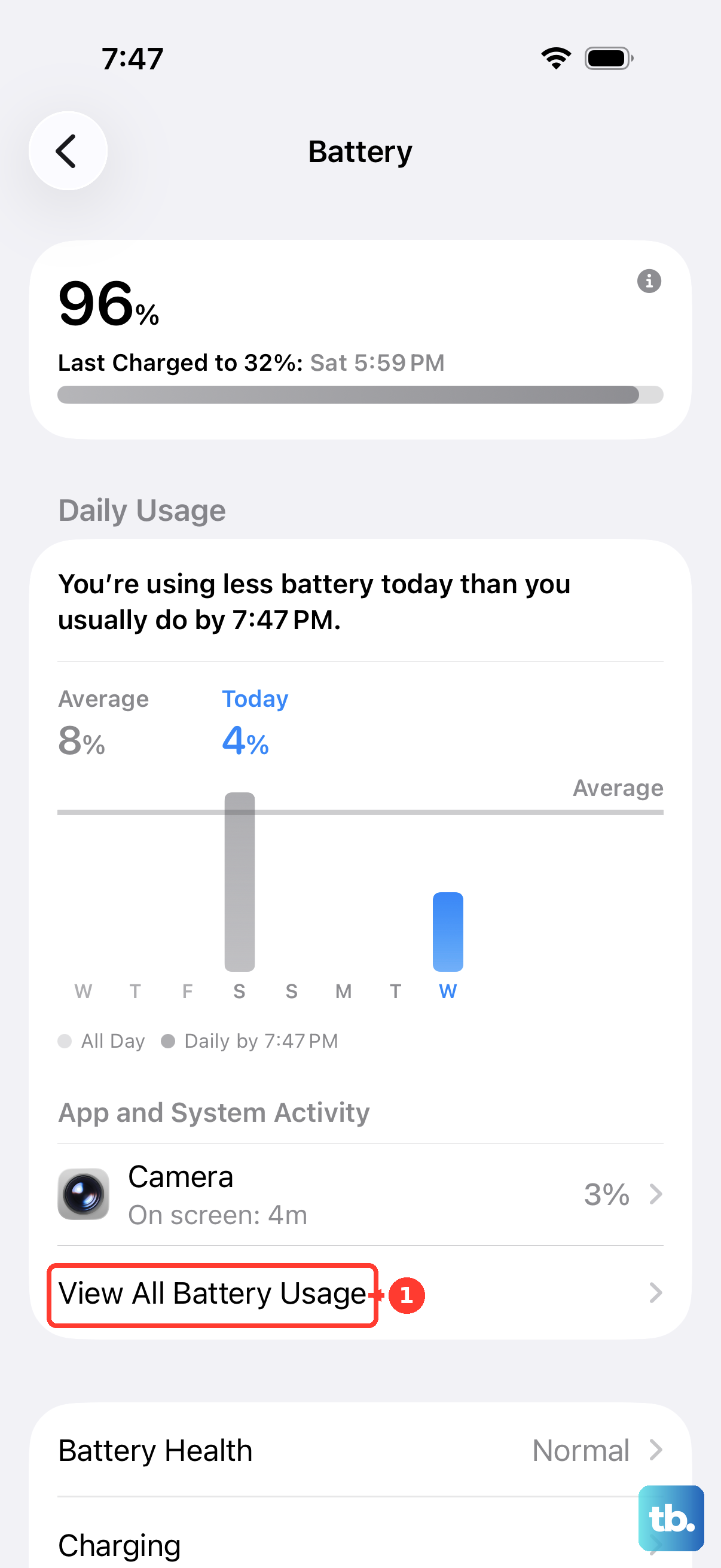
Check above Daily Usage for personalized suggestions as well. When applicable, you may see Enable auto-brightness, Enable auto-lock, or High Brightness. If suggestions do not appear, use the app and system activity details to decide what to address.
Use Low Power Mode for immediate relief
On iPhone 15 and later, open Settings > Battery > Power Mode and turn on Low Power Mode. On iPhone 14 and earlier, open Settings > Battery and turn on Low Power Mode there. It reduces background work and some features, and it turns off automatically when your iPhone charges back up to around 80 percent.
You can also tap Low Power Mode in Control Center when that control is present. To add it, swipe down from the top-right corner on a Face ID model, or swipe up from the bottom on iPhone SE. Tap Add, tap Add a Control, then select Low Power Mode.
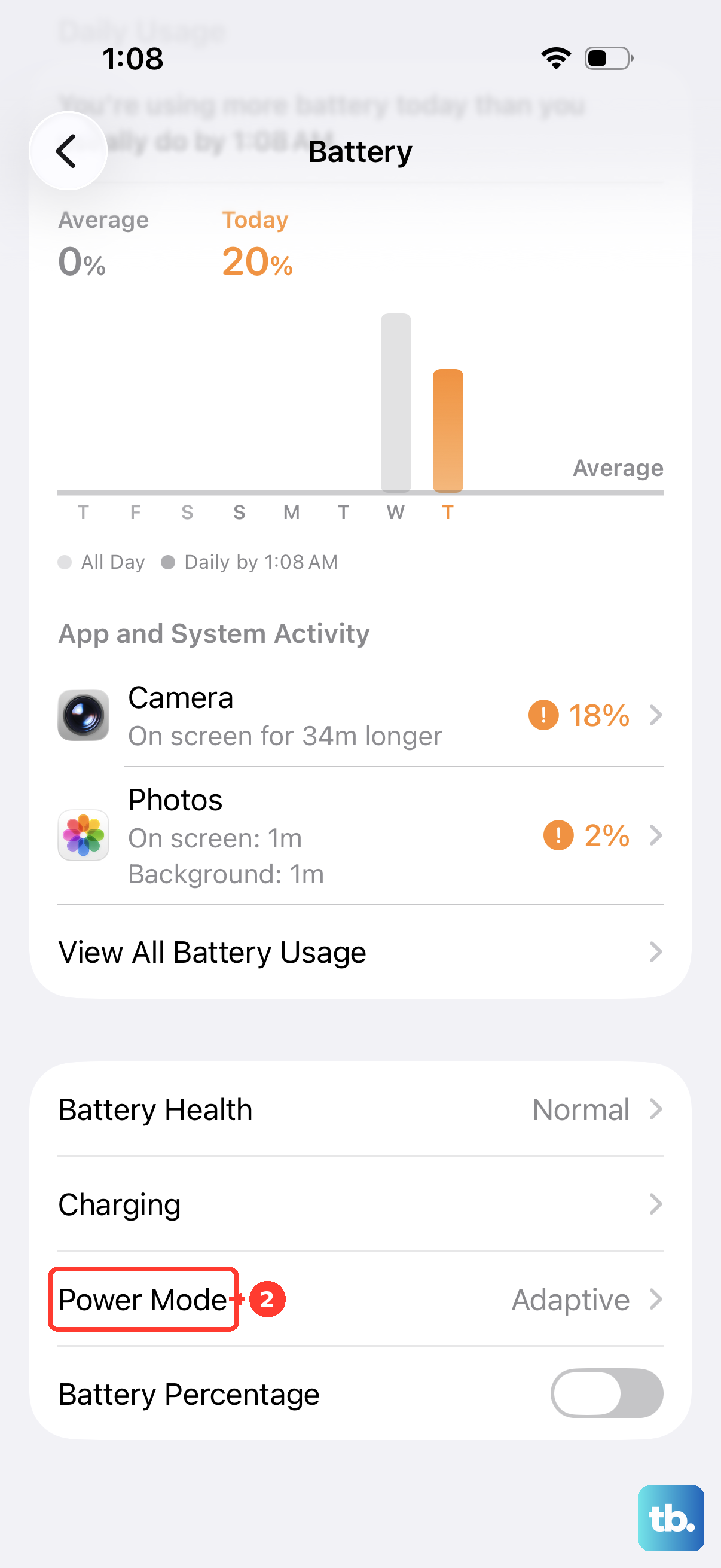
For ongoing power management, Adaptive Power adjusts performance and background activity when needed on supported models, including iPhone 15 Pro and Pro Max, iPhone 16 models, iPhone 17 models, and iPhone Air. On those models, open Settings > Battery > Power Mode and turn on Adaptive Power. It needs at least seven days to learn your charging habits before engaging. On iPhone 15 and 15 Plus, which do not support Adaptive Power, use Low Power Mode instead.
Update your software and restart
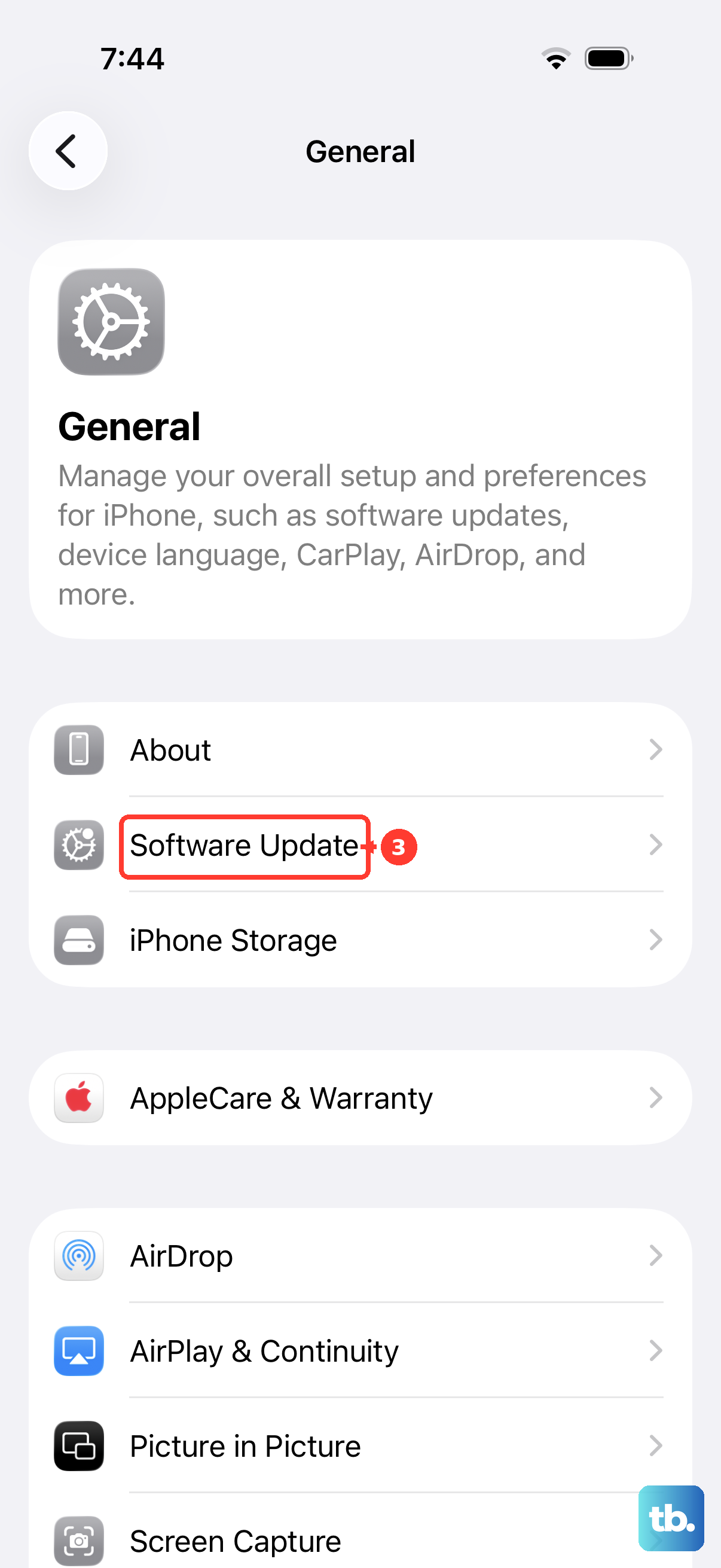
If battery drain persists after the initial few days, check for an available iOS update. Back up your iPhone, connect it to power and Wi-Fi, then open Settings > General > Software Update. Tap Download and Install when offered; depending on the update state, the button may instead read Update Now or Update Tonight. Install the version offered for your device.
If the update requests temporary app removal, continuing lets it temporarily remove apps from your iPhone. After backing up, tap Continue to proceed.
Update a downloaded app that stands out in battery usage, too. Open App Store, tap your photo or tap My Account, then tap App Updates. Tap Update beside the affected app, or tap Update All. Apps installed by default on your iPhone update whenever you update iOS.
A normal restart is another troubleshooting step for unexpected behavior. Open Settings > General > Shut Down, then drag the slider. After the phone shuts down, hold the side button until the Apple logo appears. If the drain continues, return to the battery activity details and adjust the specific activity involved.
Limit the background activity that stands out
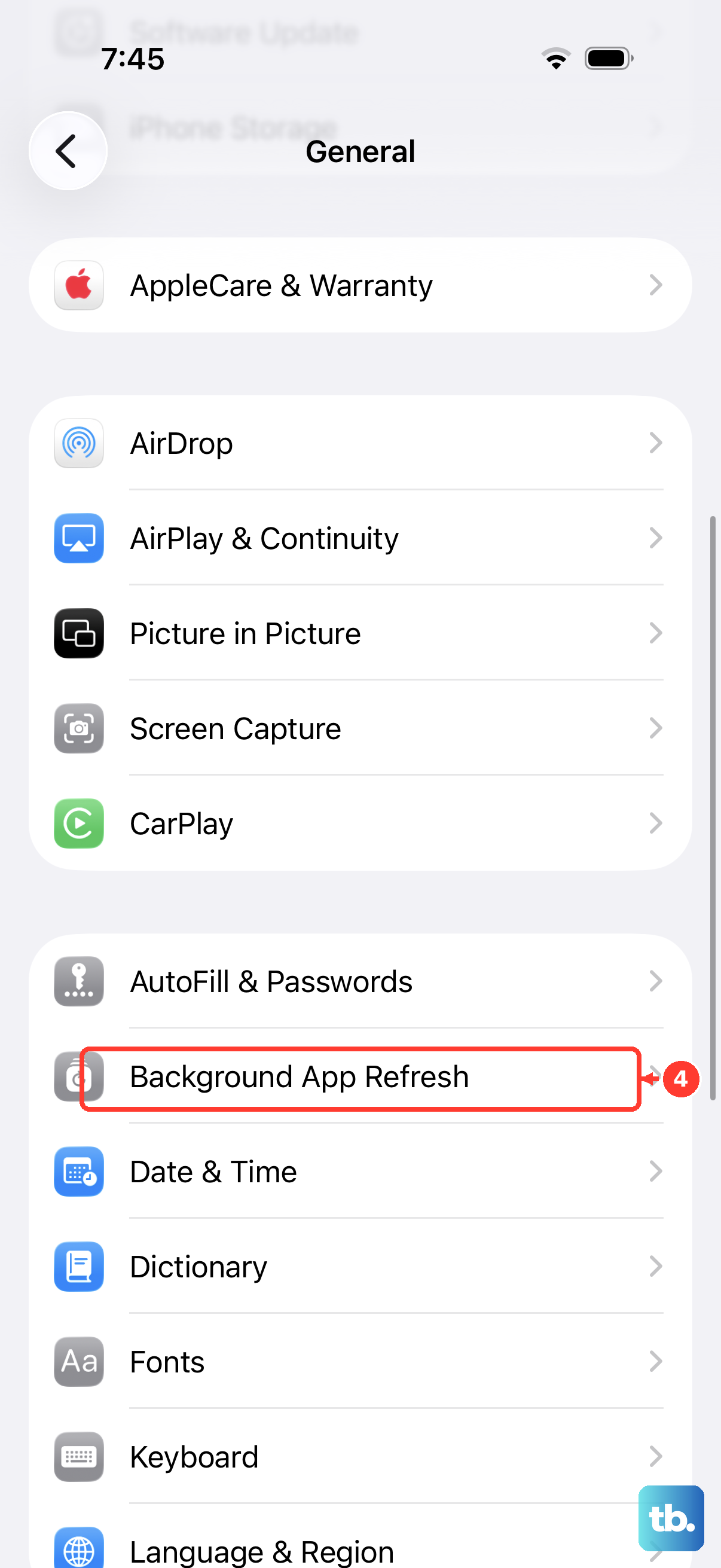
When background refresh is implicated, open Settings > General > Background App Refresh, tap Background App Refresh again, and select Off. Choose Wi-Fi for a less restrictive alternative. This limits when suspended apps can check for updates and new content.
If Mail is involved, open Settings > Apps > Mail > Mail Accounts > Fetch New Data. Choose Manually or a less frequent fetch schedule, depending on the options your account supports. The Automatically option fetches in the background while your iPhone is charging and connected to Wi-Fi.
Restricting location access may stop location-dependent functions from working, so target an app with location-related background activity. Open Settings > Privacy & Security > Location Services and select the app. Choose While Using the App or Never from its available options.
Frequent notifications are another activity to address selectively. Open Settings > Notifications and select the app under Notification Style. Turn off Allow Notifications, or adjust where its notifications appear under Alerts.
Apple warns that more frequent Live Activity updates in Apple Sports can drain the battery faster. Open Settings > Apps > Sports > Live Activities and turn off More Frequent Updates. To stop that app’s Live Activities entirely, turn off Allow Live Activities.
Reduce unnecessary screen power use
Start with brightness when the battery screen flags it. Open Settings > Display & Brightness and lower the brightness slider. Alternatively, open Control Center and drag the Brightness control downward.
To let brightness adjust automatically, open Settings > Accessibility > Display & Text Size and turn on Auto-Brightness. Apple warns that disabling this setting can increase power consumption.
Next, open Settings > Display & Brightness > Auto-Lock and choose a shorter available duration. Apple notes that delaying or preventing Auto-Lock may increase power consumption.
On an iPhone that supports Always-On display, open Settings > Display & Brightness > Always On Display and turn off Always On Display. You can instead leave it enabled and turn off Show Wallpaper or Show Notifications to reduce the content shown. On models without Always-On display, focus on brightness and Auto-Lock.
Address weak reception and cellular use
When the usage details point to cellular coverage, use your iPhone somewhere with stronger reception where possible. Open Settings > Wi-Fi and connect to a network. Apple recommends using strong Wi-Fi or cellular reception to help battery life.
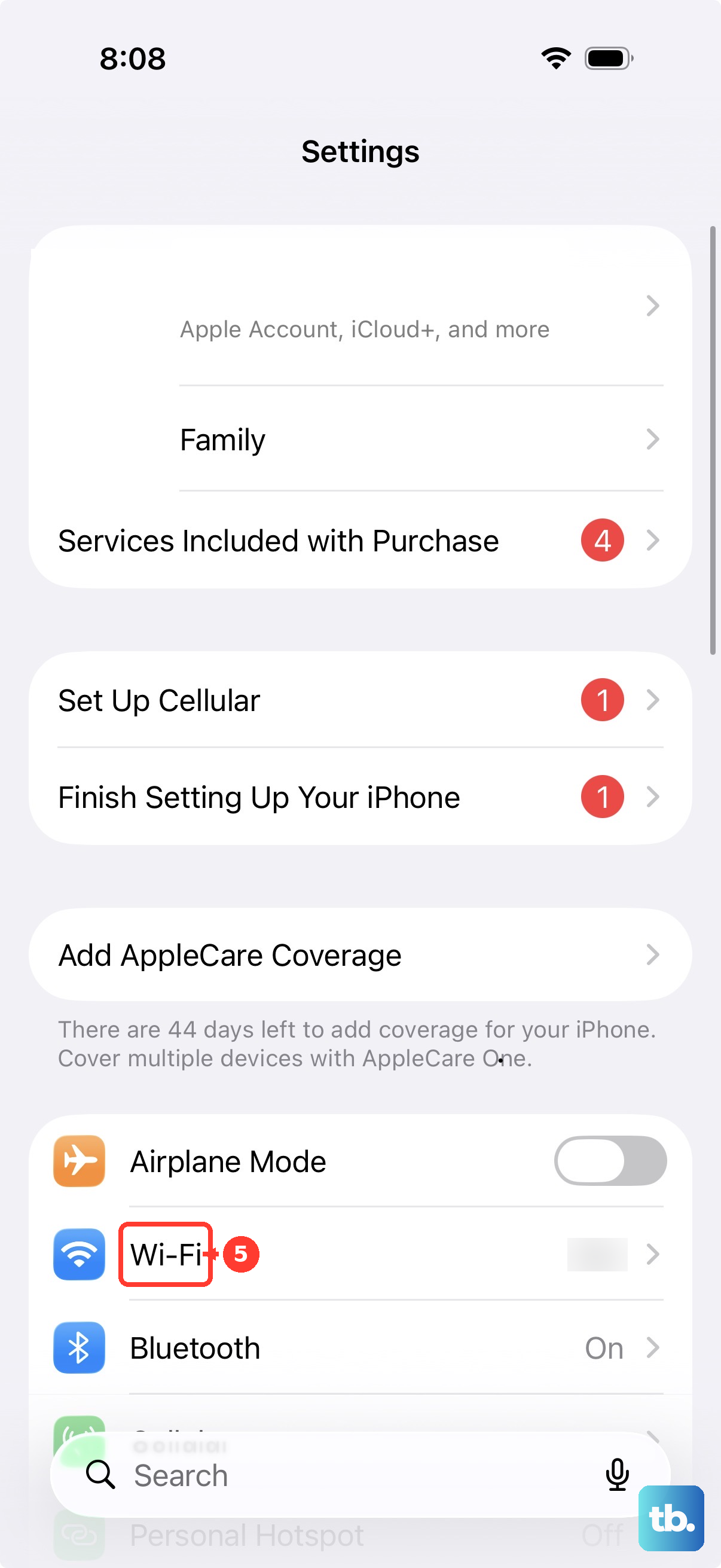
On a 5G-capable iPhone with carrier support, open Settings > Cellular > Cellular Data Options > Voice & Data and select 5G Auto instead of 5G On. With Dual SIM, select the relevant line before changing its options. You can also select LTE when your carrier exposes that choice, but any improvement depends on reception and workload. If those options are unavailable, focus on Wi-Fi and stronger reception.
During an extended period without coverage, open Control Center and tap Airplane Mode to prevent continued searching for cellular service. Cellular service is unavailable while this mode is enabled. Turn Wi-Fi back on if you need it.
Keep the phone away from excessive heat
Use your iPhone within its recommended ambient operating range of 0 to 35°C. Move it away from excessive heat, which can permanently reduce battery capacity. If charging inside a case makes the phone hot, remove the case.
Cold conditions can also shorten runtime, but that loss can be temporary. Consider temperature alongside the activity shown in Battery when judging whether the update is responsible.
Check battery health and get help if needed
On iPhone 15 and later, open Settings > Battery > Battery Health. On iPhone 14 and earlier, open Settings > Battery > Battery Health & Charging. These checks help distinguish worn battery capacity from software-related power consumption.
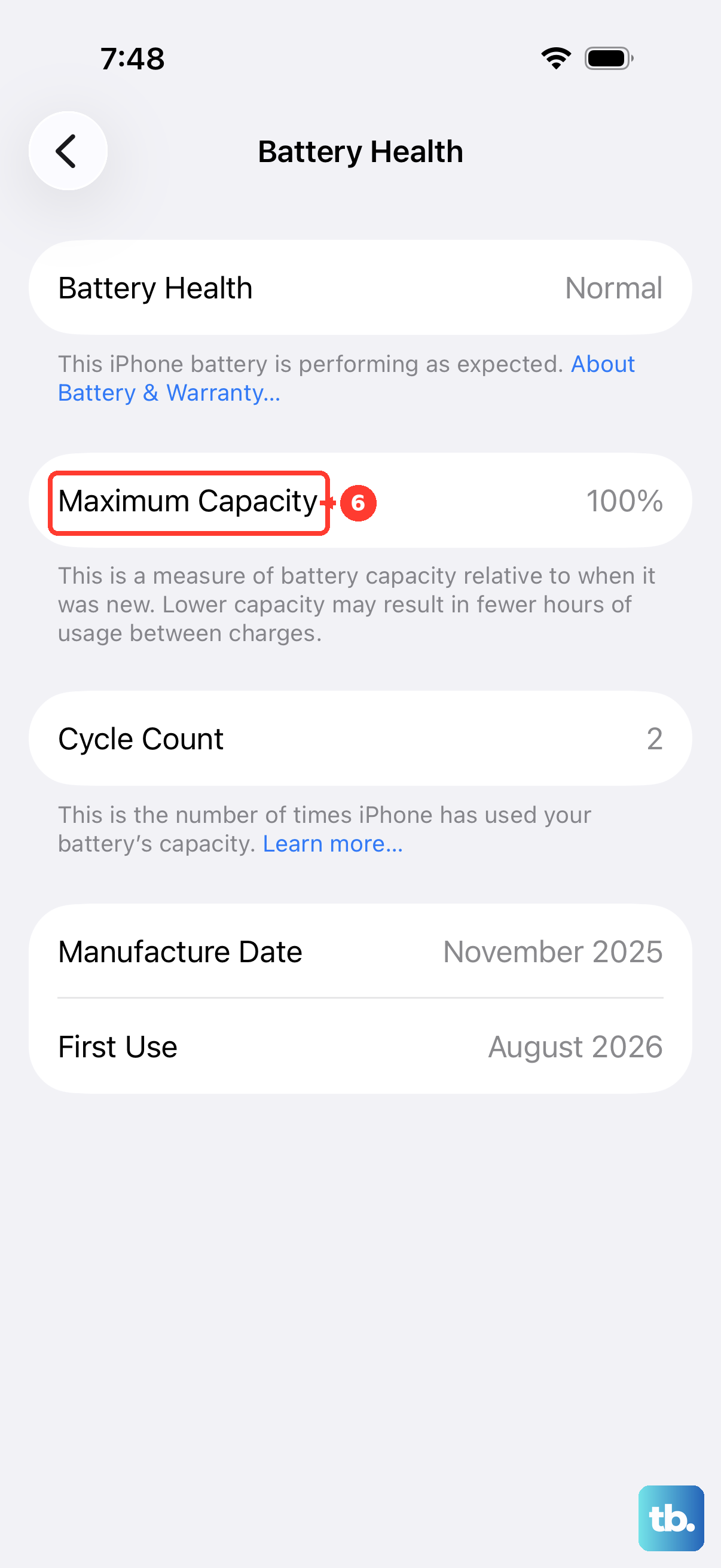
If the screen shows Service, consider battery replacement. For persistent drain or a service recommendation, open Apple’s iPhone battery service page and select Get started. Describe the battery problem to obtain troubleshooting or service options for your device and region.
Frequently Asked Questions
Does closing every app improve iPhone battery life?
Apple says routinely quitting unused apps does not prolong battery life. If an app is unresponsive, open the App Switcher, find the app, and swipe its preview upward. Reopen it from the Home Screen or App Library.
Can keyboard vibration affect battery life?
Yes, Apple notes that keyboard haptics can affect battery life. Open Settings > Sounds & Haptics > Keyboard Feedback and turn off Haptic.
Why does my iPhone stop charging before it reaches 100%?
On iPhone 15 and later, check Settings > Battery > Charging for a charge limit, and choose 100% if you need a full charge. When Optimized Battery Charging delays completion, touch and hold its Lock Screen notification and tap Charge Now. Increasing the starting charge gives you more available battery, but it does not reduce power consumption.
Should I reset all settings to fix battery drain?
Reserve Reset All Settings for persistent settings-related faults after restarting fails; Apple describes it as rarely necessary. Personal content remains, but network, privacy, payment, pairing, and other settings require reconfiguration. Treat it as a later troubleshooting option, without expecting a guaranteed battery improvement.
Will turning off beta updates remove the beta already installed?
Turning off beta updates stops future beta delivery without uninstalling the installed beta. On an iOS 26 beta installation, open Settings > General > Software Update > Beta Updates and select Off. This replaces the old beta-profile removal workflow used on iOS 16.3.1 or earlier.
Does Optimized Battery Charging fix rapid battery drain?
Optimized Battery Charging protects long-term battery lifespan rather than repairing an app or system process causing immediate drain. On iPhone 14 and earlier, open Settings > Battery > Battery Health & Charging and turn on Optimized Battery Charging. On iPhone 15 and later, open Settings > Battery > Charging, choose a charge limit, and enable Optimized Battery Charging when the limit is 100%.