Backspace in Chrome breaks in two different ways: it no longer goes back a page, or the key fails while you type. Chrome’s current shortcuts handle page navigation, and Google’s extension restores the old behavior on desktop. Start with the fastest fix, then check extensions, settings, and the keyboard itself.
Use Chrome’s Current Back Shortcut
This fixes Backspace not taking you to the previous page in Chrome.
On Windows, Linux, and ChromeOS, press Alt + Left arrow.
On Mac, press Command + [ or Command + Left arrow.
On ChromeOS, press Alt + Right arrow to move forward again.
Click the Toolbar Back Button
Click the toolbar Back button to return to the previous page.
Right-click Back, or click and hold Back, to open the tab’s recent page history.
Choose the page you want from that history menu.
Use this when keyboard shortcuts feel awkward on your device.
Restore Backspace Page Navigation
Install Google’s Go Back With Backspace extension from the Chrome Web Store when you want the old Backspace behavior back.
Open the Chrome Web Store listing for Go Back With Backspace.
Select Add to Chrome.
Confirm with Add extension.
After it installs, press Backspace to go back while browsing. The extension keeps Backspace from navigating pages while you are writing text.
Google notes that the extension cannot restore Backspace on certain special pages, including chrome:// pages such as Settings and Extensions, so check which page you are on before looking further.
When this method still fails, check whether Chrome is managed by a school or workplace, because your organization controls extension installs on managed devices.
Turn Off Conflicting Extensions
A Chrome extension is the most common cause when Backspace fails only in Chrome or only on certain websites.
Open Chrome’s More menu.
Go to Extensions, then Manage extensions.
Turn off suspected extensions one at a time.
Retest Backspace in Chrome after each change.
Select Remove for any extension you do not trust.
Update Chrome
Open Chrome’s More menu.
Go to Help, then About Google Chrome.
Wait while Chrome checks for updates.
Select Relaunch when it appears.
When Relaunch is not shown, Chrome is already up to date.
ChromeOS updates Chrome through the operating system update path.
Reset Chrome Settings
Changed settings and extension behavior are the most common reasons to reset Chrome after the faster fixes fail.
Open Chrome’s More menu.
Choose Settings.
Go to Reset settings.
Select Restore settings to their original defaults.
Choose Reset settings.
This disables extensions but does not remove them, so turn trusted extensions back on after the reset.
Check Keyboard Accessibility Settings
Use this when Backspace is delayed, ignored, repeats oddly, or other keys behave strangely too. These settings make a working keyboard feel broken inside Chrome.
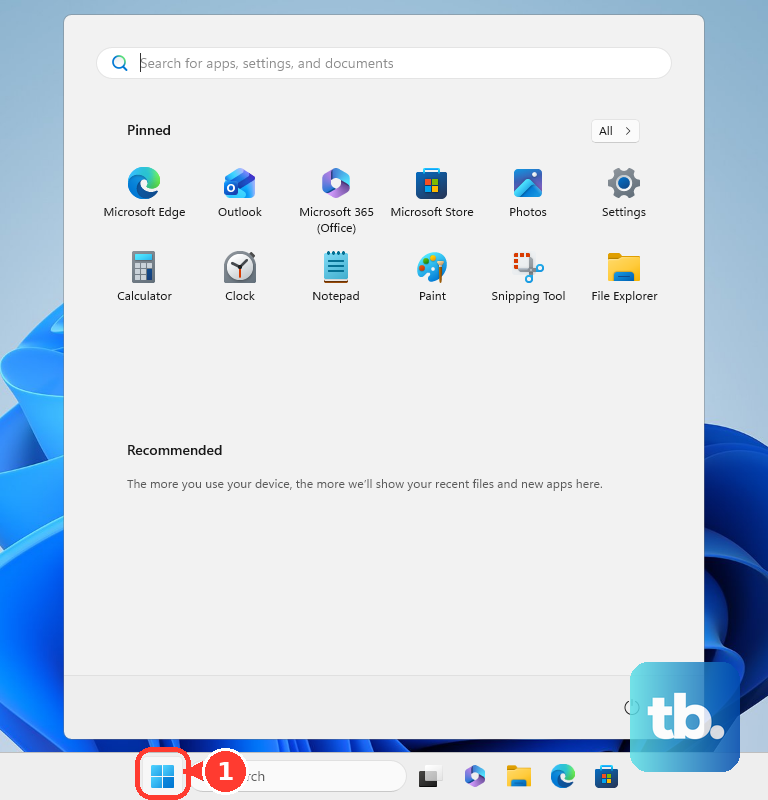
On Windows 11, press Windows logo key + U, or open Start, then Settings, then Accessibility, then Keyboard. On Windows 10, open Start, then Settings, then Ease of Access, then Keyboard.
Turn off Filter keys when brief or repeated keystrokes are being ignored.
Turn off Sticky keys when modifier keys interfere with normal typing.
On Mac, open the Apple menu, then System Settings, then Accessibility, then Keyboard. When Slow Keys is on, click the Info button and adjust Acceptance delay, or turn Slow Keys off.
Use an On-Screen Keyboard Temporarily
When the physical key is unreliable, Windows can show an on-screen keyboard. On Windows 11, open Start, then Settings, then Accessibility, then Keyboard, and turn on On-screen keyboard. On Windows 10, open Start, then Settings, then Ease of Access, then Keyboard, and turn on Use the On-Screen Keyboard. On either version you can press Windows logo key + Ctrl + O.
Click the on-screen Backspace key while your Chrome text field is active. This is a workaround for a bad physical key, not a Chrome setting.
On Mac, open the Apple menu, then System Settings, then Accessibility, then Keyboard, and turn on Accessibility Keyboard. You can also open the Input menu in the menu bar and choose Show Keyboard Viewer.
On Chromebook, click the bottom-right time and open Settings, then Device. Google documents this section as Keyboard in its keyboard guide and as Keyboard and inputs in its shortcuts guide, so open whichever label your Chromebook shows. Under Built-in keyboard, select Remap keyboard keys, or Customize keyboard keys if that is the wording you see, then choose the intended action for remapped keys. In the same Device section, select Keyboard and inputs, then View keyboard shortcuts.
Reinstall Chrome After Removing Keyboard Tools
A damaged Chrome installation or keyboard software that hijacks input is the most common reason to reinstall after Chrome settings and extensions are ruled out.
On Windows, open Start, then Settings, then Apps, then Installed apps.
Find Google Chrome or the unwanted keyboard or macro app.
Open More and select Uninstall.
You can also search for Control Panel, open Programs, then Programs and Features, select the program, and choose Uninstall or Uninstall/Change.
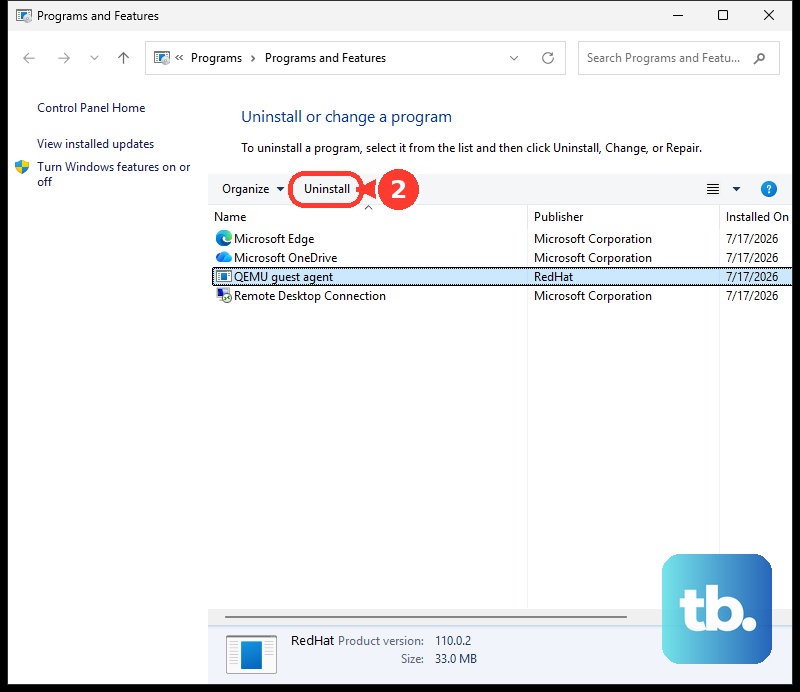
After removing Chrome, open Google’s official Chrome page, select Download Chrome, run the installer, and follow the prompts.
Backspace alone is no longer Chrome’s native Back command. Use Alt + Left arrow, Command + [, the toolbar Back button, or Google’s Go Back With Backspace extension instead.
For a work or school computer, ask your administrator to allow Go Back With Backspace or remove the extension that is intercepting Backspace. Managed Chrome setups control extension installs, removals, and force-installed extensions.
Frequently Asked Questions
Why does Backspace not go back in Chrome anymore?
Chrome no longer uses Backspace by itself for page navigation. Use Alt + Left arrow on Windows, Linux, and ChromeOS, or Command + [ on Mac.
Can I make Backspace go back again in Chrome?
Yes. Install Google’s Go Back With Backspace extension from the Chrome Web Store. It restores Backspace navigation except while you are writing text.
What should I do if Backspace does not work while typing in Chrome?
Check Chrome extensions first, then review keyboard accessibility settings such as Filter Keys, Sticky Keys, or Slow Keys. Use an on-screen keyboard to test whether the physical key is the problem.
Does this work on Chrome for Android or iPhone?
The Go Back With Backspace extension works on desktop Chrome with extension support. It is not supported on Chrome for Android or iOS.