

To fix audio not working in Phasmophobia, select the correct speakers or headset, unmute playback, and check microphone access if other players cannot hear you. If equipment does not respond to your speech, check the game’s voice recognition mode. The Windows steps below use Windows 11 menus.
The short version
- Missing game sound: Check hardware mute, playback routing, and volume in Windows or your console’s sound controls.
- Missing microphone input: Select the intended microphone, release its mute control, and check microphone permissions on PC.
- Failed speech recognition: Check Voice Recognition Mode, or choose Text to interact with equipment without speech recognition.
- Persistent trouble: Update the game, verify its files on Steam, and contact Kinetic Games if the failure continues.
| Fix | When to use it | Where to start |
|---|---|---|
| Restore physical connections | PC playback is missing | Cables, sockets, hardware mute, and volume |
| Select Windows playback device | Sound goes to the wrong device | Taskbar Speakers icon |
| Unmute Phasmophobia | The game alone is silent | Volume mixer |
| Correct app output routing | System sounds work but the game is silent | The game’s Output device in Windows |
| Match microphone selection | PC recognition fails | Windows Input settings |
| Test microphone volume | Your microphone is quiet or silent | Start test and Input volume |
| Allow microphone access | The Steam game cannot use your microphone | Windows microphone permissions |
| Enable console recognition | Equipment ignores your speech | Voice Recognition Mode |
| Reconnect Xbox microphone | Recognition switched to text after disconnection | Headset connection |
| Use text interaction | Speech recognition still fails | Text recognition mode |
| Release DualSense system mute | The controller’s mute button blinks | Press mute again |
| Correct PS5 output routing | Sound reaches the wrong device | Audio Output |
| Adjust PS5 HDMI settings and volume | Connected equipment has playback trouble | Audio Output and Volume |
| Select PS5 microphone | Your microphone is silent or quiet | Microphone settings |
| Disable PS5 game chat mute | Game voice chat is muted | Mute Game Voice Chat |
| Switch PS5 chat destination | Only party members hear you | Voice chat card |
| Adjust PS5 chat balance | Party chat overwhelms gameplay or one player is quiet | Audio Balance or player Volume |
| Adjust Xbox wired headset | Game or chat audio is suppressed | Audio & music |
| Adjust Xbox Wireless Headset controls | Playback or microphone input is missing | Earcup dials and mute button |
| Review Xbox headset auto-mute | The microphone mutes automatically | Xbox Accessories headset settings |
| Restart or pair Bluetooth again | A Bluetooth headset has no sound | Bluetooth & devices |
| Diagnose Bluetooth audio | Reconnecting has not helped | Get Help and adapter driver |
| Correct Valve Index routing | Index playback or microphone fails | Windows and SteamVR audio settings |
| Run Windows audio diagnostics | Basic PC checks fail | Audio troubleshooter |
| Disable audio enhancements | Your output device exposes this setting | Audio enhancements |
| Change audio format | Your device has classic advanced properties | Default Format |
| Restart audio services | Windows app audio remains silent | services.msc |
| Update audio driver | Windows audio trouble persists | Device Manager |
| Install Windows fixes | Audio fails after a Windows update | Windows Update |
| Roll back audio driver | A driver update broke sound | Roll Back Driver |
| Reinstall undetected device | Windows does not detect the audio device | Uninstall device |
| Update Steam game | Game updates are pending | Automatic updates |
| Update PS5 game | PS5 or PS VR2 game needs updating | Check for Update |
| Repair Steam game files | A game installation problem may remain | Verify integrity of game files |
| Contact Kinetic Games | Game-specific audio trouble persists | Submit a request in its help center |
| Review PS5 automatic microphone mute | Logging in or starting chat changes microphone status | Microphone status settings |
| Review PlayStation family restrictions | A child account cannot communicate | Family Management |
| Review permissions in PlayStation Family | A family manager uses the companion app | Child communication permissions |
| Ask a Windows administrator | Microphone access is organization-managed | Managed microphone policies |
Restore game sound on Windows
Check your audio hardware before changing software settings. Reconnect loose cables, use the correct headphone and microphone sockets, power on your speakers, release hardware mute, and raise the hardware volume. For USB audio hardware, try another USB port; when testing speakers, disconnect your headphones.
Select the taskbar Speakers icon, then select the arrow labeled Select a sound output. Choose the speakers or headphones you want to hear.
With Phasmophobia running, open Settings > System > Sound > Volume mixer. Under Apps, find Phasmophobia, unmute it, and raise its volume. Expand its controls and select the intended Output device, especially if Windows sounds work but the game stays silent.
Fix microphone input and permissions
For microphone trouble, open Settings > System > Sound > Input. Under Choose a device for speaking or recording, select your intended microphone and use the same microphone in Phasmophobia. Kinetic recommends checking that the Windows default microphone is the microphone you intend to use when recognition on the Voice setting fails on PC.
Select the microphone, choose Start test, and speak normally. Select Stop test, then Play to hear the recording. Adjust Input volume as needed, and release the headset’s physical microphone mute.
Next, open Settings > Privacy & security > Microphone. Turn on Microphone access, Let apps access your microphone, and Let desktop apps access your microphone. Steam desktop games do not have individual switches in the Microsoft Store app list, so check the desktop-app permission.
Fix equipment speech recognition
If equipment fails to respond to spoken interaction, check recognition separately from playback and multiplayer chat. On PS5, PS VR2, or Xbox Series X|S, open the journal’s game options from the main menu and set Voice Recognition Mode to Voice. Xbox players need a compatible connected headset; PS5 players can use the DualSense microphone or a supported headset, while PS VR2 players can use its built-in microphone.
On Xbox, reconnect a microphone or headset that became disconnected, then check Voice Recognition Mode again. Kinetic says disconnecting an Xbox microphone switches recognition to text until the microphone reconnects. For PC recognition trouble, also match the Windows default microphone to the microphone used by the game.
To keep interacting with equipment while speech recognition is failing, open the journal’s game options and set Voice Recognition Mode to Text. Use the equipment’s displayed interaction choices on PC, PS5, PS VR2, or Xbox Series X|S. This bypasses speech recognition, but it does not repair missing game sound or multiplayer voice chat.
Restore PS5 sound and game chat
A blinking DualSense mute button means microphone and speaker output are muted. Press the mute button again to restore sound. A steadily lit button indicates microphone mute; press mute to unmute your microphone.
For playback routing, open Settings > Sound > Audio Output > Output Device and choose your intended device. Check Output to Headphones, and review Switch Output Device Automatically if connecting a headset unexpectedly redirects sound. Raise headphone volume under Settings > Sound > Volume.
When using HDMI audio equipment, open Settings > Sound > Audio Output and match HDMI Device Type to the connected equipment. For an AV amplifier, also match Number of Channels. Review Audio Format (Priority) for equipment compatibility; the available settings depend on the connected equipment.
For microphone input, open Settings > Sound > Microphone. Select the intended Input Device, then use Adjust Microphone Level to set the input level. These controls apply to the DualSense microphone, supported headsets, and USB microphones.
If game chat is muted, press the PS button, open Sound, and turn off Mute Game Voice Chat. You can also find this setting through Game Base > Voice Chat Settings. When party members can hear you but in-game players cannot, press the PS button and open the voice chat card. Use its chat selector to switch from party voice chat to game voice chat.
If party chat overwhelms the game, open the voice chat card and adjust Audio Balance under More .... This balance control applies to party chat. For one quiet player, select that player, choose Volume, and raise the level.
Fix Xbox headset sound and microphone input
On Xbox Series X|S with a compatible wired headset, press the Xbox button and select Audio & music. Raise the headset volume and adjust the game/chat balance so neither source is suppressed. For broader output settings, open Profile & System > Settings > General > Volume & Audio Output.
With the Xbox Wireless Headset on Xbox Series X|S, raise volume using the right-earcup dial. Adjust the left-earcup game/chat balance dial away from an extreme that suppresses the missing audio, and use the headset’s mute button to restore microphone input. If the microphone keeps muting automatically, review its auto-mute configuration in the Xbox Accessories app’s headset settings.
Restore Bluetooth headphones and Valve Index audio
For Bluetooth headphones, open Settings > Bluetooth & devices. Turn Bluetooth off, wait 10 seconds, then turn it back on. Check that the headset is selected under Settings > System > Sound > Output.
Removing the headset removes its Bluetooth pairing, so you will need to pair it again. If reconnecting is necessary, open the headset’s More options menu, select Remove device, then use Add device to pair it again. If sound still fails, run the Bluetooth troubleshooter in Get Help. For driver repair, open Device Manager > Bluetooth, right-click the adapter, and select Update driver.
For Valve Index on a Windows PC, start SteamVR and make sure its headset indicator is green. Select Index as the Windows output device, then open SteamVR’s Settings > Audio > Set Playback device to... and choose Index. For Index microphone trouble, make Valve VR Radio & HMD Mic the Windows default recording device.
Repair persistent Windows audio problems
Run Windows audio diagnostics after the basic output and microphone checks. Open Settings > System > Troubleshoot > Other troubleshooters, then select Run beside Audio. You can also use the audio troubleshooter in Get Help.
For an output device that exposes audio enhancements, open Settings > System > Sound and select that device. Set Audio enhancements to Off. For devices with the classic Advanced properties tab, open the sound device’s Properties, select Advanced, and change Default Format. Select OK and test playback, then try another available format if necessary.
Restart the Windows audio services if the game remains silent. Open Start and search for the following command:
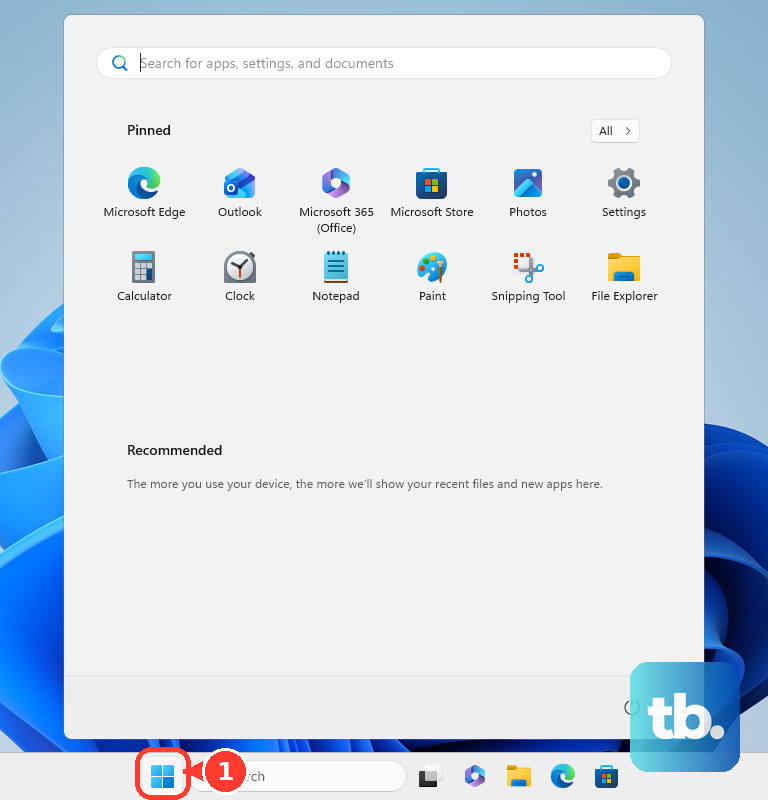
services.mscPress Enter, right-click Windows Audio, and select Restart. Repeat for Windows Audio Endpoint Builder, then test Phasmophobia again. Administrator assistance may be required.
To update the audio driver, open Device Manager > Sound, video and game controllers. Right-click the affected audio device, select Update driver, complete the offered driver search, and restart the PC. If audio stopped after a Windows update, also open Settings > Windows Update, select Check for updates, install available updates, and restart.
If sound stopped following a driver update, rolling back replaces the current driver with a retained previous driver. In Device Manager > Sound, video and game controllers, right-click the audio device and open Properties > Driver > Roll Back Driver. Complete the rollback and restart. This option requires a retained previous driver; if one is unavailable, continue with the other audio repair steps.
For an undetected microphone or audio device, uninstalling removes the device and can remove its driver. Open Device Manager > Sound, video and game controllers, right-click the affected device, and select Uninstall device. Check Attempt to remove the driver for this device, select Uninstall, and restart Windows. If necessary, use Scan for hardware changes in Device Manager.
Update Phasmophobia and repair its files
On Steam, open Library > Phasmophobia > Manage > Properties > Updates. Under Automatic updates, select Always keep this game updated, and allow queued updates to finish before testing. On PS5 or PS VR2, highlight Phasmophobia, press the options button, select Check for Update, and install any available update.
For a Steam installation repair, restart the PC and launch Steam. In Library, right-click Phasmophobia, then select Properties... > Installed Files > Verify integrity of game files and wait for it to finish. File verification repairs installation problems but is not a guaranteed audio fix.
If the failure persists, open the official Kinetic Games help center and select Submit a request. Include your platform, game version, audio hardware, whether playback or microphone input fails, and whether other applications work. Kinetic also directs players to its official Phasmophobia Discord for troubleshooting.
Frequently Asked Questions
Why do older instructions mention VOSK or Windows Voice?
Kinetic renamed VOSK to Voice and Windows Voice to System Voice. These labels identify recognition engines rather than the game’s sound-output device, and System Voice is platform-dependent.
Where did the main-menu voice recognition test go?
Kinetic removed the main-menu recognition test in the Truck Overhaul update. Instructions telling you to run that old test are obsolete; the same update documented microphone input monitoring through the in-session journal’s audio options.
Should you reinstall Cortana to fix Phasmophobia recognition?
Skip instructions to reinstall Cortana because Microsoft retired the standalone Windows Cortana app. That retirement does not mean Phasmophobia’s separate System Voice option was removed.
Why does your PS5 microphone become muted when you log in or start voice chat?
PS5 has Microphone Status When Logged In and Microphone Status When Starting Voice Chat or Broadcast settings that control this behavior. Review them in the console’s microphone settings, and choose Don't Change for the latter to retain the existing microphone state. You can also adjust input and mute controls through the control-center Mic menu.
Can PlayStation family restrictions prevent communication?
Yes, communication restrictions can affect a child account. As the family manager or appointed parent or guardian, open Settings > Family and Parental Controls > Family Management on PS5, select the child, and review Communication and User-Generated Content. On the web, open Account Management > Family Management, select the child, then select Edit; review game-specific exceptions under Allowed Games > Communication. As the family manager, you can also manage communication permissions and approve game-specific requests in the PlayStation Family app.
What if your organization controls Windows microphone access?
On a managed Windows Pro, Enterprise, or Education device, ask your administrator to review microphone privacy policies, including LetAppsAccessMicrophone. On Windows 11 24H2 and later, applicable desktop-app allow or deny policies also need review. A forced denial can prevent your own microphone settings from restoring access.