Apple CarPlay not working on iPhone 17 leaves the car display blank, keeps your phone out of Available Cars, or breaks audio, calls, and messages after it connects. Start with the connection and setup checks that solve the most common failures, then move into restrictions, resets, apps, and managed-phone settings. Every path below uses Apple’s current support steps verified for July 31, 2026.
1. Confirm your iPhone and car support CarPlay
CarPlay has to be available in your country or region, and Apple lists Apple CarPlay as available in the U.S.
Your car or stereo also has to support it, so check Apple’s CarPlay Available Models list or contact the vehicle maker when the model is not listed.
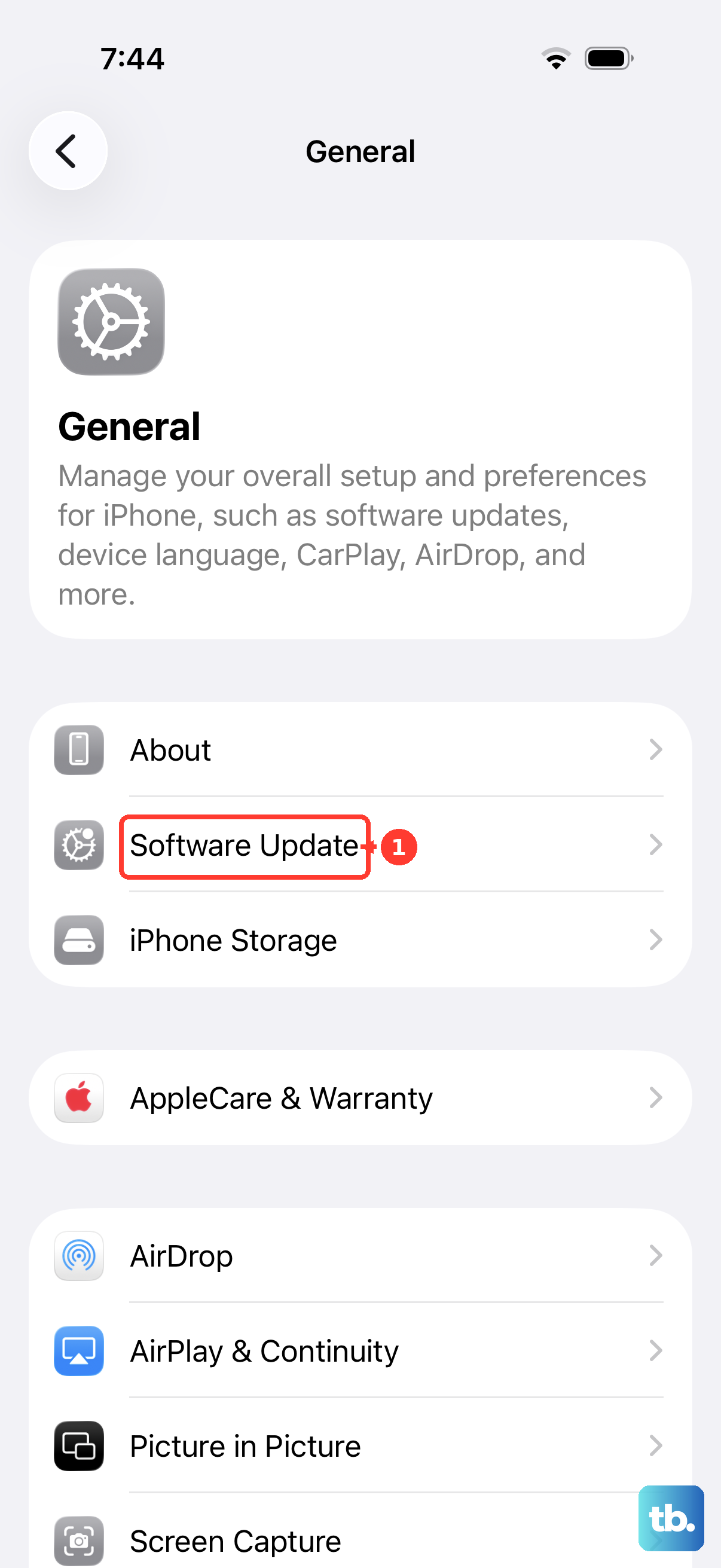
Then bring the iPhone 17 current from Settings > General > Software Update > Download and Install; Apple’s software reference listed iOS 26.6 as the latest iPhone release on July 31, 2026.
2. Fix the wired USB connection
Plug iPhone 17 into the vehicle USB port marked with the CarPlay icon or smartphone icon.
Use a direct USB cable for wired CarPlay.
Replace any USB-C to Lightning adapter setup with a direct USB cable, because Apple says some adapter, cable, and entertainment-system combinations disrupt wired CarPlay.
Reconnect with a different USB-C cable.
Move the cable to another vehicle USB port when your car has more than one port.
When the Accessory may not be supported alert appears, update iOS, unplug and reconnect the cable, and inspect the iPhone and cable connectors for damage or debris.
Older iPhone tutorials tell you to use an Apple Lightning to USB cable. That advice is for Lightning iPhones, not iPhone 17.
3. Rebuild wireless CarPlay pairing
This fixes wireless CarPlay that will not pair, drops during setup, or never appears under Available Cars.
Open Settings > Bluetooth and turn on Bluetooth.
Next, open Settings > Wi-Fi and turn on Wi-Fi.
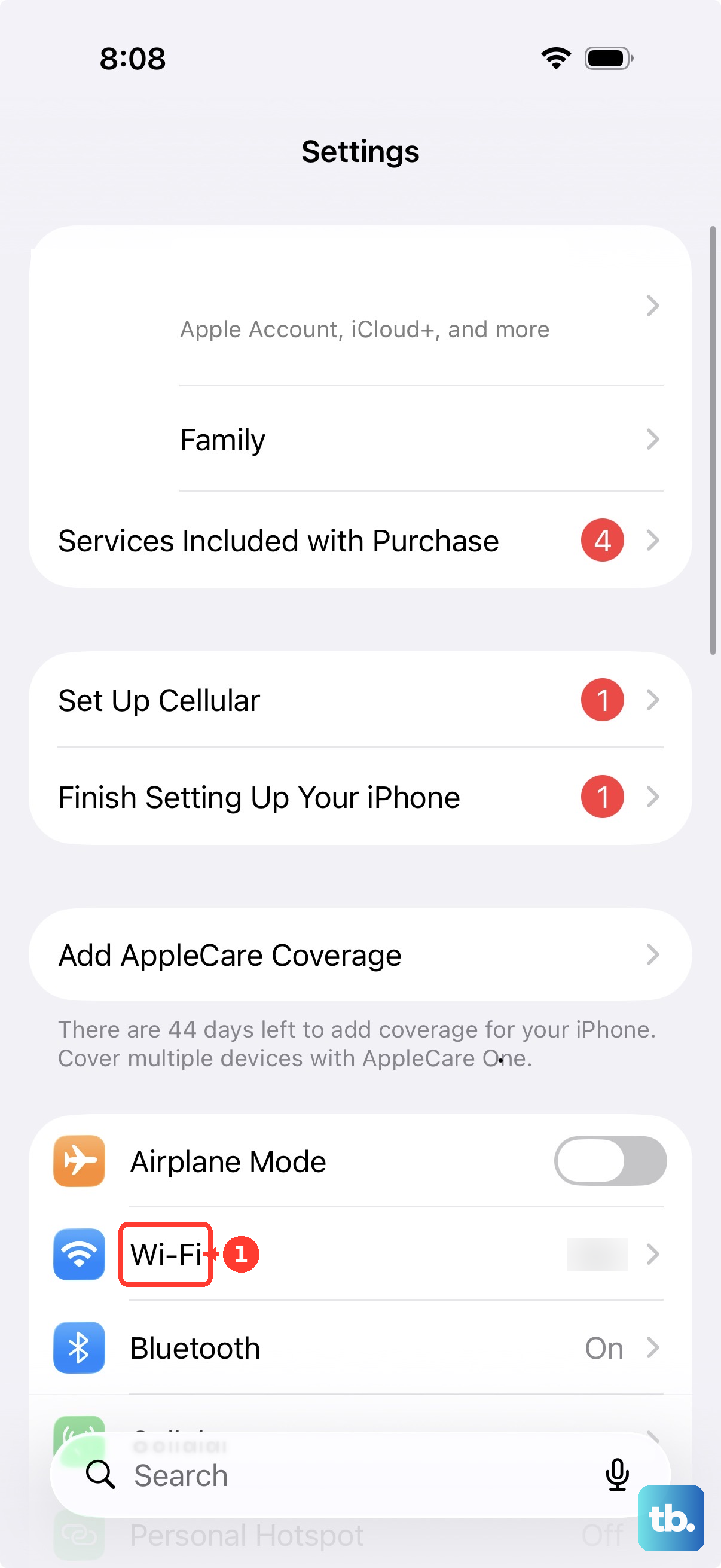
Tap the CarPlay network and turn on Auto-Join.
Press and hold the steering-wheel Voice Command button.
Put the stereo in Wireless or Bluetooth mode.
After that, open Settings > General > CarPlay > Available Cars and choose your car.
4. Turn Siri back on
CarPlay requires Siri, so setup and voice control stop working when Siri is off.
Open Settings > Apple Intelligence & Siri > Talk & Type to Siri and turn on Siri or Hey Siri.
On iPhones that show the shorter Siri menu, use Settings > Siri > Talk & Type to Siri instead.
When Siri is already enabled, turn it off and back on once.
5. Let CarPlay through Screen Time
This fixes CarPlay when Screen Time restrictions block it on a compatible iPhone and car.
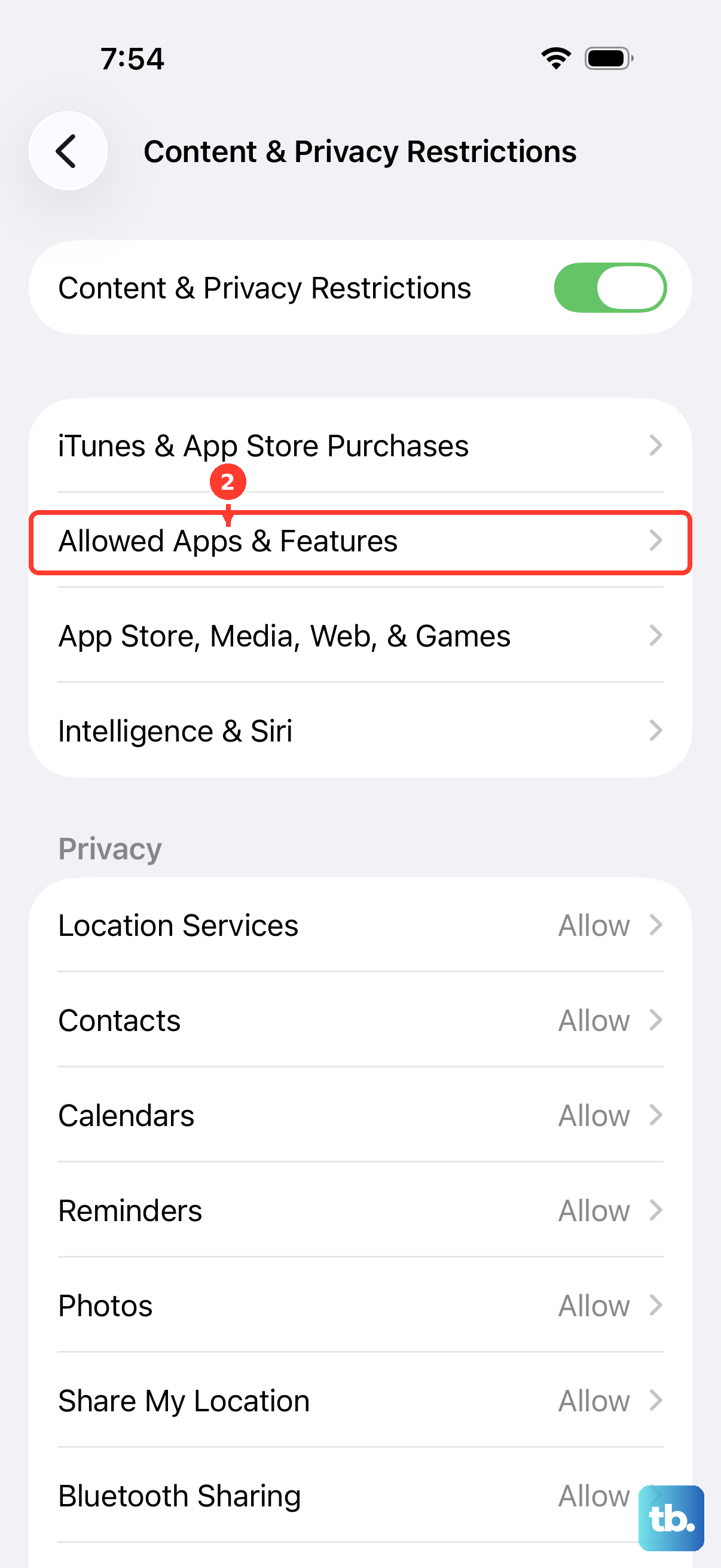
- 1.Open Settings > Screen Time > Content & Privacy Restrictions.
- 2.When Content & Privacy Restrictions is on, tap Allowed Apps & Features.
- 3.Turn on CarPlay.
6. Restart both sides of the connection
On iPhone 17, press and hold either Volume button and the Side button until the power-off slider appears.
Drag the Power Off slider.
Wait 30 seconds.
Then press and hold the Side button until the Apple logo appears.
Restart the car or head unit using the vehicle manual.
Reconnect iPhone and select the CarPlay logo on the vehicle display when CarPlay Home does not open automatically.
Use a force restart only when iPhone is frozen or unresponsive: press and quickly release Volume Up, press and quickly release Volume Down, then press and hold the Side button until the Apple logo appears.
7. Forget the car and set it up again
Open Settings > General > CarPlay.
Tap your car.
Tap Forget This Car.
Reconnect with USB or open Settings > General > CarPlay > Available Cars for wireless setup.
Choose your car.
Once paired, select the CarPlay logo on the vehicle display when CarPlay Home does not open automatically.
Use the direct USB path for wired cars and the wireless pairing path for wireless stereos so the new pairing matches the car.
8. Remove firmware and network blockers
Update the vehicle stereo or head-unit firmware using the manufacturer’s update process in the car manual.
Open the Settings app, swipe down to search for VPN, Profile, Firewall, and Filter, then turn off, change, or delete settings that are not managed and not required.
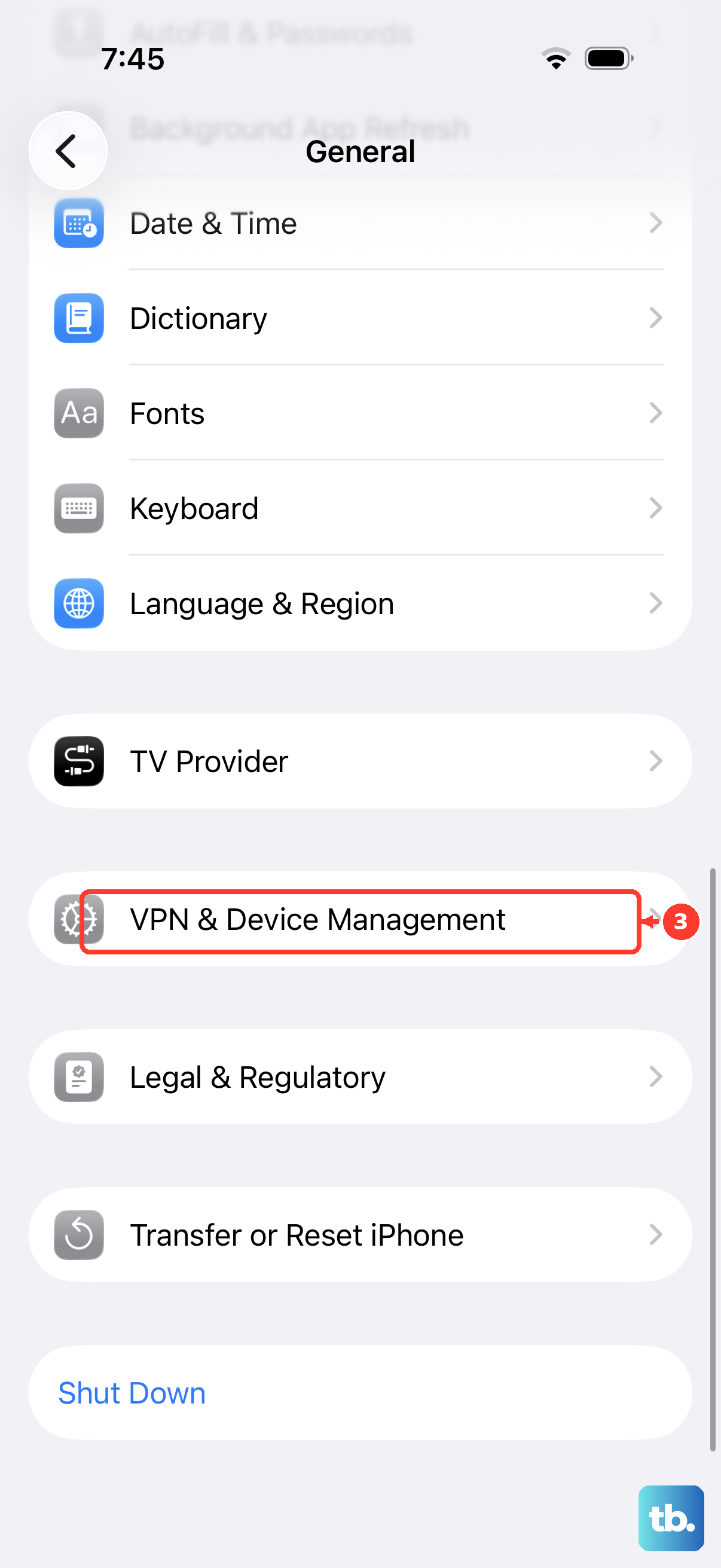
For a profile-installed VPN, open Settings > General > VPN & Device Management, select the configuration profile, then tap Remove Profile.
Reset network settings from Settings > General > Transfer or Reset iPhone > Reset > Reset Network Settings. This removes Wi-Fi networks and passwords, cellular settings, and VPN or APN settings not installed by a profile or MDM.
Use Settings > General > Transfer or Reset iPhone > Reset > Reset All Settings after restart and narrower fixes fail. Apple says this does not delete apps, photos, messages, or documents, but it resets Bluetooth pairings, VPN configurations, Wi-Fi passwords and networks, privacy settings, and more.
9. Check apps notifications and managed phones
For a missing or misplaced CarPlay app, open Settings > General > CarPlay, select your car, tap Customize, then use the Add button, Delete button, or drag handle to change supported CarPlay apps.
When one app’s content disappeared after locking it, use the Home Screen, locate the app, touch and hold the app icon, tap Don’t Require Face ID, Touch ID, or Passcode, then authenticate.
For a hidden app, open App Library > Hidden, authenticate, touch and hold the app, tap Don’t Require Face ID, Touch ID, or Passcode, then authenticate again.
When one third-party CarPlay app fails, touch and hold the app, tap Remove App, tap Delete App, tap Delete, then reinstall it from the App Store. Contact the app developer when the problem stays inside that one third-party app.
For message announcements, open Settings > Notifications > Announce Notifications > CarPlay and turn on Announce Messages. From the car display, use Settings > Announce Messages > Announce Messages > Announce Options.
For blocked calls or notifications, open Control Center, touch and hold Focus, then tap Driving. Configure it from Settings > Focus > Driving > While Driving and choose Automatically, When Connected to Car Bluetooth, Manually, or Activate With CarPlay.
On a work, school, or organization iPhone, open Settings > General > VPN & Device Management, tap the installed profile or management entry, and contact the administrator when settings are enforced.
When management removal is allowed, open Settings > General > VPN & Device Management, select the management entry, then tap Remove Management.
After checking settings, connection, vehicle compatibility, iOS, firmware, Siri, restrictions, and pairing, use Apple’s Get Support flow for CarPlay help.
When CarPlay connects but only messages, calls, or one app misbehaves, fix that feature before resetting the whole iPhone again.
Frequently Asked Questions
Does iPhone 17 support wired CarPlay?
Yes, when the car or head unit supports wired CarPlay. Use a direct USB cable with iPhone 17, because Lightning cable advice applies to older iPhones.
Why does CarPlay connect but one app is missing?
Only CarPlay-supported apps appear on the car display. Add, remove, or reorder supported apps from Settings > General > CarPlay > your car > Customize.
What does Reset Network Settings remove on iPhone 17?
It removes Wi-Fi networks and passwords, cellular settings, and VPN or APN settings that were not installed by a configuration profile or MDM.
Can a managed iPhone block CarPlay?
Yes. On a work, school, or organization iPhone, check Settings > General > VPN & Device Management and contact the administrator when settings are enforced.