
That spinning wheel next to your Wi-Fi network on your iPhone 17 is incredibly frustrating. You're not alone, and the good news is this is almost always a software glitch you can fix yourself. Let's get you back online.
Toggle Wi-Fi and Restart Your iPhone
Start with the simplest fix. Swipe down from the top right corner to open Control Center and tap the Wi-Fi icon to disconnect from your network. Wait about ten seconds, then tap it again to reconnect. This forces your iPhone 17 to drop the connection and re-establish it fresh, which often clears up the issue right away.
If the icon is still spinning, do a full restart. On your iPhone 17, quickly press and release the Volume Up button, then quickly press and release the Volume Down button. Finally, press and hold the Side button until you see the Apple logo appear. This reboot can clear out temporary software bugs that are blocking the connection.
Forget the Network and Rejoin
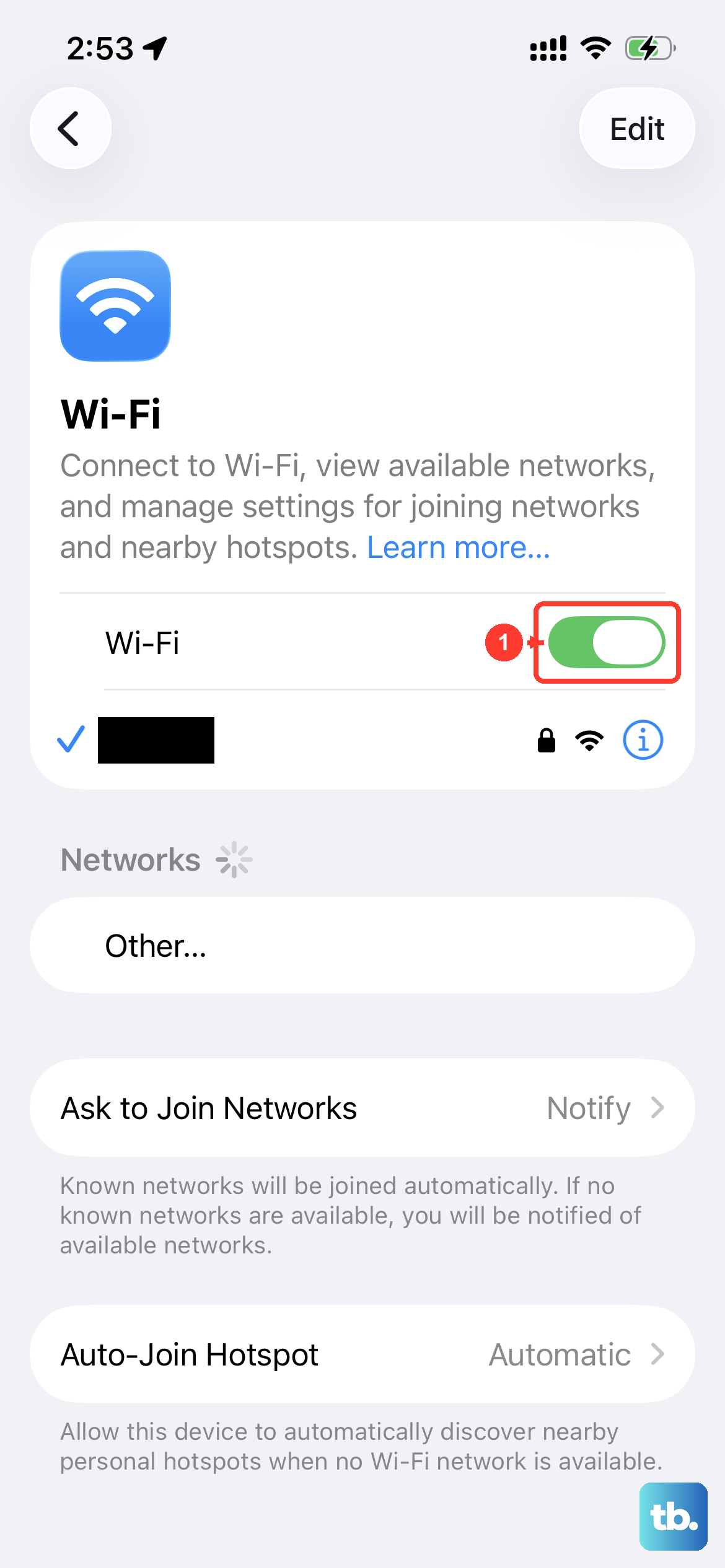
Your iPhone might be holding onto corrupted login information for that network. To clear it out, go to Settings > Wi-Fi. Tap the info icon (the "i" in a circle) next to your network's name. Then, tap Forget This Network and confirm.
After you forget it, go back to the main Wi-Fi list, select your network again, and re-enter the password. This is especially important if you recently changed your Wi-Fi password at home. Your phone will keep trying the old one and fail every time.
Check for a Router or Internet Outage
Sometimes the problem isn't your phone at all. Check if other devices in your home, like a laptop or tablet, can connect to the internet. If everything is down, the issue is with your router or your internet service provider.
In that case, unplug your router and modem from power. Wait a full minute before plugging them back in. This gives them time to fully reset and can resolve a huge number of connectivity problems. Give them another minute to boot up completely before trying to connect your iPhone again.
Disable and Re-enable Airplane Mode
This trick works by resetting all your wireless radios at once. Open Control Center and tap the airplane icon to turn Airplane Mode on. You'll see the icon turn orange. Leave it on for about 15 seconds, then tap it again to turn it off.
Watch as your cellular bars and Wi-Fi icon reappear. This process can knock loose a stuck connection that a simple Wi-Fi toggle didn't fix.
Turn Off VPN and Privacy Services
If you're using a VPN, a content blocker, or even Apple's own Private Wi-Fi Address feature, they can sometimes interfere with connecting to a network. Go to Settings and look for your VPN app; if it's connected, toggle it off temporarily to test.
For Private Wi-Fi Address, go to Settings > Wi-Fi, tap the info icon next to your network, tap Private Wi-Fi Address, then tap Off. You'll need to rejoin the network after doing this. Some older routers or public networks have trouble with this privacy feature.
Update Your iPhone to the Latest iOS
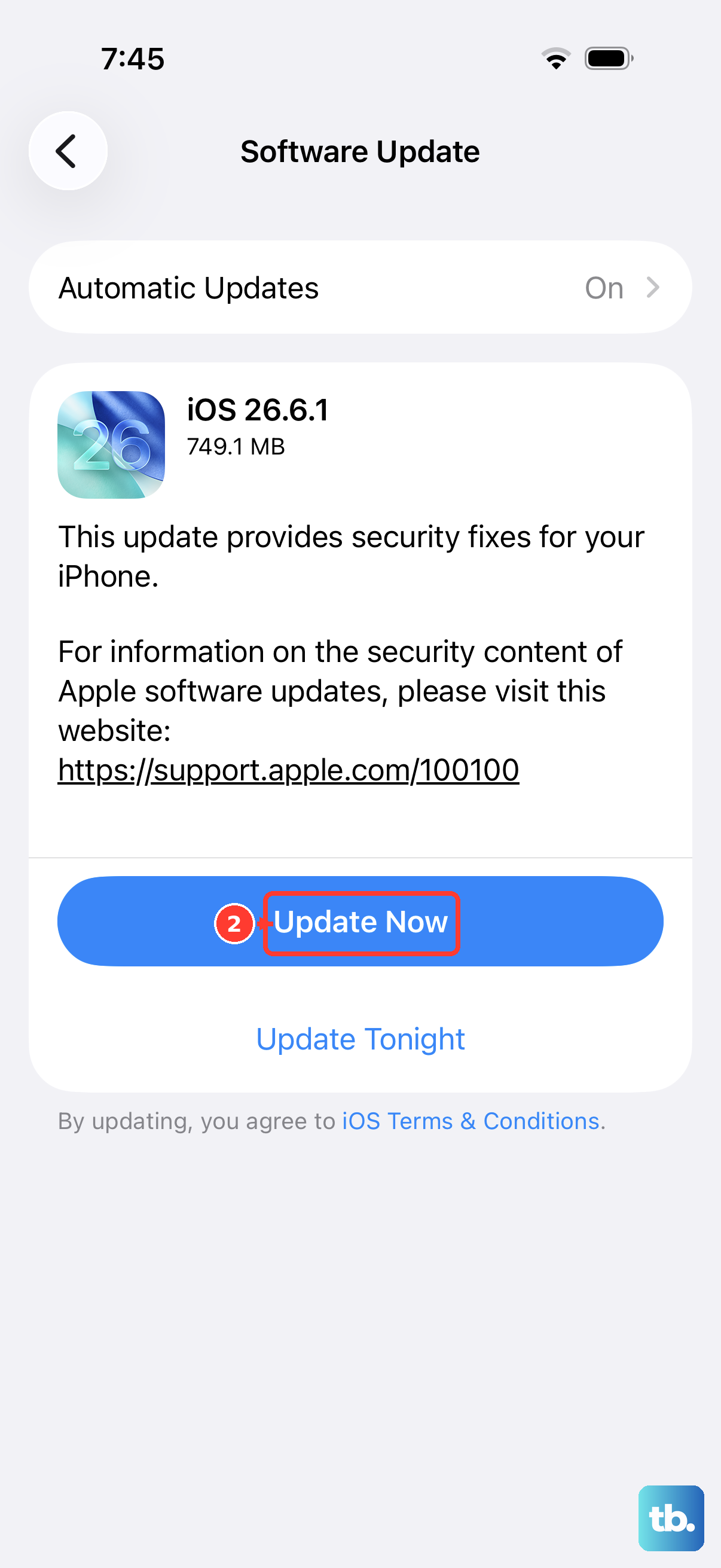
Apple regularly releases updates that fix bugs, including ones related to Wi-Fi and network stability. Go to Settings > General > Software Update. If an update is available, install it.
It's a good idea to plug your iPhone 17 in during the update. Keeping your phone updated is one of the best preventative steps you can take.
Reset All Network Settings
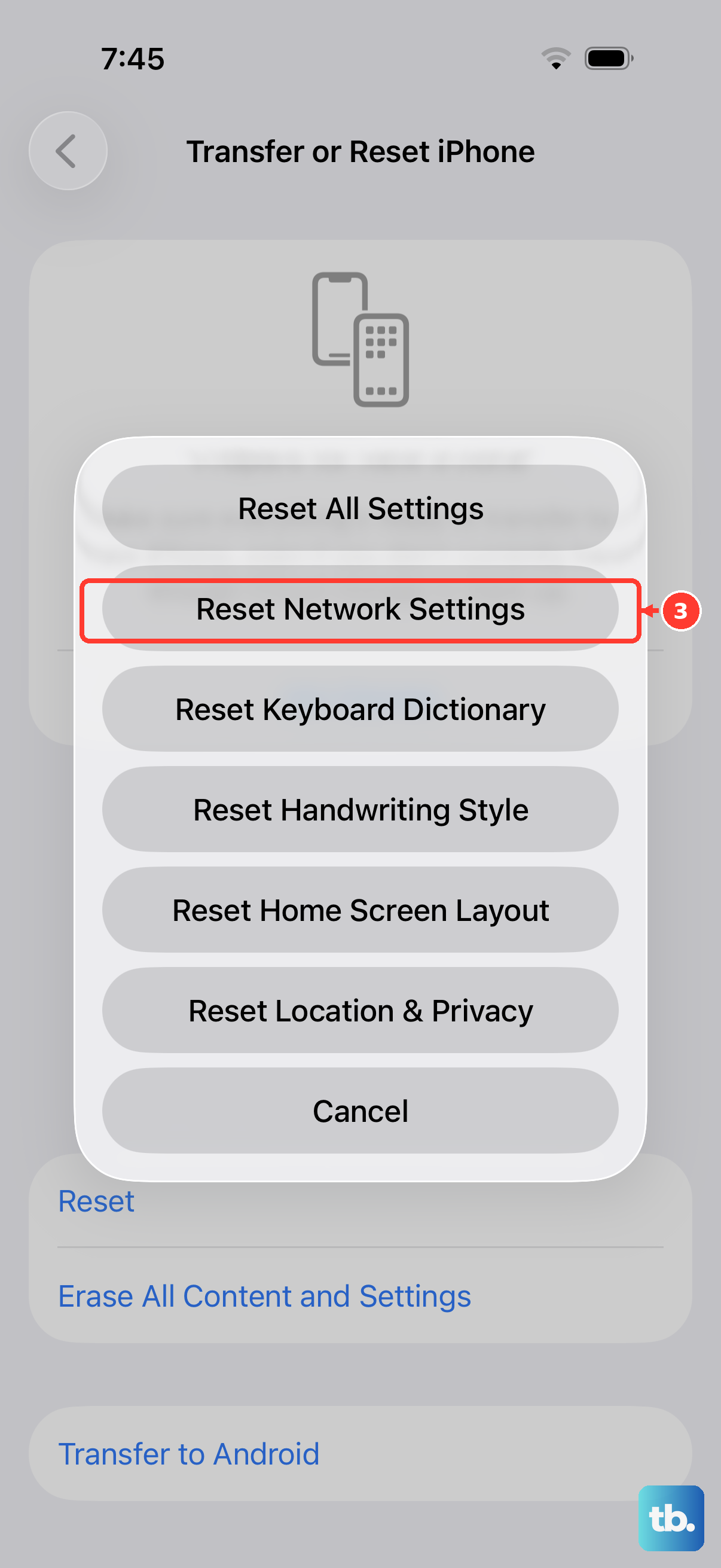
This is a more thorough step that clears all network-related data without touching your personal content. It will erase saved Wi-Fi networks and passwords, cellular settings, and VPN and APN settings. To do it, go to Settings > General > Transfer or Reset iPhone.
Tap Reset, then choose Reset Network Settings. Your iPhone will restart. After it boots up, you'll need to rejoin your Wi-Fi network and re-enter its password. This solves a wide range of persistent connection problems.
Check Your Date and Time Settings
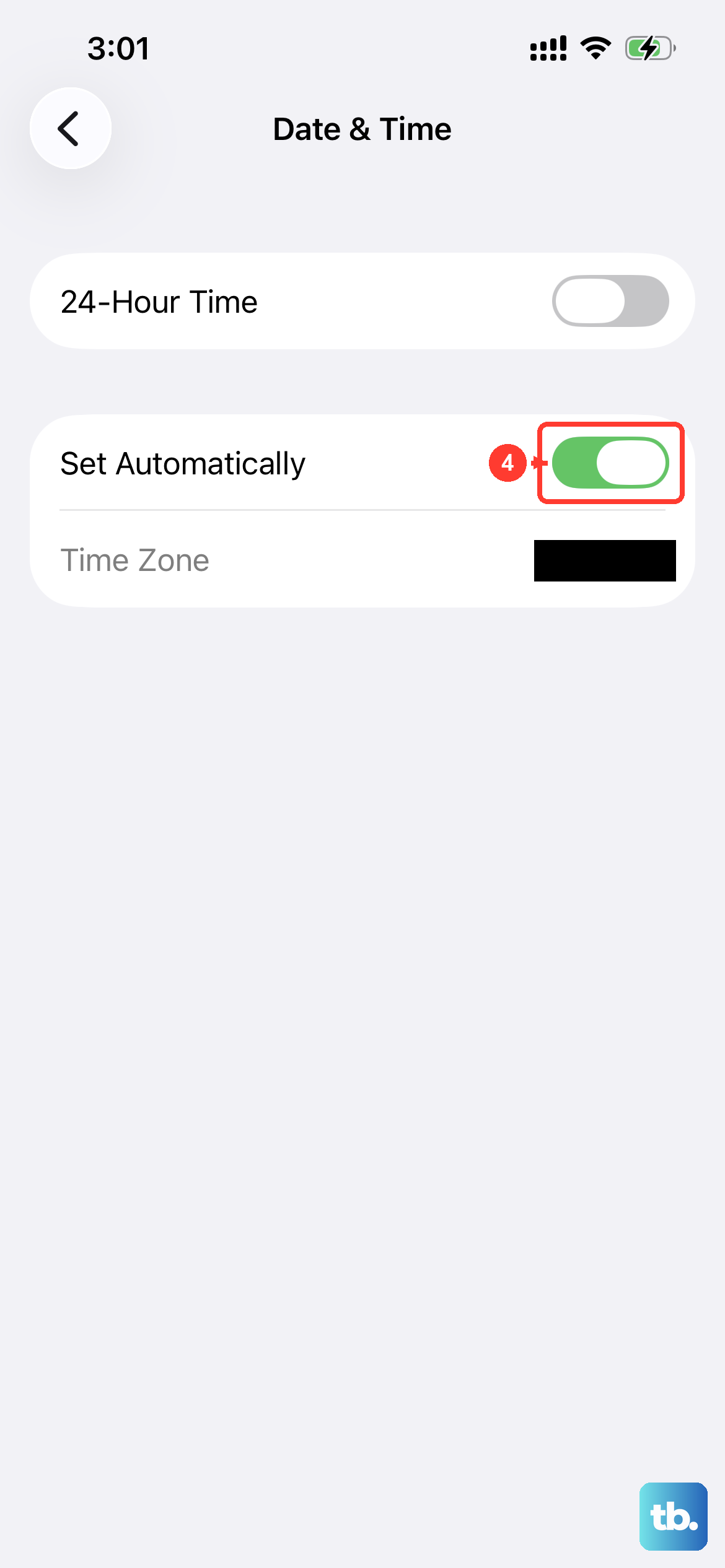
This seems unrelated, but it's critical for network security. If your iPhone's clock is wrong, it can fail to properly validate security certificates from your Wi-Fi network, preventing a connection. Go to Settings > General > Date & Time.
Make sure the switch for Set Automatically is turned on. If it's already on, try turning it off and back on again. This ensures your phone is synced with the correct time, which is a small but important part of the connection handshake.
Try Connecting to a Different Network
To rule out a hardware problem with your iPhone's antenna, try connecting to a different Wi-Fi source. This could be a personal hotspot from another phone, a public network at a cafe, or a friend's network. If your iPhone 17 connects to other networks without any issue, then the problem is specific to your original network's configuration or router.
If it fails to connect to any Wi-Fi network at all, that points more strongly to an issue with the phone itself. Before assuming the worst, make sure you've completed a network settings reset, as described above.
Review Router Settings and Band Selection
Modern routers often broadcast two networks: a 2.4 GHz band and a faster 5 GHz band. While the iPhone 17 supports both, some older router configurations can cause issues. Try temporarily disabling the 5 GHz band in your router's admin settings, forcing your iPhone to connect to the 2.4 GHz band, which has better range and wall penetration.
Also, check if your router's firmware is up to date. Log into your router's admin page (usually by typing 192.168.1.1 into a browser) and look for a firmware update section. An outdated router can struggle with newer devices.