

If Subaru Apple CarPlay is not working, reconnect your unlocked iPhone to the CarPlay USB port, or turn on Bluetooth, Wi-Fi and Auto-Join for wireless CarPlay. Select Apple CarPlay on the Subaru display if it does not open automatically, then check the settings below.
The short version
- Check that your installed Subaru system supports the connection you are trying to use.
- For wired CarPlay, try another cable and a supported USB port with the iPhone unlocked.
- For wireless CarPlay, enable Bluetooth, Wi-Fi and Auto-Join, then complete the CarPlay pairing prompts.
- Enable Siri, check Screen Time restrictions and allow CarPlay while locked before deleting the pairing.
- Restart, update software and check individual apps before resetting network settings.
| Fix | What it does | Time | Use it when |
|---|---|---|---|
| Compatibility and USB | Checks support and cable connection | A few minutes | CarPlay never opens through USB |
| Wireless connection | Checks radios and pairing prompts | A few minutes | Bluetooth connects without CarPlay |
| iPhone permissions | Checks Siri and restrictions | A few minutes | The iPhone is not detected |
| Restart devices | Restarts phone and vehicle system | A few minutes | The connection or screen stalls |
| Forget and pair again | Rebuilds saved connections | A few minutes | Earlier checks do not help |
| Software updates | Checks phone and stereo software | Under a minute to check iOS | Software is out of date |
| App troubleshooting | Checks one app or missing icon | Under a minute to check updates | Other CarPlay apps work |
| Network reset | Removes saved network settings | A few minutes to reset | Wireless problems persist |
Check Subaru compatibility and the USB connection
Check support and cables
Check the owner's manual for your exact Subaru and installed multimedia system before changing phone settings. Confirm that it supports CarPlay and whether setup uses USB or wireless pairing. Subaru's setup instructions do not apply to every model, so use the manual when your screen has different controls.
For USB setup, connect your iPhone to the port marked for CarPlay or smartphone use, where present. Use a direct cable connection without adapters or splitters, and try another cable if CarPlay fails. Subaru recommends a quality USB-IF or MFi cable; try a different supported USB port if your vehicle has one. If no cable stays connected, check the iPhone charging port before changing CarPlay settings.
Review wired accessory approval
With your iPhone unlocked, connect it, accept Allow if prompted and select Apple CarPlay on the display. If the accessory is still not recognized, unplug it, unlock your iPhone and reconnect it. Check CarPlay after each change so you can stop when the connection works.
In current iOS versions, open Settings > Privacy & Security > Wired Accessories to review USB approval. Automatically Allow When Unlocked is the default; Always Allow approves accessories even without that unlock condition. On older iOS versions, the accessory control is under Face ID & Passcode or Touch ID & Passcode > Accessories.
Check wireless settings and complete pairing
Check Bluetooth and Wi-Fi
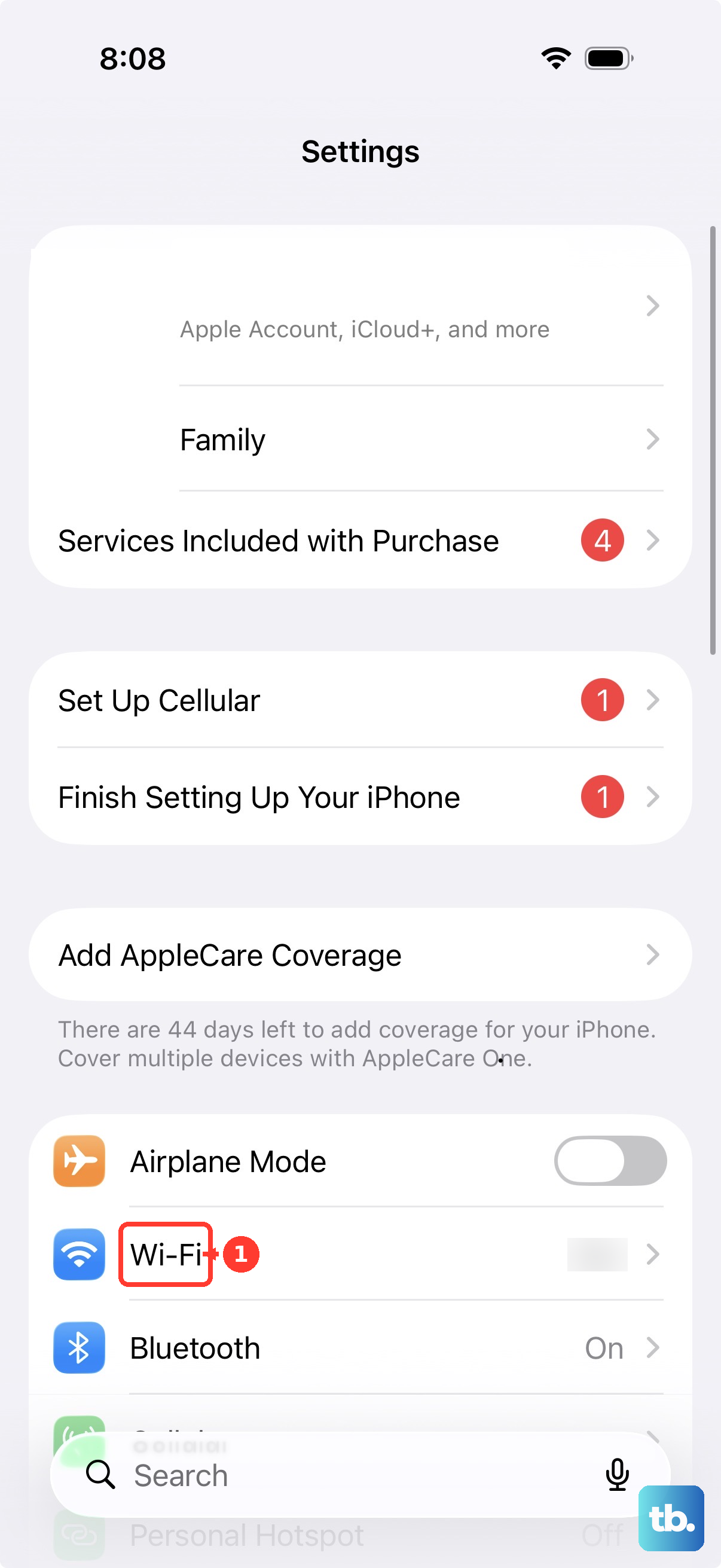
Use these steps only if your Subaru system supports wireless CarPlay. On iPhone, open Settings > Bluetooth and turn it on, then open Settings > Wi-Fi and turn that on too. Open the information panel for the CarPlay network and enable Auto-Join.
Pair through Bluetooth
With the vehicle parked, if wireless setup has not finished, follow the flow for your multimedia system in Subaru's CarPlay setup instructions. On systems with Manage Devices, select it and choose Add. Some systems instead use Settings > Phone > Add Device or Add Phone.
In the iPhone's Bluetooth settings, select the vehicle name, verify the PIN and tap Pair. Follow the contacts sync prompts, then choose Use CarPlay on iPhone and Yes on the Subaru CarPlay prompt. In the documented wireless Bluetooth flow, Set on Device Registration makes that phone the favorite, which connects first when the vehicle starts.
Start wireless pairing through USB
For Subaru systems supporting USB-initiated wireless setup, connect to a front USB-A or USB-C port. Choose Enable Wireless CarPlay on iPhone, then Yes on the vehicle's CarPlay prompt. Choose Yes on Device Registration if you want that phone to connect first.
If CarPlay does not appear, press Home and select Apple CarPlay or CarPlay. In the USB-initiated wireless flow, you can disconnect the cable once CarPlay appears. A completed Bluetooth pairing alone does not confirm CarPlay setup: choosing Later at the CarPlay prompt sets up only Bluetooth.
Allow CarPlay and Siri on the iPhone
Turn on Siri
CarPlay setup requires Siri to be on. In the current Siri settings, open Settings > Siri and tap Turn On Siri if offered, then follow the setup prompts. Voice activation is under Siri > Requests, or Apple Intelligence & Siri > Talk & Type to Siri; enable Siri or Hey Siri.
On iOS 26, the documented path is Settings > Siri or Apple Intelligence & Siri > Talk to Siri or Talk & Type to Siri. Choose Siri or Hey Siri there. Use the labels shown on your phone because Siri options differ between versions.
Check Screen Time restrictions
On iOS 27, review Settings > Screen Time > Content & Privacy Restrictions > Other Features for blocked built-in features. If CarPlay is listed, allow it. On iOS 26, open the same restrictions page, choose Allowed Apps & Features and enable CarPlay when restrictions are on.
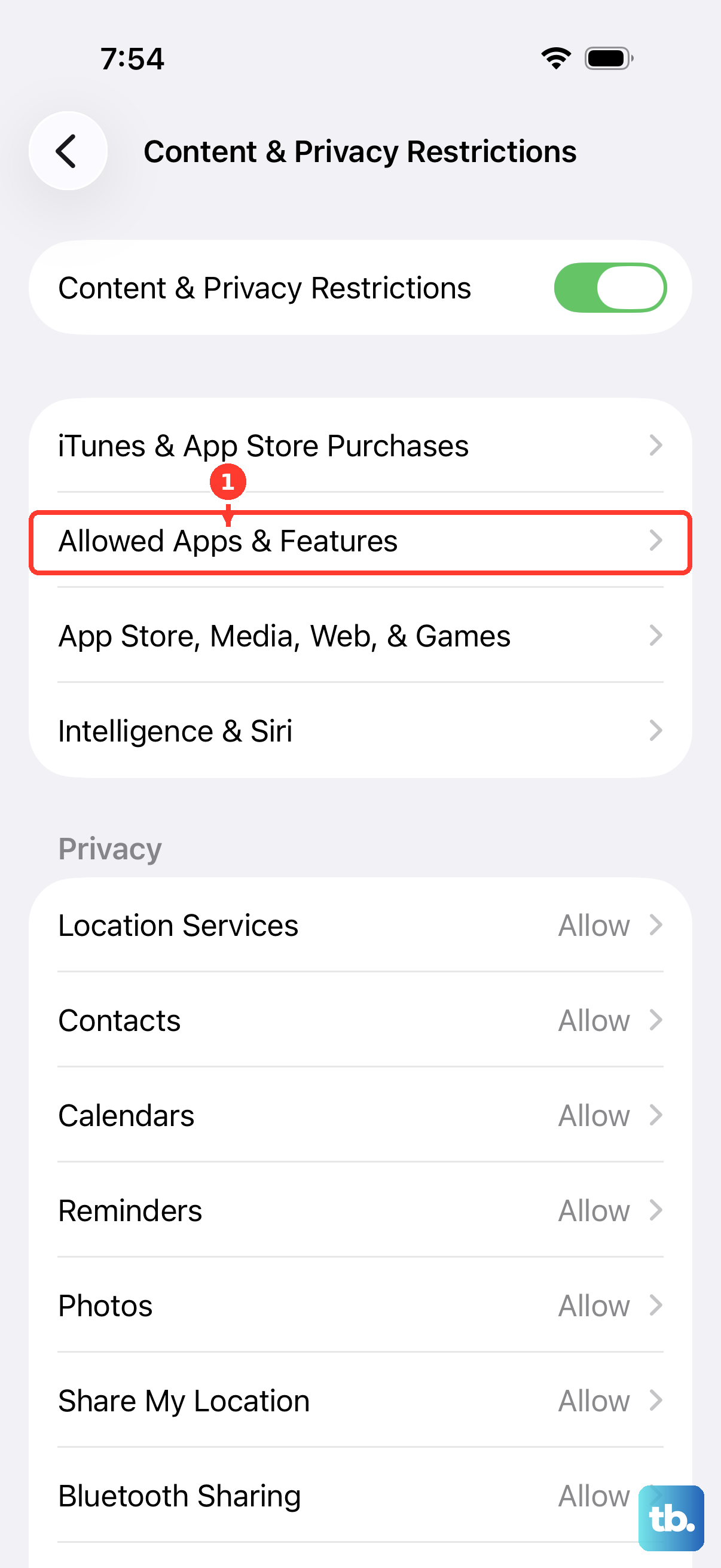
On older iOS versions where that pane is named Allowed Apps, open it and enable CarPlay. You do not need to disable every restriction to allow a single feature. Return to the Subaru display and check the connection after changing the relevant permission.
Allow CarPlay while locked
Open Settings > General > CarPlay, select your Subaru and enable Allow CarPlay While Locked if that option appears. Check this permission separately from the wired accessory approval described above, then reconnect and check CarPlay again.
Restart the iPhone and Subaru system
Restart both your iPhone and the car before removing saved connections. For iPhone X or later, hold either Volume button and the Side button until the power slider appears. Drag it, wait 30 seconds, then hold Side until the Apple logo appears.
On iPhone 6, 7, 8 or SE second or third generation, hold Side alone to show the slider. On iPhone SE first generation, 5 or earlier, use Top instead. After sliding to power off, wait 30 seconds and hold the same power button to turn the phone on. If the iPhone is frozen and the slider will not appear, force restart the iPhone instead.
Turn the Subaru off and back on, then reconnect. If the touchscreen itself is unresponsive, use the restart procedure in your multimedia manual. Where the manual specifies it, hold the physical Volume knob for 10 seconds or longer to reset the system; do not assume every head unit uses that control.
Forget saved connections and pair again
On iPhone, open Settings > General > CarPlay, select your Subaru and tap Forget This Car. For wireless pairing, also open Settings > Bluetooth, tap the information button beside the vehicle and choose Forget This Device. Confirm removal when prompted.
On Subaru systems with the documented device-management screen, select Manage Devices, choose Delete and select your iPhone. If those labels are absent, use your multimedia manual's device-removal instructions. Repeat the appropriate pairing flow above and accept the CarPlay prompts on both screens before checking the result.
Update iPhone and Subaru multimedia software
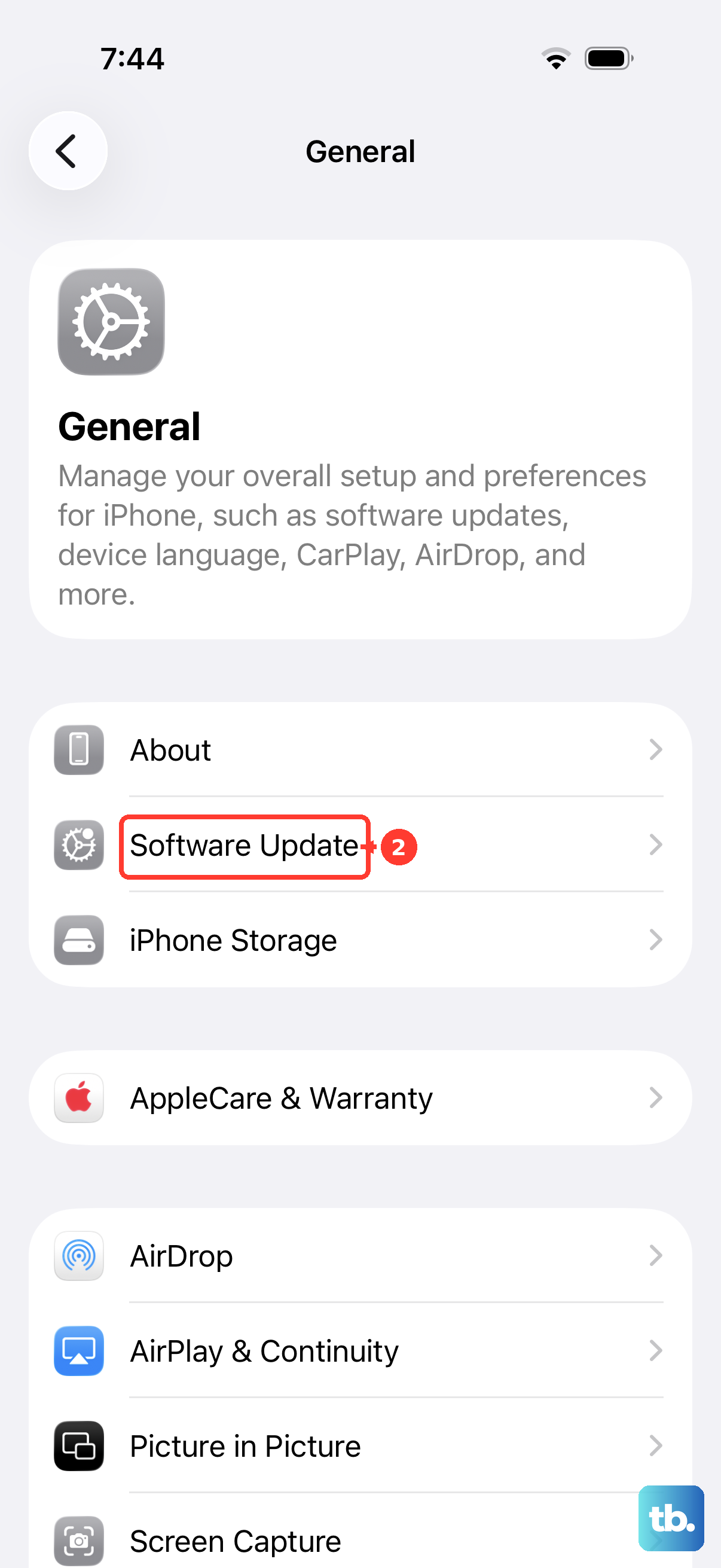
Back up your iPhone, connect it to power and join Wi-Fi before installing an update. Open Settings > General > Software Update to check what is available. Tap Download and Install if offered and follow the onscreen instructions.
Check the installed Subaru multimedia system's update instructions as well. Use the procedure for your exact head unit rather than assuming every Subaru has the same Check for Updates menu. For the covered vehicles, Subaru's multimedia update instructions provide Wi-Fi update documents for the listed mid-level and navigation head units.
If your system is outside that page's coverage, consult its multimedia manual for the applicable software-update procedure. Firmware checks belong to the stereo troubleshooting process, and a navigation-map download is a separate task. After completing the applicable update process, reconnect and check CarPlay again.
Fix a missing or failing CarPlay app
If only one app fails, check that app before resetting the entire connection. Open App Store, tap My Account or your photo, then tap App Updates. Choose Update beside the affected app or Update All for the available updates.
For a missing icon, open Settings > General > CarPlay, choose your Subaru and tap Customize. Use the add or delete controls to change the apps shown, or drag them to change their order. Only CarPlay-compatible apps can appear, so these controls cannot add an unsupported app.
Close the affected app on your iPhone, reopen it and check CarPlay again before deleting it. If it still fails, delete and download it again from the App Store, bearing in mind that deletion can remove data stored in that app.
If the problem continues, search for its App Store page, scroll to Ratings & Reviews and tap App Support. Use developer support when the issue affects that app while others work.
Use a network reset only after other checks
For continuing wireless trouble, consider network troubleshooting only after connection, permission, pairing and software checks. If you have VPN or security software installed, uninstall it, restart the iPhone and check the connection again. If the software is required, contact its administrator or provider before changing it.
As a last step, open Settings > General > Transfer or Reset iPhone > Reset > Reset Network Settings. This removes saved Wi-Fi networks and passwords, cellular settings, and VPN and APN settings. Consult your IT administrator first if a school or business configured the phone's network.
Keep your Wi-Fi passwords available so you can reconnect afterward, then set up CarPlay again. If the fault remains, contact Subaru about the multimedia system and Apple about the iPhone connection. Tell support which connection type fails and which of the checks above you completed.
Frequently Asked Questions
Why does Subaru CarPlay work only after I unlock my iPhone?
Open Settings > General > CarPlay, select your Subaru and enable Allow CarPlay While Locked if that option appears. For wired CarPlay, disconnect the cable, unlock your iPhone and reconnect it; review Wired Accessories separately if the USB connection is still blocked.
Why is my Subaru connected by Bluetooth but CarPlay is not showing?
Wireless CarPlay also needs Wi-Fi and Auto-Join for its network. Confirm your system supports wireless CarPlay and complete the CarPlay approval prompts, then select Apple CarPlay on the vehicle display.
Can a bad cable stop Subaru Apple CarPlay from working?
Yes, trying a different USB cable is a supported troubleshooting step. Use a direct connection to a supported vehicle port and try a quality USB-IF or MFi cable.
What should I do when only Spotify, Maps, or another CarPlay app fails?
Check for app and iOS updates, then close and reopen the affected app before checking CarPlay again. If a downloaded app still fails, reinstall it and contact the developer through App Support; reinstalling can remove the app's stored data.
Will resetting network settings remove my saved Wi-Fi passwords?
Yes, the reset removes saved Wi-Fi networks and passwords, along with cellular and VPN or APN settings. Save this step until other checks fail and consult IT first for a managed network.
Do all Subaru systems use the same update menu?
No, the update instructions depend on the installed multimedia system. Follow the manual or update document for your head unit to identify the applicable update procedure.